

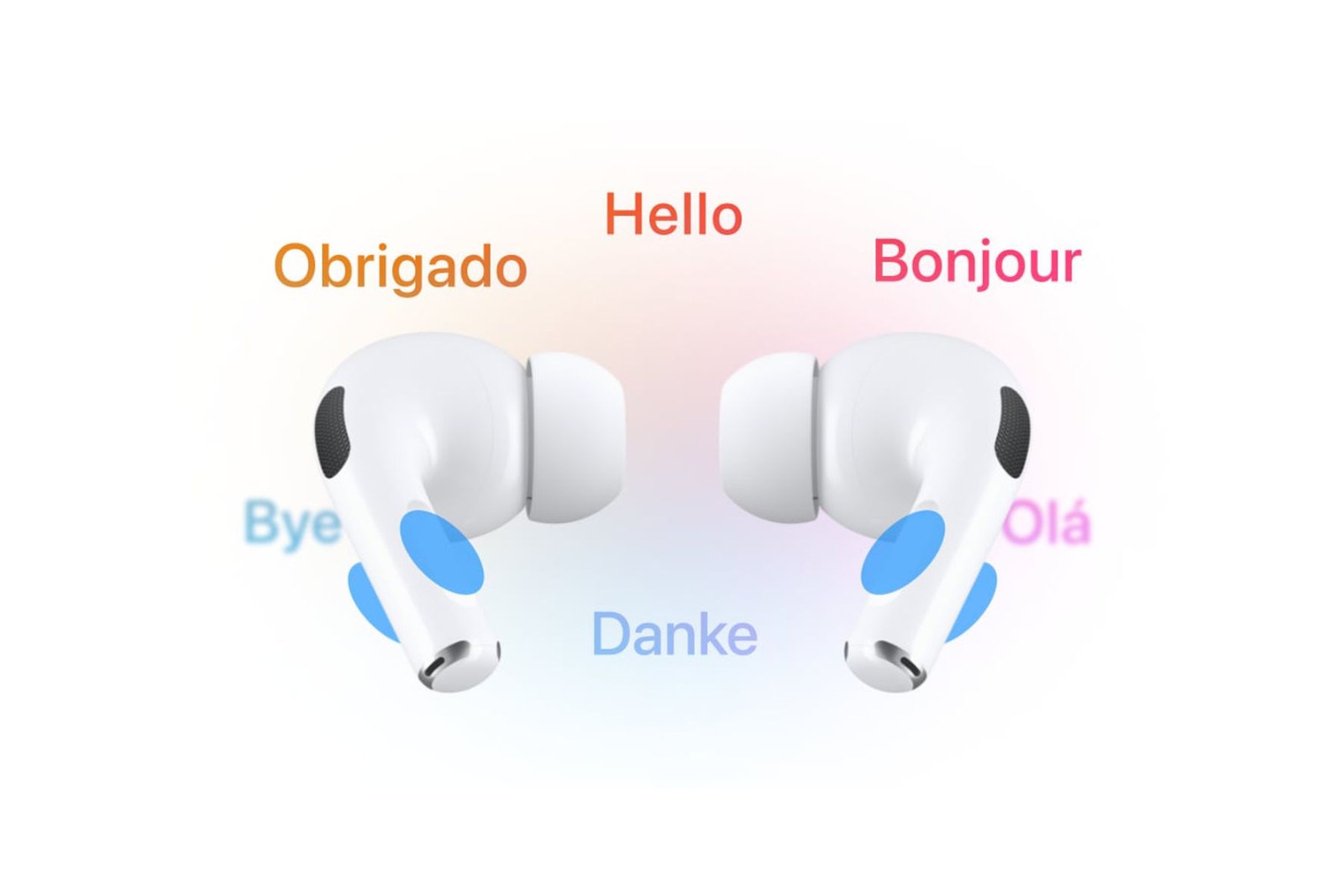
Overcome language barriers – without a dictionary, without switching apps, without delay. With the new Live Translation on compatible AirPods and iPhones, this is now possible. Apple is introducing a feature that's practical for travelers, frequent speakers, and anyone who finds themselves in multilingual situations: direct, real-time translation, straight to your ear.
The Live Translation feature uses Apple Intelligence, runs entirely locally on the device, and eliminates the need for cloud servers. This not only results in faster speeds but also improved data privacy. While the setup requires specific hardware and software versions, it's straightforward. Users who meet the requirements can instantly understand conversations in other languages and translate and play back their own replies – with or without assistance from the other person.
Requirements for using live translation
For live translation to work, certain requirements must be met:
- AirPods 4 with active noise cancellation (available on Amazon)
- AirPods Pro 2 (available on Amazon)
- AirPods Pro 3 (available on Amazon)
- iPhone 15 Pro or newer
- iOS 26 or later (in the EU from iOS 26.2)
- Apple Intelligence must be enabled
- The translate app must be installed.
- The latest firmware for the AirPods is required.
- The desired language models must be loaded on the iPhone.
The function can only be started if all these conditions are met. Important: This feature is currently in a beta phase.
Prepare and load languages
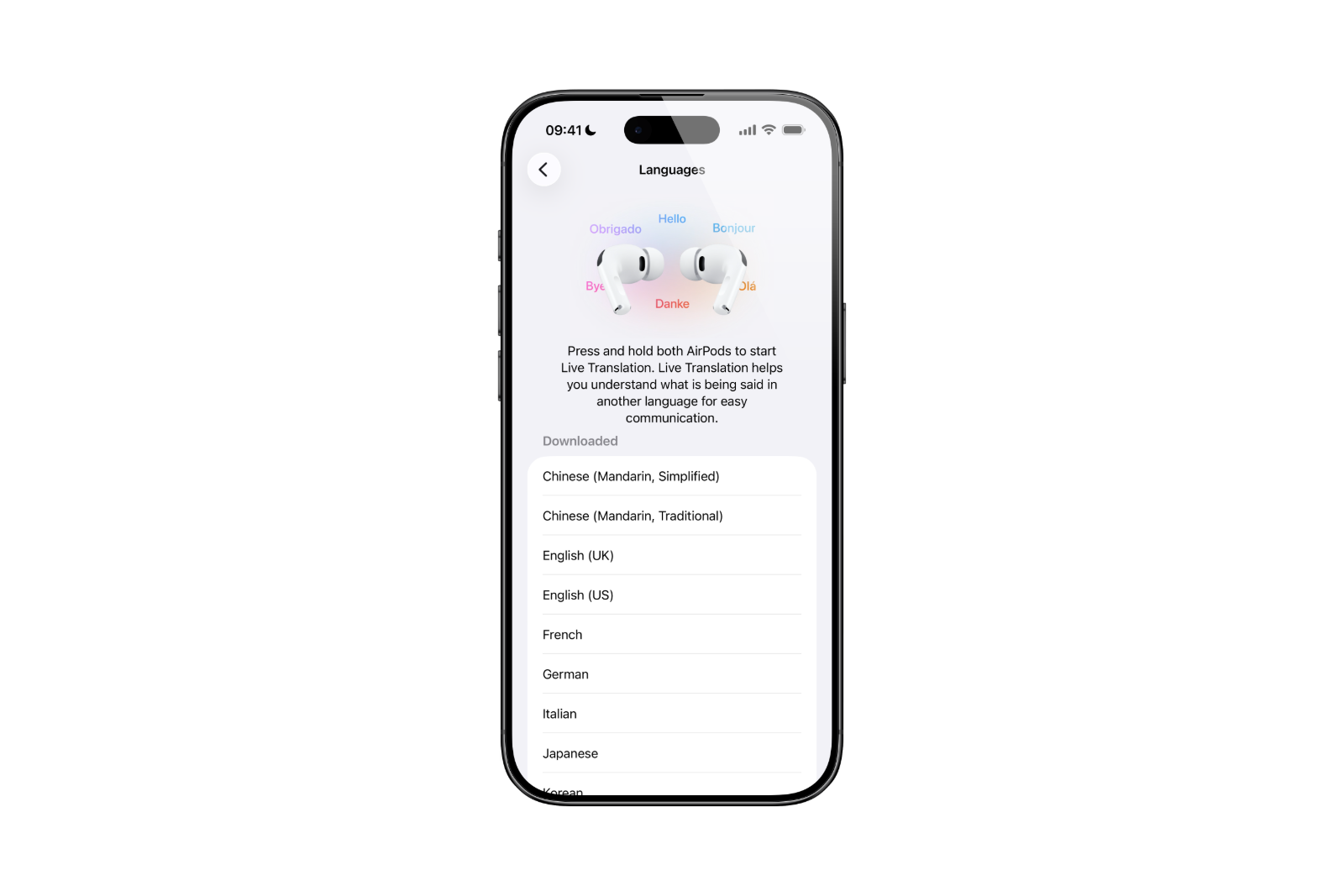
Before conversations can be translated, the language models for the desired communication must be loaded on the iPhone:
- Insert AirPods into your ears and connect them to your iPhone.
- Open the Settings app and select the name of the AirPods.
- In the "Translation" section, tap on "Languages".
- Select and download the source and target languages.
Once the languages are stored locally, the translation takes place directly on the iPhone. Conversation data never leaves the device – a clear advantage in terms of privacy.
Set up live translation
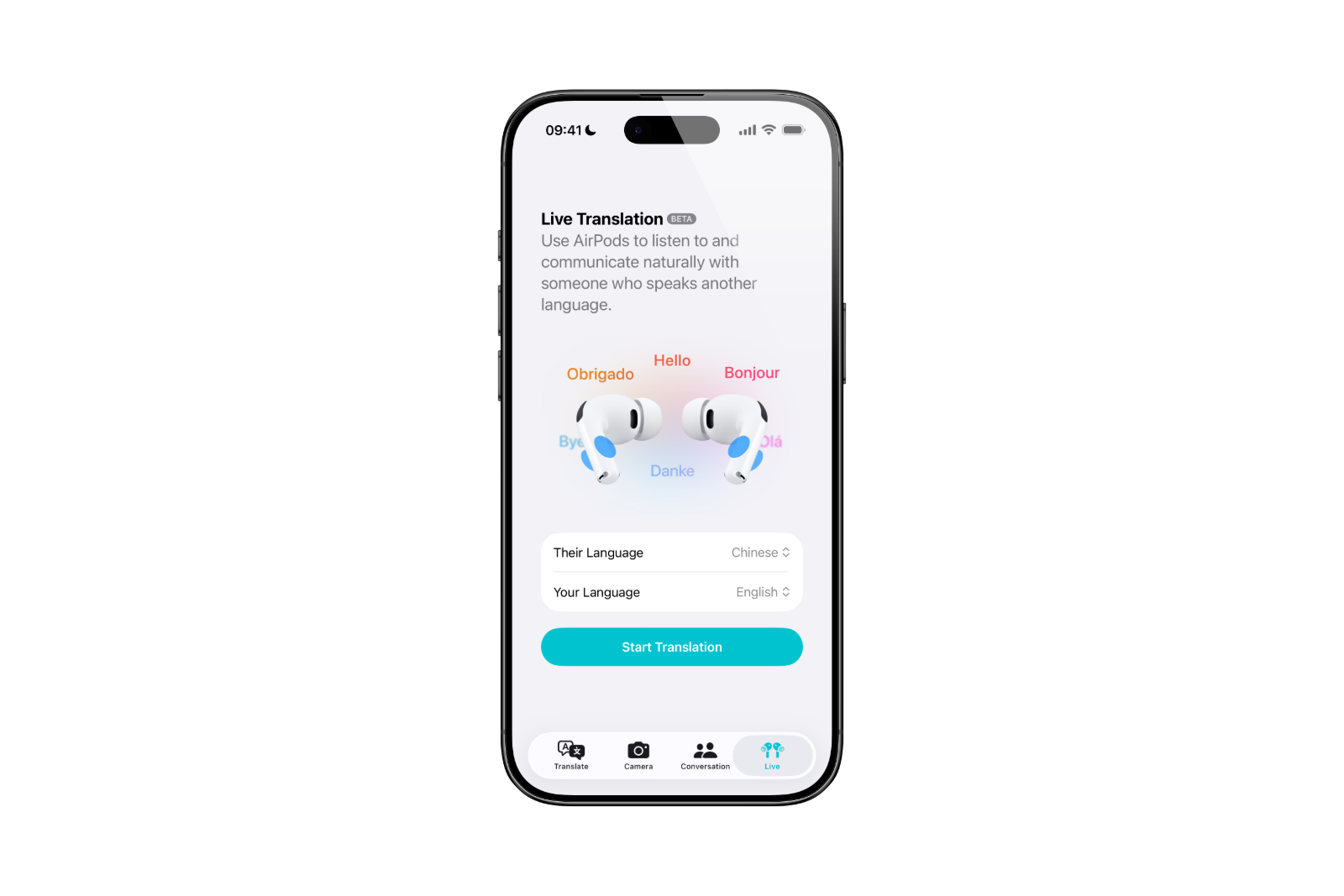
Once the language base is set up, the actual live translation is activated via the Translate app:
- Wear AirPods and ensure a connection to the iPhone
- Apple Intelligence must be active
- Open the Translate app
- Tap on „Live“
- Select the other person's language and your own target language
The app is now ready for live translation – without any further configuration.
Ways to start live translation
There are several ways to start the function:
- Open the Translate app, tap "Live" and then "Start translation".
- Configure the action button on iPhone 15 Pro or newer to directly activate the Translate app.
- Press and hold the stem of both AirPods and say "Siri, start live translation".
- Open the control center (swipe down from the top right) and tap "Translate".
The function is immediately available as soon as one of these actions has been performed.
This is how translation works in everyday life
If a person speaks a different language, the iPhone recognizes the content, processes it locally, and plays it back directly to the AirPods in the selected target language. In noisy environments, the iPhone can be used as an additional microphone – simply place it closer to the speaker.
- As soon as a reply is given, the spoken text appears as a transcript in the Translate app. If desired, the reply can also be played back as a spoken translation via the iPhone's speaker.
- If the person you are speaking to is also wearing AirPods with live translation enabled, it works both ways – each side hears the translated version directly through their own AirPods.
- The conversation can be ended simply by tapping the X in the app.
Supported languages
The following languages are supported under iOS 26:
- German (Germany)
- English (USA and UK)
- French (France)
- Portuguese (Brazil)
- Spanish (Spain)
Starting with iOS 26.2, additional languages such as Mandarin (Simplified and Traditional), Japanese, Korean and Italian will be added.
Important information about the function
The live translation is based on generative AI models. This can occasionally lead to errors or unexpected results. Important information should always be cross-checked. All processing runs offline, which increases security and reduces loading times.
Live translation makes AirPods suitable for everyday use, travel, and business
Live translation with AirPods significantly expands the range of uses for Apple's headphones. Combined with Apple Intelligence, it transforms a simple audio accessory into a powerful communication tool. Frequent travelers, those working in international teams, or those who simply want to maintain linguistic flexibility will find this a practical solution that can be used directly in everyday life – quickly, reliably, and without external tools. The best products for you: Our Amazon storefront offers a wide selection of accessories, including those compatible with HomeKit. (Image: Apple)
- iOS 26: The new focus mode „Reduce interruptions“
- iOS 26.1: Reactivate the classic stop button on the alarm clock
- iOS 26.1 brings a new lock screen setting for the iPhone
- iOS 26.1: Liquid Glass effects can be toned down
- watchOS 26 brings hints about the Apple Watch dial
- macOS 26 Update: Hidden Tools and Improvements
- New call history in iOS 26: All conversations at a glance
- iOS 26: iMessage not working? Apple announces the solution
- iOS 26 Tricks: 26 small innovations with a big impact
- iOS 26 solves the Bluetooth problem with AirPods in the car
- iPhone: How the new call waiting feature works in iOS 26
- iPhone gets new feature against spam and advertising calls
- iOS 26: New option saves time and data when sending photos
- iOS 26: Over 10 hidden features everyone needs to know
- iOS 26: Visual intelligence now also for screen content
- iPhone 17: How iOS 26 colors your app icons
- iOS 26: Use polls directly in the Messages app
- Discover and manage games with the Apple Games app
- iPhone 17: Tips for using the Center Stage front camera
- iPhone 17 Dual Capture explained: Using the front and rear cameras
- iOS 26 Screenshot Disable full screen and enable old view
- iPhone 17: Disable or customize the camera control button
- iOS 26: Filter messages, block spam & keep track
- Setting up your iPhone correctly: Check, block, and filter calls
Frequently asked questions about live translation with AirPods
Live translation works with AirPods 4 (with active noise cancellation), AirPods Pro 2 and AirPods Pro 3 – each with the latest firmware.
An iPhone 15 Pro or newer is required. iOS 26 or newer must also be installed and Apple Intelligence must be enabled.
Yes, once the required language models are loaded, all processing runs locally on the iPhone – without an internet connection.
Initially available languages: German, English (USA/UK), French, Spanish (Spain), and Portuguese (Brazil). More will follow with iOS 26.2.
The function can be started via the Translate app, the action button on the iPhone, Siri or the Control Center.
Yes, if both have compatible AirPods and devices with live translation enabled, two-way communication is possible.
Due to regulatory requirements, live translation was not available in the EU at the launch of iOS 26. However, the feature is enabled in the EU starting with iOS 26.2 – provided the device, Apple ID, and location are within the EU and all technical requirements are met.
All data is processed directly on the iPhone. No data is transferred to external servers – conversations remain private.
Yes, since generative AI is used, errors, inaccuracies, or unexpected outputs are possible. Content should be reviewed.
In the AirPods settings under "Translation > Languages", the source and target languages can be selected and loaded.





