
Apfelpatient
  • Home
  • News
  • Rumors
  • Tips & Tricks
  • Reviews
  • Insights
No result
View All Results
  • iPhone 18
  • iPhone 18 Pro
  • iPhone Duo
  • Apple Home
  • Siri AI
  • HomePod
  • HomePod mini
  • HomePod mini 2
  • MacBook Pro
  • Apple TV 4K
  • Apple Watch Series 12
  • Apple Watch Ultra 4
  • AirPods 5
  • iOS 27
  • iPadOS 27
  • macOS
  • MacBook Neo
  • iPhone 17e
  • AirTags
  • iOS 26
  • iPhone 17
  • iPadOS
  • iMac
  • Mac mini
  • Apple TV
  • iPad Pro
  • iPhone Air
  • Apple Vision Pro
  • iPhone 16
  • AirPods 4
  • Apple Watch Ultra
  • MacBook Air
  • iPad
  • AirPods Max
  • AirPods Pro 3
  • Mac Studio
  • Studio Display
  • iPad Air
  • iPad mini
  • watchOS 27
  • Apple CarPlay
  • Apple Pay
  • watchOS 26
  • Home
  • News
  • Rumors
  • Tips & Tricks
  • Reviews
  • Insights
No result
View All Results
Apfelpatient
No result
View All Results
  • iPhone 18
  • iPhone 18 Pro
  • iPhone Duo
  • Apple Home
  • Siri AI
  • HomePod
  • HomePod mini
  • HomePod mini 2
  • MacBook Pro
  • Apple TV 4K
  • Apple Watch Series 12
  • Apple Watch Ultra 4
  • AirPods 5
  • iOS 27
  • iPadOS 27
  • macOS
  • MacBook Neo
  • iPhone 17e
  • AirTags
  • iOS 26
  • iPhone 17
  • iPadOS
  • iMac
  • Mac mini
  • Apple TV
  • iPad Pro
  • iPhone Air
  • Apple Vision Pro
  • iPhone 16
  • AirPods 4
  • Apple Watch Ultra
  • MacBook Air
  • iPad
  • AirPods Max
  • AirPods Pro 3
  • Mac Studio
  • Studio Display
  • iPad Air
  • iPad mini
  • watchOS 27
  • Apple CarPlay
  • Apple Pay
  • watchOS 26

MacBook Pro: How to turn off the illuminated Apple logo

Milan Jovicic by Milan Jovicic
November 6, 2026 - 3:52 PM CET
in Apple Tips & Tricks, Mac and MacBook News
0
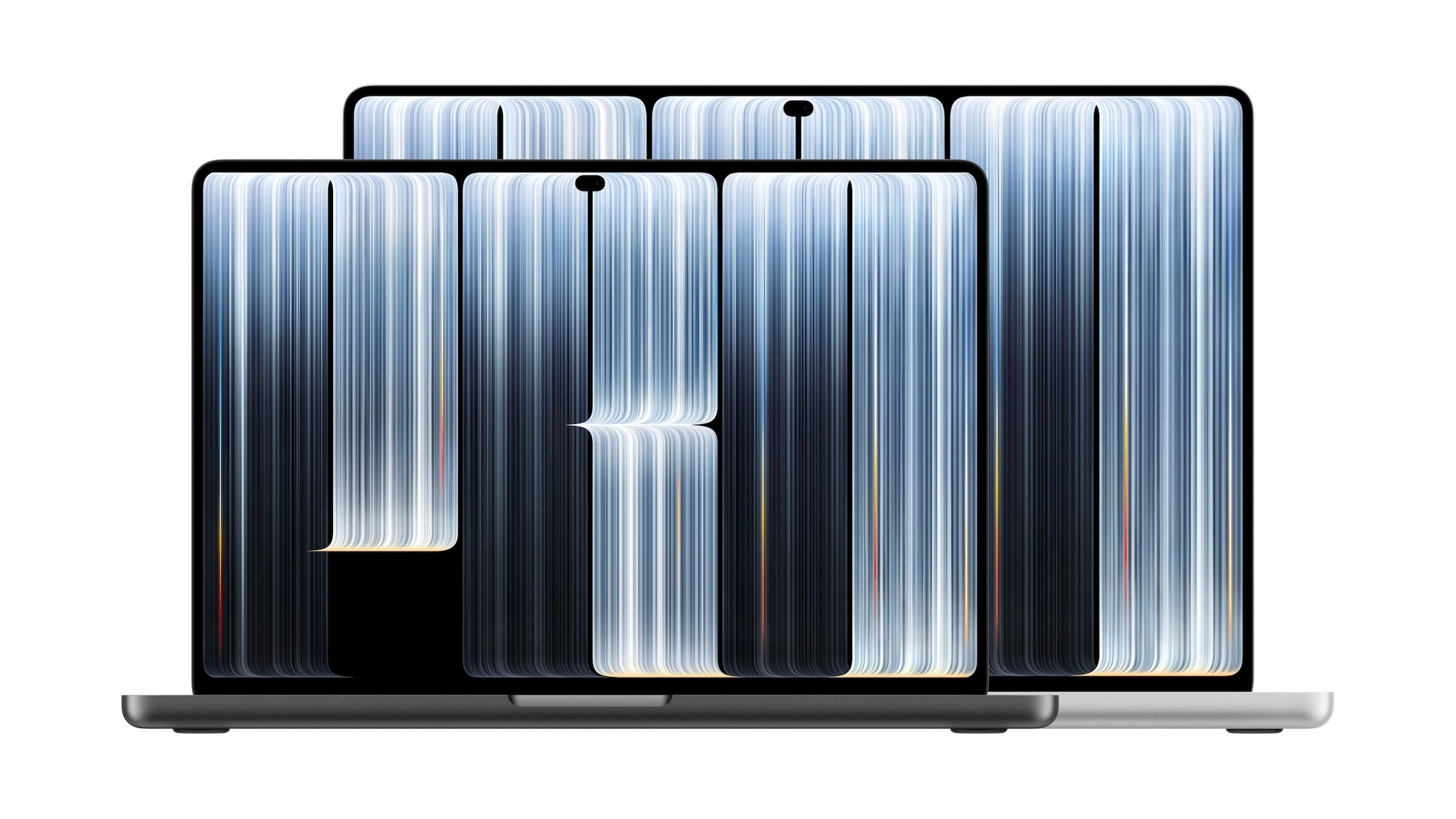
Turning off the MacBook Pro Apple logo: two open MacBook Pro models in black and silver, one behind the other, front view

Image: Apple

WhatsAppFacebookEmail
Threads

This article may contain affiliate links. Learn more on our Partner Program page.

Make Apfelpatient a preferred source One click – and you'll see us more often on Google

The Apple logo on the lid of the new MacBook Pro lights up again, for the first time in years. Not everyone wants this, for example, in a dark lecture hall or meeting. Apple itself explains how to turn off the illumination via the terminal.

The MacBook Pro with PROLED XDR display brings back not only OLED and touch but also a detail familiar to many from older MacBooks: an illuminated Apple logo on the back of the display. On previous MacBooks, the display's backlighting shone through the logo.

Apple describes how it works and how to turn it off in a support document for the illuminated Apple logo, which is currently only available in English. The process involves using Terminal and takes less than a minute.

Key Facts at a Glance

  • The Apple logo lights up as long as the MacBook Pro with PROLED XDR display is awake, and automatically adjusts its brightness.
  • It can be switched off via a command in the terminal; this requires the administrator password.
  • This setting applies to all Mac users and also in macOS Recovery.
  • The logo lights up again after a second command or a fresh installation of macOS.

This is how lighting works

The logo is always illuminated when the Mac is not in sleep mode. The brightness is determined by two factors: the display's brightness setting and the ambient light measured by the MacBook Pro's sensor.

This results in a simple pattern. At any display brightness setting, the logo appears dimmer in a dark room and brighter in a bright room. It remains completely dark only when the backlight is switched off.

How to turn off the Apple logo: Step by step

To ensure the logo remains dark in all environments, turn off the terminal's lighting:

  1. Open Terminal: Terminal is located in the „Utilities“ folder within „Applications“. A faster way is via Spotlight: Press Command-Space, type „Terminal“, and press Return to open it.
  2. Enter command: Type or paste this command and confirm with the return key:

sudo defaults write com.apple.CoreBrightness LEBacklightMode -int 0

  1. Enter password: The terminal will ask for the administrator password. No characters will appear while typing; this is normal. Confirm with the Return key.

The lights turn off immediately; a restart is not necessary.

What the setting includes

The command applies to the entire Mac, not just the logged-in user. Therefore, the logo will remain dark for all users, even if the Mac starts from macOS Recovery.

When moving to a new Mac, the setting is transferred along with it. If you later upgrade to a newer model and use Migration Assistant, you don't need to disable the logo again.

Turn the Apple logo back on

To make the logo light up again, a second command in the terminal, also requiring the administrator password, is sufficient:

sudo defaults delete com.apple.CoreBrightness LEBacklightMode

The command deletes the previously set setting, after which Apple's default setting is restored. A fresh installation of macOS will also reactivate the lighting. Therefore, anyone reinstalling macOS will need to enter the command to turn it off again.

For whom switching off is worthwhile

I think the logo is a nice detail, but not suitable for every situation. In a lecture hall, a darkened conference room, or while working on a plane, a bright apple attracts attention that isn't always desirable. This is especially true because the logo's brightness can't be completely dimmed; it only adjusts to the display and ambient light.

It's a shame that Apple only provides a Terminal command for this. While the command is quick to enter, it presents a hurdle for casual users. Further articles about the device can be found on the MacBook Pro topic page.

Do you leave the logo lit up on your new MacBook Pro, or would it be one of the first things you turn off? Tell us in the comments in what situations the light would bother you.

Frequently Asked Questions: Glowing Apple logo on MacBook Pro

Which MacBook Pro has a glowing Apple logo?

The MacBook Pro with PROLED XDR display. The Apple logo on the back of the display lights up as long as the Mac is awake.

Is it possible to turn off the illuminated Apple logo on the MacBook Pro?

Yes. Apple describes a command for this in the Terminal: `sudo defaults write com.apple.CoreBrightness LEBacklightMode -int 0`. After confirming with the Return key and entering the administrator password, the backlight turns off immediately.

How do I turn the Apple logo back on?

The command `sudo defaults delete com.apple.CoreBrightness LEBacklightMode` in Terminal, also with administrator password, will reactivate the backlight. A fresh installation of macOS will also reactivate it.

Is it possible to adjust the brightness of the Apple logo?

Apple does not describe a separate brightness setting. The logo automatically adjusts to the display brightness and ambient light: it is dimmer in dark rooms and brighter in bright ones.

Does the Apple logo light up even when the device is in sleep mode?

No. According to Apple, the logo only lights up while the Mac is awake. It remains dark in sleep mode.

Does this setting apply to all Mac users?

Yes. According to Apple, it affects all macOS user accounts and also applies when starting from macOS Recovery. It is transferred when moving to a new Mac.

Does the Apple logo also light up on other current MacBooks?

Apple's support document regarding the logo illumination refers exclusively to the MacBook Pro with a PROLED XDR display. On earlier MacBooks, the display's backlighting shone through the logo. Apple discontinued this feature starting in 2015, beginning with the 12-inch MacBook.


Was this article helpful?
YesNo
Tags: MacMacBookMacBook Pro: News, comparisons and tips
SendShareSend
Share

Our Amazon Storefront

A handpicked selection of products for iPhone, Mac and more – sorted by topic and updated regularly.

Shop Now

This post contains affiliate links (including Amazon). We earn a small commission on qualifying purchases – at no extra cost to you. Learn more on our Partner Program page.

Previous Post

Apple bond: This is how cheaply Apple borrows 7.5 billion

Milan Jovicic

Milan Jovicic

Milan founded Apfelpatient in 2016 and has been responsible for all editorial content since 2018 – news, rumors, how-to guides and product reviews. Here, Apple devices aren't review units kept for two weeks, they're everyday tools: from iPhone to MacBook Pro, MacBook Air and iMac all the way to Apple Vision Pro, at least one device from every product category is in daily use, many of them replaced every year. Every menu path in a guide is checked on the device before it goes live.

Related posts

MacBook Pro, iMac and iPad mini available in stores starting today

by Milan Jovicic
November 6, 2026 - 01:19 CET
MacBook Pro launch: a woman taps the touchscreen of a MacBook Pro in a vehicle at night in front of a city skyline

MacBook Pro, iMac, and iPad mini are available in stores starting today. Here are the prices for Germany, Austria, and Switzerland, and what's missing from the box.

Read moreDetails

MacBook Pro vs. Studio Display XDR: OLED vs. Mini-LED

by Milan Jovicic
November 5, 2026 - 18:56 CET
MacBook Pro vs. Studio Display XDR: person using the touchscreen of a MacBook Pro at a desk, with large monitors in the background

MacBook Pro vs. Studio Display XDR: OLED vs. Mini-LED compared. Contrast, brightness, size, prices, and which is right for whom.

Read moreDetails

MacBook Pro PROLED XDR: The first reviews

by Milan Jovicic
November 5, 2026 - 3:53 PM CET
MacBook Pro PROLED XDR review: two open MacBook Pro models in black and silver with Dynamic Island on a white background

MacBook Pro PROLED XDR Review: The display impresses early reviewers, touch functionality remains a secondary consideration. Ratings, battery life, and criticisms at a glance.

Read moreDetails

Cleaning the inner display of an iPhone Duo: Here's how to do it right

by Milan Jovicic
November 5, 2026 - 2:11 PM CET
Cleaning the iPhone Duo inner display: open iPhone Duo with a polishing cloth on the dark display

Cleaning the inner display of the iPhone Duo: Which cloth is suitable, what Apple allows, and which mistakes you should avoid. With practical experience.

Read moreDetails

Connecting and resetting AirPods: Instructions for all Models

by Milan Jovicic
November 5, 2026 - 01:25 CET
Connect and reset AirPods: AirPods Max in a Smart Case in front of an iPhone in a folio, surrounded by several white AirPods charging cases

Connecting, pairing, and resetting AirPods: Here's how it works for all models. Includes double-tap, troubleshooting, and AirPods 5.

Read moreDetails
Load More

Leave a Reply Cancel reply

Required fields are marked with * marked.

By submitting, you consent to the storage of your comment along with your name, email address and IP address. Details are available in our privacy policy.

Categories

  • Apple Insights
  • Apple Rumors
  • Apple News
  • Apple Tips & Tricks
  • iPhone news, rumors and tips
  • Mac and MacBook News
  • Reviews
Make Apfelpatient a preferred source One click – and you'll see us more often on Google

About APPLE PATIENT

APFELPATIENT brings you the latest Apple news, product updates, guides, reviews and tips across the entire Apple ecosystem — from the iPhone to the Mac to the Apple Vision Pro. From the first rumors to confirmed news: researched responsibly.

Follow Apfelpatient

Facebook Instagram YouTube Threads Threads

Company

  • About Apfelpatient
  • Contact
  • Author Profiles

Community

  • Netiquette
  • Push notifications
  • RSS feed

Legal

  • Legal Notice
  • Privacy Policy
  • Terms of Use
  • Cookie settings
  • Affiliate Program

Resources

  • Sitemap

© 2026 Apfelpatient. All rights reserved.

No result
View All Results
  • Home
  • News
  • Rumors
  • Tips & Tricks
  • Reviews
  • Insights

© 2026 Apfelpatient. All rights reserved. Site map

Change language to Deutsch