

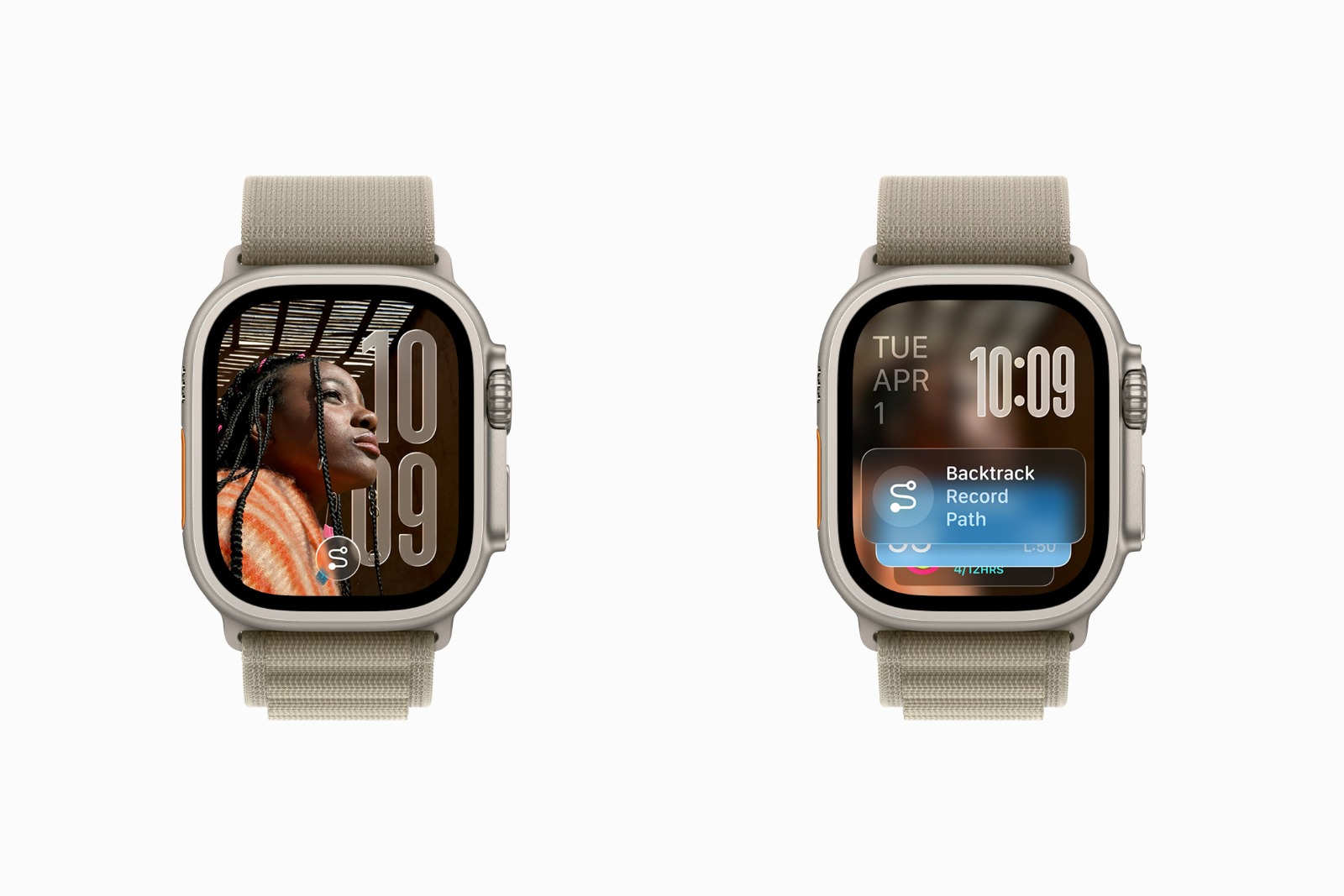
With watchOS 26, Apple has released the next major update for the Apple Watch. It brings a redesigned Apple Notes app, new Apple Intelligence features, and improvements to Control Center. But one feature stands out in particular: so-called Watch Face Alerts. These are designed to make the Smart Stack more visible and ensure important information appears exactly when you need it.
Since the introduction of the Smart Stack, Apple has pursued the goal of making access to relevant information faster and more intuitive. The Smart Stack is a kind of widget stack that opens by turning the Digital Crown on the watch face. However, many people rarely use it because it's simply too well hidden. With watchOS 26, Apple aims to change that. Newly introduced notifications appear directly at the bottom of the watch face and encourage you to open the Smart Stack – precisely when it's most helpful.
The Smart Stack in watchOS 26
Apple has significantly expanded the functionality of the Smart Stack in watchOS 26. The predictive algorithms now consider more data sources than before, including contextual information, sensor data, and behavioral patterns from daily use. The goal is for the watch to proactively recognize when certain information becomes relevant.
For example, a notification for the Backtrack feature might appear if someone is in a remote location without an internet connection. Similarly, a notification for a Pilates class might appear if the person is at the gym at their usual time. Apple calls these proactive suggestions Smart Stack notifications. They're designed to easily bring Smart Stack widgets into view at the right moment.
Technically, the hints aren't a permanent part of the Smart Stack itself, but rather an extension of the watch faces. They appear as subtle visual elements made of so-called liquid glass at the bottom of the screen and signal that a relevant suggestion is available in the Smart Stack. Tapping the hint opens the Smart Stack with the corresponding widget directly in the foreground.
Why Apple introduced alerts
The concept arose from a simple observation: The Smart Stack was developed with great effort, but rarely used. Most interactions with the Apple Watch take place on the watch face. That's why, with watchOS 26, Apple puts important information right there, rather than expecting users to actively search for it.
The hints are intended to make the Smart Stack easier to find. When you look at the watch, you'll see a small reminder at the bottom of the display. It's not distracting, but it's clear enough to grab your attention. On watch faces with many complications, this can feel a bit cramped, but so far, there haven't been any significant conflicts.
Apple is pursuing a clear strategy: the more relevant information becomes automatically visible, the more often the Watch's intelligent functions are actually used.
Initial experiences and possible effects
Initial impressions suggest that the notifications work unobtrusively but effectively. They appear only when needed and disappear once they've served their purpose. The integration feels natural and demonstrates how Apple is trying to improve the Apple Watch user experience with subtle, contextual elements.
Combined with the new Apple Intelligence features, this creates a system that not only provides information but also understands when it's relevant. This makes watchOS 26 a significant step toward a smarter, context-aware user interface.
In the long term, these alerts could become a central element of the Apple Watch. If the proactive suggestions remain reliable and accurate, this will not only increase the usefulness of the Smart Stack but also the overall convenience of the watch in everyday life.
watchOS 26: Hints turn the Smart Stack into a silent assistant
watchOS 26 brings a small but crucial change with the new alerts on the watch face. These address the issue of the Smart Stack being underutilized and simultaneously make it more useful. Instead of searching for relevant information, alerts appear automatically when needed. This demonstrates how Apple is evolving software and design to support everyday life unobtrusively yet effectively. watchOS 26 proves that smart features don't have to be loud to be effective—they just need to be there at the right moment. The best products for you: Our Amazon storefront offers a wide selection of accessories, including those for HomeKit. (Image: Apple)
- macOS 26 Update: Hidden Tools and Improvements
- New call history in iOS 26: All conversations at a glance
- iOS 26: iMessage not working? Apple announces the solution
- iOS 26 Tricks: 26 small innovations with a big impact
- iOS 26 solves the Bluetooth problem with AirPods in the car
- iPhone: How the new call waiting feature works in iOS 26
- iPhone gets new feature against spam and advertising calls
- iOS 26: New option saves time and data when sending photos
- iOS 26: Over 10 hidden features everyone needs to know
- iOS 26: Visual intelligence now also for screen content
- iPhone 17: How iOS 26 colors your app icons
- iOS 26: Use polls directly in the Messages app
- New iOS 26 feature: Use live translation with AirPods
- Discover and manage games with the Apple Games app
- iPhone 17: Tips for using the Center Stage front camera
- iPhone 17 Dual Capture explained: Using the front and rear cameras
- iOS 26 Screenshot Disable full screen and enable old view
- iPhone 17: Disable or customize the camera control button
- iPhone Tip: Live Translation in Messages, Phone & FaceTime
- iOS 26: Filter messages, block spam & keep track
- Setting up your iPhone correctly: Check, block, and filter calls
- Keep an eye on your blood pressure: How the iPhone Health app helps
- Apple explains Apple Watch high blood pressure warnings
- Setting up Apple Music transitions: AutoMix or Crossfade
Frequently Asked Questions about watchOS 26
watchOS 26 brings a new Apple Notes app, Apple Intelligence features, a redesigned Control Center, and, for the first time, watch face alerts that make the Smart Stack more visible.
The alerts in watchOS 26 are small visual elements on the watch face that draw attention to useful Smart Stack suggestions – right when they are relevant.
The hints automatically appear at the bottom of the watch face as soon as the Apple Watch detects that a particular feature might be helpful. Tapping on it opens the corresponding Smart Stack entry.
Apple wants to bring more attention to the Smart Stack. Many users have barely used it because it was hidden. These hints make it more accessible and more useful in everyday life.
The Smart Stack displays personalized widgets driven by sensor data and routines. In watchOS 26, it's been improved with new predictive algorithms and contextual cues.
Currently, there's no separate option to completely disable the notifications. However, they only appear in certain situations and are designed discreetly, so they're hardly distracting.
Apple hasn't confirmed any changes to battery life. However, initial tests show that the new warnings have little impact on energy consumption.





