


Apple Music is more than just a traditional music app. In addition to a huge selection of songs and playlists, there are features that make the listening experience smoother and more professional. These include AutoMix and Crossfade, two transition techniques that ensure seamless transitions between songs.
Song transitions may seem subtle, but they have a profound impact on how music is experienced. While an abrupt ending creates a break in the mood, smooth transitions create a consistent atmosphere. Apple Music offers two options for this: AutoMix for dynamic transitions and Crossfade for fixed crossfades. Both can be customized or completely disabled, depending on how you want the playback to sound.
AutoMix and Crossfade at a glance
AutoMix is available exclusively to Apple Music subscribers. The feature detects the tempo, genre, and structure of songs and automatically calculates transitions. This creates a seamless listening experience, especially noticeable with playlists. Crossfade, on the other hand, uses a fixed number of seconds in which one track fades out and the next fades in. Those without a subscription can only use Crossfade, as AutoMix remains grayed out in this case. There's also the option to turn off song transitions entirely.
Song transitions on iPhone, iPad and Apple Vision Pro
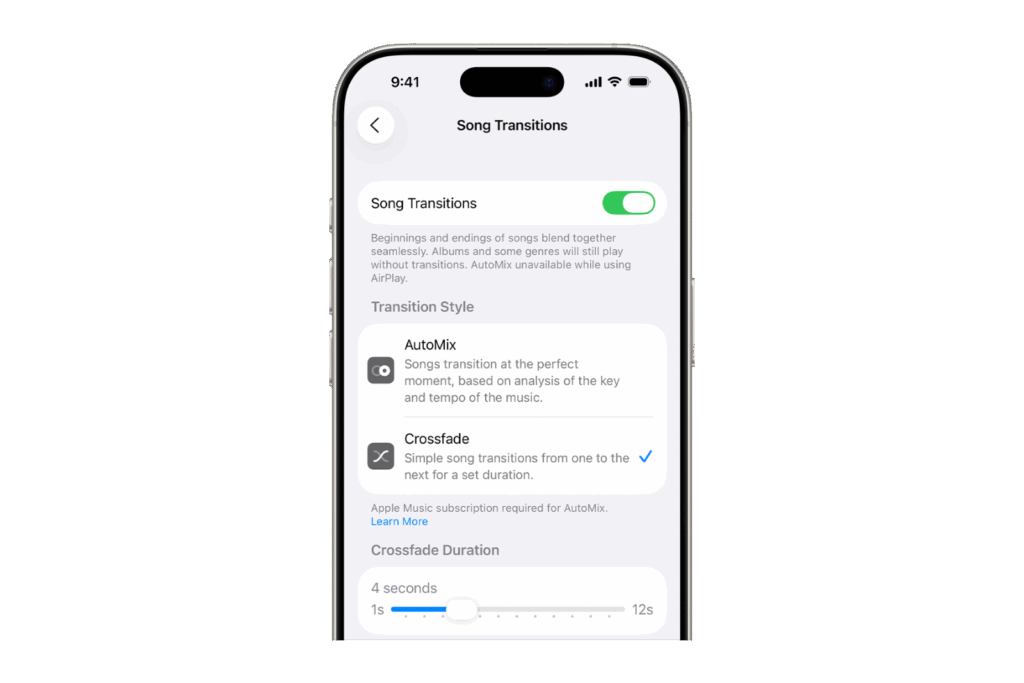
To set up transitions, open the Settings app. From there, go to Apps > Music > Song Transitions. Then, enable the feature and choose between AutoMix or Crossfade. If you use Crossfade, you can use a slider to specify how long the transition should last. AutoMix is disabled without an Apple Music subscription.
Song transitions on Mac
On a Mac, transitions are controlled directly in the Apple Music app. From the menu bar, go to "Music" > "Preferences." The "Playback" tab contains options for "Song Transitions." There, you can select AutoMix or Crossfade, or disable the feature entirely. With Crossfade, a slider determines the duration of the transition. AutoMix only works on Macs with Apple Silicon and is not available on Intel-based devices.
Enable or disable AutoMix in the Apple Music app
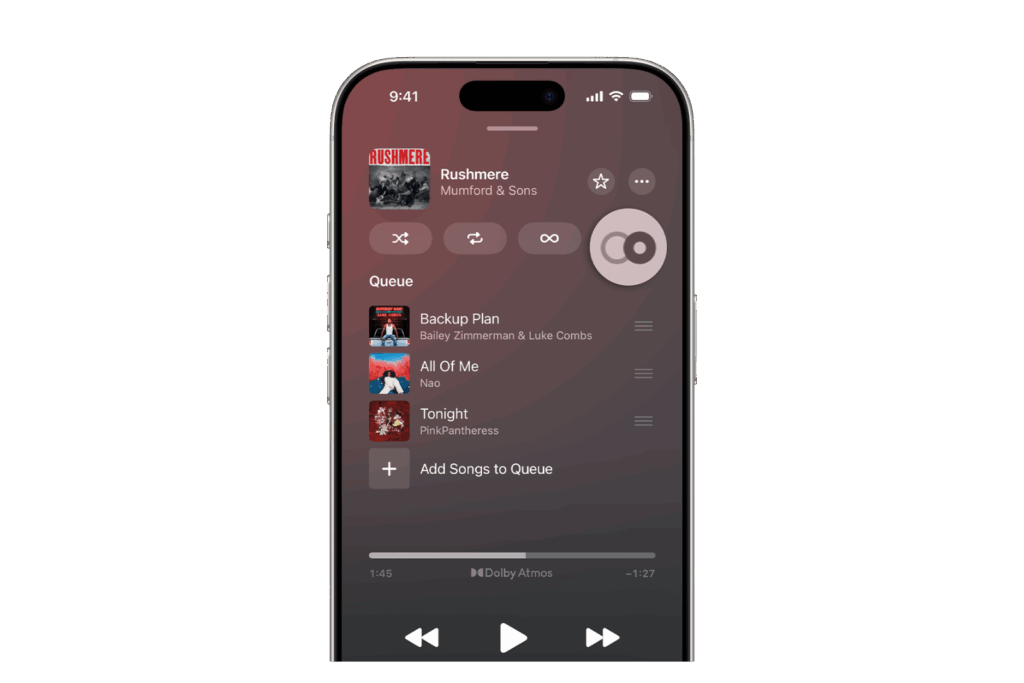
AutoMix can also be controlled directly in the Apple Music app. On an iPhone, simply tap the mini player at the bottom of the screen, then tap "Up Next," and then tap the "AutoMix" button. On Mac, iPad, and Apple Vision Pro, the "Up Next" button is used to turn AutoMix on or off. There are also limitations: AutoMix cannot be used with AirPlay and is not available on Apple TV, Apple Watch, HomePod, Android devices, or in the Apple Music app for Windows.
Enable or disable crossfade in the Apple Music app
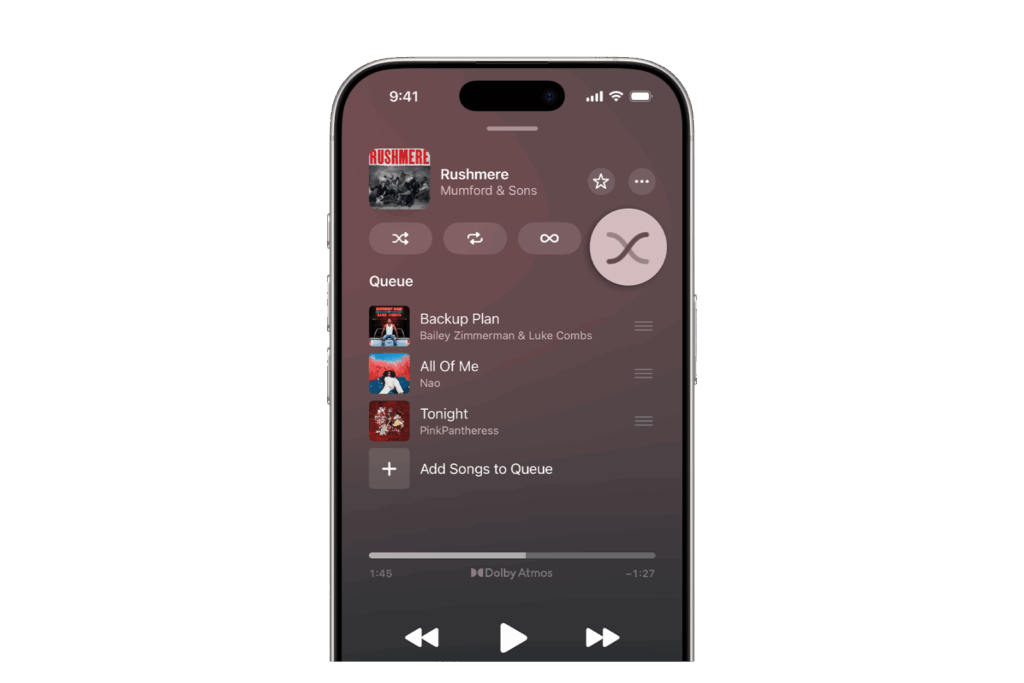
Crossfade can also be enabled directly in the Apple Music app. On the iPhone, go to the Mini Player, select "Up Next," and then click the "Crossfade" button. On Mac, iPad, and Apple Vision Pro, the "Up Next" button is also used to turn the feature on or off.
When AutoMix does not create transitions
There are situations where AutoMix intentionally skips transitions. This happens when an album is played in a fixed order, when tracks have been uploaded from your music library and no match is found, or when the genre and tempo of the songs don't match.
Apple Music offers full control over song transitions
Apple Music makes it possible to refine the music experience with transitions. AutoMix creates a dynamic, seamless soundscape, while Crossfade offers a classic crossfade with adjustable duration. Both features can be flexibly enabled or disabled to suit your preferences. Subscribers can take full advantage of AutoMix, while everyone else can use Crossfade as an alternative. This makes it easy to customize how music plays—whether with smooth transitions or clear pauses between songs. The best products for you: Our Amazon Storefront offers a wide selection of accessories, including those for HomeKit. (Image: Apple)
- macOS 26: Automatically connect iPhone hotspot
- watchOS 26: Why the Apple Watch sometimes charges slowly
- iOS 26: Reduce transparency for more clarity
- Find and adjust the camera flash in iOS 26 – here's how
- iOS 26 makes Adaptive Power the norm on the iPhone 17 series
- iOS 26 Tip: Unlock iPhone with Apple Vision Pro
- iOS 26: The most important tips for setup and use
- iOS 26: Impact on battery life after the update
- iOS 26: Use spatial scenes directly in the Photos app
- iOS 26 Update: Markdown Import and Export in Notes Explained
- iOS 26: Easily change backgrounds in iMessage
- iOS 26: Trigger iPhone camera with AirPods – here's how
- How to enable transparent iPhone app icons with iOS 26
- iOS 26: Apple Music finally gets folders for playlists
- iOS 26: Capture reminders faster and easier
- Apple Music in iOS 26: Music Pins make access easier
Frequently Asked Questions about Apple Music AutoMix and Crossfade
AutoMix is a feature for Apple Music subscribers that dynamically connects songs. Transitions are automatically calculated and adjusted to the genre, tempo, and song structure.
AutoMix creates dynamic transitions, while Crossfade uses a fixed time period in which one song fades out and the next one fades in.
AutoMix is only available to Apple Music subscribers. Without a subscription, the option remains grayed out, leaving only Crossfade available.
AutoMix is available on iPhone, iPad, Mac with Apple Silicon, and Apple Vision Pro. It does not work on Intel Macs, Apple TV, Apple Watch, HomePod, Android, or Windows.
No. AutoMix is not compatible with AirPlay and will be disabled while using this feature.
Yes. You can use a slider in the settings to specify how many seconds the transition between two songs should last.
This happens when an album is played in a fixed order, songs come from your own media library, or the tempo and genre do not match.
Yes. Song transitions can be completely disabled in the settings or directly in the Apple Music app.
Crossfade creates smooth transitions between songs by fading out one track and fading in the next – even without an Apple Music subscription.





