

apple patient
  • Home
  • News
  • Rumors
  • Tips & Tricks
  • Reviews
  • Insights
No Result
View All Result
  • iPhone 18
  • iPhone 18 Pro
  • iPhone Duo
  • Apple Watch Series 12
  • Apple Watch Ultra 4
  • AirPods 5
  • iOS 27
  • iPadOS 27
  • macOS
  • MacBook Neo
  • iPhone 17e
  • AirTags
  • iOS 26
  • iPhone 17
  • MacBook Pro
  • iPadOS
  • iMac
  • Mac mini
  • HomePod
  • Apple TV
  • iPad Pro
  • iPhone Air
  • Apple Vision Pro
  • iPhone 16
  • AirPods 4
  • Apple Watch Ultra
  • HomePod Mini
  • MacBook Air
  • iPad
  • AirPods Max
  • AirPods Pro 3
  • Apple Watch Series 3
  • Mac Studio
  • Studio Display
  • iPad Air
  • iPad mini
  • watchOS 27
  • Apple CarPlay
  • Apple Pay
  • watchOS 26
  • Home
  • News
  • Rumors
  • Tips & Tricks
  • Reviews
  • Insights
No Result
View All Result
apple patient
No Result
View All Result
  • iPhone 18
  • iPhone 18 Pro
  • iPhone Duo
  • Apple Watch Series 12
  • Apple Watch Ultra 4
  • AirPods 5
  • iOS 27
  • iPadOS 27
  • macOS
  • MacBook Neo
  • iPhone 17e
  • AirTags
  • iOS 26
  • iPhone 17
  • MacBook Pro
  • iPadOS
  • iMac
  • Mac mini
  • HomePod
  • Apple TV
  • iPad Pro
  • iPhone Air
  • Apple Vision Pro
  • iPhone 16
  • AirPods 4
  • Apple Watch Ultra
  • HomePod Mini
  • MacBook Air
  • iPad
  • AirPods Max
  • AirPods Pro 3
  • Apple Watch Series 3
  • Mac Studio
  • Studio Display
  • iPad Air
  • iPad mini
  • watchOS 27
  • Apple CarPlay
  • Apple Pay
  • watchOS 26

How to enable transparent iPhone app icons with iOS 26

Milan Jovicic by Milan Jovicic
August 28, 2025 - 00:04 CEST
in Apple Tips & Tricks
0
iOS 26 iPhone

Image: Shutterstock / aileenchik

WhatsAppFacebookEmail
Threads

With iOS 26, Apple is introducing a comprehensive redesign of the iPhone design. The update introduces the new Liquid Glass look, which relies on transparent elements, and fundamentally changes the appearance of the home screen. For the first time, app icons can be made completely transparent. This innovation applies not only to the iPhone, but also to the iPad and Mac.

For years, icon design has been limited to light and dark versions. With iOS 26, the home screen becomes more flexible and customizable. Apple has not only redesigned its own apps but also introduced new customization options. In addition to colored icons, there are now transparent displays and an additional mode called "Colored." This noticeably changes the way icons and widgets look on iPhone, iPad, and Mac.

Enable transparent app icons

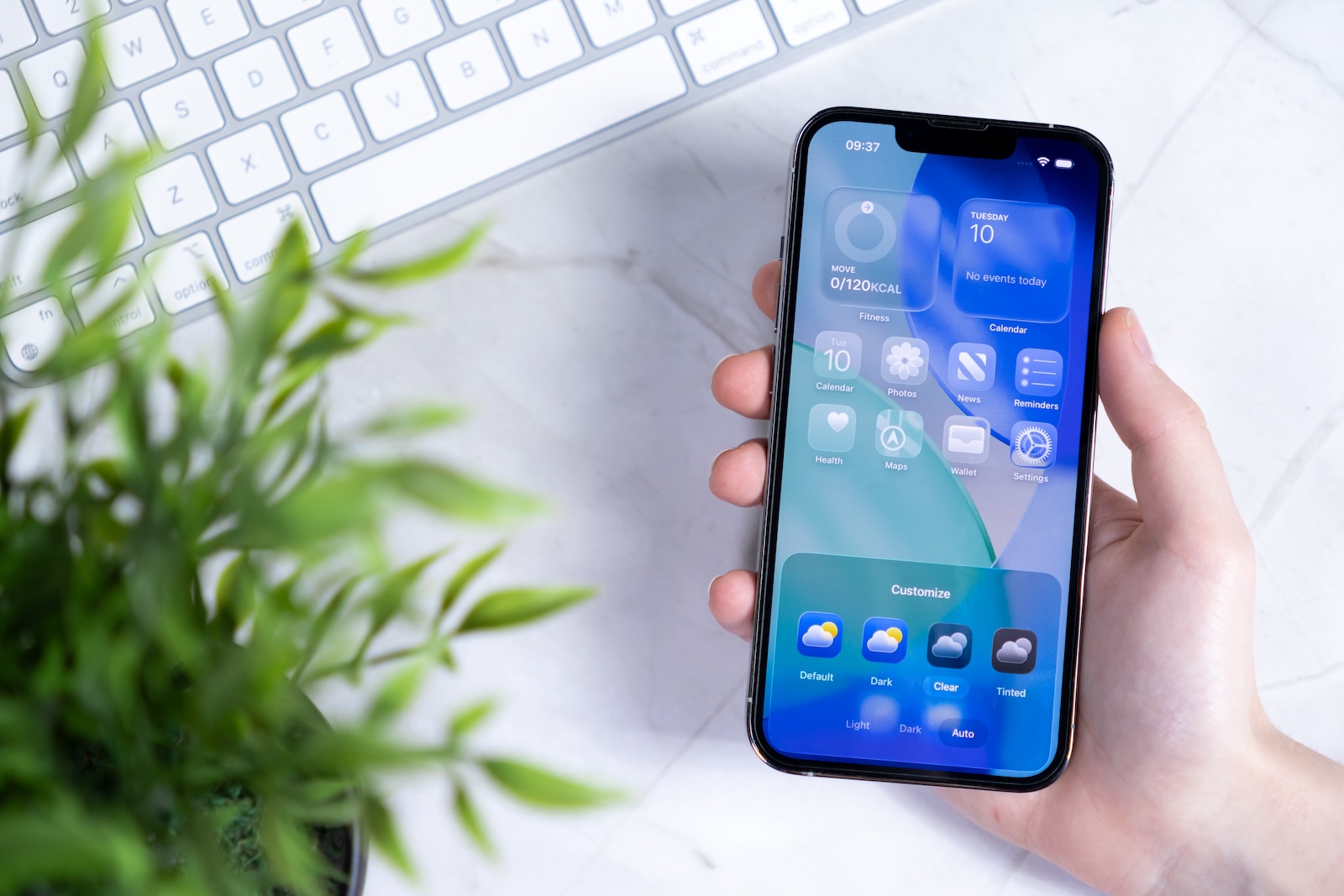
Using transparent icons on your iPhone only requires a few steps. First, hold down an empty area on the home screen until the icons start to jiggle. The "Edit" button will then appear in the top left. Selecting "Customize" will open a menu at the bottom where you can set the icon styles. In addition to the existing "Light" and "Dark" options, "Transparent" is also available. If "Transparent" is selected, all app icons will appear transparent and blend in more closely with the background. To save the setting, simply tap an empty area on the home screen. If you want to go back to the classic icons, repeat the steps and select "Standard".

Icon variants in iOS 26

By default, "Light" is the active icon style. However, with iOS 26, the following variants are available:

  • Transparent: Symbols appear transparent and blend into the background.
  • Dark: App icons appear in a darkened version.
  • Standard: The display automatically switches between light and dark, depending on the selected system mode.
  • Colored: A new mode that combines transparent icons with different brightness levels. Choose from "Light," "Dark," and "Auto."

By expanding the options, it is now possible for the first time to adapt the look of the home screen much more closely to your own system design.

Transparent icons on iPad and Mac

The new design options aren't limited to the iPhone. With iPadOS 26, transparent and tinted app icons can also be used on the iPad. Widgets are also customized, giving the entire home screen a uniform look. Furthermore, multiple home screens can be set up, each with its own unique design. This feature is also making its way to the Mac. With macOS Tahoe 26, in addition to transparent icons and "tinted" mode, there is a selection of dark icons for the first time. This option can be found in System Preferences under "Appearance" in the "Icon & Widget Style" section.

Meaning for the home screen

The switch to transparent icons significantly changes the perception of the home screen. While the elimination of colors makes apps less easily recognizable by their icons, the overall impression is more modern and streamlined. The bright transparent options on the iPad, in particular, create a futuristic appearance. Apple is thus implementing the biggest visual innovation since the introduction of widgets.

More freedom on the home screen with iOS 26

With iOS 26, Apple is expanding the customization options for iPhone, iPad, and Mac. Transparent icons, the new "Colored" option, and additional options like "Dark" and "Auto" open up a flexible design system. Combined with the new Liquid Glass look, this creates a clean, modern home screen that's more personalized than ever before. Time for fresh accessories? Visit our Amazon Storefront and discover a wide selection of products from leading manufacturers, including HomeKit-compatible ones! (Image: Shutterstock / aileenchik)

  • Make the most of your iPhone Reminders app – 7 professional tips
  • iOS 26: Apple Music finally gets folders for playlists
  • Share only specific photos with apps like Facebook – here's how
  • iOS 26: Capture reminders faster and easier
  • Use AirTag efficiently – 7 practical tracking tips
  • Make the most of iPhone screen time – 7 effective tips
  • Optimize iPhone battery health: 7 tips to save battery life
  • Extend iPhone battery life: These 7 tips help immediately
  • Using iPhone Accessibility Features: 7 Features at a Glance
  • Apple Intelligence: From which iPhone is it available?
  • iPhone & Co.: How to deactivate the advanced visual search
  • Extend iPhone battery life: These 7 tips help immediately
  • Editing iPhone RAW photos – 8 simple pro tips
  • iPhone & Co.: How to deactivate the advanced visual search
  • Extend iPhone battery life: These 7 tips help immediately
  • Setting up iPhone widgets: These 6 tricks you need to know
  • Set up Apple Pay on your iPhone – quickly and securely
  • Why an iPhone? These advantages are convincing in the long term
  • Secure your iPhone properly: 5 important functions at a glance
  • Save iPhone battery: When is power saving mode worth it?
  • Use Apple Wallet safely, conveniently, and efficiently – 7 tips
  • LG or Samsung Smart TV? How to disable tracking

Frequently asked questions about iOS 26 and transparent icons

What's new in iOS 26?

iOS 26 brings the new Liquid Glass design concept, transparent app icons, the “Colored” mode and advanced options such as “Dark”.

How to enable transparent app icons with iOS 26?

On the home screen, tap and hold an empty area, select "Edit," then "Customize." From the menu, select the "Transparent" icon style.

Can you switch back to colored icons with iOS 26?

Yes. You can repeat the steps for customizing the icon. Instead of "Transparent," simply select the "Standard" option.

What icon styles are available in iOS 26?

The options are Standard, Light, Dark, Standard, Transparent and the new “Colored” mode in various variations.

Does transparency also work on iPad and Mac?

Yes. iPadOS 26 supports transparent icons and widgets. macOS Tahoe 26 also offers transparency, dark icons, and "Inked" mode.

Are widgets also displayed transparently in iOS 26?

Yes. In "Transparent" mode, not only app icons but also widgets adapt visually and take on the same transparent look.

Does iOS 26 change how apps are recognized through transparency?

Apps are a little harder to recognize due to the lack of colors, but the home screen looks more modern, tidy, and futuristic.

Why is iOS 26 considered the biggest design update in years?

Because Apple offers complete transparency for icons for the first time and introduces a consistent look across iPhone, iPad and Mac with Liquid Glass.


Make Apfelpatient a preferred source One click – and you'll see us more often on Google
Was this article helpful?
YesNo
Tags: iOSiOS 26iPadOSiPadOS 26macOSmacOS 26
SendShareSend
Share

Our Amazon Storefront

A handpicked selection of products for iPhone, Mac and more – sorted by topic and updated regularly.

Shop Now

This post contains affiliate links (including Amazon). We earn a small commission on qualifying purchases – at no extra cost to you. Learn more on our Partner Program page.

Previous Post

Apple secures almost half of TSMC's 2nm chips

Next Post

Apple warns of delays due to new CMA rules in UK

Milan Jovicic

Milan Jovicic

Milan founded Apfelpatient in 2016 and has been responsible for all editorial content since 2018 — news, rumors, guides, and product reviews. Apple devices here are not test units on loan for two weeks but everyday tools: from the iPhone through MacBook Pro, MacBook Air, and iMac to the Apple Vision Pro, at least one device from nearly every product category is in daily use, many of them replaced annually. Every menu path in a guide is verified on the device before it is published.

Related posts

Setting up iPhone Handoff: Here's how it works in iOS 27

by Milan Jovicic
September 24, 2026 - 5:50 p.m. CEST
iPhone showing the Set Up eSIM screen with the option to use the number on two iPhones selected, the first step to set up iPhone Handoff

Setting up iPhone Handoff under iOS 27: Requirements, costs at Telekom and why logging out only works via the provider.

Read moreDetails

How to Turn On Advanced Data Protection for iCloud

by Milan Jovicic
September 20, 2026 - 03:27 CEST
Advanced Data Protection for iCloud: iPhone showing the Advanced Data Protection settings page with the list of protected data and the Turn On option, next to a padlock

Advanced Data Protection for iCloud: 25 categories with end-to-end encryption. How to turn it on and secure your recovery options.

Read moreDetails

Selling Your iPhone Safely: How to Prepare Your Device the Right Way

by Milan Jovicic
September 19, 2026 - 9:04 p.m. CEST
Selling an iPhone safely: two iPhones lying face down on a grey surface, one orange and one black

Sell your iPhone safely: Backup, deregistration, activation lock and reset in the correct order – plus shipping step for the 18 Pro Max.

Read moreDetails

iPhone 18 Pro: Setting up Pro video storage for ProRes

by Milan Jovicic
September 19, 2026 - 7:56 p.m. CEST
Pro Video Storage on iPhone 18 Pro: iPhone showing the Configure Pro Video Storage dial at 150 GB and about 26 minutes of ProRes 4K 30 fps, next to a drive with a checkmark

No Pro Video storage, no ProRes: Here's how to reserve storage for video recordings on the iPhone 18 Pro and free it up again when needed.

Read moreDetails

Preparing your iPhone 18 Pro Max for shipping: Here's how

by Milan Jovicic
September 19, 2026 - 03:15 CEST
Preparing iPhone 18 Pro Max for shipping: iPhone showing the shipping reason screen with Repair, Trade-in or Return and Other, next to a battery with a downward arrow

iPhone 18 Pro Max before shipping: Batteries larger than 20 Wh must be discharged using the "Prepare for Shipping" function. Here's how to do it for repairs and sales.

Read moreDetails
Load More

Categories

  • Apple Insights
  • Apple Rumors
  • Apple News
  • Apple Tips & Tricks
  • iPhone news, rumors and tips
  • Mac and MacBook News
  • Reviews

About APFELPATIENT

APFELPATIENT brings you the latest Apple news, product updates, guides, reviews and tips across the entire Apple ecosystem — from the iPhone to the Mac to the Apple Vision Pro. From the first rumors to confirmed news: researched responsibly.

Follow Apfelpatient

Facebook Instagram YouTube Threads Threads

Company

  • About Apfelpatient
  • Contact
  • Author Profiles

Community

  • Netiquette
  • Push Notifications
  • RSS feed

Legal

  • Legal Notice
  • Privacy Policy
  • Terms of Use
  • Cookie Settings
  • Affiliate Program

Resources

  • Sitemap

© 2026 Apfelpatient. All rights reserved.

No Result
View All Result
  • Home
  • News
  • Rumors
  • Tips & Tricks
  • Reviews
  • Insights

© 2026 Apfelpatient. All rights reserved. Page Directory

Change language to Deutsch


