This article may contain affiliate links. Learn more on our Partner Program page.
Widgets show appointments, weather or tasks right on the Home Screen without having to open an app. Since their introduction, Apple has expanded them step by step: they can be stacked, resized, customized in appearance and used directly. Six tricks show how to get the most out of them.
In iOS 27, widgets are an integral part of the Home Screen, the Lock Screen and Today View. Anyone setting them up for the first time can quickly end up with an overloaded screen. Used deliberately, they become a personal dashboard with exactly the information that matters in everyday life.
The basics are quickly explained: Touch and hold an empty area of the Home Screen until the icons jiggle, then tap the brush icon at the top and then "Add Widget". Next, find the widget you want, swipe through the available sizes and place it on the screen with "Add Widget". Apple describes the process in the iPhone User Guide. The following tricks build on that and on my own hands-on experience with widgets in iOS 27.2.
Key Facts at a Glance
- Up to ten widgets fit in a stack, and the Smart Stack can switch content on its own if you want.
- A widget's size can be changed afterwards, and a long press plus a tap turns an app icon into a widget.
- Since iOS 26, there's also the "Clear" look, while "Tinted" has been available for longer.
- Many widgets can be used directly, for example to check off a reminder or turn on the lights.
- Shortcuts, Today View and the Lock Screen extend the options beyond the Home Screen.
1. Stack Widgets and Use the Smart Stack
A stack saves space: several widgets sit on top of each other, and swiping up or down switches between them. To create one, drag a widget onto another in edit mode. According to Apple, up to ten widgets fit in a stack.
The Smart Stack is ready to go in the widget gallery. With "Edit Stack", you can choose which widgets it contains and in what order. The "Smart Rotate" switch lets the iPhone bring the right widget to the front on its own throughout the day. With "Widget Suggestions", it also shows suggested widgets that fit the current situation.
2. Change the Size and Turn App Icons into Widgets
A widget doesn't need to be removed and added again to change its size. Simply touch and hold the widget and choose a different size from the menu that appears. Depending on the app, small and medium widgets are available, and some also offer large and extra large ones.
Since iOS 26, this also works the other way around: touch and hold an app icon and tap a size at the bottom of the menu that appears. The icon then turns directly into the matching widget, without going through the widget gallery.
3. Customize the Look: Clear, Tinted or Dark
A consistent look no longer comes from individual apps but from the system as a whole. In edit mode, tap the brush icon and "Customize" to choose between "Dark" and "Automatic" as well as "Clear" and "Tinted", the latter two each in "Light", "Dark" or "Automatic".
"Clear" is part of the Liquid Glass design in iOS 26 and makes app icons translucent, as with the clear app icons. "Tinted" applies a color chosen with a slider or eyedropper to the elements, creating a particularly calm look. If you find the glass effects too strong overall, you can adjust the Liquid Glass transparency.
If you want even more design freedom, the App Store has apps like Widgetsmith that let you freely set up widgets for photos, clocks or countdowns in terms of color, font and layout.
4. Use Widgets Directly
Many widgets are interactive and handle small tasks without you having to open the app. In the Reminders widget, you can check off an item directly; in the Podcasts widget, a tap starts playback; and the Home widget lets you turn on the lights.
This works on the Home Screen as well as on the Lock Screen and in StandBy. For to-do lists and smart home control in particular, this is the biggest advantage over a simple app icon.
5. Add Shortcuts as a Widget
With the Shortcuts widget, a custom workflow starts with a single tap right from the Home Screen. The small widget shows a single shortcut, while the larger ones show the first shortcuts in a folder, such as "My Shortcuts". Which shortcut or folder is shown is set with "Edit Widget".
This lets you trigger a playlist, navigation or a smart home scene at the push of a button. If an action can't be completed in the widget, the Shortcuts app opens automatically. How to create such workflows in iOS 27 is explained in the guide to creating shortcuts by description.
6. Use Today View and the Lock Screen
Not every widget has to go on the Home Screen. Today View opens with a swipe right from the left edge of the first Home Screen and offers space for widgets you only need occasionally, such as Weather, Stocks or Batteries.
To make it available when the iPhone is locked, the "Today View and Search" switch must be turned on under "Settings" > "Face ID & Passcode" in the "Allow Access When Locked" section. On the iPhone Duo, the menu item is called "Touch ID & Passcode". For the Lock Screen itself, touch and hold the screen, choose "Customize" and place small displays via "Add Widgets".
Why a Fresh Start with Widgets Is Worth It
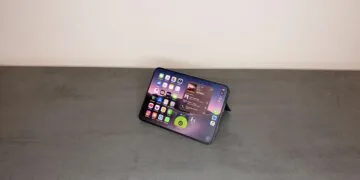
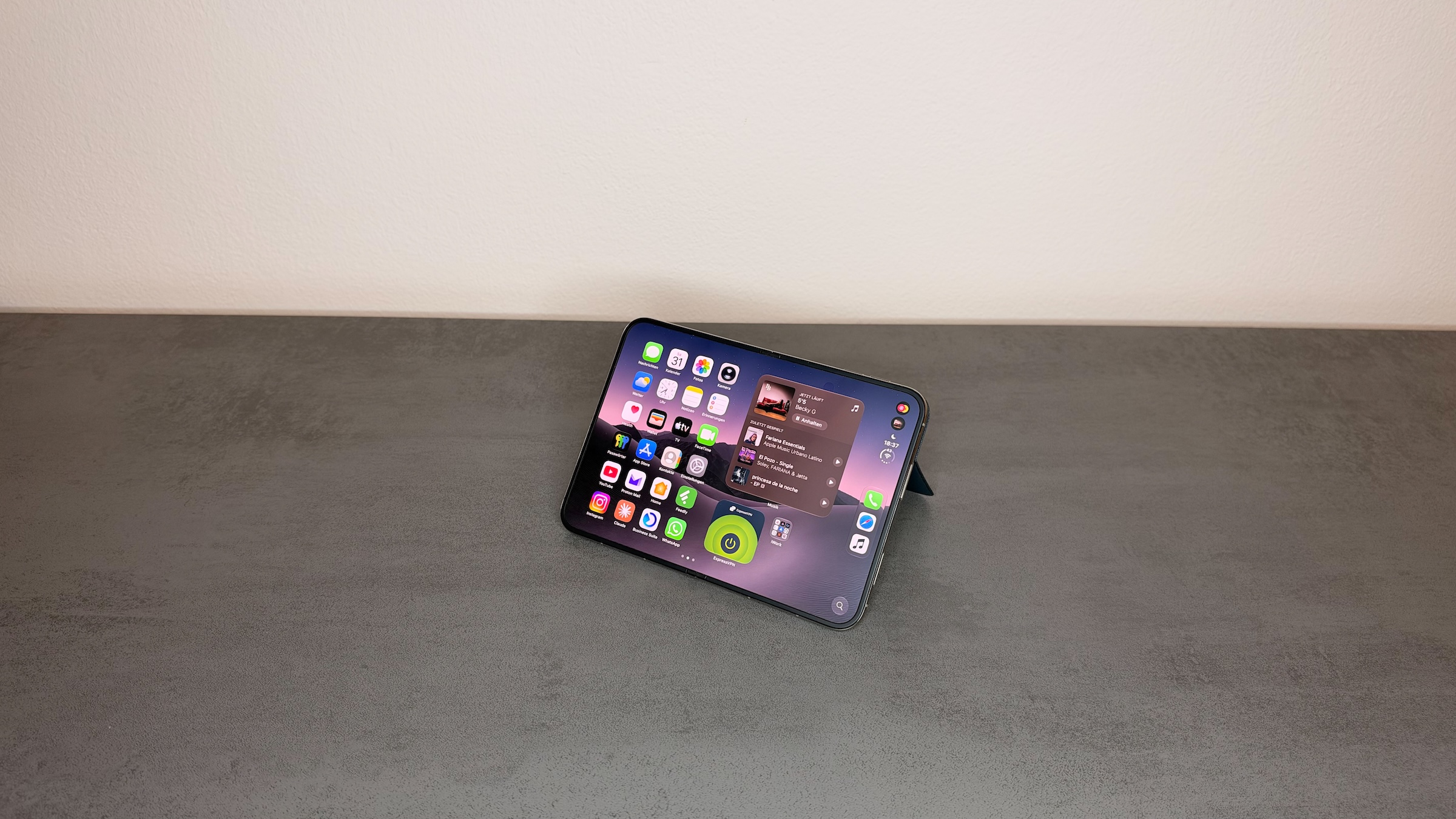
For years, I ignored widgets on the iPhone because they took up too much space on the narrow display. It was only the large inner display that changed this, as I describe in my hands-on report on the Home Screen of the iPhone Duo. But the tools for this are available on every current iPhone, and they've become much better with the improvements of recent generations.
My tip is to start small: a Smart Stack with your three or four most important widgets, a look that matches your wallpaper, and everything else in Today View. If you later notice that you never use a widget, just take it out again.
Which widget has earned a permanent spot on your Home Screen, and which one did you remove quickly? Tell us in the comments about your favorite and your biggest miss.
Frequently Asked Questions: Setting Up iPhone Widgets
Touch and hold an empty area of the Home Screen until the icons jiggle, then tap the brush icon at the top and then "Add Widget". Choose the widget and the size, then tap "Add Widget" again.
Touch and hold the widget and choose a different size from the menu that appears. You don't need to remove it and add it again.
According to Apple, you can combine up to ten widgets in a stack.
You create a stack yourself by dragging one widget onto another. The Smart Stack is a ready-made collection from the widget gallery and, with "Smart Rotate", can bring the right widget to the front on its own.
Touch and hold an empty area of the Home Screen, tap the brush icon and "Customize", then choose "Clear". The option has been available since iOS 26.
Touch and hold the widget and choose "Remove Widget". The app itself stays installed.
With "Smart Rotate", the iPhone switches widgets depending on the time of day and your usage, and "Widget Suggestions" adds extra widgets. You can turn off both under "Edit Stack".