This article may contain affiliate links. Learn more on our Partner Program page.
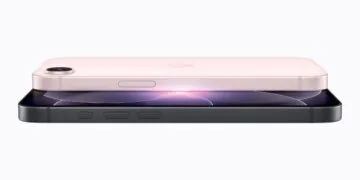
Widgets have been on the iPhone for years, and I've ignored them for just as long. A little over a week with the iPhone Duo changed that. Not because the device can do something other iPhones can't, but because the large inner display got me to rebuild my Home Screen from scratch.
Since October 23, Apple's first foldable iPhone has been my main device, with the iPhone 18 Pro Max continuing as my second device. I've already written about the hinge, the crease, Touch ID and the first few days in my first impressions of the iPhone Duo. The biggest change, though, didn't come from the hardware itself but from what I did with it.
The form factor didn't just change how I work on the iPhone. It also got me to clean up my Home Screen, use widgets seriously and move most of my apps to the App Library. To be honest, all of this works on any other iPhone too. I just never felt the need to do it there.
Key Facts at a Glance
- I never warmed up to widgets on the narrow iPhone display because they forced extra pages and more swiping.
- On the iPhone Duo, I now have one page of apps and two pages made up almost entirely of widgets in Smart Stacks, with everything else in the App Library.
- Unfolded in landscape, each half of the display shows one page, so apps and widgets sit side by side.
- Three settings keep the layout clean: new apps go to the App Library only, no badges there, and a search button on the Home Screen.
- You don't need an iPhone Duo for this, but it took the large display to give me the push.
Why I Never Warmed Up to Widgets
My Home Screen looked the same for years. The most important apps were on the first page, and everything else was on the second, lovingly sorted into folders by topic. I tried widgets again and again, but only half-heartedly.
The problem was space. Every widget takes up the area of several app icons, and on a narrow display that inevitably meant extra pages and more swiping. Stacks didn't change that, and even the comparatively roomy display of my Pro Max models didn't win me over. Even on the iPad Pro, I still only use them in part.
I also ignored the Today View to the left of the first Home Screen, with Weather, Stocks and the Batteries widget for my AirPods, more than I used it.
My New Layout: One Page of Apps, Two Pages of Widgets
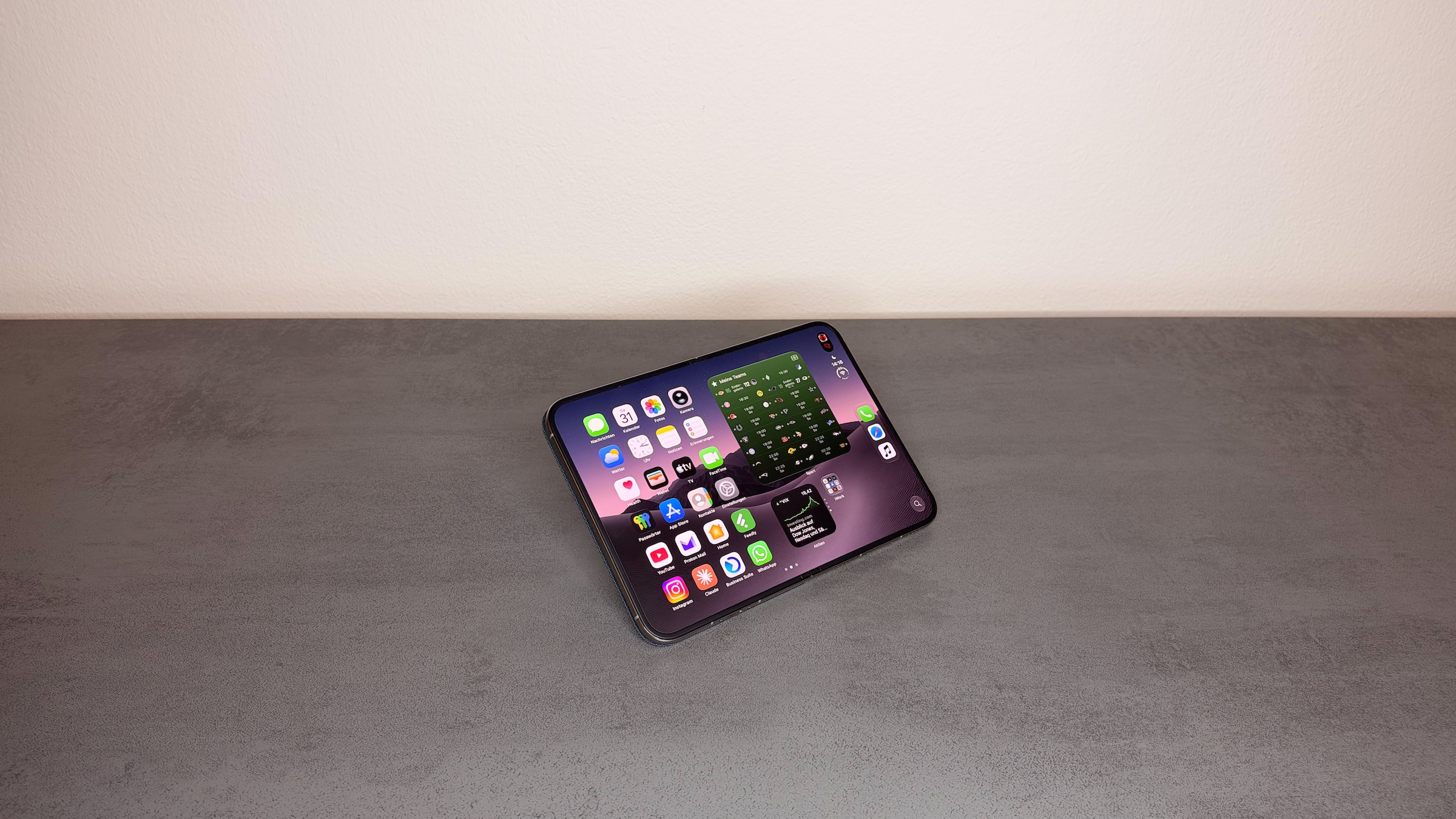
On the iPhone Duo, my Home Screen effectively has three pages. The first still holds the apps I open most often. The other two are made up almost entirely of widgets, plus a single folder with apps I need especially often. After that comes the App Library.
All the widgets sit in Smart Stacks: two large, one medium and one small. One large stack is for entertainment, with widgets from Music, Apple TV, Apple Sports and Game Center. The rest belong to productivity apps, including Calendar, Reminders, Things, Notion and the Files app with the folders I need all the time. There's also a widget from the Home app.
I didn't delete anything in the process. Everything that isn't on these three pages is waiting in the App Library.
Unfolded: Two Views Instead of Three Pages
The real difference comes from the inner display of the iPhone Duo. Unfolded in landscape, each half of the display shows its own page: the main page with the apps on the left, and the first widget page right next to it. One swipe brings up the second widget page, another the App Library. Essentially, that makes two views with a single swipe in between.
Folded, the outer display shows the same pages, just one after the other, like on any other iPhone. That works, but it takes more swiping. The layout only reaches its full potential when unfolded.
What the Unfolded Display Changes in Everyday Use
I now have appointments, important to-dos and other information at a glance. I no longer have to swipe; I unfold the iPhone and see everything. From there, I can jump straight into the right app or open two apps side by side in Split View on the iPhone Duo.
That's exactly what never worked on the narrow display. There, I had to flip back and forth between widgets and apps; now they sit side by side. Only because of that do I really use widgets, for work and entertainment alike.
Three Settings That Keep the Layout Clean
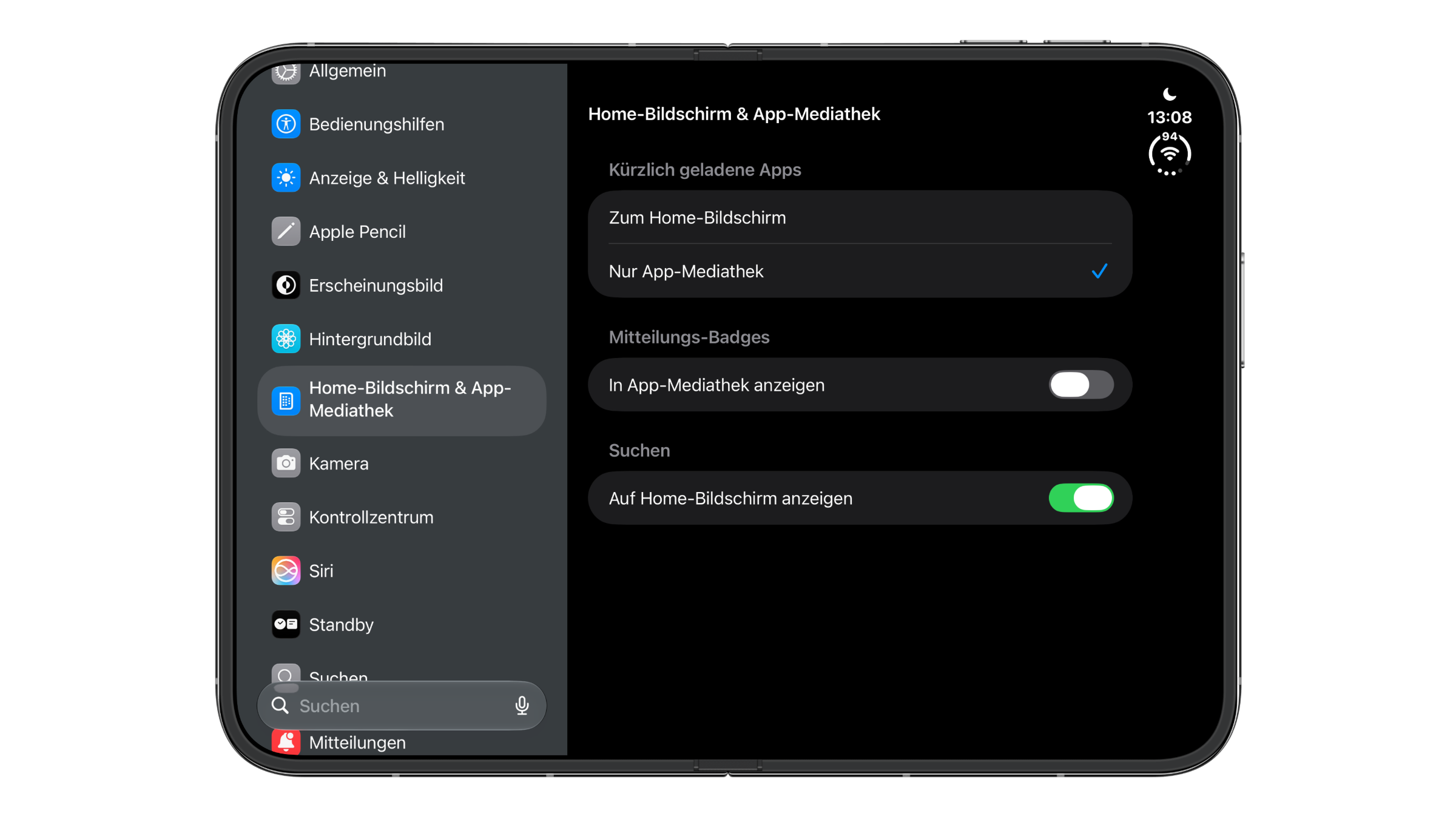
To keep the Home Screen tidy, I changed three settings. All three are under Settings > Home Screen & App Library.
New Apps Go Straight to the App Library
In the "Recently Downloaded Apps" section, I have "App Library Only" selected. That means newly downloaded apps no longer land on the Home Screen. I only move apps there that I really need very often and want to reach quickly.
No Badges in the App Library
In the "Notification Badges" section, I turned off the "Show in App Library" switch. That means no more red numbers appear in the App Library, and apps that only live there no longer show any badge at all. I haven't missed anything as a result, because notifications still arrive in Notification Center. I'm not someone who opens every app right away or reads every notification anyway, and all those little badges mostly annoyed me.
Search Button on the Home Screen
In the "Search" section, I have "Show on Home Screen" turned on. On the iPhone Duo, a small magnifying glass then appears in the bottom right corner, on the inner display in both portrait and landscape as well as on the outer display.
Finding Apps Without Folders
I don't miss my old topic folders. After a short while, I developed a feel for which category of the App Library an app is in. The category shows frequently used apps directly anyway, so I don't even have to open it. If all else fails, there's always search.
This Works on Any iPhone
That said, you don't need an iPhone Duo for this layout. The App Library, Smart Stacks and the three settings are available on every current iPhone. How to add and stack widgets is explained in the tips for setting up iPhone widgets.
On my iPhone 18 Pro Max, I now use the App Library as well, with the most important apps on the Home Screen. I haven't set up any widgets there yet. Whether that will change, I'll leave open.
Why the iPad Pro Now Has a Harder Time
For me, the large display is a real turning point. It suits anyone who finds the classic iPhone too small but doesn't want to carry an iPad around, and late bloomers like me who never knew what to do with widgets before.
I already did a lot on the iPhone before, including longer texts and more extensive emails. On the iPhone Duo, I do even more of that, plus a lot of things I would previously have reached for the iPad Pro or the Mac for. I expect this to grow as more apps are optimized for the iPhone Duo. It also raises the question again of whether you still need a small tablet like the iPad mini alongside your iPhone at all.
Has a new device ever made you completely rebuild your Home Screen, or has everything been in the same place for years? Tell us in the comments what your first page looks like today.