Apfelpatient
  • Home
  • News
  • Rumors
  • Tips & Tricks
  • Reviews
  • Insights
No result
View All Results
  • iPhone 18
  • iPhone 18 Pro
  • iPhone Duo
  • Apple Home
  • Siri AI
  • HomePod
  • HomePod mini
  • HomePod mini 2
  • Apple TV 4K
  • Apple Watch Series 12
  • Apple Watch Ultra 4
  • AirPods 5
  • iOS 27
  • iPadOS 27
  • macOS
  • MacBook Neo
  • iPhone 17e
  • AirTags
  • iOS 26
  • iPhone 17
  • MacBook Pro
  • iPadOS
  • iMac
  • Mac mini
  • Apple TV
  • iPad Pro
  • iPhone Air
  • Apple Vision Pro
  • iPhone 16
  • AirPods 4
  • Apple Watch Ultra
  • AirPods Pro 3
  • MacBook Air
  • iPad
  • AirPods Max
  • Mac Studio
  • Studio Display
  • iPad Air
  • iPad mini
  • watchOS 27
  • Apple CarPlay
  • Apple Pay
  • watchOS 26
  • Home
  • News
  • Rumors
  • Tips & Tricks
  • Reviews
  • Insights
No result
View All Results
Apfelpatient
No result
View All Results
  • iPhone 18
  • iPhone 18 Pro
  • iPhone Duo
  • Apple Home
  • Siri AI
  • HomePod
  • HomePod mini
  • HomePod mini 2
  • Apple TV 4K
  • Apple Watch Series 12
  • Apple Watch Ultra 4
  • AirPods 5
  • iOS 27
  • iPadOS 27
  • macOS
  • MacBook Neo
  • iPhone 17e
  • AirTags
  • iOS 26
  • iPhone 17
  • MacBook Pro
  • iPadOS
  • iMac
  • Mac mini
  • Apple TV
  • iPad Pro
  • iPhone Air
  • Apple Vision Pro
  • iPhone 16
  • AirPods 4
  • Apple Watch Ultra
  • AirPods Pro 3
  • MacBook Air
  • iPad
  • AirPods Max
  • Mac Studio
  • Studio Display
  • iPad Air
  • iPad mini
  • watchOS 27
  • Apple CarPlay
  • Apple Pay
  • watchOS 26

iPhone Duo Split View: Use two apps side by side

Milan Jovicic by Milan Jovicic
October 23, 2026 - 10:03 PM CEST
in Apple Tips & Tricks, iPhone news, rumors and tips
0
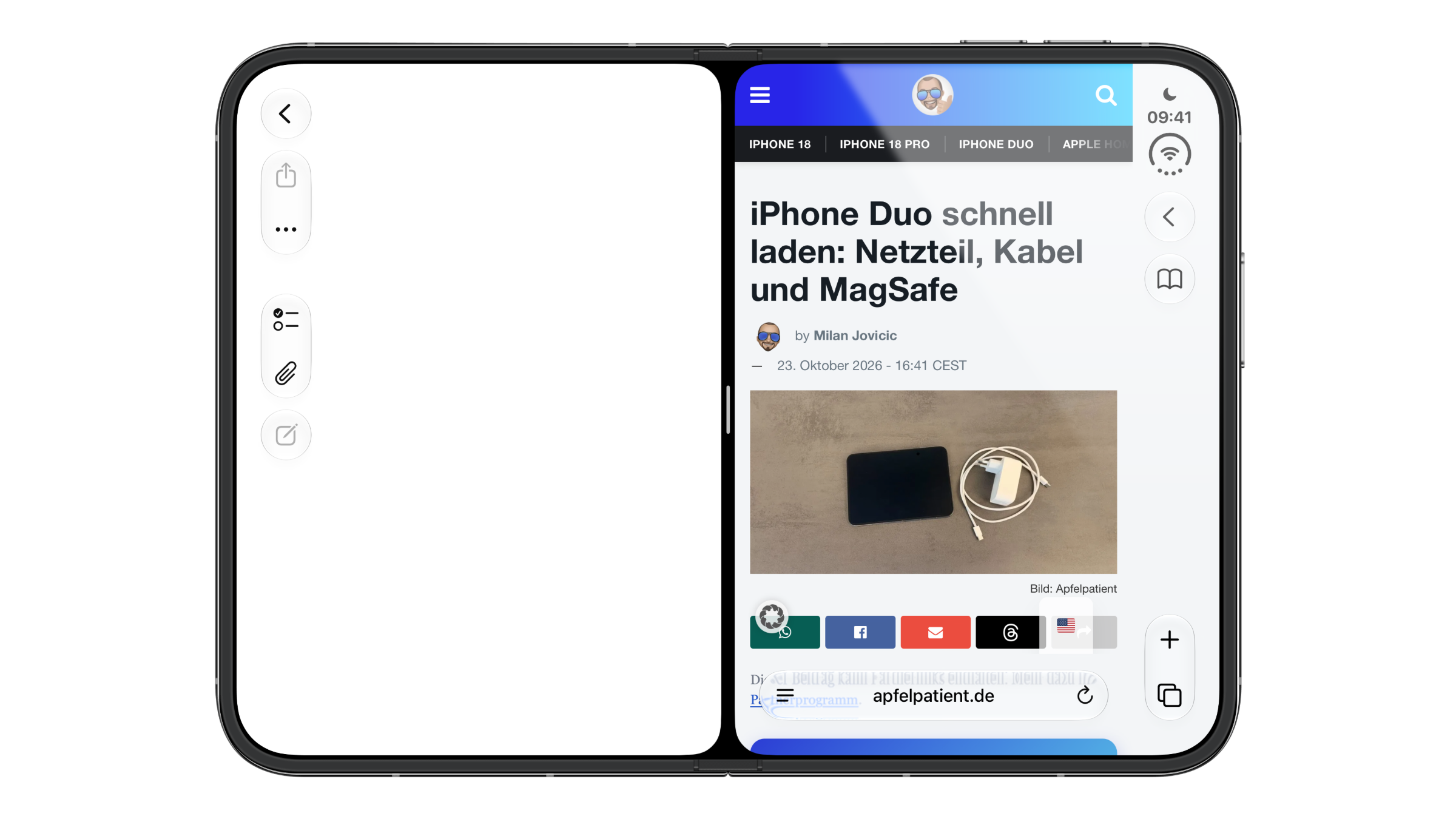
iPhone Duo Split View: unfolded iPhone Duo in landscape with a split inner display, the Home Screen on the left and Safari with an open article on the right

Image: Apfelpatient

WhatsAppFacebookEmail
Threads

This article may contain affiliate links. Learn more on our Partner Program page.

Make Apfelpatient a preferred source One click – and you'll see us more often on Google

Unfolded, iPhone Duo has room for two apps at once. Split View divides the inner display into two equal halves, and two apps can be joined into a pair that always launches together. Which app sits on the right matters more than it might seem at first.

Two apps side by side is one of the features Apple announced for the large inner display at the introduction of iPhone Duo. Many people know the name Split View from multitasking on iPad, and on iPhone Duo the feature has the same name.

I checked every step in this guide on my own iPhone Duo. All other details about the device are on the iPhone Duo fact page.

Key Facts at a Glance

  • Split View only works when iPhone Duo is unfolded in landscape orientation.
  • You can start it with a swipe gesture or via "Open in Split View" in an app icon's context menu.
  • The split is fixed at 50/50, and the width cannot be changed.
  • Some apps, such as Safari, Notes and Messages, can also be opened twice side by side.
  • A tap on the divider joins both apps into a pair that always launches together from then on.
  • In portrait orientation and when folding the device, only the app that was on the right remains.

When Split View works

On iPhone Duo, Split View is only available in one position: unfolded and in landscape. If you rotate the unfolded device to portrait, the split disappears and the app that was on the right fills the display. If you fold the Duo, the app that was placed on the right also appears on the outer display.

PositionWhat happens
Unfolded, landscapeTwo apps side by side, one half each
Unfolded, portraitOnly the right app, full screen
FoldedOnly the right app, on the outer display

Method 1: With a swipe gesture from an open app

Here's how to start Split View from within an app:

  1. Unfold iPhone Duo, hold it in landscape and open the first app.
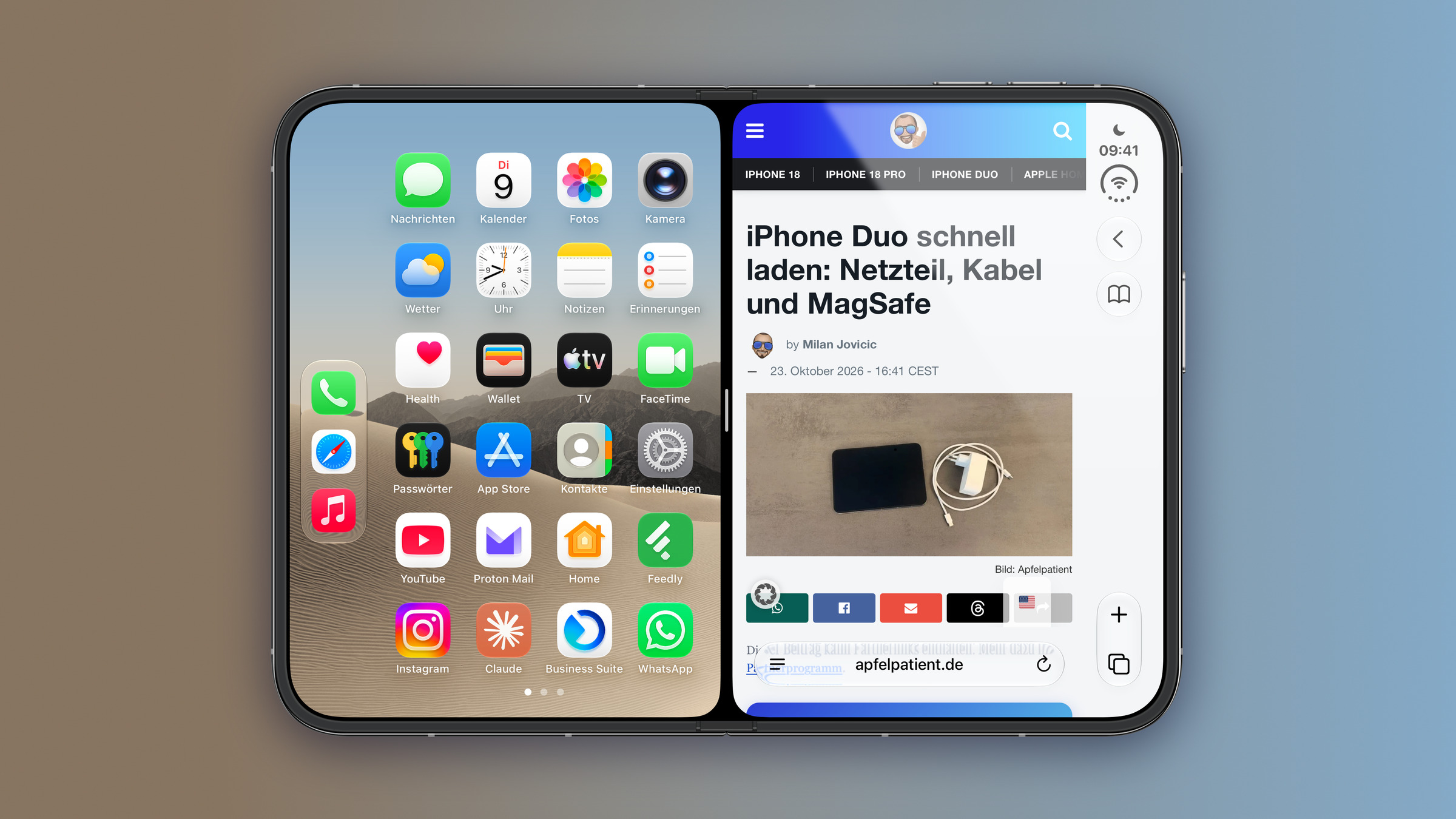
  2. Swipe up from the bottom edge, pause briefly in the middle of the screen and drag the app to the left or right edge.
  3. The app snaps into that half, and the Home Screen appears on the other side.
  4. Tap the second app there. It opens next to the first.
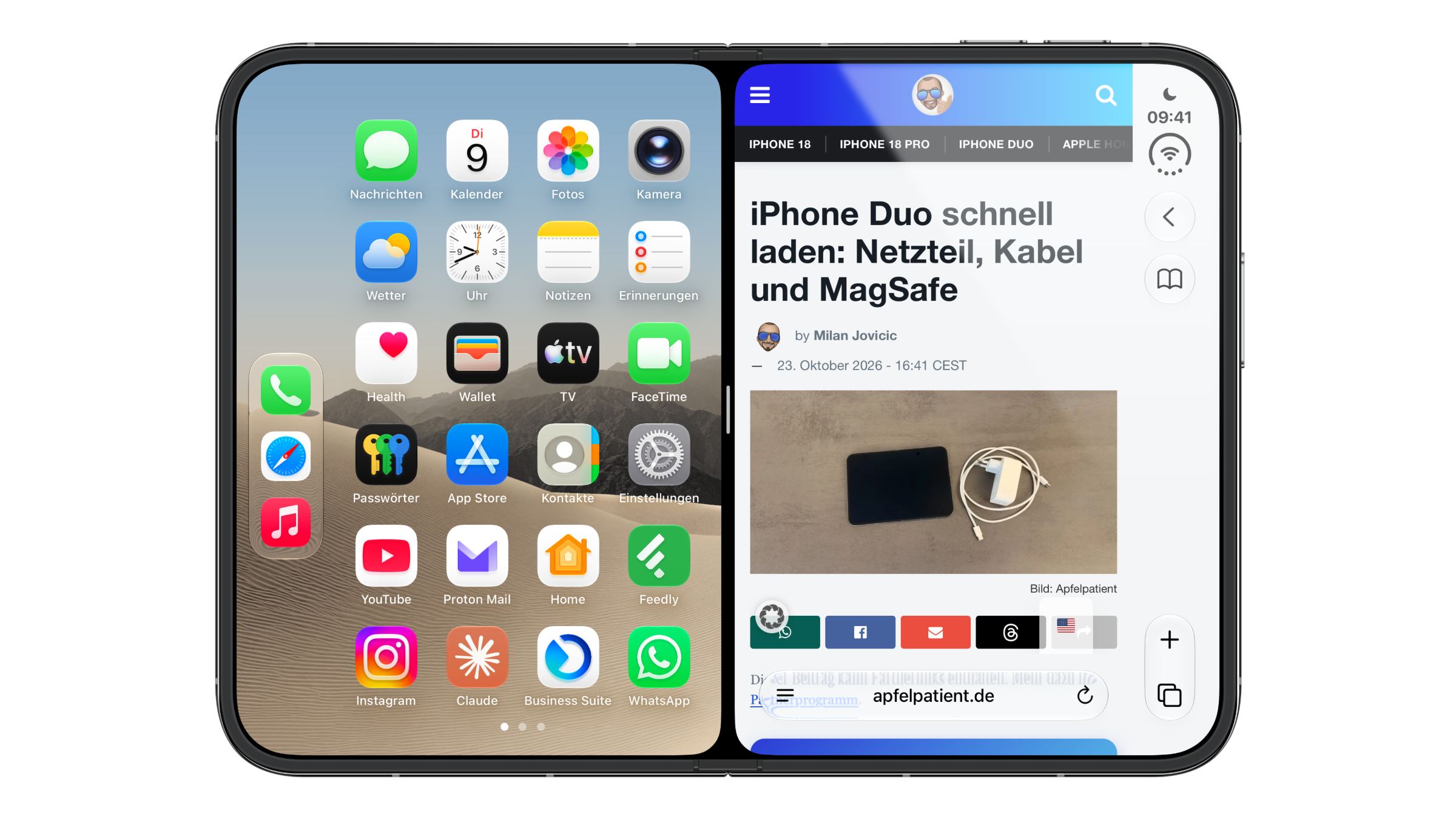
iPhone Duo Split View: unfolded iPhone Duo in landscape, the Home Screen on the left for choosing the second app and Safari with an open article on the right
Image: Apfelpatient

Whether the first app ends up on the left or the right depends only on the direction you drag it.

Method 2: Via the context menu

You can also start Split View directly from the Home Screen:

  1. Hold iPhone Duo unfolded and in landscape.
  2. Touch and hold an app icon until the context menu appears.
  3. Tap "Open in Split View."
  4. Choose the second app. It opens next to the first.
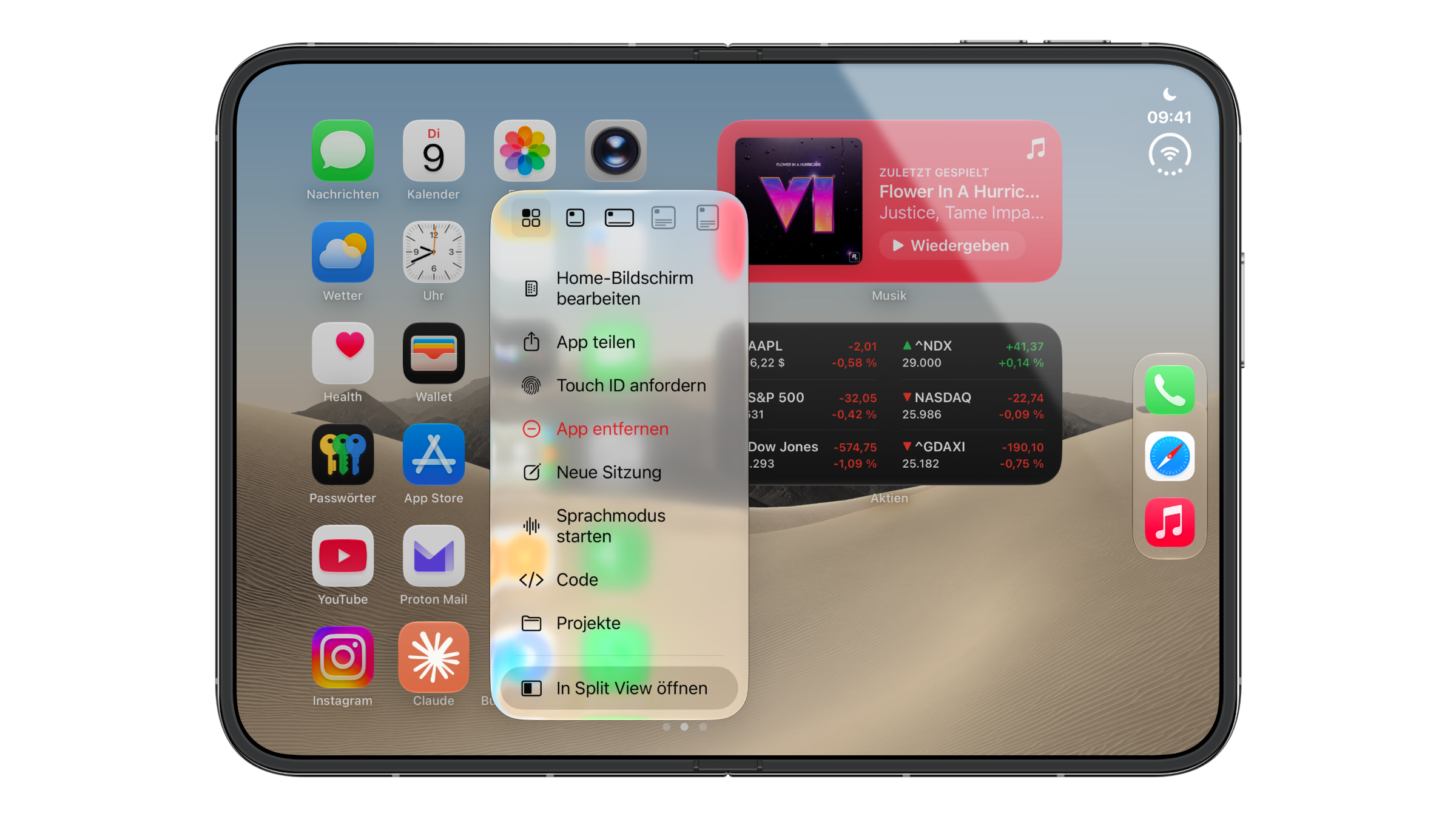
iPhone Duo Split View: context menu of an app icon on the iPhone Duo Home Screen with the Open in Split View option at the bottom
Image: Apfelpatient

Width and closing

On iPhone Duo, the split is fixed: both apps always get exactly half of the display. Dragging the divider in the middle to 70/30 or a similar split doesn't work.

If you drag the divider all the way to the edge, Split View ends. The remaining app then goes full screen.

Two windows of the same app

Split View doesn't only work with two different apps. According to Apple's iPhone Duo user guide, you can also open multiple windows of the same app side by side, such as two Safari tabs or your Mail inbox next to a draft.

On my iPhone Duo, this works with Safari, Notes and Messages. To do it, open the app in Split View as usual and choose the same app again on the other side. Not every app supports this.

Join two apps into a pair

If you regularly use two apps together, you can link them permanently:

  1. Open both apps in Split View, each in its own half.
  2. Tap the divider in the middle once.
iPhone Duo Split View: two apps side by side on an unfolded iPhone Duo, separated by a black gap with a handle in the middle
Image: Apfelpatient

An animation then shows a kind of connection between the two apps, without any text or label appearing. Afterward, a light bridge fills the black gap between the two windows, so they look like one continuous surface. This also lets you tell later whether two apps form a pair.
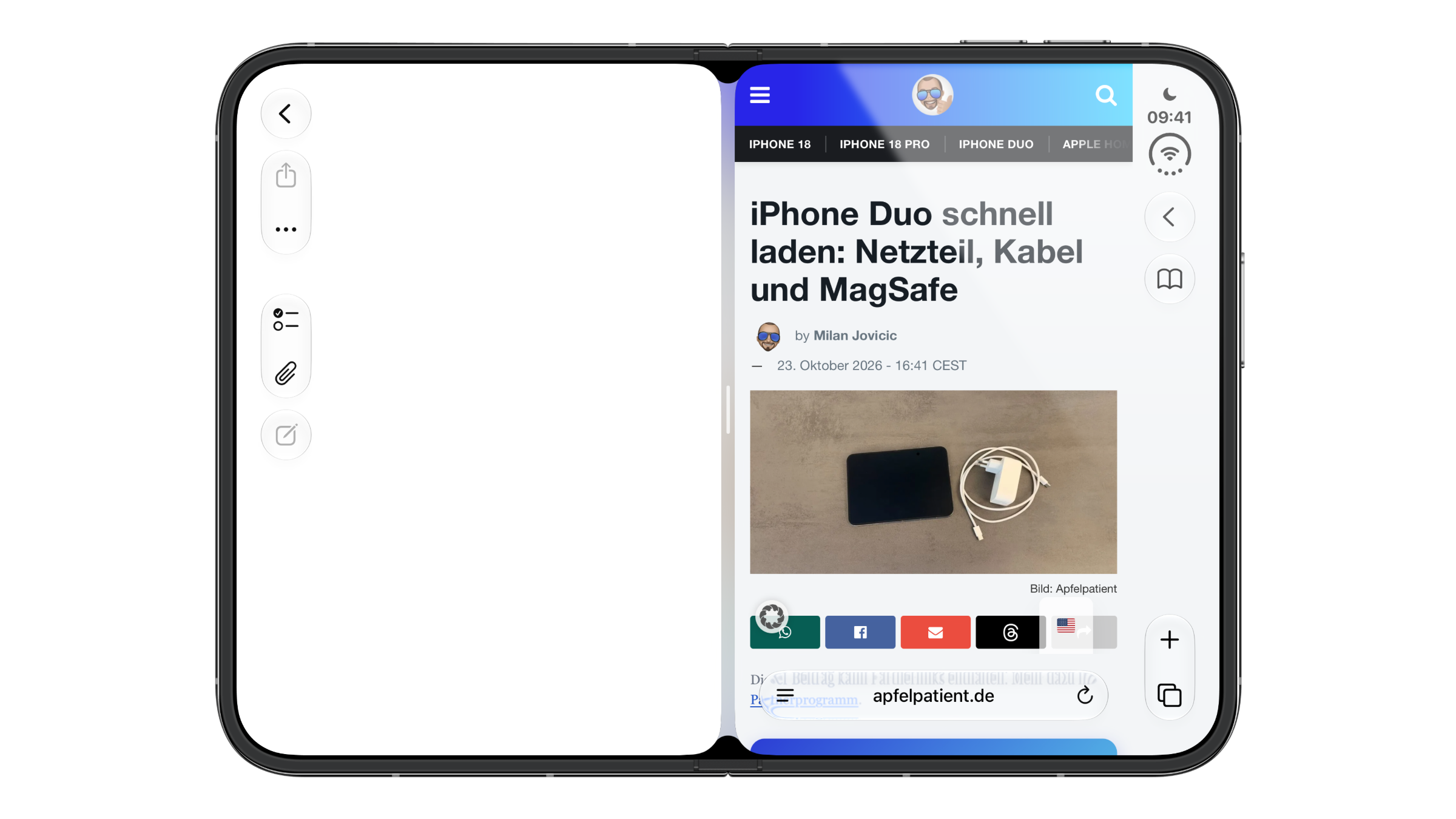
iPhone Duo Split View: the same two apps joined as a pair, with a light bridge filling the gap between the windows
Image: Apfelpatient

If you later open one of the two apps from its icon, the other launches right along with it, as long as the Duo is held unfolded and in landscape.

Why I put the more important app on the right

I consider placement the real setting in Split View, even though there's no switch for it. As soon as the Duo is rotated to portrait or folded, only the right app stays on the display. If you fold it in between to quickly keep reading or reply, you should drag the app you want to continue with to the right – with Messages and a browser, for example, that would be Messages.

The same applies to pairs, because they reappear in the same arrangement every time they launch. A pair with the wrong app on the right sends you to the wrong side every time you fold the device. More articles about the foldable iPhone are collected on the iPhone Duo topic page.

iPhone Duo Split View – the key points at a glance

On iPhone Duo, Split View only runs unfolded in landscape, started with a swipe gesture or via "Open in Split View." The split stays fixed at 50/50, and a tap on the divider turns two apps into a pair. In portrait and on the outer display, only the right app remains, so it pays to put the more important one there.

Which two apps would you permanently pair on iPhone Duo – and which of them gets the right side for you? Tell us in the comments which combination you use day to day.

Frequently asked questions: iPhone Duo Split View

Can iPhone Duo display two apps at the same time?

Yes. With Split View, two apps run side by side on the inner display, each in one half.

Does Split View also work in portrait or when folded?

No, only when unfolded in landscape. In portrait and on the outer display, only the app that was on the right remains.

How do I start Split View on iPhone Duo?

Either swipe up from the bottom edge in an open app, pause briefly and drag the app to the left or right edge. Or touch and hold an app icon and tap "Open in Split View."

Can I change the size of the two halves?

No. The split stays fixed at 50/50. If you drag the divider all the way to the edge, Split View ends and the remaining app goes full screen.

How do I join two apps into a pair?

Open both apps in Split View and tap the divider in the middle once. An animation shows the connection between the apps.

What does an app pair do?

If you later open one of the two apps from its icon, the other launches right along with it, as long as iPhone Duo is held unfolded and in landscape.

Which app should be on the right?

The app you want to continue with after folding the device or rotating it to portrait. Only that app then stays on the display.

Was this article helpful?
YesNo
Tags: iPhoneiPhone Duo
SendShareSend
Share

Our Amazon Storefront

A handpicked selection of products for iPhone, Mac and more – sorted by topic and updated regularly.

Shop Now

This post contains affiliate links (including Amazon). We earn a small commission on qualifying purchases – at no extra cost to you. Learn more on our Partner Program page.

Previous Post

iPhone Duo Touch ID: Rest your finger to open it directly

Next Post

iPhone in China: Apple jumps from sixth to second place

Milan Jovicic

Milan Jovicic

Milan founded Apfelpatient in 2016 and has been responsible for all editorial content since 2018 – news, rumors, how-to guides and product reviews. Here, Apple devices aren't review units kept for two weeks, they're everyday tools: from iPhone to MacBook Pro, MacBook Air and iMac all the way to Apple Vision Pro, at least one device from every product category is in daily use, many of them replaced every year. Every menu path in a guide is checked on the device before it goes live.

Related posts

iPhone Duo hinge: What really helps with problems

by Milan Jovicic
October 23, 2026 - 23:40 CEST
iPhone Duo hinge: a white iPhone Duo half unfolded and standing like a book on a gray stone surface, with the silver hinge facing the camera

If the hinge on your iPhone Duo is creaking or loose, a restart won't help. Here's what Apple recommends, how to check it yourself, and how much a replacement costs.

Read moreDetails

iPhone Duo: First reports of cracks in the inner display

by Milan Jovicic
October 23, 2026 - 10:44 PM CEST
iPhone Duo display crack: an intact, half-unfolded iPhone Duo on a stone surface, the crease of the inner display showing as a light stripe in the light

Initial photos show cracked internal displays on the iPhone Duo, mostly along the hinge. Here's what's known and what rights buyers have.

Read moreDetails

iPhone in China: Apple jumps from sixth to second place

by Milan Jovicic
October 23, 2026 - 10:24 PM CEST
iPhone China market share: a dark red iPhone from the Pro lineup seen from the back on a light marble surface, with camera plateau and three lenses

China's smartphone market has fallen to a 14-year low, with Apple jumping to second place according to Counterpoint. IDC comes to a different conclusion.

Read moreDetails

iPhone Duo Touch ID: Rest your finger to open it directly

by Milan Jovicic
October 23, 2026 - 19:21 CEST
iPhone Duo Touch ID: folded iPhone Duo showing the Enter Touch ID or Passcode lock screen with keypad and a fingerprint symbol in the Dynamic Island

On iPhone Duo, Touch ID opens the device directly when your finger rests on the side button. Where to find the switch and what it does.

Read moreDetails

Fast charge iPhone Duo: Power adapter, cable and MagSafe

by Milan Jovicic
October 23, 2026 - 16:41 CEST
iPhone Duo fast charging: an unfolded iPhone Duo on a gray stone surface next to a white USB-C power adapter and a braided USB-C charging cable

The iPhone Duo charges to 50 percent in 20 minutes – with the right power adapter. What Apple requires, what MagSafe can do, and how much it costs.

Read moreDetails
Load More

Leave a Reply Cancel reply

Required fields are marked with * marked.

By submitting, you consent to the storage of your comment along with your name, email address and IP address. Details are available in our privacy policy.

Categories

  • Apple Insights
  • Apple Rumors
  • Apple News
  • Apple Tips & Tricks
  • iPhone news, rumors and tips
  • Mac and MacBook News
  • Reviews
Make Apfelpatient a preferred source One click – and you'll see us more often on Google

About APPLE PATIENT

APFELPATIENT brings you the latest Apple news, product updates, guides, reviews and tips across the entire Apple ecosystem — from the iPhone to the Mac to the Apple Vision Pro. From the first rumors to confirmed news: researched responsibly.

Follow Apfelpatient

Facebook Instagram YouTube Threads Threads

Company

  • About Apfelpatient
  • Contact
  • Author Profiles

Community

  • Netiquette
  • Push notifications
  • RSS feed

Legal

  • Legal Notice
  • Privacy Policy
  • Terms of Use
  • Cookie settings
  • Affiliate Program

Resources

  • Sitemap

© 2026 Apfelpatient. All rights reserved.

No result
View All Results
  • Home
  • News
  • Rumors
  • Tips & Tricks
  • Reviews
  • Insights

© 2026 Apfelpatient. All rights reserved. Site map

Change language to Deutsch