

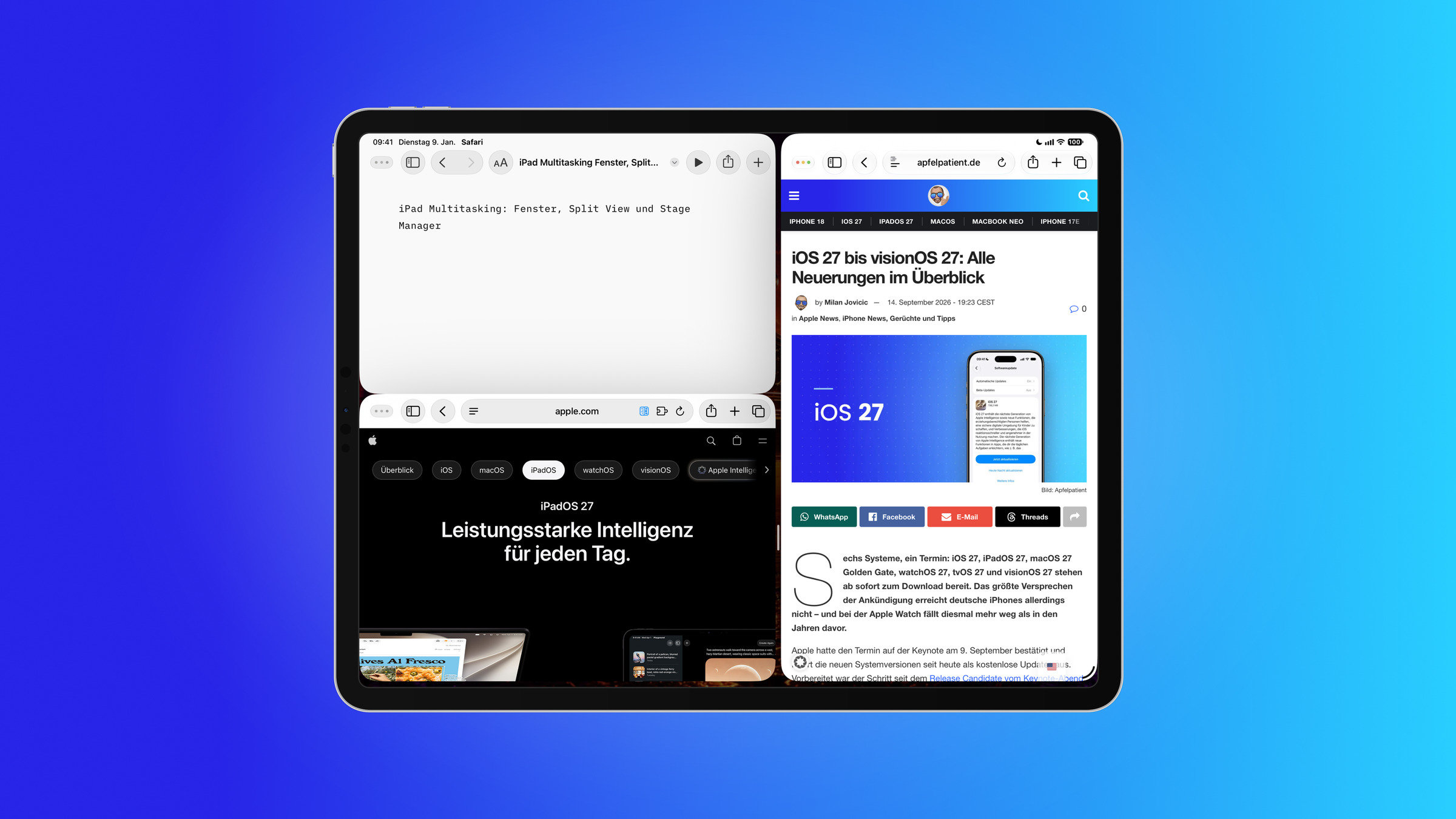
Today, the iPad arranges apps in freely movable windows, complete with a menu bar and traffic light-style buttons just like on a Mac. Split View and Slide Over are still available, as is the Stage Manager – and all three can be used simultaneously. Those who know which mode is best suited to which task will work noticeably faster on the iPad.
For years, multitasking on the iPad meant running two apps side-by-side with a third floating above them. Window management introduced a mode that allows apps to be freely positioned and resized. iPadOS 27 builds on this – the menu bar can be permanently displayed, iPhone apps no longer run at the phone's width, and closing, switching, and dragging windows is faster.
Which features are available on a device depends on the model. The complete list of devices that will receive the current system can be found in the overview of compatible Apple devices; the reference to iOS 27 details what else the system includes.
Key Facts at a Glance
- Three modes are available: Fullscreen, Window Management, and Stage Manager – switching between them is done in the Control Center.
- Split View and Slide Over still exist and are suitable for fixed two-person layouts.
- The menu bar can be permanently displayed in iPadOS 27 instead of only via gesture.
- iPhone apps can now be resized and rotated instead of remaining in narrow phone view.
- Using an external keyboard significantly speeds up the switching process with keyboard shortcuts.
A comparison of the three multitasking modes
| Mode | How apps are arranged | What it is suitable for |
|---|---|---|
| Full screen | an app fills the screen | Reading, writing, videos, working intently on one thing |
| Window management | Windows freely movable, scalable, overlapping | Research using multiple sources, working on an external display |
| Stage Manager | Active app in the center, other groups in the sidebar | fixed work sets, between which there is frequent switching |
| Split View | Two apps side by side, divider movable | Typing, comparing, and transferring between two apps |
| Slide Over | An app hovers over the active | quick tasks like replying to a message or doing calculations |
Switching between modes is done via the Control Center: swipe down from the top right corner and tap the multitasking button. Holding it down will bring up the available modes.
Arrange windows freely
In the window manager, you drag an app by its bottom right corner to the desired size. Windows can overlap, be tiled to the edge, and retain their position when you return later.
In the top left corner are the three traffic light buttons for closing, minimizing, and arranging windows – the same logic as on a Mac. The middle button allows you to tile windows to one half of the screen or into a corner without having to align them manually.
The menu bar at the top appears when you place your finger on the top edge and drag downwards. With a mouse or trackpad, simply move the pointer to the top edge and hold briefly. In iPadOS 27, it can be set to remain permanently visible, so it stays accessible even with multiple windows open.
Stage Manager for fixed work sets
The Stage Manager groups apps into sets. The active group is in the center, while the others are displayed as previews in the sidebar and can be accessed with a tap. Typical groups include "Writing" (comprising word processors and notes) or "Research" (comprising browsers and files).
A group is created by dragging a second app from the Dock or App Library onto the active stage. Individual items can also be opened in a separate window – in Notes or Mail by long-pressing the entry.
The Stage Manager was originally only available for a handful of models and is now available on significantly more iPads.
Split View and Slide Over
Both features still exist and are often the faster option when dealing with only two apps. For Split View, one app is opened, then a second is dragged from the Dock to the left or right edge; the divider in the middle determines the ratio. Opening the same app twice allows you to compare two documents side by side.
Slide Over overlays an app as a narrow window on top of the active view. To hide it, you slide it off the right edge; to bring it back, you swipe in from there. Apple has since revised and refined both functions.
Move content between apps
Once two apps are visible simultaneously, text, images, links, and files can be dragged directly between them without using the clipboard. Simply press and hold the selected content, drag it into the other app, and release it.
Using a second finger, you can collect additional elements while dragging and transfer them as a stack – useful when you want to add multiple images to a document. Detailed instructions can be found in the article on drag and drop between apps.
Keyboard, trackpad and keyboard shortcuts
On an external keyboard, keyboard shortcuts significantly speed up switching:
- Command + Tab – switch between open apps
- Command + H – return to the home screen
- Command + Spacebar – Open search
- Hold command down – Show list of shortcuts for the active app
The trackpad allows you to grab, move, and resize windows by their edges, just like on a Mac. In iPadOS 27, shortcuts can also react to a keyboard being connected or disconnected – Apple cites the example of activating window management and tiling two apps side-by-side when a keyboard is connected.
iPhone apps in their own window
Apps without a dedicated iPad interface previously ran in a narrow phone-style view on a black background. With iPadOS 27, they can be rotated and resized, appearing in a regular window. While the range of possible sizes remains more limited than with dedicated iPad apps, the apps integrate seamlessly into the window layout instead of disrupting it.
Adjust gestures and settings
You can configure which multitasking gestures are active in the settings under "Multitasking & Gestures". The Stage Manager switch is also located there. If you accidentally trigger a gesture, you can deactivate it individually without losing window management.
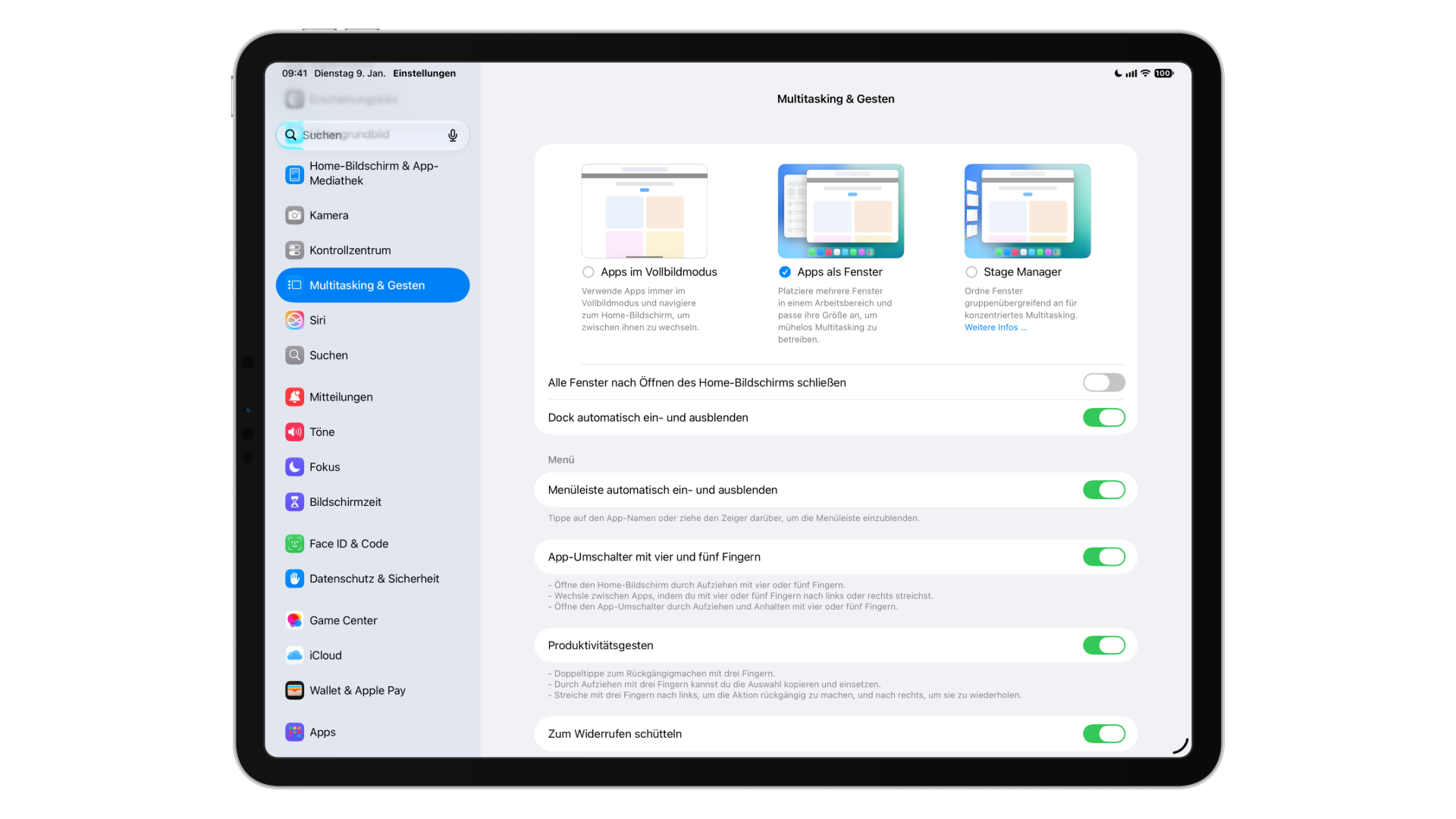
If the multitasking button is missing in the control center, it can be added via the control center settings.
If something doesn't work
Not every app supports every layout: Apps with a fixed orientation or their own full-screen logic – such as games and camera applications – cannot always be forced into a window. In such cases, closing the app and reopening it in full-screen mode helps.
If the menu bar remains invisible, it's usually due to the mode: it's not available in pure full-screen mode. And if the view rotates unintentionally, the cause is rarely multitasking – the possible reasons are explained in the article about why the iPad screen rotates.
Which iPads will receive the current system?
- iPad Pro from the 4th generation onwards (M1 and newer)
- iPad Air 4th generation and newer (M2 and newer)
- iPad from the 9th generation (A16) onwards
- iPad mini 6th generation (A17 Pro)
Older models will remain on their current version and retain their functionality. Users of such a device will find Split View, Slide Over, and Drag & Drop unchanged.
Which mode is really worthwhile in everyday life
The window management looks most impressive in the demonstration, but it's not automatically the best choice for everyday use. If you need two apps permanently side-by-side – research on the left, text on the right – Split View is more stable because nothing shifts and no windows overlap.
Window management is advantageous when three or more sources need to be monitored simultaneously, and on external displays. Stage Manager, on the other hand, is only worthwhile if you regularly switch between fixed work sets; for occasional reference, it creates more confusion than it saves.
In practical terms, this means: choose a mode and stick with it for a few days, instead of constantly switching between them. Only then will it become clear whether it suits your workflow.
Which mode do you use most often – free window arrangement or fixed split view? Tell us in the comments why your setup has failed so far.
Frequently Asked Questions: iPad Multitasking
In Split View, two windows are displayed side-by-side, plus a third floating in Slide Over. The window manager and Stage Manager allow you to open more windows simultaneously – how many are practical depends on the screen size. On an iPad mini, things get cramped with three windows, while four are still comfortable on a 13-inch model.
Not every app supports split-screen view. Games, camera apps, and applications with a fixed orientation often only run in full-screen mode. This is due to the specific app, not the iPad itself—an app update can change this, but a system setting cannot.
Yes. The feature had temporarily disappeared and has since returned, also revised. It remains the fastest way to quickly switch to a second app without rearranging the main view.
Tap the leftmost of the three dots at the top of the window. In Split View, drag the divider in the middle all the way to the edge; the remaining app will then take over the entire screen. Slide Over disappears when you drag the floating window off the side of the screen.
No. Split View, Slide Over, and Drag & Drop also work on older models. More powerful models are needed for full window management and for using an external display as an independent workspace – on weaker devices, a connected monitor is simply mirrored.
Yes, and that's one of the most useful features there is. Two documents side-by-side in the same word processor, two Safari windows for comparison, two notes for typing. In many apps, a long press on an entry and the option to open it in a new window is all it takes.
The system remembers arrangements per app group, not as a fixed layout across restarts. If you regularly need a specific configuration, it's best to create a shortcut – this allows you to open the relevant apps and arrange them side-by-side.





