
Apfelpatient
  • Home
  • News
  • Rumors
  • Tips & Tricks
  • Reviews
  • Insights
No result
View All Results
  • iPhone 18
  • iPhone 18 Pro
  • iPhone Duo
  • Apple Home
  • Siri AI
  • HomePod
  • HomePod mini
  • HomePod mini 2
  • MacBook Pro
  • Apple TV 4K
  • Apple Watch Series 12
  • Apple Watch Ultra 4
  • AirPods 5
  • iOS 27
  • iPadOS 27
  • macOS
  • MacBook Neo
  • iPhone 17e
  • AirTags
  • iOS 26
  • iPhone 17
  • iPadOS
  • iMac
  • Mac mini
  • Apple TV
  • iPad Pro
  • iPhone Air
  • Apple Vision Pro
  • iPhone 16
  • AirPods 4
  • Apple Watch Ultra
  • MacBook Air
  • iPad
  • AirPods Max
  • AirPods Pro 3
  • Mac Studio
  • Studio Display
  • iPad Air
  • iPad mini
  • watchOS 27
  • Apple CarPlay
  • Apple Pay
  • watchOS 26
  • Home
  • News
  • Rumors
  • Tips & Tricks
  • Reviews
  • Insights
No result
View All Results
Apfelpatient
No result
View All Results
  • iPhone 18
  • iPhone 18 Pro
  • iPhone Duo
  • Apple Home
  • Siri AI
  • HomePod
  • HomePod mini
  • HomePod mini 2
  • MacBook Pro
  • Apple TV 4K
  • Apple Watch Series 12
  • Apple Watch Ultra 4
  • AirPods 5
  • iOS 27
  • iPadOS 27
  • macOS
  • MacBook Neo
  • iPhone 17e
  • AirTags
  • iOS 26
  • iPhone 17
  • iPadOS
  • iMac
  • Mac mini
  • Apple TV
  • iPad Pro
  • iPhone Air
  • Apple Vision Pro
  • iPhone 16
  • AirPods 4
  • Apple Watch Ultra
  • MacBook Air
  • iPad
  • AirPods Max
  • AirPods Pro 3
  • Mac Studio
  • Studio Display
  • iPad Air
  • iPad mini
  • watchOS 27
  • Apple CarPlay
  • Apple Pay
  • watchOS 26

Siri Remote: Compatibility, "Find My" and New Features

Milan Jovicic by Milan Jovicic
November 4, 2026 - 00:34 CET
in Apple Tips & Tricks
0
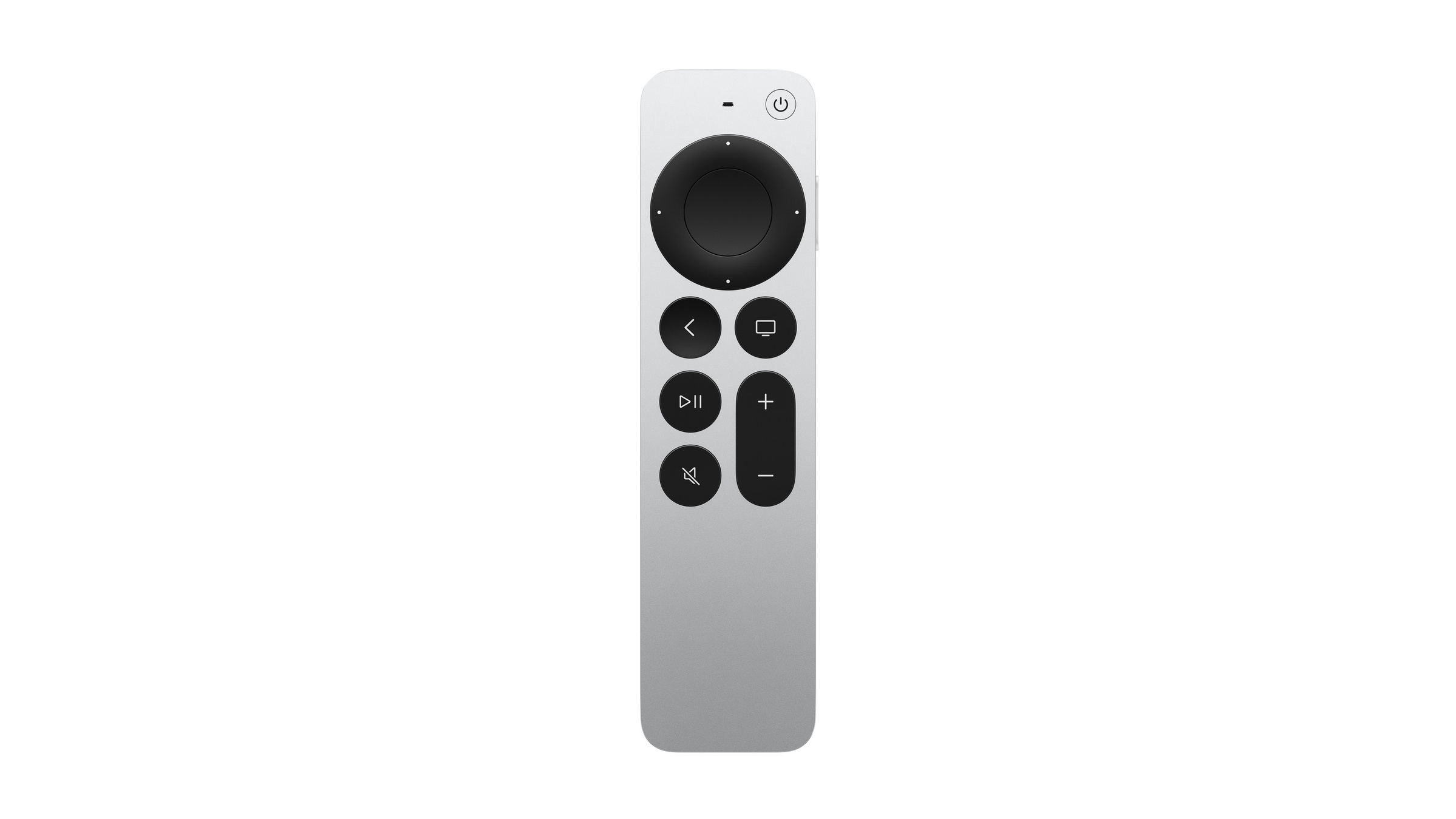
Siri Remote compatibility: silver Siri Remote with clickpad and buttons, front view on a white background

Image: Apple

WhatsAppFacebookEmail
Threads

This article may contain affiliate links. Learn more on our Partner Program page.

Make Apfelpatient a preferred source One click – and you'll see us more often on Google

The new Siri Remote looks like the old one, but for the first time it can be found by sound. It also works with older Apple TV models and costs 69 euros on its own. Whether it's worth buying depends on which iPhone and which Apple TV you have.

Apple introduced the Siri Remote (4th generation) on October 13 together with the new Apple TV 4K and also sells it separately. According to Apple's announcement, it is compatible with Apple TV HD and Apple TV 4K. In the Apple Store it costs 69 euros and ships from November 13.

Some of the new features also benefit older remotes: Since tvOS 27.2, according to Apple's overview of software updates, the Siri Remote from the 2nd generation onward can be located with "Find My". All articles about the device are collected on the page for Apple TV 4K.

Key Facts at a Glance

  • The Siri Remote (4th generation) costs 69 euros on its own and works with Apple TV HD and every Apple TV 4K.
  • "Find My" works with the iPhone from the Siri Remote (2nd generation) onward.
  • Precision Finding and sound are only available with the Siri Remote (4th generation).
  • Precision Finding requires an iPhone Duo, iPhone Air or iPhone 17 and later; iPhone 17e is excluded.
  • On Apple TV HD and Apple TV 4K (1st generation), the new remote requires tvOS 26.6.1.

Which Siri Remote do you have?

Apple counts four generations. You can recognize the first by its black enclosure, the 2nd generation by its Lightning connector. According to Apple, the serial number of the 1st through 3rd generation is listed under "Settings" > "Remotes and Devices" > "Remote". Apple's overview describes these three models by enclosure, charging port and Bluetooth, but does not yet list the 4th generation.

Siri RemoteIncluded withChargingSearch in Control Center“Find My”Precision Finding and sound
4th GenerationApple TV 4K (4th generation)USB-CYesYesYes
3rd GenerationApple TV 4K (3rd generation)USB-CYesYesno
2nd GenerationApple TV 4K (2nd generation)LightningYesYesno
1st GenerationApple TV 4K (1st generation), Apple TV HDLightningnonono

Apple is not changing the design of the new remote. It measures 136 × 35 × 9.25 millimeters, weighs 69.6 grams and keeps the clickpad with its outer ring.

Which Apple TV models does it work with?

The Siri Remote (4th generation) works with Apple TV HD and all Apple TV 4K models. Support for Apple TV HD and Apple TV 4K (1st generation) arrived with tvOS 26.6.1, so this update must be installed.

There is one limitation for both models. They don't get tvOS 27, and Apple lists "Find My" for the Siri Remote as a new feature of tvOS 27.2. If you own one of these devices, you shouldn't count on "Find My", sound and Precision Finding when buying.

An Apple Remote, the older remote without a touch surface, works with any Apple TV according to Apple, though possibly not with all features. On Apple TV (3rd generation), it is the only option.

"Find My", Precision Finding and Sound

There are three levels behind the search.

Search in Control Center: This has been available since iOS 17 and tvOS 17 for the Siri Remote from the 2nd generation onward. Open Control Center, tap the Apple TV Remote, then the device list, and tap "Find" next to the remote. A circle grows as you get closer, and the text changes from "far" to "near" to "here".

"Find My": Since tvOS 27.2, according to Apple, the Siri Remote from the 2nd generation onward can also be located with "Find My" on iPhone.

Precision Finding and sound: Both are reserved for the Siri Remote (4th generation). For Precision Finding, Apple also requires an iPhone Duo, iPhone Air or iPhone 17 or later with current software; iPhone 17e is excluded. According to Apple, availability may vary by region. If you've used an AirTag, you already know what this feels like.

Charging and Setup

Like the 3rd generation, the Siri Remote (4th generation) charges via USB-C. A cable and power adapter are not included with the remote when bought separately; the box contains only the remote and the user guide.

If you've lost your remote or don't have a replacement yet, you can temporarily control your Apple TV with the Apple TV Remote in Control Center on iPhone or iPad, according to Apple.

Who Should Buy It

I think the new remote makes the most sense if your old one is broken or missing. If you have a Siri Remote from the 2nd or 3rd generation, you get "Find My" with tvOS 27.2 anyway, and the new model doesn't change how you use it.

The 69 euros become interesting if your remote regularly disappears into the couch. Sound is only available with the new remote, and Precision Finding additionally requires a compatible iPhone. On Apple TV HD and Apple TV 4K (1st generation), replacing the black remote mainly brings the clickpad and search in Control Center.

Would you spend 69 euros for sound and Precision Finding, or is the search your iPhone can already do enough for you? Tell us in the comments where your remote disappears most often.

Frequently Asked Questions: Siri Remote

How much does the new Siri Remote cost on its own?

In the Apple Store, the Siri Remote (4th generation) costs 69 euros. A cable and power adapter are not included.

Does the new Siri Remote work with my old Apple TV?

Yes, as long as it's an Apple TV HD or Apple TV 4K. On Apple TV HD and Apple TV 4K (1st generation), it requires tvOS 26.6.1. It can't control Apple TV (3rd generation), which needs an Apple Remote.

Can I locate my Siri Remote with "Find My"?

Yes, from the Siri Remote (2nd generation) onward. Apple lists the feature as new in tvOS 27.2. This version is not available for Apple TV HD and Apple TV 4K (1st generation). The first generation with the black enclosure is not supported.

Which iPhone do I need for Precision Finding?

Apple lists iPhone Duo, iPhone Air or iPhone 17 and later with current software; iPhone 17e is excluded. It also only works with the Siri Remote (4th generation).

Can the Siri Remote play a sound?

Only the Siri Remote (4th generation). Older remotes can't do this.

How do I charge the Siri Remote?

The 3rd and 4th generations charge via USB-C, the 1st and 2nd generations via Lightning.

How do I control my Apple TV if the remote is missing?

On Apple TV 4K and Apple TV HD, you can use the Apple TV Remote in Control Center on iPhone or iPad. With your iPhone, you can also search for a Siri Remote from the 2nd generation onward in Control Center.
Was this article helpful?
YesNo
Tags: Apple HomeApple TV 4K
SendShareSend
Share

Our Amazon Storefront

A handpicked selection of products for iPhone, Mac and more – sorted by topic and updated regularly.

Shop Now

This post contains affiliate links (including Amazon). We earn a small commission on qualifying purchases – at no extra cost to you. Learn more on our Partner Program page.

Previous Post

Setting up HomePod: Here's how to do it with iPhone and the Home app

Next Post

Apple bans insider betting on prediction markets

Milan Jovicic

Milan Jovicic

Milan founded Apfelpatient in 2016 and has been responsible for all editorial content since 2018 – news, rumors, how-to guides and product reviews. Here, Apple devices aren't review units kept for two weeks, they're everyday tools: from iPhone to MacBook Pro, MacBook Air and iMac all the way to Apple Vision Pro, at least one device from every product category is in daily use, many of them replaced every year. Every menu path in a guide is checked on the device before it goes live.

Related posts

Setting up HomePod: Here's how to do it with iPhone and the Home app

by Milan Jovicic
November 4, 2026 - 00:06 CET
Setting up HomePod: original boxes of HomePod and HomePod mini side by side on a dark countertop

Setting up HomePod with iPhone and Home app: All steps, requirements and what helps if the configuration screen is missing.

Read moreDetails

Setting Up iPhone Widgets: 6 Tricks for iOS 27

by Milan Jovicic
October 31, 2026 - 19:02 CET
Setting up iPhone widgets: unfolded iPhone running iOS 27 in landscape, standing on a grey table, with app icons and widgets for music and an app on the Home Screen

Setting up iPhone widgets in iOS 27: how to stack widgets, change their size, make icons clear and use shortcuts.

Read moreDetails

USB-C cables for Mac: Which one does your model need?

by Milan Jovicic
October 30, 2026 - 00:02 CET
USB-C cable for Mac: a black braided USB-C cable without markings next to a white cable with the Thunderbolt logo on its connector

Which USB-C cable does your Mac need? An overview of Thunderbolt 5, Thunderbolt 4 and USB 3 – with all current Macs, charging and monitor.

Read moreDetails

MacBook power adapter: What wattage does your model need?

by Milan Jovicic
October 29, 2026 - 2:09 PM CET
Four stacked MacBooks seen from the port side with MagSafe 3 and USB-C, where each model needs a different MacBook power adapter for full charging speed

Which power adapter does your MacBook need? Wattage figures for Neo, Air and Pro including M6 and PROLED XDR, fast charging and what's missing in the box.

Read moreDetails

Apple Silicon: How Much RAM Do You Really Need?

by Milan Jovicic
October 29, 2026 - 13:34 CET
Four Macs with Apple Silicon side by side: two MacBook Pros, one iMac and one Mac Studio

How much RAM your Apple Silicon Mac really needs: from 16 GB to 512 GB, with all levels from M6 to M5 Ultra and Siri AI.

Read moreDetails
Load More

Leave a Reply Cancel reply

Required fields are marked with * marked.

By submitting, you consent to the storage of your comment along with your name, email address and IP address. Details are available in our privacy policy.

Categories

  • Apple Insights
  • Apple Rumors
  • Apple News
  • Apple Tips & Tricks
  • iPhone news, rumors and tips
  • Mac and MacBook News
  • Reviews
Make Apfelpatient a preferred source One click – and you'll see us more often on Google

About APPLE PATIENT

APFELPATIENT brings you the latest Apple news, product updates, guides, reviews and tips across the entire Apple ecosystem — from the iPhone to the Mac to the Apple Vision Pro. From the first rumors to confirmed news: researched responsibly.

Follow Apfelpatient

Facebook Instagram YouTube Threads Threads

Company

  • About Apfelpatient
  • Contact
  • Author Profiles

Community

  • Netiquette
  • Push notifications
  • RSS feed

Legal

  • Legal Notice
  • Privacy Policy
  • Terms of Use
  • Cookie settings
  • Affiliate Program

Resources

  • Sitemap

© 2026 Apfelpatient. All rights reserved.

No result
View All Results
  • Home
  • News
  • Rumors
  • Tips & Tricks
  • Reviews
  • Insights

© 2026 Apfelpatient. All rights reserved. Site map

Change language to Deutsch