

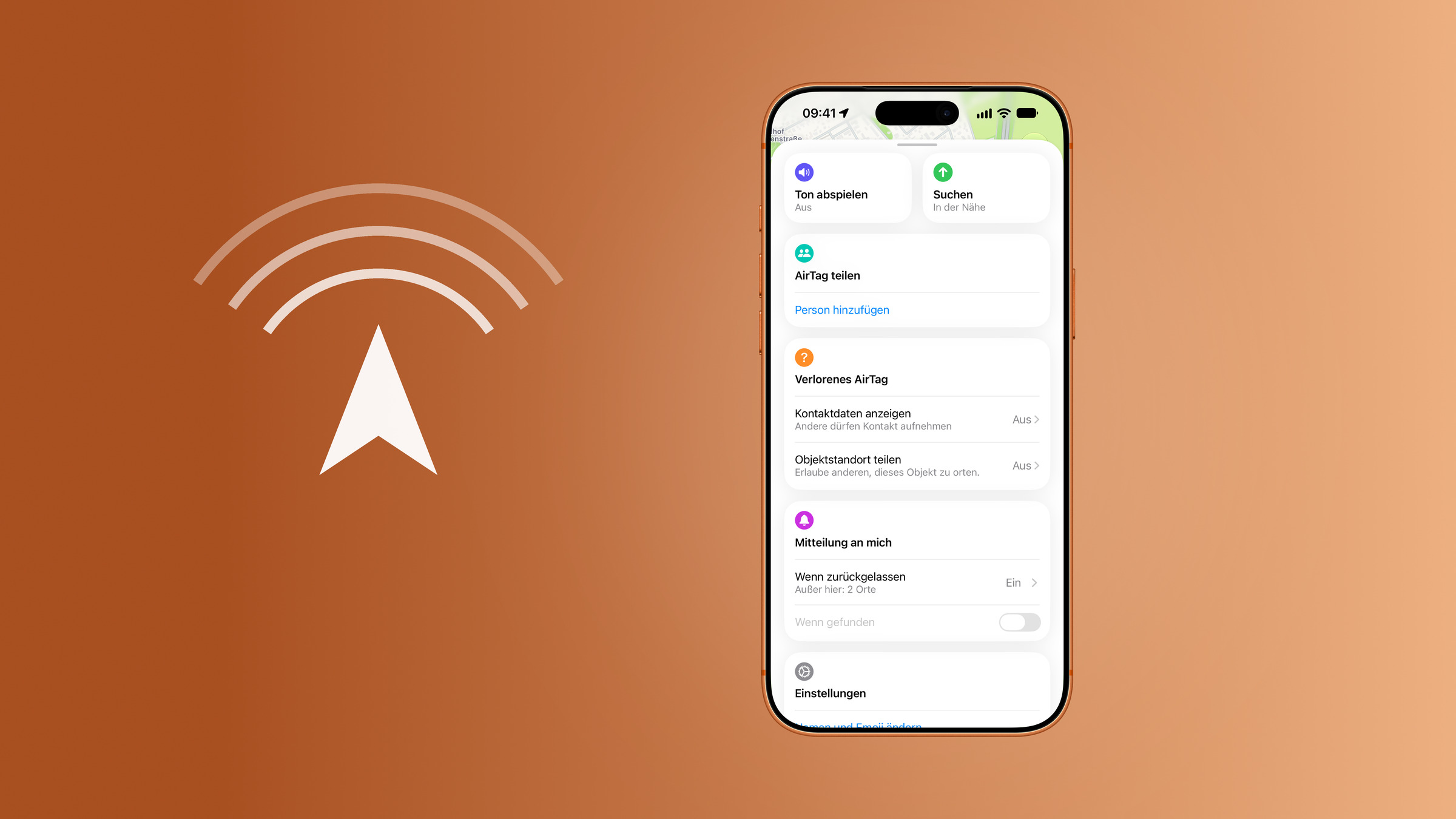
When an AirTag is within Bluetooth range, the iPhone displays not just a dot on the map, but an arrow and the distance in meters. Apple calls this feature "Precise Find," though the term "Precision Find" is also commonly used. It requires ultra-wideband connectivity – and that's precisely where it fails if the option doesn't even appear.
Tracking an AirTag works via two separate methods. The last known location worldwide can be retrieved via Bluetooth and the "Where is?" network; how this works is explained in the... Overview of the “Where is?” app. In the final stretch, the precise search takes over.
Every AirTag contains an Ultra Wideband chip for this, and the same has to be present on the other side. Once the tracker is set up and within range, your iPhone guides you straight to the item with an arrow, a distance reading, sounds and haptic feedback.
Key Facts at a Glance
- Precision Finding requires an iPhone with Ultra Wideband - iPhone 11 and later, with exceptions among the e models
- The extended version with greater range only works with an AirTag (2nd generation) paired with an iPhone Air or iPhone 15 and later, excluding iPhone 16e
- On Apple Watch it only works from Series 9 or Ultra 2 onwards, and exclusively with the newer AirTag
- If the "Nearby" option is missing under the "Search" button, it is usually due to location access issues for "Where is?"„
- In some countries Ultra Wideband is restricted, and the feature is then unavailable in full or in part
Which devices support Precision Finding
| Combination | What it supports |
|---|---|
| AirTag (1st generation) + iPhone 11 or later | Precision Finding with arrow and distance |
| AirTag (2nd generation) + iPhone Air or iPhone 15 and later | extended Precision Finding with greater range |
| AirTag (2nd generation) + iPhone 16e or 17e | tracking yes, extended version no |
| AirTag (2nd generation) + Apple Watch Series 9 or Ultra 2 and later | Precision Finding on the watch, from watchOS 26.2.1 |
| AirTag (1st generation) + Apple Watch | no Precision Finding on the watch |
The difference comes down to the chip: the first generation uses first-generation Ultra Wideband, the second uses the newer one that also sits in the iPhone Air, the iPhone 17 line-up and the current Apple Watch models. Which devices use which generation is listed by Apple in its document on Ultra Wideband availability.
An AirTag (2nd generation) also requires iOS 26.2.1 or later. Everything else that has changed between the two generations is covered in our comparison of the two AirTag models.
Starting Precision Finding
- Open the "Where is?" app and switch to the "Objects" tab.
- Tap the AirTag you are looking for
- Tap "Search" on the right – if it says "Nearby" in small print below, the tracker is within range and the detailed search will start.
The screen then shows an arrow and the distance. As you get closer, your iPhone vibrates, the readings become finer, and the display changes over the final few metres. If the item is on a different floor, the app points that out separately.
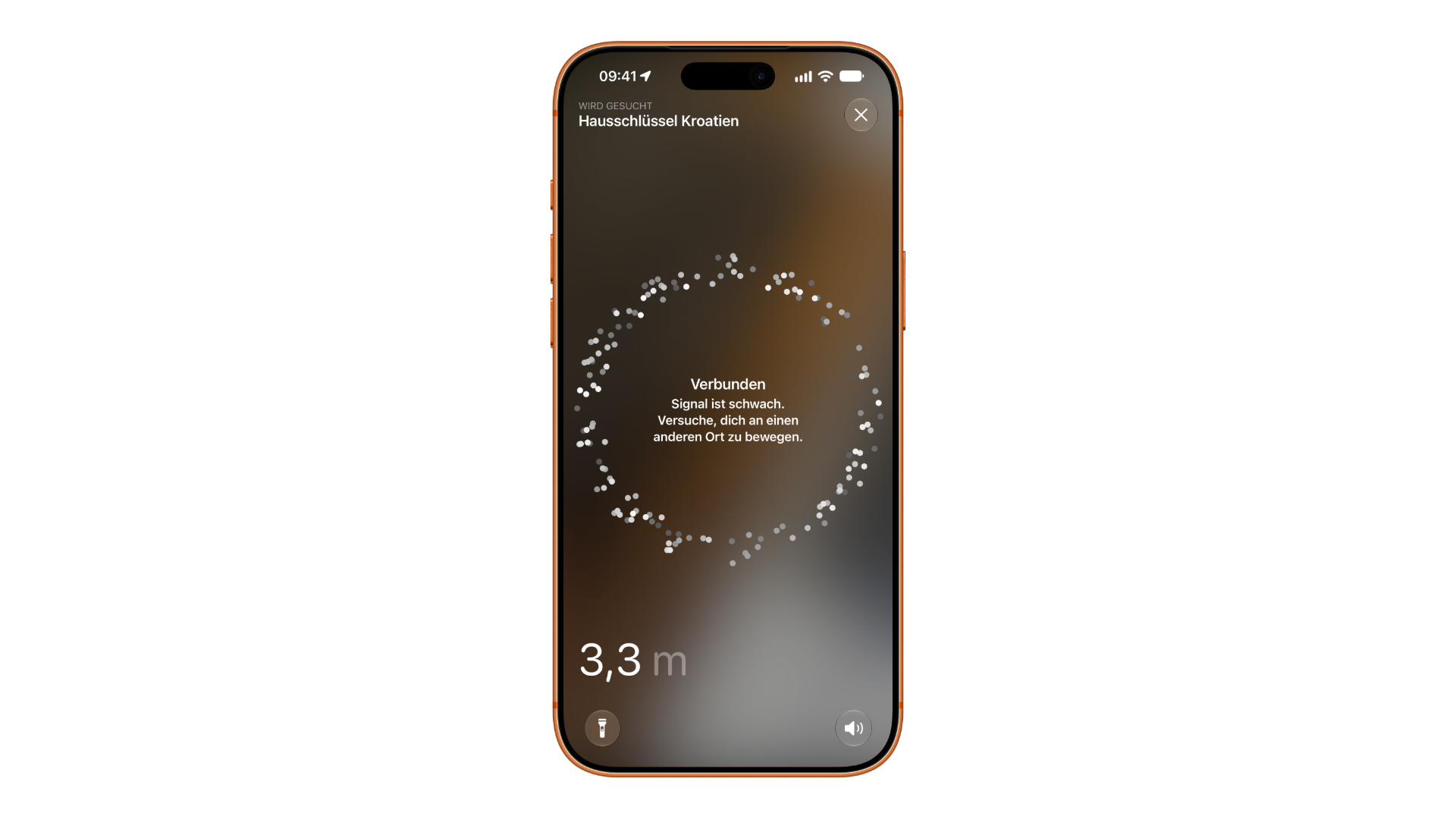
If the iPhone indicates it needs more light, a finger is usually covering the camera – the Precise Search feature analyzes this image as well. Alternatively, the flashlight can be activated via a button. If all else fails, the "Play Sound" function will play a sequence of tones through the AirTag's speaker.
Precision Finding on Apple Watch
The search is running on the watch in the "Find Objects" app. As soon as a matching AirTag is within range, a directional arrow and distance appear, and the screen changes color as you get closer.
The feature does come with the tightest requirements of all the options described here, though: Apple Watch Series 9 or Ultra 2 and later, watchOS 26.2.1 or later - and an AirTag (2nd generation) without exception. Older trackers are left out, even though they work perfectly well with an iPhone. The setup is covered in detail in our guide to Precision Finding on Apple Watch.
If the phrase "Nearby" is missing
The object view has two buttons: "Play Sound" on the left and "Search" on the right. Precise search only works if "Nearby" is also displayed under "Search." If this option is missing, one of four reasons is almost always the cause:
- Location access is disabled. In the settings under „Privacy & Security”, open the location services and check if they are enabled and if “Where is?” is allowed to access them.
- Your iPhone does not support Ultra Wideband. Without the chip the feature simply is not there; tracking via the map is unaffected
- The AirTag is out of range. The precise search only works in the immediate vicinity, not via the "Where is?" network.
- The system is out of date. iOS needs to be current for all items to show up in the first place; the newer AirTag requires at least iOS 26.2.1
If the arrow stalls or the distance jumps around, panning your iPhone slowly helps. The feature combines Ultra Wideband with the camera, accelerometer and gyroscope - it needs movement to get its bearings.
If the tracker stops responding altogether, the power supply is the first thing worth checking. How to see the charge level is covered in our guide to replacing the AirTag battery.
Where the feature reaches its limits
Ultra Wideband is not permitted everywhere. In countries with restrictions, the Exact Search feature is either completely or partially unavailable – in Japan, for example, according to Apple, the expanded search area, "Find People," and search via Apple Watch are not available; there, devices operate at the level of the first-generation chip.
For travel that means: tracking via the map and the network keeps working, while the close-range search over the final few metres does not necessarily. What else to bear in mind when taking one along is covered in our article on travelling abroad with AirTags. Matching cases and holders can be found in our AirTag list on Amazon.
What the feature is really worth day to day
The map view gets you to the building, Precision Finding gets you to the sofa cushion. That is exactly where its value lies - not with the suitcase lost at the other end of Europe, but with the keys sitting somewhere in the flat. For that case, it is the reason to reach for an AirTag rather than a cheaper Bluetooth tracker in the first place.
The tiered requirements are the least appealing part of the story. That searching from the watch demands the new tracker can be justified on technical grounds. That the e models of all things are left out, however, means a current iPhone can do less than one that is years old.
Do you use Precision Finding regularly, or does the sound from the speaker do the job for you in practice? Tell us in the comments how you actually track your things down.
Frequently Asked Questions: AirTag Precision Finding
In the object view, the "Search" button is located on the right. Precise search is only available if "Nearby" appears in small print below it. If this label is missing, the tracker is out of range, location access for "Find My" is disabled, or the iPhone lacks Ultra Wideband connectivity.
All models from the iPhone 11 onwards in principle, as that was the first to include an Ultra Wideband chip. The extended version with greater range only works with an AirTag (2nd generation) paired with an iPhone Air or iPhone 15 and later - the iPhone 16e and iPhone 17e are excluded.
On Apple Watch it does, but under tight conditions: Series 9 or Ultra 2 and later, watchOS 26.2.1 or later, and an AirTag (2nd generation) without exception. The first AirTag can still be located using an iPhone, but on the watch the feature stays locked for it.
Apple does not give a fixed figure in metres - it depends on the surroundings, walls and sources of interference. For the second generation, Apple states a range up to 1.5 times greater than on the first model.
Alongside the radio signal, the feature also draws on the camera image. Usually a finger is covering the lens. In the dark, a button switches on the flashlight.
Not everywhere. Ultra-wideband is subject to regional regulations; in Japan, for example, the extended range, "Find People," and search via Apple Watch are not available. Location services via Maps and the "Find My" network remain unaffected.
Pan your iPhone slowly instead of standing still. The feature combines Ultra Wideband with the camera, accelerometer and gyroscope, and it needs movement to work out the direction. Metal shelving and thick walls degrade the signal further.





