

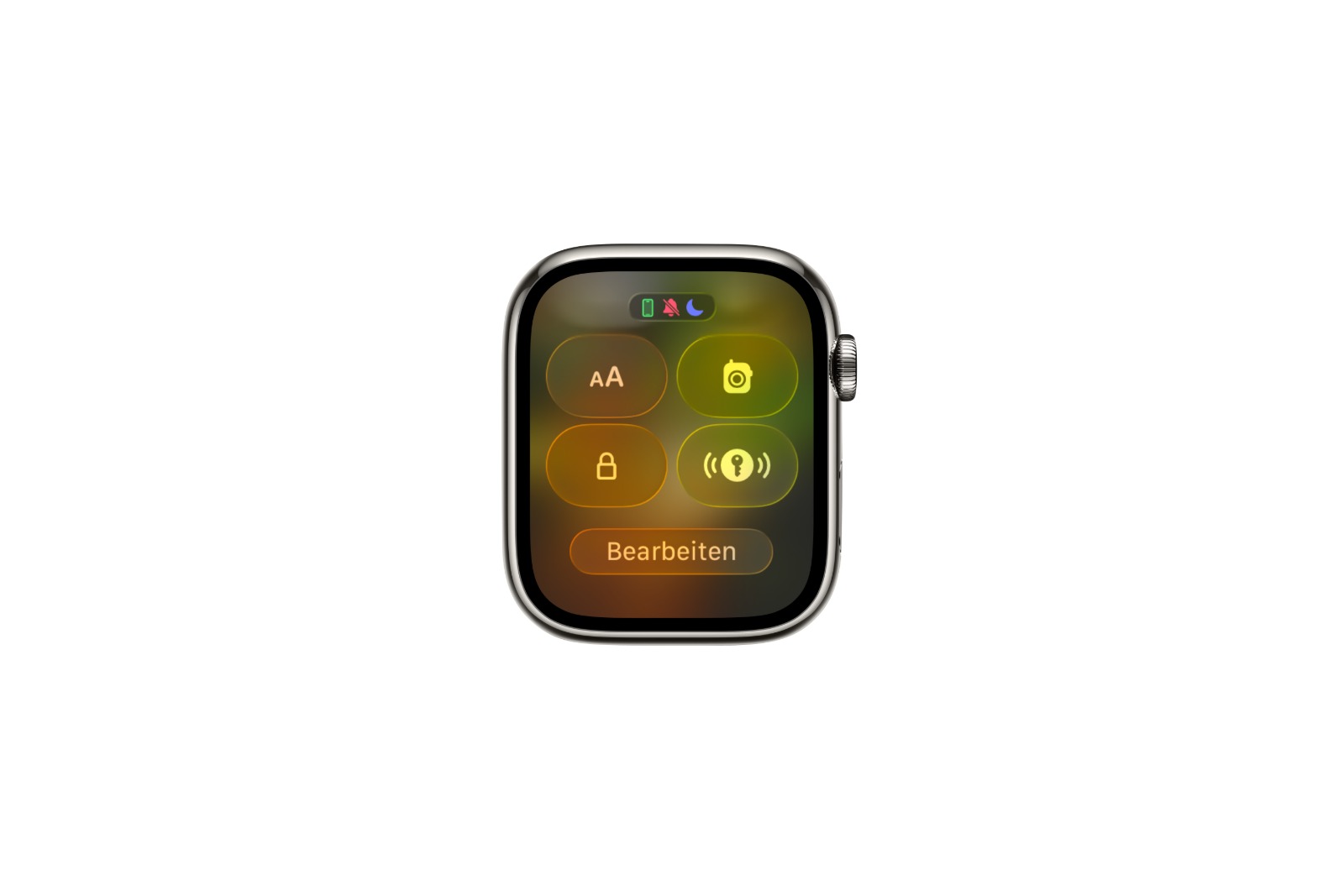
With AirTag 2, Apple has further developed its tracker. The focus remains on quickly finding lost items. The key new feature is that precision finding is now also available on the Apple Watch. This allows users to locate an AirTag directly from their wrist for the first time.
The AirTag was designed from the outset to quickly locate everyday items such as keys, bags, or backpacks. Precision Finding is its central tool, guiding the user step-by-step to the lost item and combining visual cues, sounds, and haptic feedback. AirTag 2 further enhances this functionality and brings it to an additional platform.
The most important function of AirTag
The primary purpose of an AirTag is clearly defined: to find lost items. Precision Finding has been its most effective function for this purpose since the first model. It indicates direction and distance, emits audible signals, and uses vibrations to facilitate the search.
With AirTag 2, this function has been technically improved. The precision finding range is now up to 1.5 times greater than with the first AirTag. This means that a lost item can be detected and located from a significantly greater distance.
Precision Finding for the first time on the Apple Watch
One of the most important new features of AirTag 2 is Apple Watch support. Precision Finding is now directly usable on the watch for the first time. An iPhone is not required for this.
In practice, however, the implementation isn't immediately self-explanatory. As already explained, access isn't via the familiar "Find Items" app, but rather via the watchOS Control Center. This is functional, but less intuitive than expected.
This is how to set up Precision Finding
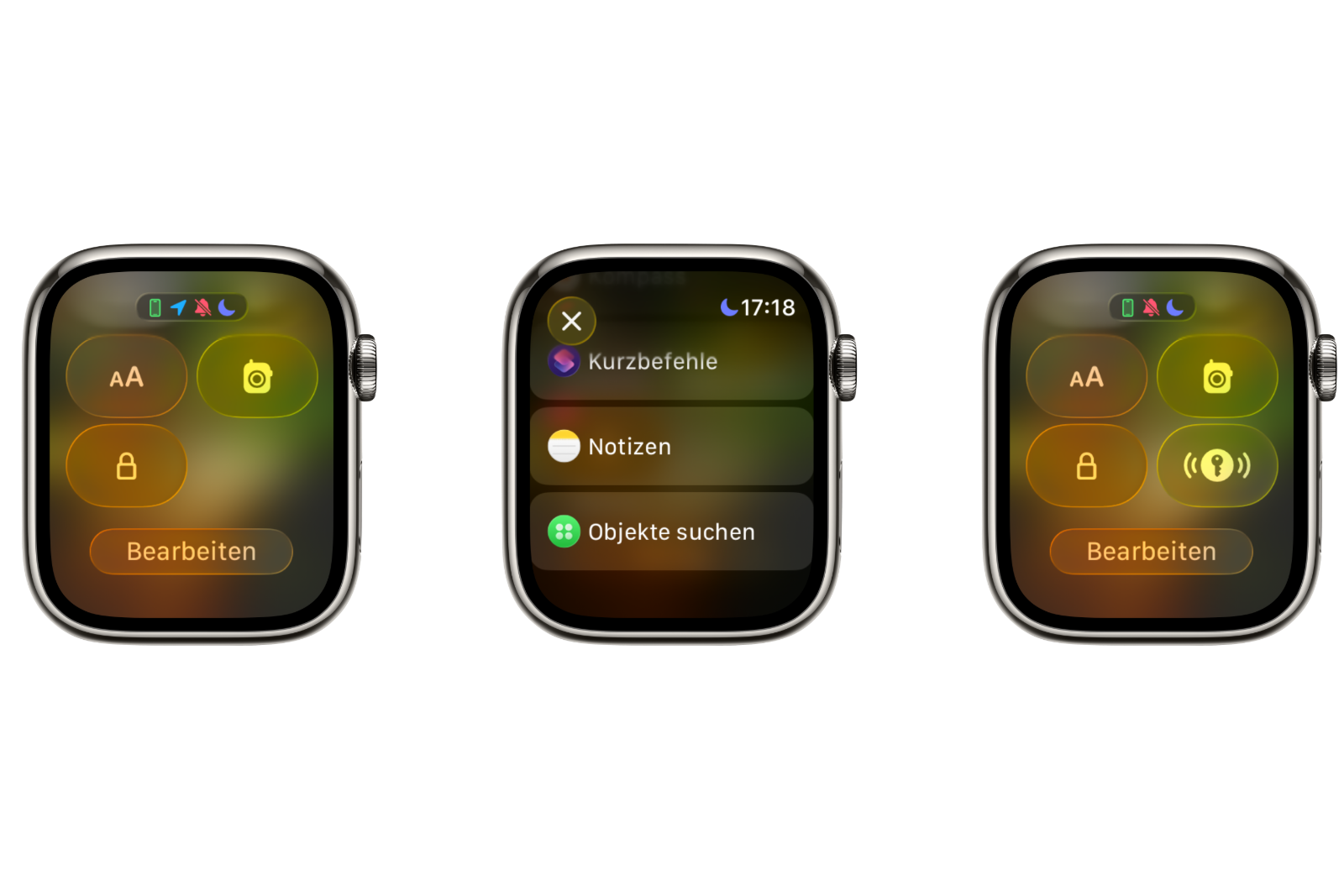
Setting up precision finding on the Apple Watch involves several steps:
- Press the side button on the Apple Watch to open Control Center.
- Scroll down and tap "Edit".
- Tap "Add" in the upper left corner.
- Scroll down to "Find Items" and select "Find AirTag".
- Select the desired item and add it to the control center.
Once the AirTag is added, it appears in the Control Center with its own icon. This icon automatically adjusts to the item type. For example, if the AirTag is attached to a key, a key icon will be displayed. This makes it easier to quickly identify the item in everyday life.
Conditions for use
To use AirTag 2's precision finding on the Apple Watch, certain hardware and software requirements must be met.
Hardware:
- AirTag 2
- Apple Watch Series 9 or newer
- Apple Watch Ultra 2 or newer
Software:
- watchOS 26.2.1 or later
Without this combination, the function cannot be used.
Everyday impression and classification
Direct access to the precision finding via the control center is practical in everyday use, as the function is quickly accessible. It's also a positive feature that each added item is automatically assigned its own icon.
One drawback remains: precision finding is not directly integrated into the "Find Items" app. An additional option there would simplify the process. However, there is a possibility that Apple will add this feature in a future update.
AirTag 2 significantly improves Precision Finding capabilities
AirTag 2 builds upon the core strengths of the AirTag. The extended range of the precision finding and new Apple Watch support provide greater flexibility in finding lost items. While the setup via the Control Center isn't ideal, AirTag 2 offers a significant overall functional upgrade compared to its predecessor. The best products for you: Our Amazon storefront offers a wide selection of accessories, including those compatible with HomeKit. (Image: Apfelpatient)
- How to turn texts into reminders with Apple Intelligence
- Precision Finding on the Apple Watch requires AirTag 2
- AirTag 2: Which airlines support baggage tracking
- AirTag 1 or AirTag 2: How to tell the difference
- AirTag 2: These iPhones are compatible with improved tracking
- iPhone alarm silent: Why the alarm suddenly stops working
- Safari at 120 Hz: How to activate smoother scrolling
- iOS 26 improves group chats with five new features
- Here's how to create Apple Music playlists with ChatGPT
- iOS 26: Change default apps on your iPhone
- iOS 26 turns photos into impressive 3D spatial scenes
- AirPods: Media no longer continues playing during sleep thanks to iOS 26
- Use Apple's Family Sharing to share content together
- iPhone tip: How alternative app distribution channels work
- iPhone tip: Access flight information directly in the system
- iOS 26.2 explained: How the new AirDrop codes work
- iOS 26.2 enhances the Reminders app with alarm functionality
- Here's how to properly create a backup for iPhone and iPad
- Setting up and using Apple Car Key: All functions explained
- New iOS 26.2 feature: Screen flashes for notifications
- Longer battery life with iOS 26 – Adaptive Power explained
- Live translation with AirPods: Here's how the feature works
- iOS 26: The new focus mode „Reduce interruptions“
Frequently asked questions about AirTag 2 and precision finding on the Apple Watch
AirTag 2 offers improved precision finding with up to 1.5 times greater range. Additionally, precision tracking is now available directly on the Apple Watch for the first time.
Yes. With AirTag 2, precision finding can now be started directly via the Apple Watch for the first time, without necessarily requiring an iPhone.
Precision Finding is currently not initiated via the "Find Items" app, but rather via the watchOS Control Center. This is functional, but less intuitive.
The feature will be added to the Apple Watch Control Center. There it will appear as a separate icon, assigned to the respective item type.
The Apple Watch Series 9 or newer and the Apple Watch Ultra 2 or newer are supported.
To use Precision Finding on the Apple Watch, at least watchOS 26.2.1 is required.
Each added AirTag automatically receives an icon that matches the item, such as a key or backpack icon.
The greater range allows a lost object to be detected and targeted from a significantly greater distance.
The setup process isn't particularly intuitive, as it's done via the control center. However, with the right steps, it can be completed quickly.
It is possible that Apple will integrate precision finding directly into the "Find Items" app in a future update, but this has not been confirmed.





