

With iOS 26, Apple significantly expands the customization options for the iPhone. A key aspect of this is the ability to freely choose default apps. System actions such as opening websites, making phone calls, or sending messages are no longer restricted to pre-installed Apple apps. iOS 26 expands existing options and adds new categories, which are available differently depending on the region.
The ability to change default apps isn't new. For several iOS versions now, users have been able to replace individual Apple apps with alternatives. Each version has added new categories, and iOS 26 continues this trend. Users outside the US, in particular, benefit from the expanded selection, as Apple responds to varying legal requirements worldwide. The result is unprecedented flexibility in iPhone usage.
Manage default apps in iOS 26
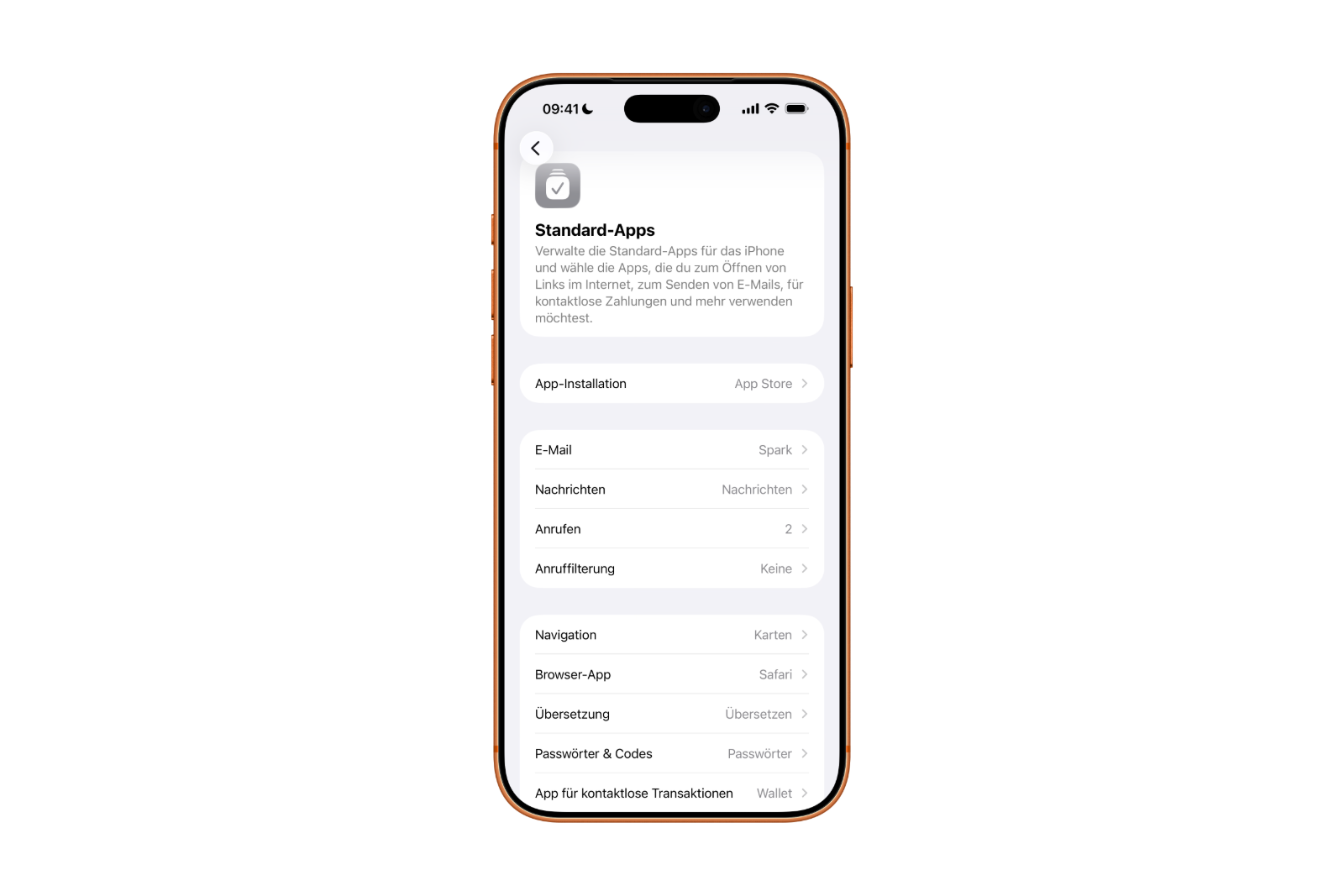
All default app settings are located in one central location. To change the default apps on your iPhone, open the Settings app. From there, navigate to:
Settings → Apps → Default Apps
This section lists all available categories. Each category explains which system function is affected and what changes when a different app is set as the default. The options displayed depend on the country or region.
Standard app categories for all iPhone users
Regardless of location, the following default apps can be changed with iOS 26:
- Browser app: You can specify an app other than Safari that will be used automatically when opening web links.
- Calling: Instead of the Phone app and FaceTime, another app can be used to make calls.
- Call filtering: An app for displaying the caller ID and for blocking and filtering unwanted calls can be selected as the default.
- Email: Links for writing emails will, if desired, no longer open in the mail app, but in an alternative email app.
- Keyboards: A third-party keyboard can be used system-wide for text input, not just within individual apps.
- Messaging (Instant Messaging): Links for sending instant messages can be opened with an app other than the Messages app.
- Passwords and codes: For automatic password filling in Safari and other apps, an app other than the Apple Passwords app can be used.
- Translation: Selected text will be translated using a translation app of your choice instead of the Apple translation app.
Additional standard apps for most iPhone users
In many countries, iOS 26 offers another important category:
- Contactless apps: For contactless payments and other transactions via the iPhone's integrated technology, an alternative app can be set as the default.
This option is available in the European Economic Area, the USA, the United Kingdom, Canada, Japan, Australia and numerous other countries, including Brazil, Switzerland, Singapore, South Africa and the United Arab Emirates.
Extended options in the EU and in Japan
In the European Union and Japan, additional standard app categories are available with iOS 26:
- App installation: A different app marketplace than the App Store can be set as the default.
- Navigation: When opening location links, an alternative navigation app is used instead of Apple Maps.
These options intervene more deeply in the system and change how apps are installed and map links are processed.
Additional standard apps only in the EU
For users within the European Union, iOS 26 goes one step further:
- Calling (system-wide): Another app can completely replace the Phone app, including making new calls and viewing call history.
- Messaging (SMS and RCS): An alternative app can be set as the default for sending and receiving SMS and RCS messages.

These features make it possible for the first time to use key communication functions of the iPhone completely without Apple's own apps.
iOS 26 brings more freedom to default apps
iOS 26 marks a significant step towards greater openness and customizability on the iPhone. The number of default app categories is larger than ever before and varies considerably by region. The EU, in particular, demonstrates how much Apple is opening up its system. At the same time, the changes remain clearly structured and centrally manageable in the settings. Thus, iOS 26 offers more freedom in app selection without complicating the system's fundamental functionality. The best products for you: Our Amazon storefront offers a wide selection of accessories, including those for HomeKit. (Image: Shutterstock / Runrun2)
Frequently asked questions about iOS 26 and default apps
Default apps are applications that the system automatically uses for certain actions, such as opening web links, making phone calls, or writing emails. With iOS 26, many of these defaults can be changed.
All options are located centrally in the settings. The path is: Settings → Apps → Default apps. All available categories are clearly listed there.
Regardless of the country, browsers, calling apps, email apps, keyboards, translation apps, password managers, call filtering apps, and instant messaging apps, among other things, can be changed.
Yes. iOS 26 varies significantly by region. In many countries, additional contactless apps are permitted. In the EU and Japan, further categories such as navigation and alternative app marketplaces are added. In the EU, there are also system-wide changes to the Phone and Messages apps.
The expanded options are related to legal requirements, particularly competition and digital laws. Apple adapts iOS 26 regionally to these rules.
Partially, yes. In the EU, iOS 26 allows the Phone app and the Messages app for SMS and RCS to be completely replaced by other apps. In other regions, integration remains more limited.
No. Even if alternative apps are used, management remains centrally controlled via iOS 26. The changes are clearly structured and intervene in the system in a controlled manner.
Yes. Apps must be approved by Apple and support the relevant system interfaces in order to be selected as the default app.
No. Only apps that explicitly support the respective function appear in the selection for default apps in iOS 26.
Yes. The default settings can be changed or reset to Apple apps at any time, directly via the same section in Settings.





