

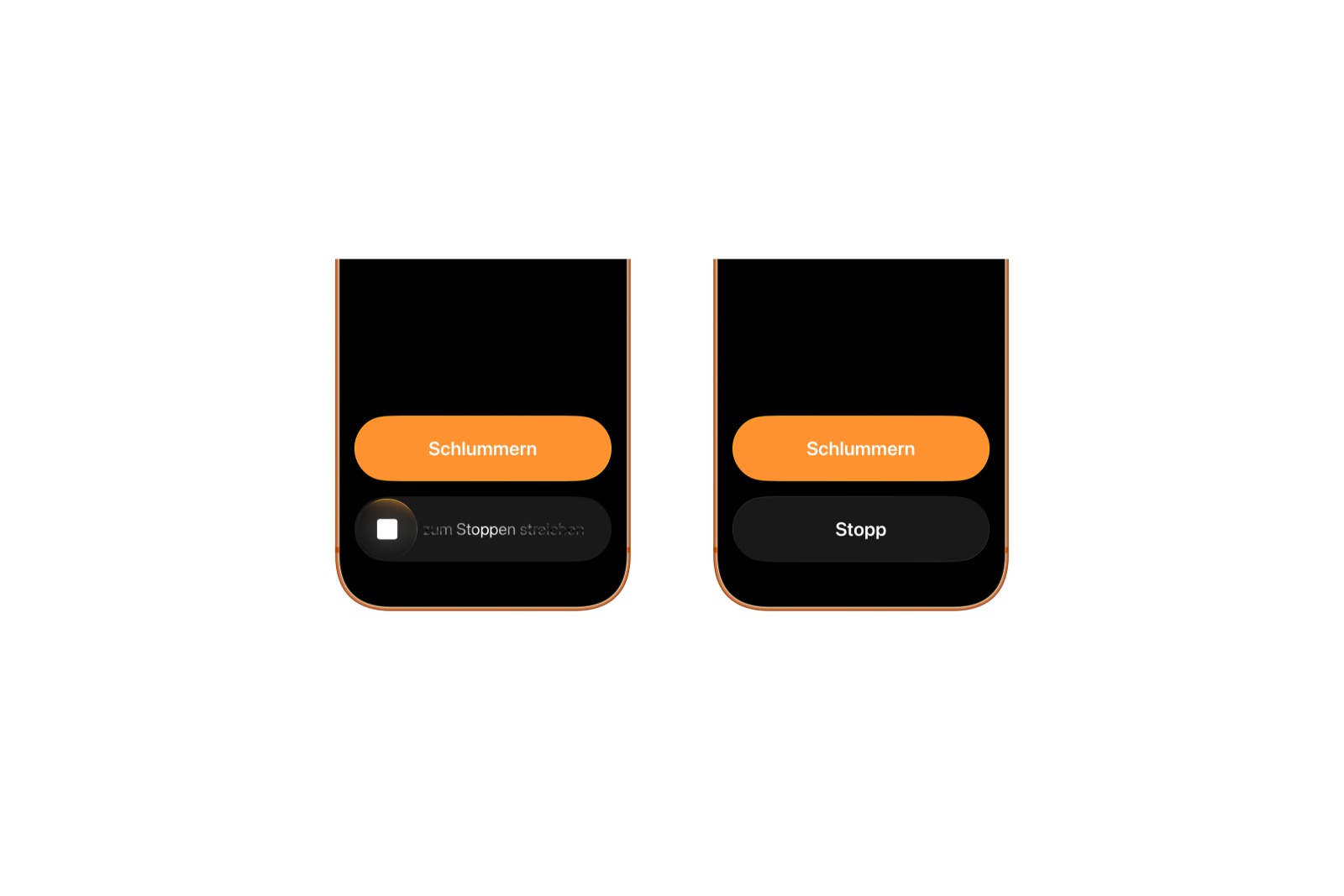
With iOS 26.1, Apple quietly changed a key function for alarms and timers. Instead of pressing a button, a gesture is now required to stop an alarm or timer. The classic "Stop" button has disappeared and been replaced by a slider. This change has sparked discussion – not everyone is happy with the new behavior. However, Apple has included an option to reactivate the old controls.
The iOS user interface is constantly evolving, usually incrementally. In iOS 26, the alarm and timer design on the lock screen was already revamped: the "Stop" and "Snooze" buttons were made significantly larger. This was intended to make operation easier, but in practice, it led to problems. Many users accidentally deactivated their alarms – especially in the mornings while half asleep. With iOS 26.1, Apple is now addressing this issue and replacing the buttons with a slider designed to prevent accidental activation.
Slider replaces stop button
The most noticeable change concerns the operation of alarms and timers. Instead of a button, a slider labeled "Swipe to Stop" now appears on the lock screen. Only by deliberately swiping is the alarm or timer deactivated. This principle is reminiscent of the classic iPhone design: the same slider was previously used to unlock the device or answer calls. The aim of the change is to prevent unintentional input – especially with larger buttons like those introduced in iOS 26.
Why Apple got rid of the button
When iOS 26 introduced the new, larger "Stop" and "Snooze" buttons, the intention was to simplify operation. Instead, the new size made it too easy to accidentally turn off alarms. A quick, unintentional tap was enough to completely disable an alarm. iOS 26.1 addresses this by requiring more intention. The stop gesture now forces users to take action, thus preventing accidental touches.
This will reactivate the classic button.
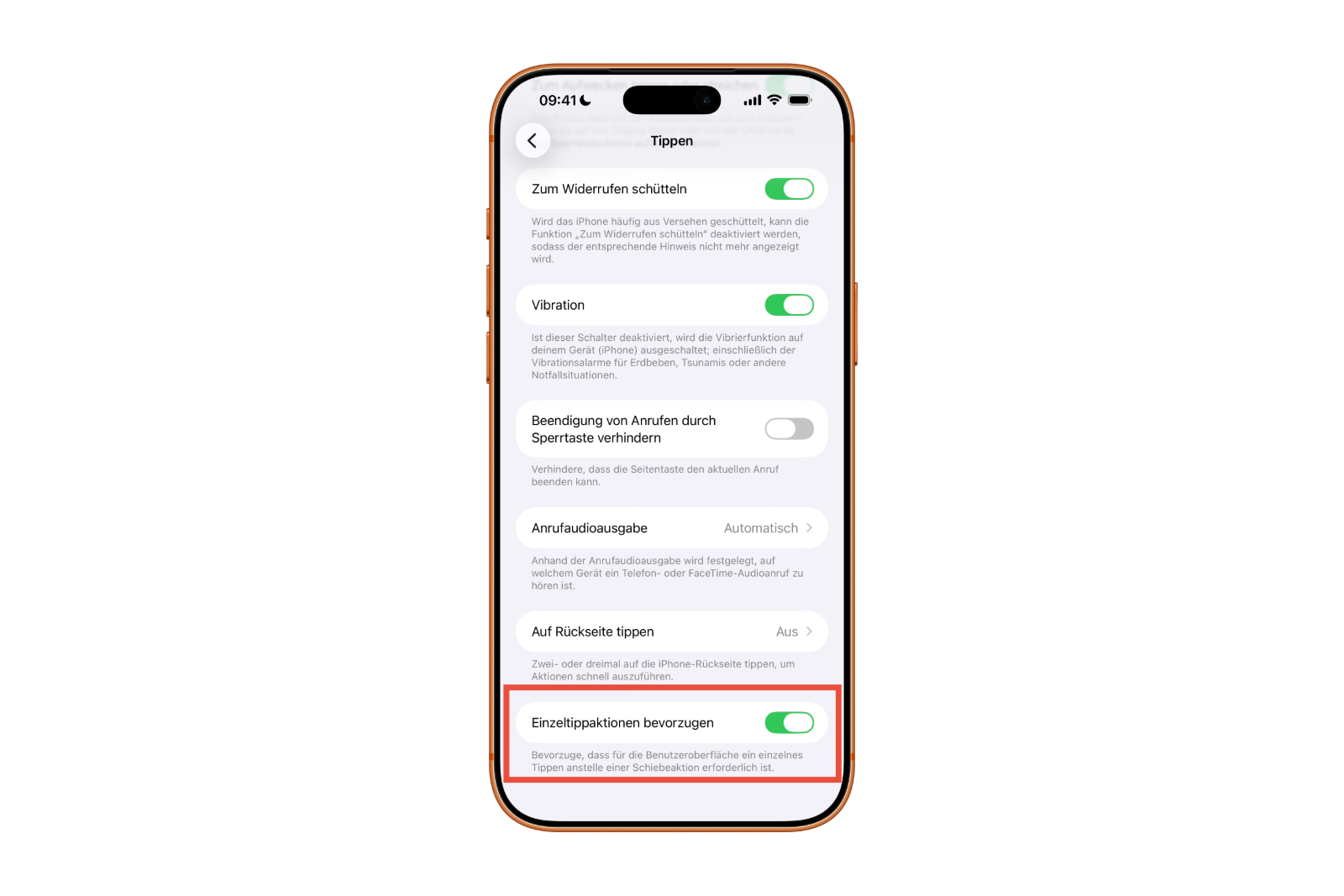
Despite the new gesture, it's possible to revert to the familiar button. Apple offers a new option in Accessibility that allows exactly that. This disables the slider for alarms and timers and replaces it with the existing "Stop" button. The setting can be found in System Preferences under:
Settings → Accessibility → Touch
There you'll find a new option called "Prefer single-tap actions." When activated, the classic button will reappear instead of the slider the next time an alarm goes off. Timers and alarms can then be deactivated with a single tap – just like before the iOS 26.1 update.
More flexibility through iOS 26.1
With this option, Apple follows the principle of making the user experience customizable. Switching between buttons and sliders is not mandatory, but a voluntary choice. iOS 26.1 includes further customization options in the area of accessibility, allowing for greater control over the iPhone's behavior. Especially with everyday functions like alarms and timers, it becomes clear how small changes can have a significant impact on the user experience.
Custom alarm clock control in iOS 26.1
iOS 26.1 takes a deliberate step toward better control: The new "Swipe to Stop" gesture replaces the button to reduce accidental input. Users who prefer the old "Stop" button can reactivate it via Accessibility settings. The "Single Tap Action" setting ensures that timers and alarms can be deactivated with a single tap. Apple thus offers greater flexibility without compromising security or ease of use. The best products for you: Our Amazon storefront offers a wide selection of accessories, including those for HomeKit. (Image: Apfelpatient)
- iOS 26.1 brings a new lock screen setting for the iPhone
- iOS 26.1: Liquid Glass effects can be toned down
- watchOS 26 brings hints about the Apple Watch dial
- macOS 26 Update: Hidden Tools and Improvements
- New call history in iOS 26: All conversations at a glance
- iOS 26: iMessage not working? Apple announces the solution
- iOS 26 Tricks: 26 small innovations with a big impact
- iOS 26 solves the Bluetooth problem with AirPods in the car
- iPhone: How the new call waiting feature works in iOS 26
- iPhone gets new feature against spam and advertising calls
- iOS 26: New option saves time and data when sending photos
- iOS 26: Over 10 hidden features everyone needs to know
- iOS 26: Visual intelligence now also for screen content
- iPhone 17: How iOS 26 colors your app icons
- iOS 26: Use polls directly in the Messages app
- New iOS 26 feature: Use live translation with AirPods
- Discover and manage games with the Apple Games app
- iPhone 17: Tips for using the Center Stage front camera
- iPhone 17 Dual Capture explained: Using the front and rear cameras
- iOS 26 Screenshot Disable full screen and enable old view
- iPhone 17: Disable or customize the camera control button
- iPhone Tip: Live Translation in Messages, Phone & FaceTime
- iOS 26: Filter messages, block spam & keep track
- Setting up your iPhone correctly: Check, block, and filter calls
- Keep an eye on your blood pressure: How the iPhone Health app helps
Frequently asked questions about iOS 26.1 and the new alarm clock controls
In iOS 26.1, the classic "Stop" button for alarms and timers was replaced by a new sliding gesture to prevent accidental deactivation.
Apple redesigned the buttons in iOS 26.1 because many users were accidentally disabling their alarms. The new gesture requires more deliberate action.
Under Settings → Accessibility → Touch, there is an option called "Prefer single tap actions", which brings back the old stop button.
Yes, timers in iOS 26.1 are also stopped by default using a swipe gesture. However, the button function can also be reactivated.
No, the slider is enabled by default, but can be disabled via the accessibility settings to return to one-tap control.
The setting can be found under Settings → Accessibility → Touch. There, the option "Prefer single-tap actions" can be activated.
It reduces unintentional inputs, as stopping requires a more conscious effort – particularly helpful in the case of accidental touches.
Yes, it is always possible to switch between the sliding gesture and the classic button in the settings, depending on personal preference.
iOS 26.1 is available for all devices that already support iOS 26 – that is, models from the iPhone 11 onwards.





