

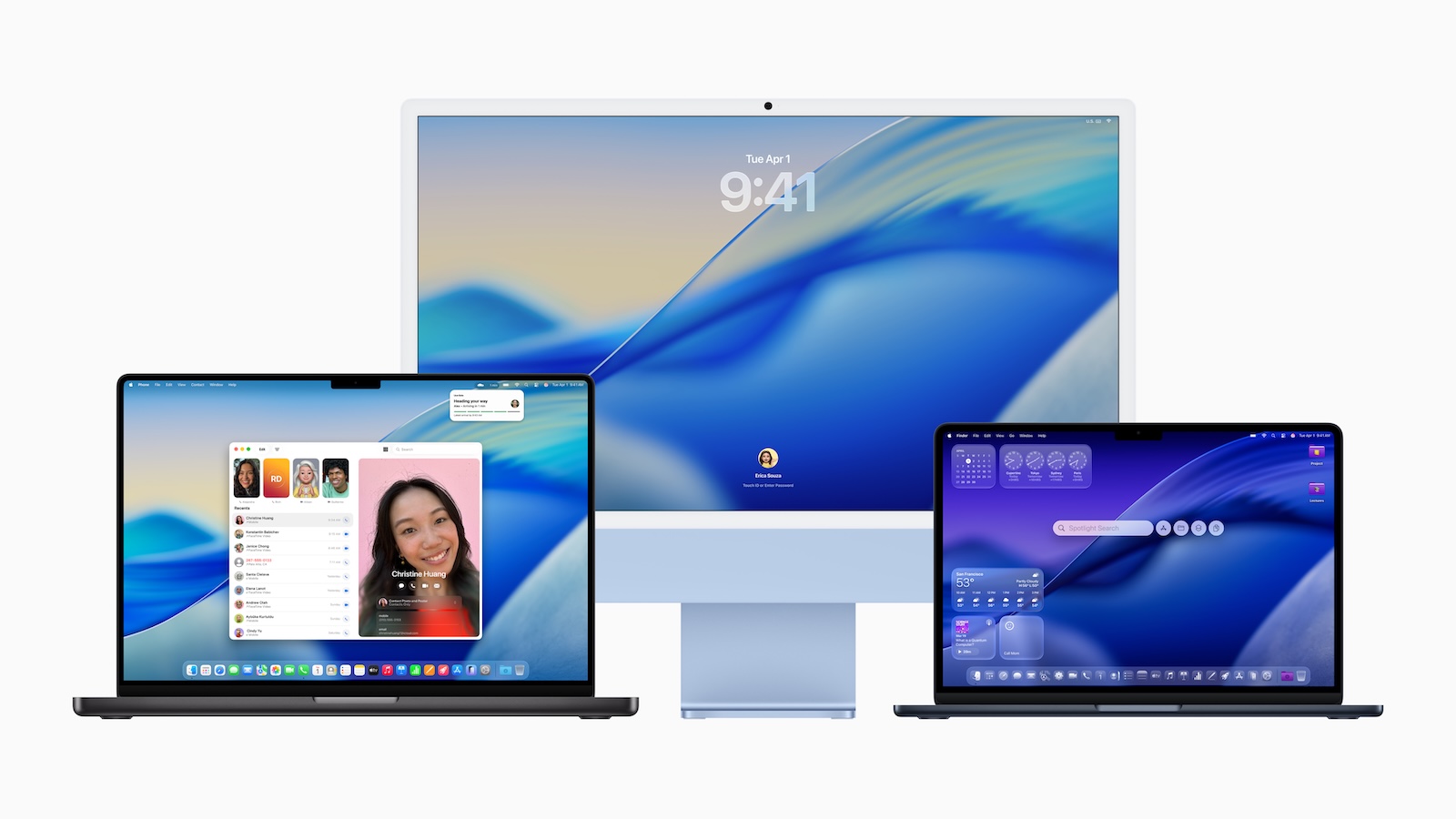
With macOS 26, also known as "Tahoe," Apple not only introduced the striking Liquid Glass design but also numerous new features. Many of these were barely mentioned in the major announcements, but are significantly more useful in everyday use than a mere redesign.
macOS 26 brings a host of adjustments, productivity tools, and optimizations that go beyond just aesthetics. Some features are small but useful, while others fundamentally change the way you use your Mac. Those familiar with the new capabilities can use their computer more efficiently, automate processes, and even notice improvements in gaming.
Customize menu bar
The menu bar can be customized more flexibly than before. Elements can be rearranged or removed, and widgets can also be added from the Control Center. Changes can be made in the System Preferences under "Menu Bar" or directly in the Control Center via "Edit Controls." Custom and third-party apps can also be integrated.
Customize lock screen font
macOS 26 allows you to change the font of the lock screen clock. Six different fonts are available, and the font weight is adjusted using a slider. You can also specify whether the clock appears only on the lock screen or also in the screen saver.
Live activities between iPhone and Mac
Live activities such as flight status, sports scores, or Uber rides are displayed on the Mac when iPhone mirroring is active. Clicking on the activity opens the corresponding app via the mirroring function. (Not available in EU member states!)
Clipboard history in Spotlight
Spotlight now includes a clipboard history. Copied content is saved for eight hours and can be retrieved again. History is disabled by default and must be enabled in System Preferences under "Spotlight." It is accessed by pressing "Command + Space" and then "Command + 4."
Improved Spotlight search with filters
Spotlight allows you to filter results directly in the search bar. For example, if you're searching for "PDF," you can narrow your search to that app by clicking on "Mail." It's even faster with the Tab key: first enter the app name, press Tab, and then select the filter term.
Direct web search via Spotlight
Websites can be searched using Spotlight without opening Safari. Simply type the name of a website, such as "Amazon," then press Tab and add the search term.
Browse Safari tabs
Open tabs in Safari appear in Spotlight results when a relevant search term is entered. This helps users who use multiple tabs at the same time find the right page more quickly.
Quick access keys in Spotlight
Recurring actions can be set up in Spotlight using shortcuts. Command + Space and Command + 3 take you to "Actions." There, commands like opening an app can be assigned to a short keyboard shortcut. Shortcuts of between 1 and 12 letters are available.
Create automations
The Shortcuts app in macOS 26 supports automations, similar to iOS. Automations can be triggered based on time, app, or system events. Examples include launching an app at a specific time, automatically activating a focus mode, or actions when connecting accessories.
Safari Picture-in-Picture improved
Picture-in-picture mode in Safari is now easier to launch and offers new control options. The icon on the left side of the URL bar ejects the video. Ads can be skipped directly, and there are also additional playback controls.
View Spotlight history
Spotlight now saves past searches and actions. You can access them again using the up arrow in Spotlight search.
Gaming power saving mode
Low Power Mode in macOS 26 is optimized for gaming. It extends battery life without impacting in-game performance. The mode can be activated automatically when running on battery power.
Game overlay
While playing, pressing "Command + Esc" opens a new overlay. It displays achievements, leaderboards, and allows quick adjustments to brightness and volume. You can also connect with friends directly from it.
macOS 26 makes the Mac more flexible and efficient
macOS 26 offers much more than just a new design. Many of its small, unobtrusive features boost productivity and provide greater convenience in everyday life. Adjustments to the menu bar and lock screen, improvements to Spotlight, automation via the Shortcuts app, and gaming features like Energy Saver and Overlay make the update a worthwhile step. Those familiar with the hidden possibilities will discover a multitude of tools in macOS 26 that make their Mac more flexible, personal, and efficient. The best products for you: Our Amazon Storefront offers a wide selection of accessories, including those for HomeKit. (Image: Apple)
- New call history in iOS 26: All conversations at a glance
- iOS 26: iMessage not working? Apple announces the solution
- iOS 26 Tricks: 26 small innovations with a big impact
- iOS 26 solves the Bluetooth problem with AirPods in the car
- iPhone: How the new call waiting feature works in iOS 26
- iPhone gets new feature against spam and advertising calls
- iOS 26: New option saves time and data when sending photos
- iOS 26: Over 10 hidden features everyone needs to know
- iOS 26: Visual intelligence now also for screen content
- iPhone 17: How iOS 26 colors your app icons
- iOS 26: Use polls directly in the Messages app
- New iOS 26 feature: Use live translation with AirPods
- Discover and manage games with the Apple Games app
- iPhone 17: Tips for using the Center Stage front camera
- iPhone 17 Dual Capture explained: Using the front and rear cameras
- iOS 26 Screenshot Disable full screen and enable old view
- iPhone 17: Disable or customize the camera control button
- iPhone Tip: Live Translation in Messages, Phone & FaceTime
- iOS 26: Filter messages, block spam & keep track
- Setting up your iPhone correctly: Check, block, and filter calls
- Keep an eye on your blood pressure: How the iPhone Health app helps
- Apple explains Apple Watch high blood pressure warnings
- Setting up Apple Music transitions: AutoMix or Crossfade
Frequently Asked Questions about macOS 26
macOS 26 brings the new Liquid Glass design, enhanced Spotlight features, automation via the Shortcuts app, gaming optimizations, and much more.
You can move, remove, or add widgets in the system settings under “Menu Bar” or directly in the Control Center.
Yes, macOS 26 offers six different fonts and a font weight slider. The display can be restricted to the lock screen or screen saver.
Spotlight stores copied content for up to eight hours. History must be enabled in System Preferences and is accessible by pressing Command + 4.
Results can be narrowed down directly using filters. Additionally, websites can be searched and open Safari tabs can be displayed.
Yes, the Shortcuts app allows automations based on time, apps, system events, or accessories – similar to iOS.
Picture-in-picture mode has been improved. Videos can be paused more easily, ads can be skipped, and controls are new.
macOS 26 features an optimized power saving mode for games and a game overlay with achievements, leaderboards, and quick settings.
macOS 26 (Tahoe) runs on Apple Silicon models and a few Intel Macs. Supported are:
• MacBook Air with Apple Silicon (from 2020)
• MacBook Pro with Apple Silicon (from 2020)
• MacBook Pro 16 inch (2019)
• MacBook Pro 13-inch (2020, with four Thunderbolt 3 ports)
• iMac (from 2020)
• Mac mini (from 2020)
• Mac Studio (from 2022)
• Mac Pro (from 2019)
Yes, in addition to the new design, macOS 26 offers many small but useful features that make your Mac more personalized, productive, and efficient.





