


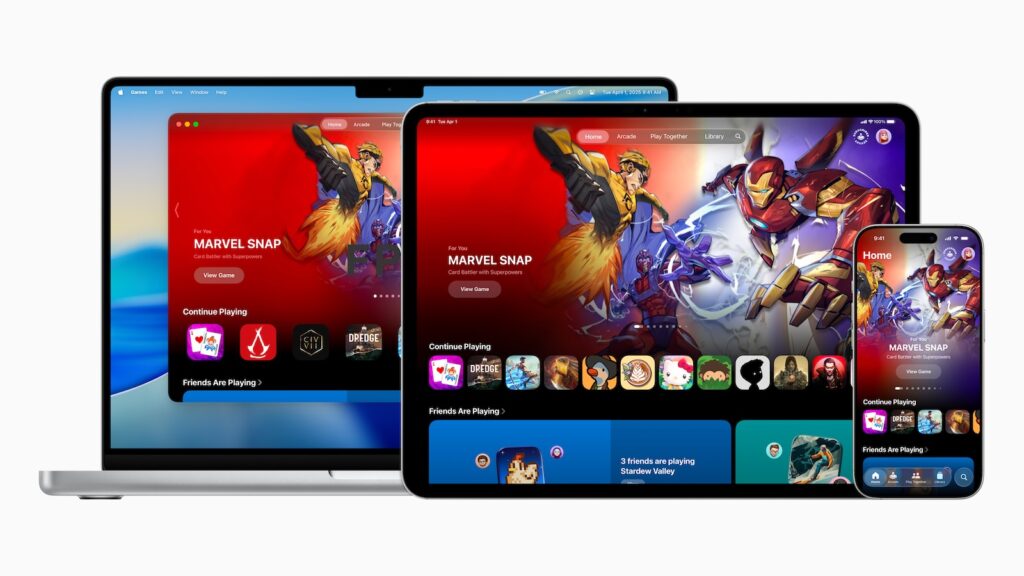
The Apple Games app is the central hub for games on iPhone, iPad, and Mac. It offers access to new titles, previously purchased games, and a clear way to manage your game library. To ensure smooth use of all features, your device should always be updated to the latest version of iOS, iPadOS, or macOS.
With the Apple Games app, you can discover, download, and launch games quickly and easily. Whether on mobile devices or Macs, the app brings all your games together in one place. It helps you purchase new titles and find previously installed games.
Download games with the Apple Games app
Downloading new games is straightforward. First, open the Apple Games app. If necessary, sign in to your Apple Account and Game Center account. You can then browse for new games using the "Home" or "Arcade" tabs. If you're looking for a specific game, use the "Search" tab. Once you've selected a game, simply click or tap the price or the "Download" button to start the download. If the "Play" button appears instead, the game is already installed on your device.
Find previously purchased games on iPhone and iPad
On iPhone and iPad, previously purchased games can be accessed again at any time. There are several options available:
- In the Apple Games app, the Library tab under Your Games shows an overview of all purchased titles.
- Using Spotlight Search, you can find a game directly by entering its name.
- The app library on the home screen lists all installed applications, making them easier to access.
Find previously purchased games on your Mac
Accessing purchased games is also easy on the Mac. In the Apple Games app, the Library tab provides an overview of all games. Alternatively, the Spotlight search in the menu bar allows you to instantly display titles as you type.
Problems downloading games
If you can't find a purchased game, you can re-download it in the Apple Games app. If you encounter difficulties downloading or updating on iPhone and iPad, Apple's official troubleshooting tips can help. The same applies to Macs: There are also appropriate tips available if apps cannot be downloaded or updated.
The Apple Games app as the key to the gaming experience
The Apple Games app combines all the essential features for gaming on Apple devices. Discover new titles, find purchased games at any time, and manage your library – it's all quick and easy to use. With the right tools, your gaming experience on iPhone, iPad, and Mac remains accessible and up-to-date at all times. The best products for you: Our Amazon Storefront offers a wide selection of accessories, including HomeKit accessories. (Image: Apple)
- iPhone 17: Tips for using the Center Stage front camera
- iPhone 17 Dual Capture explained: Using the front and rear cameras
- iOS 26 Screenshot Disable full screen and enable old view
- iPhone 17: Disable or customize the camera control button
- iPhone Tip: Live Translation in Messages, Phone & FaceTime
- iOS 26: Filter messages, block spam & keep track
- Setting up your iPhone correctly: Check, block, and filter calls
- Keep an eye on your blood pressure: How the iPhone Health app helps
- Apple explains Apple Watch high blood pressure warnings
- Setting up Apple Music transitions: AutoMix or Crossfade
- macOS 26: Automatically connect iPhone hotspot
- watchOS 26: Why the Apple Watch sometimes charges slowly
- iOS 26: Reduce transparency for more clarity
- Find and adjust the camera flash in iOS 26 – here's how
- iOS 26 makes Adaptive Power the norm on the iPhone 17 series
- iOS 26 Tip: Unlock iPhone with Apple Vision Pro
- iOS 26: The most important tips for setup and use
- iOS 26: Impact on battery life after the update
- iOS 26: Use spatial scenes directly in the Photos app
- iOS 26 Update: Markdown Import and Export in Notes Explained
- iOS 26: Easily change backgrounds in iMessage
- iOS 26: Trigger iPhone camera with AirPods – here's how
- How to enable transparent iPhone app icons with iOS 26
- iOS 26: Apple Music finally gets folders for playlists
- iOS 26: Capture reminders faster and easier
Frequently Asked Questions about the Apple Games app
The Apple Games app brings together games on iPhone, iPad, and Mac. It lets you discover, purchase, download, and manage all titles in one library.
Simply open the app, select a game via "Home," "Arcade," or "Search," and tap "Download" or the price. Previously purchased titles will display a "Play" button.
On iPhone and iPad, all games can be viewed in the Library tab of the Apple Games app. Alternatively, you can use Spotlight search or the App Library. On Mac, the overview is also available in the Library or via Spotlight.
If a game is missing, you can re-download it via the Apple Games app. If you're having trouble, Apple's official tips for iOS, iPadOS, and macOS can help.
The Apple Games app is available on iPhone, iPad, and Mac, provided the device is updated to the latest version of iOS, iPadOS, or macOS.





