

Apfelpatient
  • Home
  • News
  • Rumors
  • Tips & Tricks
  • Reviews
  • Insights
No result
View All Results
  • iPhone 18
  • iPhone 18 Pro
  • iPhone Duo
  • Apple Home
  • Siri AI
  • HomePod
  • HomePod mini
  • HomePod mini 2
  • MacBook Pro
  • Apple TV 4K
  • Apple Watch Series 12
  • Apple Watch Ultra 4
  • AirPods 5
  • iOS 27
  • iPadOS 27
  • macOS
  • MacBook Neo
  • iPhone 17e
  • AirTags
  • iOS 26
  • iPhone 17
  • iPadOS
  • iMac
  • Mac mini
  • Apple TV
  • iPad Pro
  • iPhone Air
  • Apple Vision Pro
  • iPhone 16
  • AirPods 4
  • Apple Watch Ultra
  • MacBook Air
  • iPad
  • AirPods Max
  • AirPods Pro 3
  • Mac Studio
  • Studio Display
  • iPad Air
  • iPad mini
  • watchOS 27
  • Apple CarPlay
  • Apple Pay
  • watchOS 26
  • Home
  • News
  • Rumors
  • Tips & Tricks
  • Reviews
  • Insights
No result
View All Results
Apfelpatient
No result
View All Results
  • iPhone 18
  • iPhone 18 Pro
  • iPhone Duo
  • Apple Home
  • Siri AI
  • HomePod
  • HomePod mini
  • HomePod mini 2
  • MacBook Pro
  • Apple TV 4K
  • Apple Watch Series 12
  • Apple Watch Ultra 4
  • AirPods 5
  • iOS 27
  • iPadOS 27
  • macOS
  • MacBook Neo
  • iPhone 17e
  • AirTags
  • iOS 26
  • iPhone 17
  • iPadOS
  • iMac
  • Mac mini
  • Apple TV
  • iPad Pro
  • iPhone Air
  • Apple Vision Pro
  • iPhone 16
  • AirPods 4
  • Apple Watch Ultra
  • MacBook Air
  • iPad
  • AirPods Max
  • AirPods Pro 3
  • Mac Studio
  • Studio Display
  • iPad Air
  • iPad mini
  • watchOS 27
  • Apple CarPlay
  • Apple Pay
  • watchOS 26

iOS 26: Reduce transparency for more clarity

Milan Jovicic by Milan Jovicic
September 16, 2025 - 11:48 p.m. CEST
in Apple Tips & Tricks
0
iOS 26 Reduce Transparency

Image: Shutterstock / Yalcin Sonat

WhatsAppFacebookEmail
Threads

This article may contain affiliate links. Learn more on our Partner Program page.

Make Apfelpatient a preferred source One click – and you'll see us more often on Google

With iOS 26, Apple is fundamentally changing the look of the iPhone. The new design is called Liquid Glass and characterizes the entire user interface. It is based on transparency and light reflections that create depth and give the system a more modern appearance. However, opinions are divided. Some see this as a major improvement, while others find the display cluttered or difficult to read. For those who aren't happy with Liquid Glass, there's a solution: In the iOS 26 settings, the effect can be reduced to give the interface a more familiar feel – similar to iOS 18.

Design changes are among the biggest differences between new iOS versions. In the past, there have been discussions about fonts, icon sizes, and color schemes. However, with iOS 26, Apple is introducing one of the most striking changes in years. Liquid Glass is the central design element and determines the appearance of all menus and controls. However, it is precisely this approach that is causing controversy on social media and in forums. While some users appreciate the modern look, others long for the cleaner and calmer appearance of iOS 18. Apple has responded to this and offers a feature in iOS 26 that improves contrast and reduces transparency.

Liquid Glass in iOS 26

The Liquid Glass design brings a translucent look to all devices running iOS 26. Menus appear glassy, backgrounds shine through, and the entire interface appears fluid. This visual depth is intended to create a modern experience. At the same time, however, the high transparency makes text or icons difficult to read in some situations.

Different reactions

The introduction of Liquid Glass has generated very mixed feedback on social media. Many praise its futuristic character, while others see it as a deterioration in usability. Readability, in particular, is frequently criticized. Those who value clarity find the design too playful.

Solution: Reduce transparency in iOS 26

Apple has integrated a settings option into iOS 26 that doesn't completely disable Liquid Glass, but significantly softens it. The "Reduce Transparency" menu item allows you to adjust the design. This changes the display to be closer to the look of iOS 18.

The steps at a glance:

  • Open the Settings app on your iPhone.
  • Go to the Accessibility menu.
  • Select “Display & Text Size”.
  • Enable the “Reduce Transparency” option.

Once activated, iOS 26 appears noticeably calmer. Transparency is reduced, contrast is increased, and text stands out more clearly from the background.
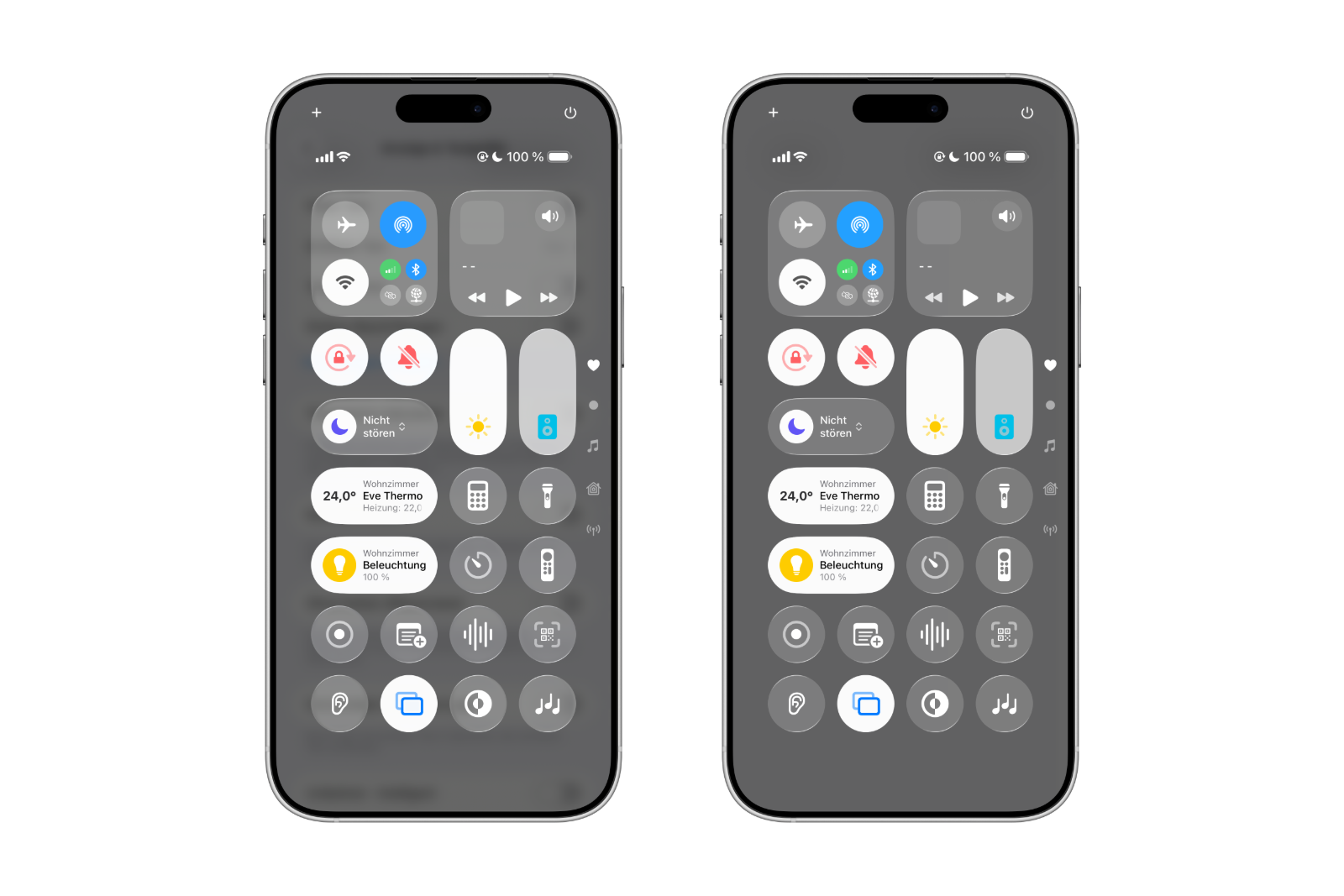
iOS 26 Reduce Transparency Light Mode
Image: Apfelpatient – Light Mode (Left: iOS 26 in standard look – Right: iOS 26 with reduced transparency)

This makes many areas of the user interface more reminiscent of iOS 18, without losing the fundamental design changes of iOS 26.
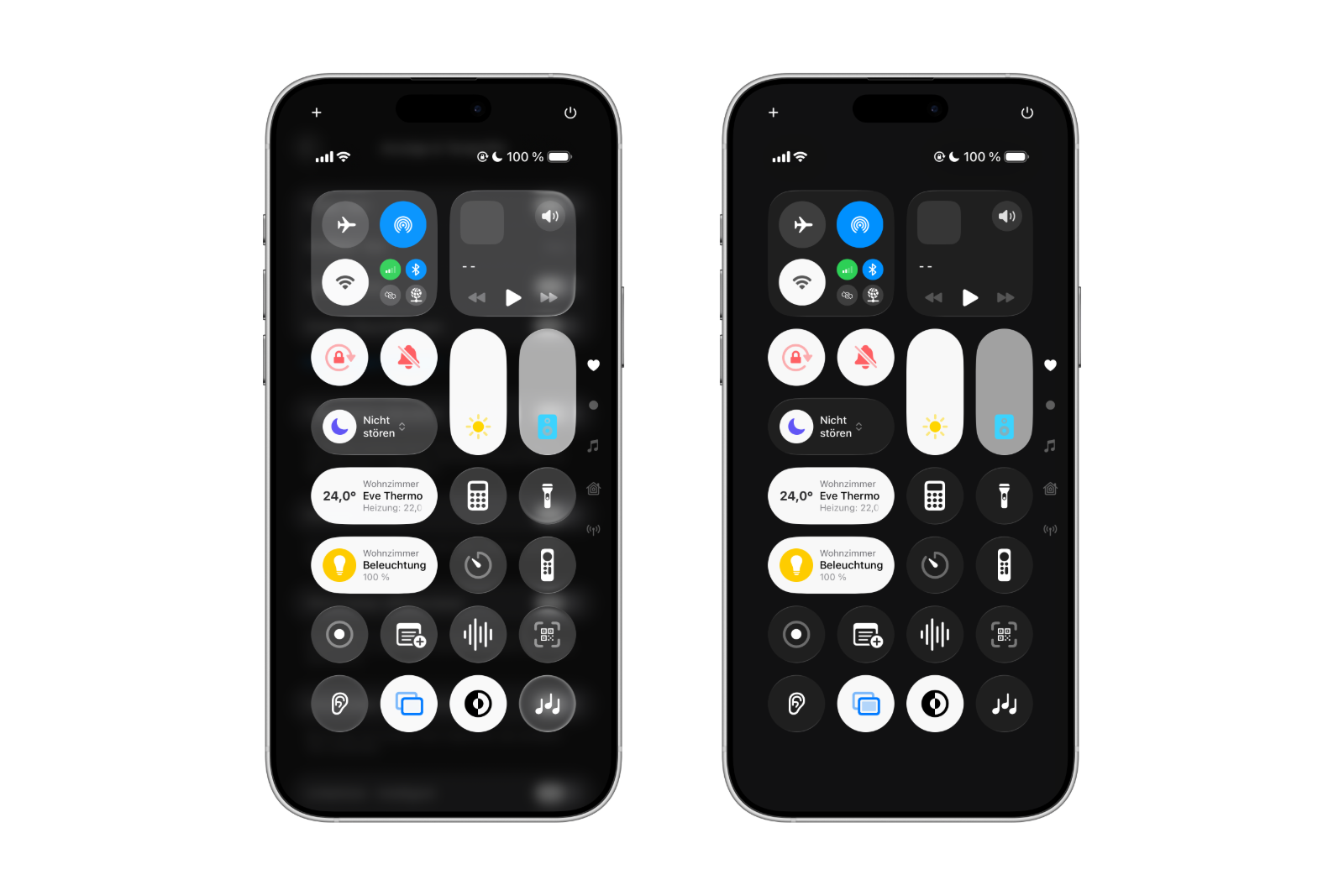
iOS 26 Reduce Transparency Light Mode
Image: Apfelpatient – Dark Mode (Left: iOS 26 in standard look – Right: iOS 26 with reduced transparency)

More overview and better readability

The "Reduce Transparency" setting not only creates a more familiar design but also improves usability. Readability increases because content is more clearly defined. For anyone who struggles with Liquid Glass, iOS 26 offers an easy way to make the design more functional and clear.

iOS 26: Soften Liquid Glass and bring back the iOS 18 look

iOS 26 brings a striking new design to the iPhone with Liquid Glass. While many see it as a modern advancement, others criticize it. Thanks to the built-in "Reduce Transparency" option, however, the effect can be adjusted to make the interface appear cleaner and more reminiscent of iOS 18. iOS 26 thus combines the new features with a more familiar look, striking a balance between innovation and usability. The best products for you: Our Amazon Storefront offers a wide selection of accessories, including those for HomeKit. (Image: Shutterstock / Yalcin Sonat)

  • Find and adjust the camera flash in iOS 26 – here's how
  • iOS 26 makes Adaptive Power the norm on the iPhone 17 series
  • iOS 26 Tip: Unlock iPhone with Apple Vision Pro
  • iOS 26: The most important tips for setup and use
  • iOS 26: Impact on battery life after the update
  • iOS 26: Use spatial scenes directly in the Photos app
  • iOS 26 Update: Markdown Import and Export in Notes Explained
  • iOS 26: Easily change backgrounds in iMessage
  • iOS 26: Trigger iPhone camera with AirPods – here's how
  • How to enable transparent iPhone app icons with iOS 26
  • iOS 26: Apple Music finally gets folders for playlists
  • iOS 26: Capture reminders faster and easier
  • Apple Music in iOS 26: Music Pins make access easier

Frequently Asked Questions about iOS 26

What's new in iOS 26?

iOS 26 brings a redesigned design called Liquid Glass, based on transparency and depth effects. It also includes new accessibility features and much more.

Can Liquid Glass be disabled in iOS 26?

Liquid Glass can't be completely turned off. However, the "Reduce Transparency" option can significantly reduce the effect.

How can iOS 26 look like iOS 18 again?

Using Settings > Accessibility > Display & Text Size and the Reduce Transparency option, iOS 26 appears clearer and more similar to iOS 18.

Why is Liquid Glass in iOS 26 causing criticism?

Many find the new design modern, while others find it confusing. Readability suffers, especially with high levels of transparency, which is why it has drawn criticism.

What are the benefits of Reduce Transparency in iOS 26?

The feature increases contrast, makes text easier to read, and provides a smoother interface—ideal for anyone who prefers the look of iOS 18.

Does Reduce Transparency affect other features in iOS 26?

No, all features of iOS 26 will remain. Only the visual appearance will be adjusted, making the interface feel more familiar and clearer.


Was this article helpful?
YesNo
Tags: iOSiOS 26
SendShareSend
Share

Our Amazon Storefront

A handpicked selection of products for iPhone, Mac and more – sorted by topic and updated regularly.

Shop Now

This post contains affiliate links (including Amazon). We earn a small commission on qualifying purchases – at no extra cost to you. Learn more on our Partner Program page.

Previous Post

Apple stock: Bernstein raises price target to $290

Next Post

watchOS 26: 26 new features for Apple Watch at a glance

Milan Jovicic

Milan Jovicic

Milan founded Apfelpatient in 2016 and has been responsible for all editorial content since 2018 – news, rumors, how-to guides and product reviews. Here, Apple devices aren't review units kept for two weeks, they're everyday tools: from iPhone to MacBook Pro, MacBook Air and iMac all the way to Apple Vision Pro, at least one device from every product category is in daily use, many of them replaced every year. Every menu path in a guide is checked on the device before it goes live.

Related posts

MacBook Pro: How to turn off the illuminated Apple logo

by Milan Jovicic
November 6, 2026 - 3:52 PM CET
Turning off the MacBook Pro Apple logo: two open MacBook Pro models in black and silver, one behind the other, front view

The Apple logo lights up on the MacBook Pro with a PROLED XDR display. Here's how to turn the backlighting off and on again using Terminal.

Read moreDetails

Cleaning the inner display of an iPhone Duo: Here's how to do it right

by Milan Jovicic
November 5, 2026 - 2:11 PM CET
Cleaning the iPhone Duo inner display: open iPhone Duo with a polishing cloth on the dark display

Cleaning the inner display of the iPhone Duo: Which cloth is suitable, what Apple allows, and which mistakes you should avoid. With practical experience.

Read moreDetails

Connecting and resetting AirPods: Instructions for all Models

by Milan Jovicic
November 5, 2026 - 01:25 CET
Connect and reset AirPods: AirPods Max in a Smart Case in front of an iPhone in a folio, surrounded by several white AirPods charging cases

Connecting, pairing, and resetting AirPods: Here's how it works for all models. Includes double-tap, troubleshooting, and AirPods 5.

Read moreDetails

Siri Remote: Compatibility, "Find My" and New Features

by Milan Jovicic
November 4, 2026 - 00:34 CET
Siri Remote compatibility: silver Siri Remote with clickpad and buttons, front view on a white background

Siri Remote (4th generation): Which Apple TV models work, what "Find My" can do and who gets Precision Finding and sound. All models compared.

Read moreDetails

Setting up HomePod: Here's how to do it with iPhone and the Home app

by Milan Jovicic
November 4, 2026 - 00:06 CET
Setting up HomePod: original boxes of HomePod and HomePod mini side by side on a dark countertop

Setting up HomePod with iPhone and Home app: All steps, requirements and what helps if the configuration screen is missing.

Read moreDetails
Load More

Categories

  • Apple Insights
  • Apple Rumors
  • Apple News
  • Apple Tips & Tricks
  • iPhone news, rumors and tips
  • Mac and MacBook News
  • Reviews
Make Apfelpatient a preferred source One click – and you'll see us more often on Google

About APFELPATIENT

APFELPATIENT brings you the latest Apple news, product updates, guides, reviews and tips across the entire Apple ecosystem — from the iPhone to the Mac to the Apple Vision Pro. From the first rumors to confirmed news: researched responsibly.

Follow Apfelpatient

Facebook Instagram YouTube Threads Threads

Company

  • About Apfelpatient
  • Contact
  • Author Profiles

Community

  • Netiquette
  • Push notifications
  • RSS feed

Legal

  • Legal Notice
  • Privacy Policy
  • Terms of Use
  • Cookie settings
  • Affiliate Program

Resources

  • Sitemap

© 2026 Apfelpatient. All rights reserved.

No result
View All Results
  • Home
  • News
  • Rumors
  • Tips & Tricks
  • Reviews
  • Insights

© 2026 Apfelpatient. All rights reserved. Site map

Change language to Deutsch


