

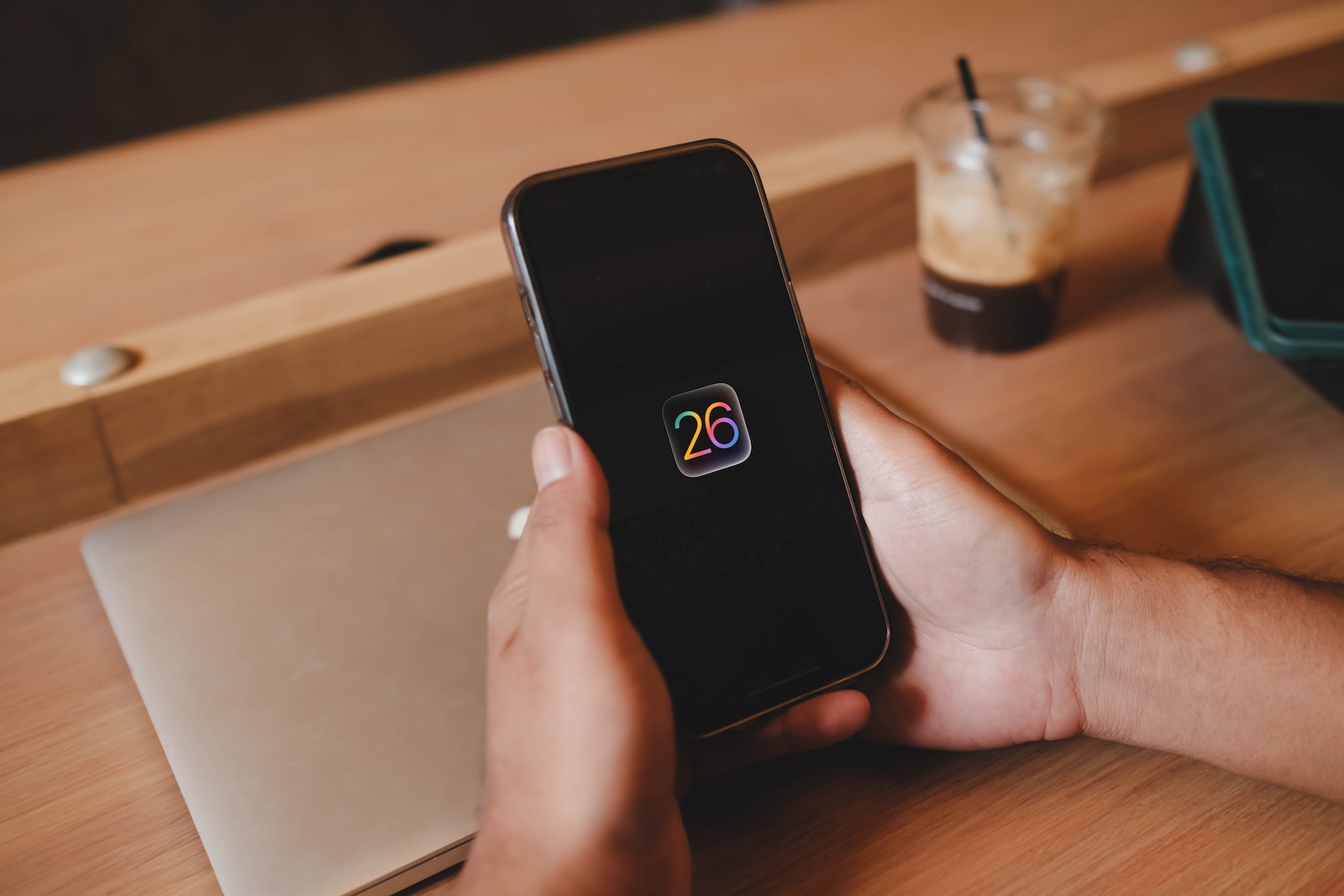
With iOS 26, the iPhone gets a new feature in the Photos app: Spatial Scenes. This AI-powered technology transforms ordinary photos into three-dimensional views. The effect reacts to the device's movement and creates a sense of depth – all without additional accessories and without Apple Intelligence.
Many iOS features often remain in the background or are only intended for the latest devices. Spatial Scenes is different. The feature runs on all iPhones from the iPhone 12 onwards and requires no special sensors or chips. It works directly in the Photos app with existing images, provided they contain a clear subject. iOS 26 thus brings a visual enhancement to millions of iPhones – without the need for a new device.
Spatial scenes in the Photos app
Spatial Scenes uses generative AI to create depth in photos. This process separates the main subject from the background. The AI creates a so-called depth map that assigns spatial information to the different image layers. If the iPhone is tilted or moved slightly, the foreground subject remains relatively stable while the background shifts slightly. This creates a parallax effect – comparable to natural vision through two eyes. The effect is activated directly in the Photos app. For compatible images, a small hexagon icon appears in the top right of the image. Tapping the icon activates the spatial view. After that, all you have to do is tilt the iPhone slightly to see the effect of depth. No dramatic movements are necessary – small changes are enough.
Compatibility with existing photos
Unlike true spatial photos taken with the iPhone 16, the new feature also works with older images. The prerequisite is that the photo contains a clearly recognizable subject against a background. This could be a portrait, a pet, or an object. The feature automatically separates the subject from the background, even if the image was taken years ago. This eliminates the need for special capture technology. Processing takes place locally on the device, without cloud analytics or additional hardware.
Integration into the lock screen
The feature isn't limited to the Photos app. The lock screen can also display images with spatial depth. When setting the lock screen wallpaper, iOS automatically suggests suitable images from your media library that are suitable for the 3D effect. If such an image is manually selected, a toggle option appears in edit mode to enable or disable the effect. When the feature is enabled, the wallpaper will display a subtle depth of field when viewed from the screen, depending on the angle and position of the device.
No Apple Intelligence required
An important point: Spatial Scenes are not part of Apple Intelligence. The feature runs completely independently of it. Therefore, it also works on devices not designed for the new AI features. All iPhones from the iPhone 12 onwards can use the feature – without restrictions and without the need to upgrade.
iOS 26 turns pictures into experiences
Spatial Scenes in iOS 26 add tangible visual value. The feature is straightforward, uses existing photos, and doesn't require any new hardware. It demonstrates how AI can work unobtrusively in the background without being the focus. iOS 26 thus expands the possibilities of iPhone photography with a practical and visually appealing dimension. The best products for you: Our Amazon Storefront offers a wide selection of accessories, including those for HomeKit. (Image: Shutterstock / Thaspol Sangsee)
- Apple Intelligence: AI with a focus on data protection
- iOS 26 Update: Markdown Import and Export in Notes Explained
- iOS 26: Easily change backgrounds in iMessage
- iOS 26: Trigger iPhone camera with AirPods – here's how
- How to enable transparent iPhone app icons with iOS 26
- Make the most of your iPhone Reminders app – 7 professional tips
- iOS 26: Apple Music finally gets folders for playlists
- Share only specific photos with apps like Facebook – here's how
- iOS 26: Capture reminders faster and easier
- Use AirTag efficiently – 7 practical tracking tips
- Make the most of iPhone screen time – 7 effective tips
- Optimize iPhone battery health: 7 tips to save battery life
- Extend iPhone battery life: These 7 tips help immediately
- Using iPhone Accessibility Features: 7 Features at a Glance
- Apple Intelligence: From which iPhone is it available?
- iPhone & Co.: How to deactivate the advanced visual search
- Extend iPhone battery life: These 7 tips help immediately
- Editing iPhone RAW photos – 8 simple pro tips
- iPhone & Co.: How to deactivate the advanced visual search
- Extend iPhone battery life: These 7 tips help immediately
- Setting up iPhone widgets: These 6 tricks you need to know
- Set up Apple Pay on your iPhone – quickly and securely
- Why an iPhone? These advantages are convincing in the long term
- Secure your iPhone properly: 5 important functions at a glance
- Save iPhone battery: When is power saving mode worth it?
- Use Apple Wallet safely, conveniently, and efficiently – 7 tips
Frequently asked questions about the 3D Photos feature in iOS 26
In iOS 26, Apple introduced the Spatial Scenes feature, which transforms regular photos into three-dimensional 3D scenes. The effect reacts to device movement and creates depth in the image.
The feature is available on all iPhones starting with the iPhone 12. It doesn't require Apple Intelligence and works locally on the device.
No. With iOS 26, existing photos can also be used, as long as they contain a clear subject. New photos are not required.
In the Photos app, a hexagon icon appears for supported images. Tapping it activates the spatial scene. Then, a slight movement of the iPhone is all it takes.
Yes. iOS 26 allows compatible photos to be used as animated lock screen wallpapers with a 3D effect.
No. The Spatial Scenes feature in iOS 26 works entirely without Apple Intelligence and processes images locally on the device—without the cloud.
Spatial photos must be taken with iPhone 16 or later. Spatial scenes in iOS 26, however, work with existing images and older devices starting with iPhone 12.





