

Apfelpatient
  • Home
  • News
  • Rumors
  • Tips & Tricks
  • Reviews
  • Insights
No result
View All Results
  • iPhone 18
  • iPhone 18 Pro
  • iPhone Duo
  • Apple Home
  • Siri AI
  • HomePod
  • HomePod mini
  • HomePod mini 2
  • MacBook Pro
  • Apple TV 4K
  • Apple Watch Series 12
  • Apple Watch Ultra 4
  • AirPods 5
  • iOS 27
  • iPadOS 27
  • macOS
  • MacBook Neo
  • iPhone 17e
  • AirTags
  • iOS 26
  • iPhone 17
  • iPadOS
  • iMac
  • Mac mini
  • Apple TV
  • iPad Pro
  • iPhone Air
  • Apple Vision Pro
  • iPhone 16
  • AirPods 4
  • Apple Watch Ultra
  • MacBook Air
  • iPad
  • AirPods Max
  • AirPods Pro 3
  • Mac Studio
  • Studio Display
  • iPad Air
  • iPad mini
  • watchOS 27
  • Apple CarPlay
  • Apple Pay
  • watchOS 26
  • Home
  • News
  • Rumors
  • Tips & Tricks
  • Reviews
  • Insights
No result
View All Results
Apfelpatient
No result
View All Results
  • iPhone 18
  • iPhone 18 Pro
  • iPhone Duo
  • Apple Home
  • Siri AI
  • HomePod
  • HomePod mini
  • HomePod mini 2
  • MacBook Pro
  • Apple TV 4K
  • Apple Watch Series 12
  • Apple Watch Ultra 4
  • AirPods 5
  • iOS 27
  • iPadOS 27
  • macOS
  • MacBook Neo
  • iPhone 17e
  • AirTags
  • iOS 26
  • iPhone 17
  • iPadOS
  • iMac
  • Mac mini
  • Apple TV
  • iPad Pro
  • iPhone Air
  • Apple Vision Pro
  • iPhone 16
  • AirPods 4
  • Apple Watch Ultra
  • MacBook Air
  • iPad
  • AirPods Max
  • AirPods Pro 3
  • Mac Studio
  • Studio Display
  • iPad Air
  • iPad mini
  • watchOS 27
  • Apple CarPlay
  • Apple Pay
  • watchOS 26

Share only specific photos with apps like Facebook – here's how

Milan Jovicic by Milan Jovicic
August 9, 2025 - 23:53 CEST
in Apple Tips & Tricks
0
Photos Privacy Policy

Image: Shutterstock / Roman Samborskyi

WhatsAppFacebookEmail
Threads

This article may contain affiliate links. Learn more on our Partner Program page.

Make Apfelpatient a preferred source One click – and you'll see us more often on Google

Apple introduced an important privacy protection feature with iOS 17. Since then, users have been able to precisely specify which apps can access which photos on the device. This feature has since been further developed and offers more control, transparency, and security. Especially in a time when apps often collect more data than necessary, this feature is becoming increasingly relevant for many.

Photos often contain more information than is apparent at first glance. In addition to the actual image, metadata such as location, date, time, captions, depth information, and even audio content can be stored. If an app gains access to the entire photo album, it may be able to draw conclusions about a user's place of residence, commute, or whereabouts. Apple's new privacy feature makes it possible to specifically restrict such comprehensive access. This puts control back in the user's hands.

Why it makes sense to restrict access to photos

Many apps request access to the photo library, for example, to upload or send an image. What is often overlooked is that once access is granted, the apps have access not only to the images themselves, but also to the associated metadata. This information can reveal where the photo was taken, whether it was taken at home, at the office, or on vacation, and exactly when. Even though most developers handle user data responsibly, the decision about which app can see which photos ultimately rests with the user. This is precisely where Apple's feature, available since iOS 17, comes in.

How the new setting works on iOS

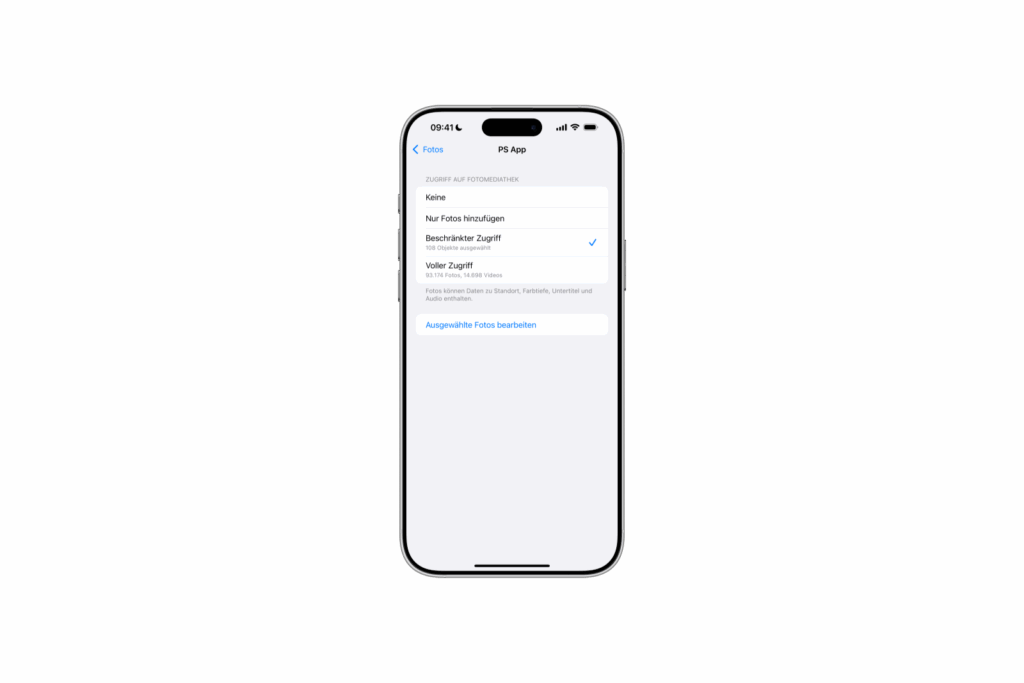
Apple has made access to photos much clearer in the "Privacy & Security" settings. This section can be found at:

Settings > Privacy & Security > Photos

All apps that have some kind of access to photos are displayed there. Right next to the app name, you can see whether it currently has no, limited, or full access. When an app is selected, four access levels are generally available:

  • None: The app has no access to photos. Even if you try to add an image, access remains blocked.
  • Only add photos: The app can add images to the media library, for example, save new photos, but has no access to existing photos.
  • Restricted access: You can specify exactly which photos or albums an app can see. You can select individual images or entire collections.
  • Full access: The app sees all photos and videos in the library. Apple also displays the exact number of items that can be accessed to provide a better understanding of the scope.

Important: Which of these four options are available also depends on how the app developer has programmed access. Some apps don't support all options.
Photos Privacy Policy
Image: Apfelpatient

Alternative option: Adjust settings directly in the app management

In addition to the central menu under "Privacy & Security," you can also change the settings directly in the respective app configuration. Here's how:

  • Settings > [App name] > Photos: The same four options appear there. This method is especially useful if you only want to adjust something for a specific app without scrolling through the entire list.

Data protection starts with the photos

The detailed photo permissions in iOS 17 and later versions are an effective step toward data protection. Apple thus offers the ability to specifically manage access to private content. It's particularly important that access can be restricted not only to the photos themselves, but also to their invisible accompanying information. Regularly checking which app has which permissions not only protects your privacy but also ensures responsible use of your iPhone's features. The best products for you: Our Amazon Storefront offers a wide selection of accessories, including those for HomeKit. (Image: Shutterstock / Roman Samborskyi)

  • Make the most of iPhone screen time – 7 effective tips
  • Optimize iPhone battery health: 7 tips to save battery life
  • Extend iPhone battery life: These 7 tips help immediately
  • Using iPhone Accessibility Features: 7 Features at a Glance
  • Apple Intelligence: From which iPhone is it available?
  • iPhone & Co.: How to deactivate the advanced visual search
  • Extend iPhone battery life: These 7 tips help immediately
  • Editing iPhone RAW photos – 8 simple pro tips
  • iPhone & Co.: How to deactivate the advanced visual search
  • Extend iPhone battery life: These 7 tips help immediately
  • Apple Music in iOS 26: Music Pins make access easier
  • Setting up iPhone widgets: These 6 tricks you need to know
  • Set up Apple Pay on your iPhone – quickly and securely
  • Why an iPhone? These advantages are convincing in the long term
  • Secure your iPhone properly: 5 important functions at a glance
  • Save iPhone battery: When is power saving mode worth it?
  • Use Apple Wallet safely, conveniently, and efficiently – 7 tips
  • LG or Samsung Smart TV? How to disable tracking

FAQ: How to control access to photos

How can I restrict photo access for apps on my iPhone?

Under Settings > Privacy & Security > Photos, Apple displays all apps with photo access. There, you can set the permissions for each app.

What photo access rights does Apple offer starting with iOS 17?

Apple distinguishes four levels: "None," "Add Only," "Limited," and "Full Access." The available options depend on the app.

What does “limited access” mean for photos in iOS?

Apps only see the photos or albums you explicitly share. Everything else remains invisible to the app—including the metadata.

Why not give apps full access to photos?

Because photos often contain sensitive data: location, date, audio, and more, Apple warns that apps could use them to create movement profiles.

Can apps read metadata from photos?

Yes, if full access is allowed. Apple points out that metadata such as location, depth information, and captions can be intercepted.

Can photo access be configured directly in the Apple app?

Yes. You can also customize access for each app under Settings > [App Name] > Photos – independent of the central menu.

What happens if you select “None” for photo access?

The app cannot view or attach images – even if you want to upload a photo in the app, access remains blocked.

What are the advantages of the Apple feature?

More control, targeted sharing, and protection against data misuse. Users can limit apps to the bare essentials without sacrificing convenience.

Was this article helpful?
YesNo
Tags: Apple ServicesiOS
SendShareSend
Share

Our Amazon Storefront

A handpicked selection of products for iPhone, Mac and more – sorted by topic and updated regularly.

Shop Now

This post contains affiliate links (including Amazon). We earn a small commission on qualifying purchases – at no extra cost to you. Learn more on our Partner Program page.

Previous Post

Make the most of iPhone screen time – 7 effective tips

Next Post

Using iPhone Live Text – The best tips for on the go

Milan Jovicic

Milan Jovicic

Milan founded Apfelpatient in 2016 and has been responsible for all editorial content since 2018 – news, rumors, how-to guides and product reviews. Here, Apple devices aren't review units kept for two weeks, they're everyday tools: from iPhone to MacBook Pro, MacBook Air and iMac all the way to Apple Vision Pro, at least one device from every product category is in daily use, many of them replaced every year. Every menu path in a guide is checked on the device before it goes live.

Related posts

Apple Creator Studio: Apps, subscription, and clear AI limits

by Milan Jovicic
November 18, 2026 - 8:06 PM CET
Apple Creator Studio app icons: Final Cut Pro, Logic Pro, Pixelmator Pro, Keynote, Pages, Numbers, Freeform, Motion, Compressor and MainStage

Apple Creator Studio: Which apps are included in the subscription, what the fall update brings, what's missing from the paid version, and where the AI limits lie.

Read moreDetails

WhatsApp hacked: How to protect your account

by Milan Jovicic
November 18, 2026 - 3:39 PM CET
WhatsApp hacked: App Store page of WhatsApp Messenger on the unfolded iPhone Duo

WhatsApp hacked? The latest scams, how to recover your account, and which settings permanently protect it with a password.

Read moreDetails

HomePod Surround: Set Up Four HomePods with Apple TV 4K

by Milan Jovicic
November 14, 2026 - 00:09 CET
HomePod surround: TV with Apple TV 4K, two HomePods at the front beside the screen and two HomePod mini as rear speakers

HomePod surround with Apple TV 4K: which HomePods work, how to position them, and how to set up the surround group and audio return channel.

Read moreDetails

iPhone Duo: How to pair and use Apple Pencil

by Milan Jovicic
November 12, 2026 - 1:51 PM CET
Folded iPhone Duo in a dark case on a grey stone surface with a white Apple Pencil on top – iPhone Duo with Apple Pencil

Apple Pencil on the iPhone Duo: Which stylus fits, how to pair it via cable, and what happens to the stylus after a restart.

Read moreDetails

Apple Watch Ultra: How to customize the action button

by Milan Jovicic
November 12, 2026 - 01:42 CET
Apple Watch Ultra Action button: watch with titanium case and light Ocean Band lying on a gray stone surface, the orange button on the side of the case in the foreground

Apple Watch Ultra: How to assign the action button to workout, flashlight, voice memo and more – including quick switching and siren.

Read moreDetails
Load More

Categories

  • Apple Insights
  • Apple Rumors
  • Apple News
  • Apple Tips & Tricks
  • iPhone news, rumors and tips
  • Mac and MacBook News
  • Reviews
Make Apfelpatient a preferred source One click – and you'll see us more often on Google

About APFELPATIENT

APFELPATIENT brings you the latest Apple news, product updates, guides, reviews and tips across the entire Apple ecosystem — from the iPhone to the Mac to the Apple Vision Pro. From the first rumors to confirmed news: researched responsibly.

Follow Apfelpatient

Facebook Instagram YouTube Threads Threads

Company

  • About Apfelpatient
  • Contact
  • Author Profiles

Community

  • Netiquette
  • Push notifications
  • RSS feed

Legal

  • Legal Notice
  • Privacy Policy
  • Terms of Use
  • Cookie settings
  • Affiliate Program

Resources

  • Sitemap

© 2026 Apfelpatient. All rights reserved.

No result
View All Results
  • Home
  • News
  • Rumors
  • Tips & Tricks
  • Reviews
  • Insights

© 2026 Apfelpatient. All rights reserved. Site map

Change language to Deutsch