

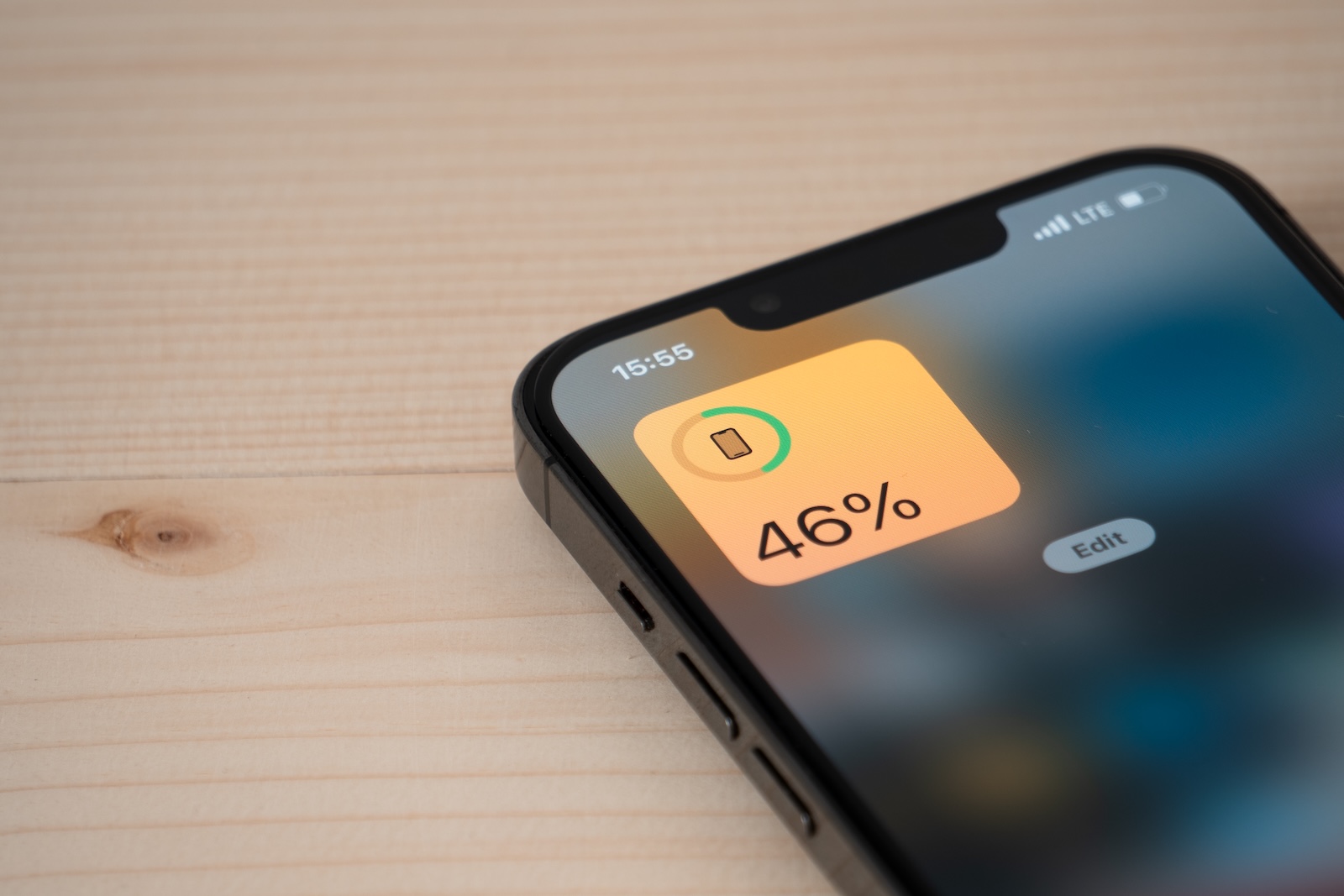
If your iPhone battery drains too quickly, your smartphone quickly becomes a burden. This can be particularly problematic when you're on the go or on long days. The good news: You can extend your iPhone's battery life in a targeted manner. You don't need any apps or accessories. In this article, you'll learn seven practical tips that will have an immediate effect. All of them can be implemented directly in the iOS settings.
Battery performance is a key factor in your iPhone's everyday usability. A few percent more or less often makes the difference between a functioning device and a backup charger. Many power guzzlers run in the background – usually unnoticed. That's exactly where you can start. The following measures will help you save energy and reduce the strain on your battery.
Adjust screen brightness
The display is one of the main sources of battery drain. You can significantly reduce power consumption by manually reducing the screen brightness or enabling automatic brightness. Automatic brightness can be found under Settings > Accessibility > Display & Text Size. This adjusts the brightness to your surroundings. If you prefer to adjust it yourself, you can quickly dim it in the Control Center. A significantly lower brightness is often sufficient, especially for indoor use.
Activate power saving mode
Low Power Mode can be found under Settings > Battery. It can also be activated via Control Center. Once you turn it on, iOS reduces animations, disables background services like mail refresh, and automatically dims the display. You can still make calls, send messages, or browse the internet – but with less power consumption. Low Power Mode automatically activates when the battery is at 20 percent, but you can also manually activate it, for example, during long days away from a power outlet.
Limit background refresh
Apps that constantly access data in the background place a constant strain on your battery. Under Settings > General > Background Refresh, you can specify which apps are allowed to remain active in the background. You can either restrict the feature to Wi-Fi connections or disable it completely for individual apps. This is especially useful for rarely used apps. This avoids unnecessary data requests and saves battery life.
Use Wi-Fi instead of mobile
When your iPhone is connected via cellular data, it consumes significantly more power than when connected via Wi-Fi. Especially in areas with poor reception, the device constantly searches for signals. This consumes energy. Therefore, always use Wi-Fi when available. iOS automatically connects to known networks when Wi-Fi remains enabled. You can find this option in Settings under Wi-Fi. A permanently enabled Wi-Fi module is generally more energy efficient than constantly switching between cell towers.
Optimize location services
Location services access GPS, Bluetooth, and Wi-Fi—and consume power in the process. You can assign individual permissions to each app under Settings > Privacy > Location Services. It's especially useful to set apps you don't need all the time to "When using the app." This way, your location will only be requested when you're actively using the app. You can completely turn off location services for apps that never need your location. It's also worth taking a look at System Services, where many automatic location services can be deactivated.
Use optimized charging
In the battery settings, you'll find the "Optimized Charging" feature. It analyzes your charging behavior and prevents your iPhone from remaining fully charged for an unnecessarily long time. Instead of charging directly to 100 percent, the charging process is paused at around 80 percent and only stopped shortly before the usual time of use. This reduces the chemical load on the battery and extends its lifespan. This is especially useful for regular charging times, such as overnight.
Keep iOS up to date
With every iOS update, Apple optimizes performance and power consumption. It also fixes bugs that may be draining your battery. Go to Settings > General > Software Update and check for a new version. Install updates as soon as possible to benefit from battery management improvements. Even minor security and maintenance updates can affect power consumption.
Optimize iPhone battery life – without any effort
These seven steps will help you noticeably extend your iPhone's battery life. You don't have to implement all of them at once. Even individual settings like reducing background refresh or activating power saving mode can make a significant difference. Observe how your usage behavior changes and how long your battery lasts. With the right combination, your iPhone will remain more reliably ready for use – whether you're on the go or in everyday life. Discover a whole range of useful tips and tricks related to Apple Intelligence! Here you'll find everything you need to get the most out of your Apple devices' smart features – have fun browsing and trying them out! The best products for you: Our Amazon Storefront offers a wide selection of accessories, including those for HomeKit. (Image: Shutterstock / lilgrapher)
- Set up Apple Pay on your iPhone – quickly and securely
- Why an iPhone? These advantages are convincing in the long term
- Secure your iPhone properly: 5 important functions at a glance
- Save iPhone battery: When is power saving mode worth it?





