apple patient
  • Home
  • News
  • Rumors
  • Tips & Tricks
  • Reviews
  • Insights
No Result
View All Result
  • iPhone 18
  • iOS 27
  • iPadOS 27
  • macOS
  • MacBook Neo
  • iPhone 17e
  • AirTags
  • iOS 26
  • iPhone 17
  • MacBook Pro
  • iPadOS
  • iMac
  • Mac mini
  • HomePod
  • Apple TV
  • iPad Pro
  • iPhone Air
  • Apple Vision Pro
  • iPhone 16
  • AirPods 4
  • Apple Watch Ultra
  • HomePod Mini
  • MacBook Air
  • iPad
  • AirPods Max
  • AirPods Pro 3
  • Apple Watch Series 3
  • Mac Studio
  • Studio Display
  • iPad Air
  • iPad mini
  • watchOS 27
  • Apple CarPlay
  • Apple Pay
  • watchOS 26
  • Home
  • News
  • Rumors
  • Tips & Tricks
  • Reviews
  • Insights
No Result
View All Result
apple patient
No Result
View All Result

Apple Watch Ultra: How to customize the action button

Milan Jovicic by Milan Jovicic
24. September 2022 - 13:49 CEST
in Apple Tips & Tricks
0
Apple Watch Ultra

Image: Apple

WhatsAppFacebookEmail
Threads

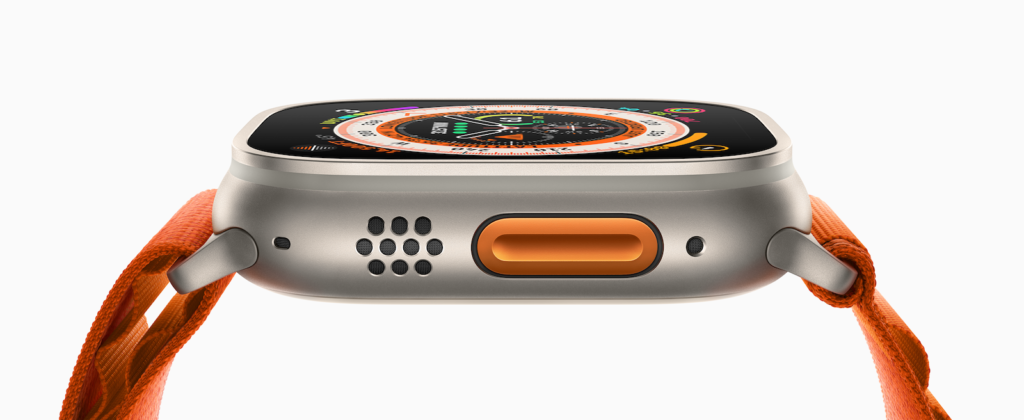
The Apple Watch Ultra has a customizable action button on the left side of the case that can perform a variety of functions. Below I'll show you how to configure it.

Aside from activating the siren, the Apple Watch Ultra's Action button can be customized to perform a number of functions that you can quickly access without having to tap through different screens. When you first set up your Apple Watch Ultra, you'll be asked to assign it one of the following functions:

  • workout
  • stopwatch
  • waypoint
  • backtracking
  • Dive
  • flashlight
  • shortcut
  • No

Depending on the app or feature you choose, you can further customize your selection. For example, if you've chosen the Workout app, pressing the action button once will open the Workout app. But you can also assign the first press function within the app to start a specific workout. But that's not all. Once you've started the activity, you can press the button again to perform a secondary function, like marking segments or laps in a track workout, or switching from cycling to running in a triathlon. Again, what that function is depends on the current activity.

Apple Watch Ultra
Image: Apple – Apple Watch Ultra

Apple Watch Ultra: How to assign functions to the action button

Once your Apple Watch Ultra is set up, you can assign functions to the Action button from a new menu right on your wrist. To do so, follow these steps:

  • On your Apple Watch Ultra, open the Settings app.
  • Scroll down and tap Action button.
  • Tap the menu under Action and select one of the following options: Workout, Stopwatch, Waypoint, Retrace, Dive, Flashlight, and Shortcut.
  • Tap the arrow in the left corner to return to the Action Button settings.
  • Tap the menu under "App" when it appears, then select an app to perform the action. Some actions, like the flashlight, don't show the "App" option.
  • Tap the arrow to go back.
  • Tap the menu under First Press when it appears, then choose an action. Some features may perform different actions on the first and second presses of the button.

On the screen, under Gestures, you'll see tips that explain how the Action button works with the settings you've assigned to it. For example, the tips for taking a walk outside show you that pressing the Action button once starts a workout, and pressing the Action button and the Side button at the same time pauses the workout.

Configuring the Action Button on the iPhone

You can also use the Apple Watch app for iOS to configure what the Action button does on Apple Watch Ultra.

  • Open the Apple Watch app on your iPhone.
  • Tap My Watch if it isn't already selected.
  • Tap Action button.
  • Under Action, tap the currently selected action to change it.
  • Select one of the following options: Workout, Stopwatch, Waypoint, Backtrack, Dive, Flashlight and Shortcut.
  • Tap the Action button to return to the previous menu.
  • Tap the menu under "App" when it appears, then select an app to perform the action. Some actions, like the flashlight, don't show the "App" option.
  • Tap the arrow to go back.
  • Tap the menu under First Press when it appears, then choose an action. Some features may perform different actions on the first and second presses of the button.

By the way, if you want to pause the current action, you can press and hold the action button and the side button at the same time. Try to avoid accidentally pressing the side button or the digital crown when you press the action button. Looking for new accessories? Then take a look in our Amazon Storefront - there you will find numerous products from leading providers, also for HomeKit and Co.! (Image: Apple)


  • Apple Watch Ultra: How to control the siren
Make Apfelpatient a preferred source One click – and you'll see us more often on Google
Was this article helpful?
YesNo
Tags: Apple WatchApple Watch UltrawatchOS
SendShareSend
Share

Our Amazon Storefront

A handpicked selection of products for iPhone, Mac and more – sorted by topic and updated regularly.

Shop Now

This post contains affiliate links (including Amazon). We earn a small commission on qualifying purchases – at no extra cost to you. Learn more on our Partner Program page.

Previous Post

Apple Watch Ultra: How to control the siren

Next Post

M2 iPad Pro & more: These Apple products are expected in October

Milan Jovicic

Milan Jovicic

Milan founded Apfelpatient in 2016 and has been responsible for all editorial content since 2018 — news, rumors, guides, and product reviews. Apple devices here are not test units on loan for two weeks but everyday tools: from the iPhone through MacBook Pro, MacBook Air, and iMac to the Apple Vision Pro, at least one device from nearly every product category is in daily use, many of them replaced annually. Every menu path in a guide is verified on the device before it is published.

Key art for the Apple TV series Pluribus showing a screaming woman against a yellow background, with Pluribus season 2 about to begin filming

Pluribus: Gilligan plans at least three seasons

August 12, 2026 - 8:27 PM CEST
The iPhone 17 lineup in five colors seen from the back, whose successor is expected to adopt the smaller iPhone 18 Dynamic Island from the Pro models

iPhone 18: Smaller Dynamic Island already in the base model

August 12, 2026 - 8:13 PM CEST
Drawn outline of the folded iPhone Ultra with square corners on the hinge side and rounded corners opposite, matching the leaked iPhone Ultra screen protectors

iPhone Ultra: Screen protectors reveal the camera position

August 12, 2026 - 3:58 PM CEST

About APFELPATIENT

APFELPATIENT brings you the latest Apple news, product updates, guides, reviews and tips across the entire Apple ecosystem — from the iPhone to the Mac to the Apple Vision Pro. From the first rumors to confirmed news: researched responsibly.

Follow Apfelpatient

Facebook Instagram YouTube Threads Threads

Company

  • About Apfelpatient
  • Contact
  • Author Profiles

Community

  • Netiquette
  • Push Notifications
  • RSS feed

Legal

  • Legal Notice
  • Privacy Policy
  • Terms of Use
  • Cookie Settings
  • Affiliate Program

Resources

  • Sitemap

© 2026 Apfelpatient. All rights reserved.

No Result
View All Result
  • Home
  • News
  • Rumors
  • Tips & Tricks
  • Reviews
  • Insights

© 2026 Apfelpatient. All rights reserved. Page Directory

Change language to Deutsch