

If you use your iPhone regularly, you know the problem: You quickly pick up your phone to check something – and an hour later, you're still stuck in an app. Screen time can add up quickly. That makes it all the more important that you use it consciously. Your iPhone offers built-in features that let you specifically control how much time you spend on which apps. These seven tips will help you make the most of your iPhone screen time – for more focus, fewer distractions, and a healthy balance between the digital and real world.
With the "Screen Time" feature, Apple has created a tool that does more than just track daily usage. You can set time limits, block apps during certain periods, define exceptions for important contacts, and even create profiles for your children. All directly on your iPhone, without additional apps. Each of the following tips can be implemented immediately and ensures you use your device more consciously – without any coercion or constant monitoring.
Configure app limits
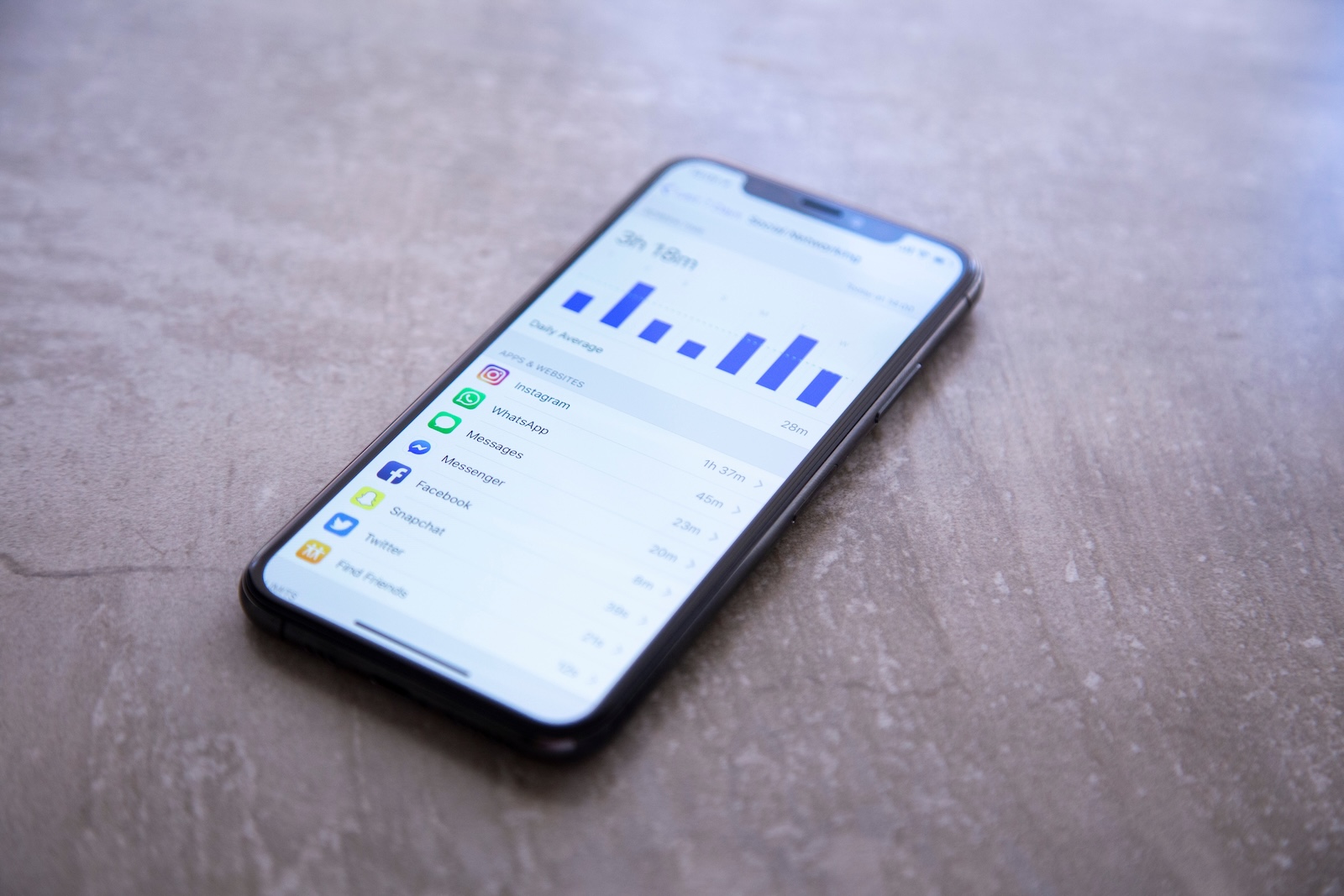
With App Limits, you can restrict the daily usage of apps or entire app categories. To do this, go to Settings > Screen Time > App Limits on your iPhone. For example, you can set a maximum of 30 minutes per day on Instagram. Once the limit is reached, your iPhone will display a notification and block access. While you can manually bypass the limit, the reminder alone often helps you use your time more consciously.
Set up a time-out
Downtime is a kind of digital quiet time. You can find it under Settings > Screen Time > Downtime. During this time—for example, at night or during your workday—only certain apps and calls are allowed. All other apps are automatically blocked. This helps you relax in the evening or focus on your work without constantly looking at your iPhone.
Set communication limits
With communication limits, you determine who can contact you and when. You can find the setting under Screen Time > Communication Limits. There, you can specify that, for example, only family members or close friends can call or text you during downtime. This way, you remain available for important things, but aren't distracted by every message or call.
Always permitted to use
Not every app should be limited. Some you need all the time – for example, your phone, maps, or notes. You can set these exceptions under Screen Time > Always Allow. Even when downtime or app limits are active, these apps remain usable. This gives you flexibility without violating your digital rules.
Use Screen Time Family Sharing
If you have children, you can also manage screen time through Family Sharing. You can do this by going to Settings > Screen Time > Set Up Family Sharing. You can then set individual limits, downtimes, and communication rules for each family member. This gives you, as a parent, control while encouraging responsible iPhone use.
Analyze weekly reports
Once a week—usually on Sundays—your iPhone shows you an analysis of your usage. You can find this under Settings > Screen Time, right on the home screen. There, you can see how much time you spent on which apps, how often you picked up your iPhone, and which apps were opened most often. Use this data to identify patterns and adjust your limits accordingly.
Combine focus schedules
A particularly effective trick is combining Screen Time with Focus mode. You can find it under Settings > Focus. Here, you can activate different modes like Work, Sleep, or "Do Not Disturb," ensuring that not only specific apps, but also notifications and home screens are customized. Link your downtime to a Focus schedule – this way, distracting apps will disappear completely from your screen, helping you stay focused.
iPhone Screen Time: Turning Data into Decisions
iPhone screen time is more than a statistic—it's a tool you can use to actively shape your digital usage. With the seven tips in this article, you can precisely control when and how you use your iPhone. You'll save time, reduce distractions, and more easily find the balance between online and offline. Everything you need is already installed on your device. Now it's up to you to use the features wisely. Want to get the most out of Apple Intelligence? Then take a look at our collection of tips and tricks for the individual features—with practical examples, hidden settings, and real everyday helpers. The best products for you: Our Amazon Storefront offers a wide selection of accessories, including those for HomeKit. (Image: Shutterstock / Cristian Dina)
- Optimize iPhone battery health: 7 tips to save battery life
- Extend iPhone battery life: These 7 tips help immediately
- Using iPhone Accessibility Features: 7 Features at a Glance
- Apple Intelligence: From which iPhone is it available?
- iPhone & Co.: How to deactivate the advanced visual search
- Extend iPhone battery life: These 7 tips help immediately
- Editing iPhone RAW photos – 8 simple pro tips
- iPhone & Co.: How to deactivate the advanced visual search
- Extend iPhone battery life: These 7 tips help immediately
- Apple Music in iOS 26: Music Pins make access easier
- Setting up iPhone widgets: These 6 tricks you need to know
- Set up Apple Pay on your iPhone – quickly and securely
- Why an iPhone? These advantages are convincing in the long term
- Secure your iPhone properly: 5 important functions at a glance
- Save iPhone battery: When is power saving mode worth it?
- Use Apple Wallet safely, conveniently, and efficiently – 7 tips
- LG or Samsung Smart TV? How to disable tracking
FAQ: iPhone screen time explained simply – more focus, less distraction
Screen Time is a built-in iOS feature that lets you analyze your daily iPhone usage, set time limits, and restrict specific apps or contacts—without additional apps.
On your iPhone, open Settings > Screen Time. There you'll find all the features like App Limits, Downtime, Communication Limits, Always Allowed, and Weekly Reports.
Yes. Under Settings > Screen Time > App Limits, you can set a daily time limit for individual apps or entire categories (e.g., social media).
Your iPhone will display a notification and block access to the app. You can extend the limit manually, but the reminder will help you manage your time more consciously.
Timeout blocks all apps except those you allow—for example, during your bedtime or work periods. This allows you to concentrate better or switch off.
Yes. Under Screen Time > Always Allow, you can allow apps like Phone, Messages, or Maps to remain available even during downtime or app limits.
With communication limits, you can specify who can reach you and when—for example, only family members during your downtime. This reduces unnecessary disruptions.
Yes. With Family Sharing, you can set individual screen time rules for each family member and manage them centrally.
They show you your usage statistics, including the most used apps and how often you unlock your iPhone. This allows you to adjust your limits accordingly.
Yes. Link Downtime to a Focus schedule to block out distracting apps and notifications at once—ideal for work or sleep.
No. This feature is available by default on all iPhones running iOS 12 or later.





