This article may contain affiliate links. Learn more on our Partner Program page.
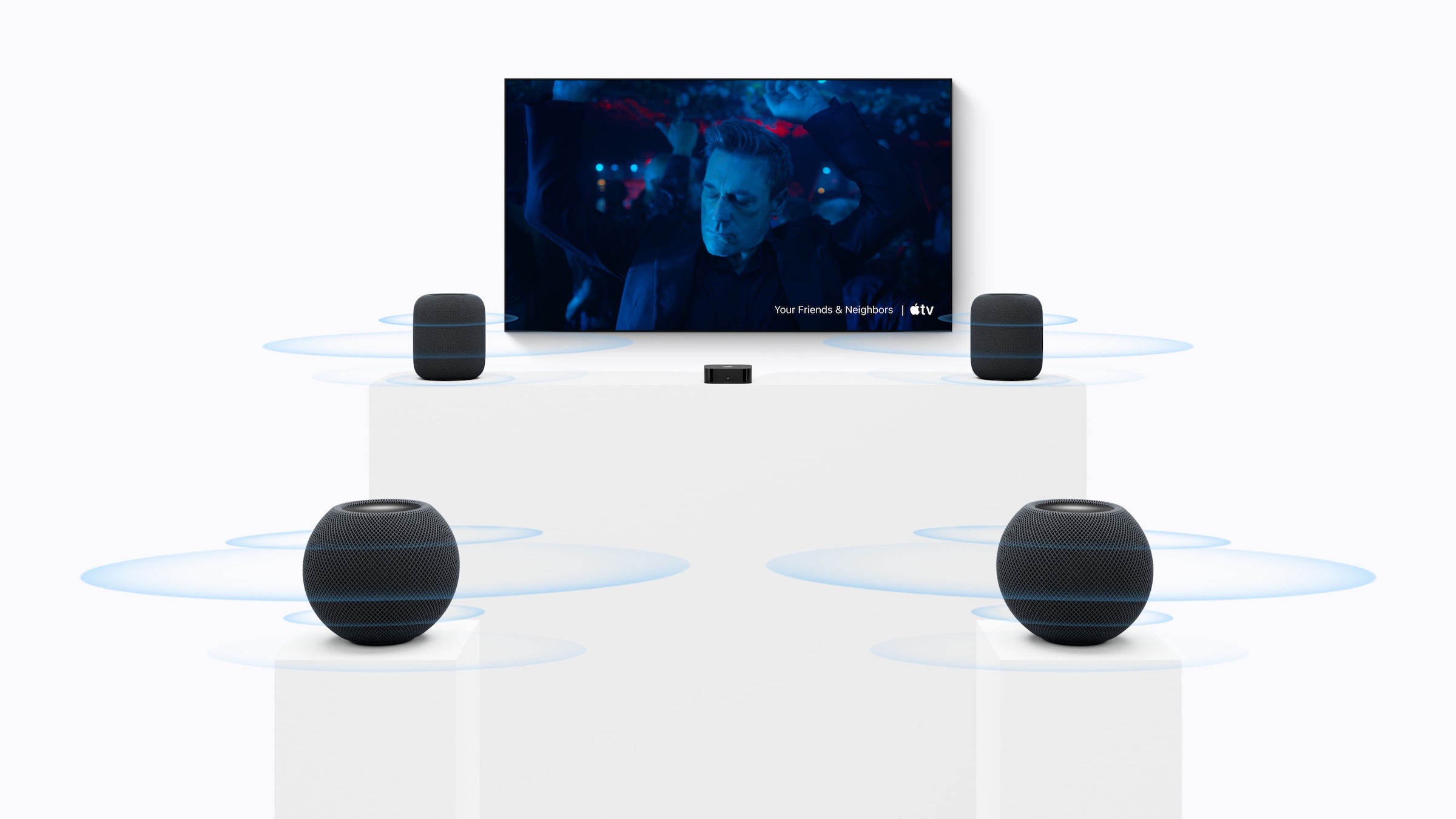
Four HomePods, two at the front and two behind the sofa: with the new Apple TV 4K, that becomes a true surround system. Setup takes just a few minutes and starts either on the Apple TV or in the Home app. One more step is needed afterwards so that your console and TV also play through all four speakers.
Until now, Apple TV 4K topped out at two speakers. A stereo pair with Apple TV simulates surround sound and spatial audio from the front. The Apple TV 4K with A19, on sale since November 13, is the first to support four HomePods: one pair to the left and right of the TV, a second behind the seating area.
Apple describes placement and settings in the Apple TV 4K User Guide, and the requirements are also listed in the support document on home theater audio. I went through the process below with four HomePod (2nd generation) on Apple TV 4K. All articles about the box are collected on the Apple TV 4K topic page.
Key Takeaways
- Surround with four HomePods requires the fourth-generation Apple TV 4K; older models remain limited to a stereo pair.
- Only HomePod (2nd generation) and HomePod mini 2 are supported, in matching pairs at the front and rear.
- Setup on Apple TV is under "Settings" › "Video and Audio" › "Audio Output" › "Create Home Theater", or via the same option in the Home app on iPhone.
- After the tone test, you confirm the assignment of each HomePod individually; this step cannot be skipped.
- For sound from your TV and console, you then need to turn on the audio return channel.
Which devices HomePod Surround requires
The foundation is the fourth-generation Apple TV 4K. All earlier Apple TV 4K models continue to support a stereo pair at most. I've put together the new Apple TV 4K, the remote and the HDMI cable from my home theater in a list on Amazon. On the speaker side, Apple only accepts the two current HomePod models, in three combinations:
| Configuration | Front | Rear |
|---|---|---|
| Four large HomePods | 2 × HomePod (2nd generation) | 2 × HomePod (2nd generation) |
| Four HomePod mini 2 | 2 × HomePod mini 2 | 2 × HomePod mini 2 |
| Mixed | 2 × HomePod (2nd generation) | 2 × HomePod mini 2 |
In the mixed setup, the large HomePods always go at the front and the HomePod mini 2 at the rear. The first-generation HomePod and the original HomePod mini do not appear on Apple's list. Which model suits which role is shown in the comparison between HomePod mini 2 and HomePod 2.
All four speakers and the Apple TV need the latest software; for Apple TV, that is currently tvOS 27.2.1. They also have to be assigned to the same room in the Home app and connected to the same network. New speakers are first added to the Home app as usual through HomePod setup with iPhone.
Positioning the HomePods correctly
Apple gives specific distances in the user guide. The same values apply to the mixed setup, with the large HomePods taking the front.
| Position | Distance according to Apple |
|---|---|
| Front, left and right of the TV | at least 1.20 m apart, ideally about 2.40 m |
| Rear, behind and beside the seating area | 1.80 to 3.60 m apart, depending on room size |
| Rear pair to the TV | about 2.40 m |
The setup screen on Apple TV also recommends placing all speakers at ear level if possible. If you plan the placement in advance, you won't have to move things around after the tone test.
Creating the home theater on Apple TV
The quickest way to set it up is directly on Apple TV.
- Open "Settings" on Apple TV 4K.
- Select "Video and Audio" › "Audio Output".
- Under "Home Theater", select "Create Home Theater".

Next, the "Place HomePod Speakers" screen appears. It sums up the placement in three points: one HomePod to the left and one to the right of the TV, one on each side behind the seating area, followed by the tone test.

- Select "Start Tuning".
The TV first plays a series of tones, followed by a single tone from each HomePod. From this, Apple TV determines the position of the TV and the four speakers and adjusts levels and timing to the room. The HomePods light up in different colors during this process.
Alternatively: starting in the Home app
The group can also be created on iPhone. To do this, tap Apple TV 4K in the Home app, open its settings and select "Create Home Theater", just like on Apple TV. According to Apple's support document, setup can also be started from the settings of one of the HomePods. On the "Create Home Theater" screen, you tick the four HomePods in the room and confirm with the checkmark at the top right. The Home app also lists there which models are suitable for a stereo pair and which for surround sound.
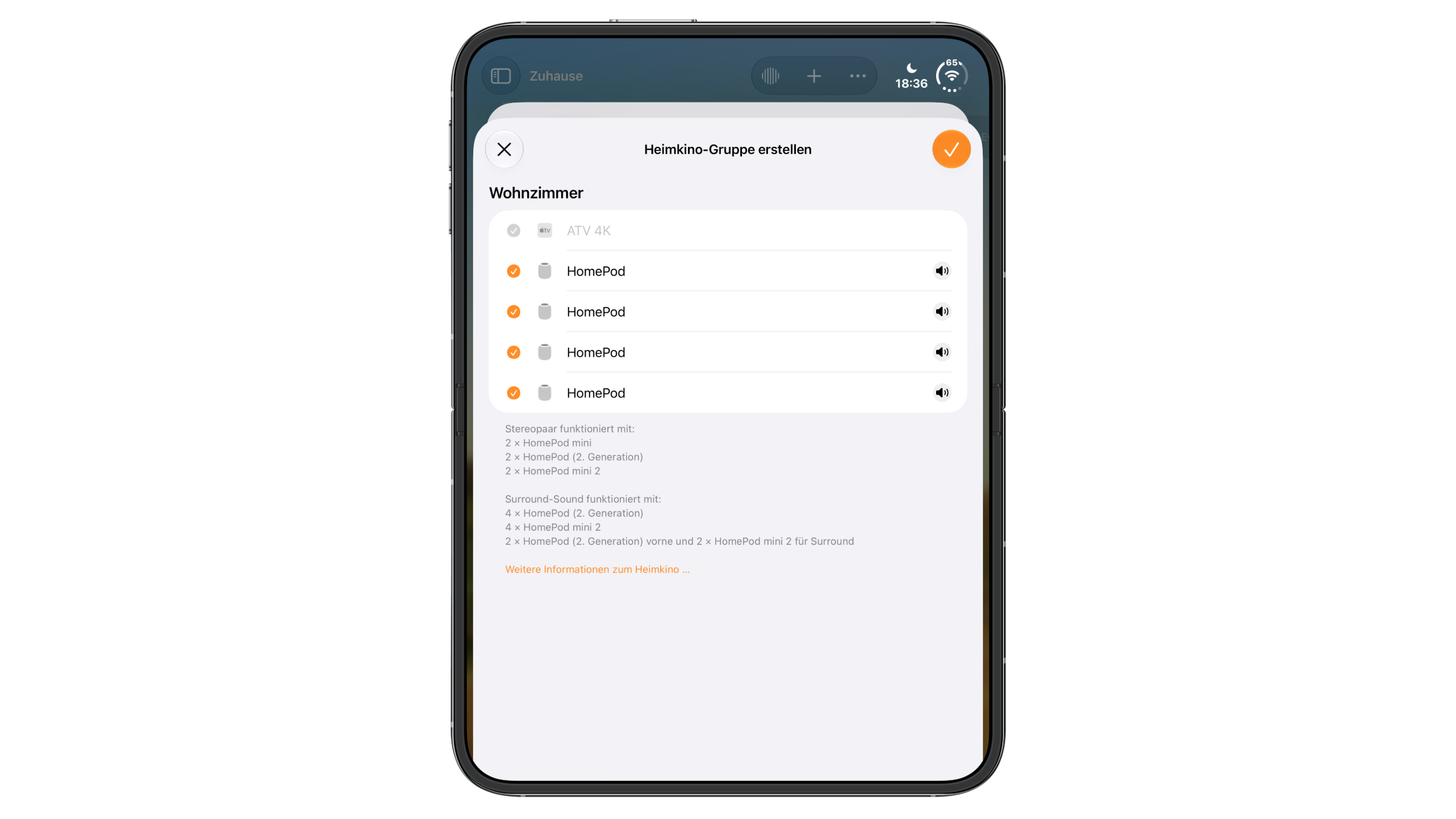
Setup then continues on Apple TV with the placement and the tone test, exactly as described above.
Assigning each HomePod to its position
The tone test is followed by a step that cannot be skipped: Apple TV has assigned the HomePods itself, and this assignment now has to be confirmed. The HomePods light up in different colors, and Apple TV asks about each position individually, for example with "Select the color shown on the HomePod to the left of your TV." Four colors are available to choose from. Using the remote, you select the color that the HomePod in that position is showing. Only once all four positions are confirmed does Apple TV report the home theater as ready.

Bringing in sound from the TV and console
After calibration, the home theater plays everything that comes from Apple TV itself. For sound from TV apps, a games console or a player, you also need the audio return channel via HDMI ARC or eARC.
- Connect Apple TV via HDMI to the TV port labeled ARC or eARC and turn on HDMI-CEC on the TV.
- On Apple TV, open "Settings" › "Video and Audio" › "Audio Output".
- Under "Audio Return Channel", select "Play TV Audio".
If you then switch the TV to the console's HDMI input, its sound plays through Apple TV on the HomePod home theater.
The main difference between ARC and eARC is what gets through. The original ARC is not designed for uncompressed sound and high-bitrate formats. According to the HDMI specification, eARC, by contrast, carries uncompressed 5.1 and 7.1 audio as well as Dolby Atmos in full quality.
For surround with four HomePods, I therefore consider eARC the better choice. This requires a TV with an eARC port, and a suitable cable is a Premium High Speed HDMI Cable with Ethernet or an Ultra High Speed HDMI Cable. For my home theater, I use this HDMI cable.
Setting up the PS5 for the home theater
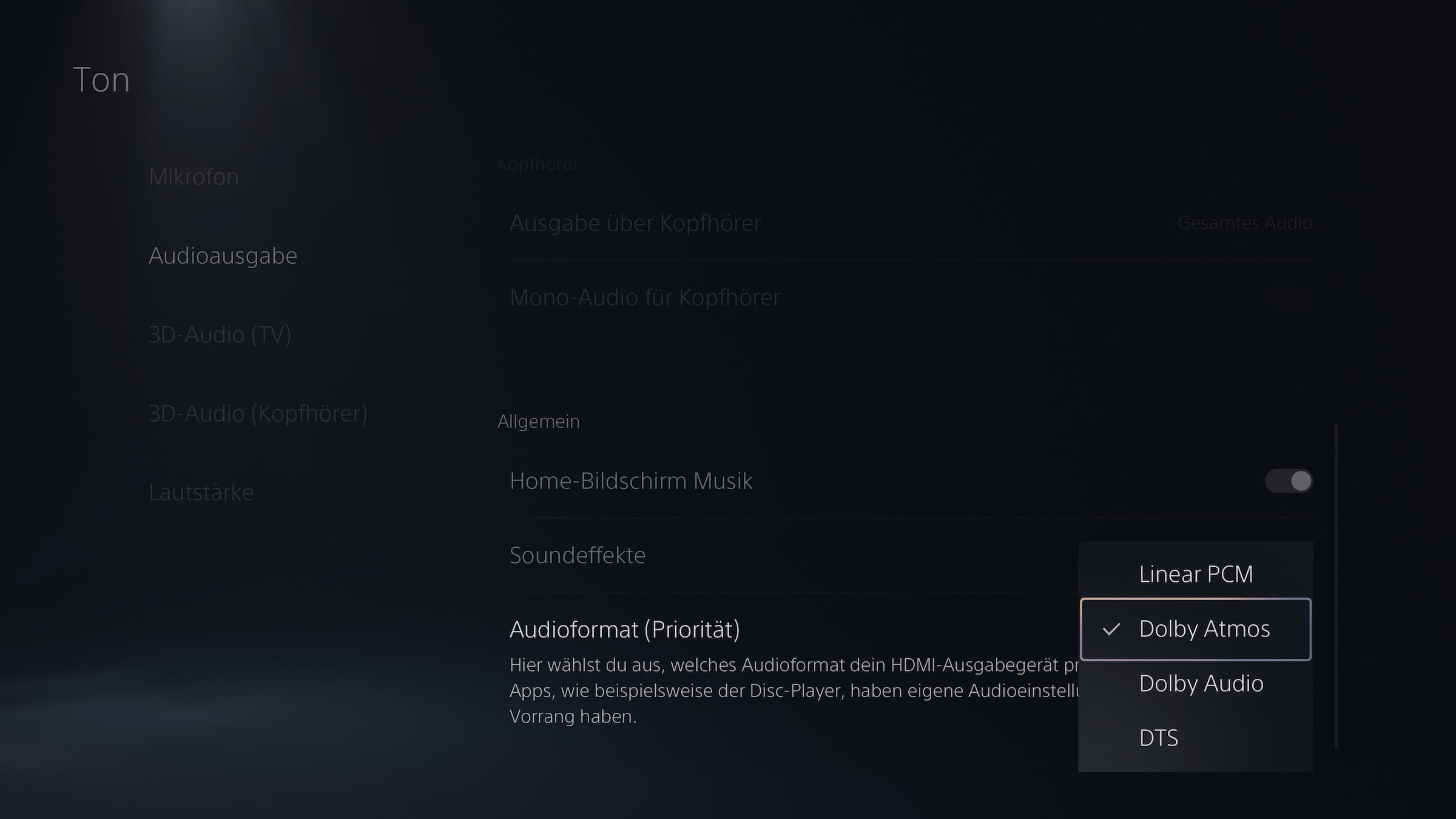
With the PlayStation 5, the console's own sound settings also matter. With my four HomePod (2nd generation) on Apple TV 4K, this combination has proven itself:
- On the PS5, open "Settings" › "Sound" › "Audio Output". Leave "Output Device" set to "HDMI Device (TV)" and "HDMI Device Type" set to "TV".
- Under "Audio Format (Priority)", select "Dolby Atmos".
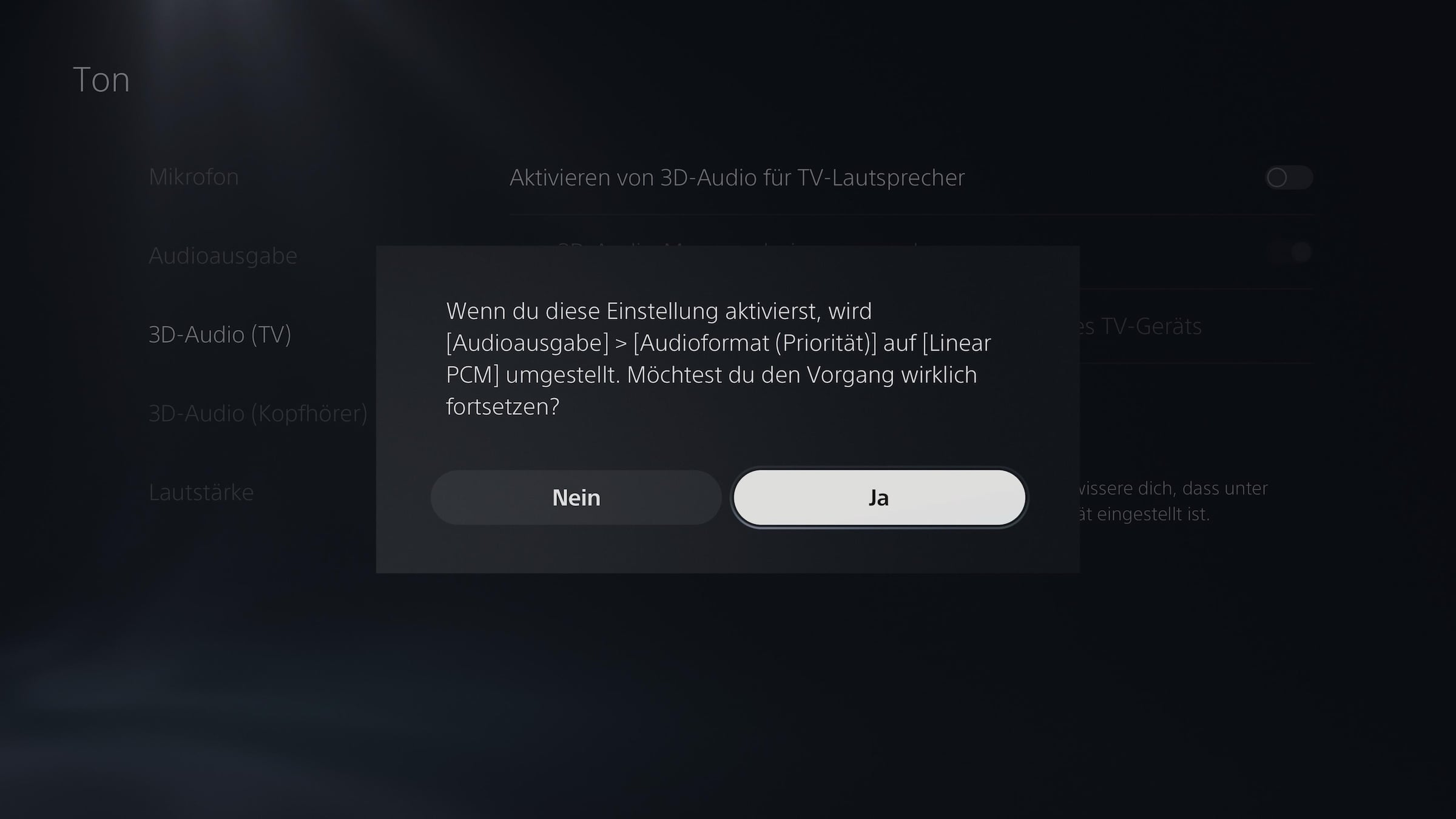
- Under "3D Audio (TV)", leave "Enable 3D Audio for TV Speakers" turned off.
3D Audio for TV speakers is intended for the TV's built-in speakers. If you turn the feature on, the PS5 switches the audio format to Linear PCM, and Dolby Atmos is no longer active. That's why the console's own tone test, which belongs to this feature, isn't needed with the HomePod home theater.
Choosing surround sound or room sound
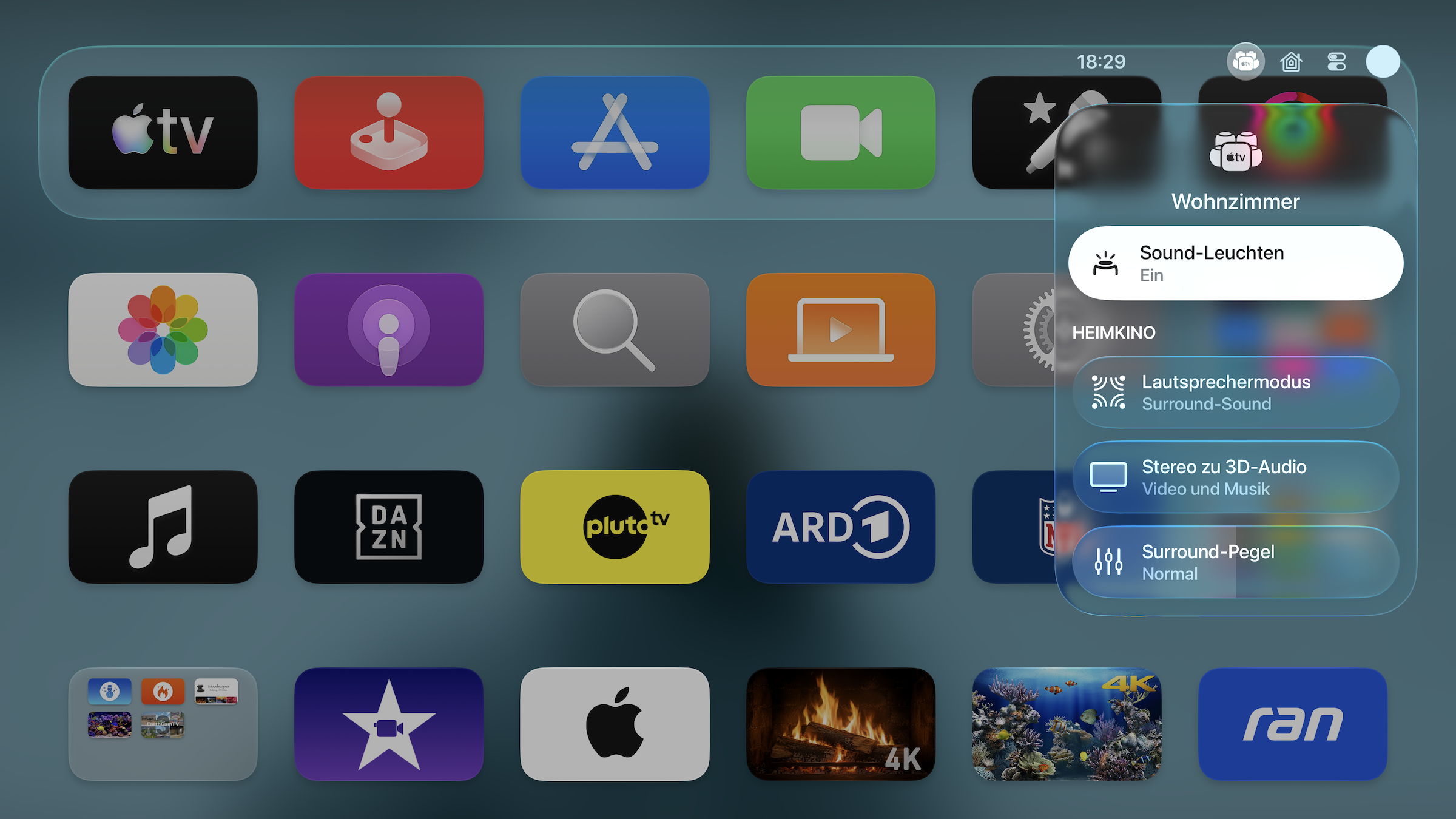
During use, the home theater can be adjusted via Control Center. To do this, press and hold the TV button on the remote and select the home theater icon at the top. Under "Home Theater", there are three settings:
- Speaker mode: According to the menu, "Surround Sound" is "Optimal for movies and TV" and focuses the sound on a seating area in the middle. "Room Sound" stands for "Audio the same everywhere" and spreads the sound evenly throughout the room, for example for sports broadcasts or music with several people.
- Spatialize Stereo: automatically converts stereo content into spatial sound, and can be turned on and off separately for video and music.
- Surround Level: adjusts the volume of the rear speakers relative to the front ones; by default it is set to "Normal".
Dolby Atmos depends on the model. Apple lists "Spatial Audio with Dolby Atmos for music and video" in the tech specs of HomePod (2nd generation). The tech specs of HomePod mini 2, by contrast, only mention "Surround sound with Apple TV 4K", and Dolby Atmos is missing. If you want to hear films with an Atmos soundtrack through your home theater, you're on the safe side with four large HomePods.
The values the Surround Level allows are covered in the overview of the sound settings of the HomePod surround system.
Why the Surround Level makes the difference
The real work isn't in the menu but in the placement. Apple TV adjusts levels and timing itself, but only within what the room allows. A sofa pushed right up against the wall leaves the rear pair little of the distance Apple recommends.
That's why I consider the Surround Level the most important setting after setup. If the rear HomePods are closer to your ears than the front ones, effects from behind can quickly become too dominant – the slider lets you correct this without repeating the calibration. If you already own a stereo pair of two HomePod (2nd generation), you can keep it at the front and add two HomePod mini 2 at the rear.
How much space do you have behind your sofa – are the distances Apple recommends for the rear pair achievable, or do you have to make compromises when setting up? Tell us in the comments how you fit your four HomePods into your room.
Frequently asked questions: HomePod Surround with Apple TV 4K
Yes, but only with the fourth-generation Apple TV 4K. It supports four HomePod (2nd generation), four HomePod mini 2, or a mix of two large HomePods at the front and two HomePod mini 2 at the rear as a surround system.
No. Older Apple TV 4K models continue to support a single HomePod or a stereo pair, but not a system of four speakers.
For surround, Apple only lists HomePod (2nd generation) and HomePod mini 2. The first-generation HomePod and the original HomePod mini are not on Apple's list.
Yes, as long as the pairs match: two HomePod (2nd generation) go at the front, two HomePod mini 2 at the rear. Apple does not provide for the reverse combination. Apple only lists Dolby Atmos in the tech specs of the large HomePod.
On Apple TV under "Settings" › "Video and Audio" › "Audio Output" › "Create Home Theater". Alternatively, you can do it in the Home app on iPhone via the settings of Apple TV 4K or one of the HomePods. Before that, Apple TV and all four HomePods must be assigned to the same room in the Home app and connected to the same network.
Apple recommends placing the rear speakers behind and beside the seating area. Depending on room size, they should be 1.80 to 3.60 meters apart and about 2.40 meters from the TV. The front HomePods should be at least 1.20 meters apart, ideally about 2.40 meters.
Yes, if the audio return channel is active. To do this, connect Apple TV via HDMI to the TV's eARC port, turn on HDMI-CEC and on Apple TV select "Play TV Audio" under "Audio Output" › "Audio Return Channel". On the PS5, set "Audio Format (Priority)" to "Dolby Atmos" under "Sound" › "Audio Output" and leave "3D Audio for TV Speakers" turned off.