

This article may contain affiliate links. Learn more on our Partner Program page.
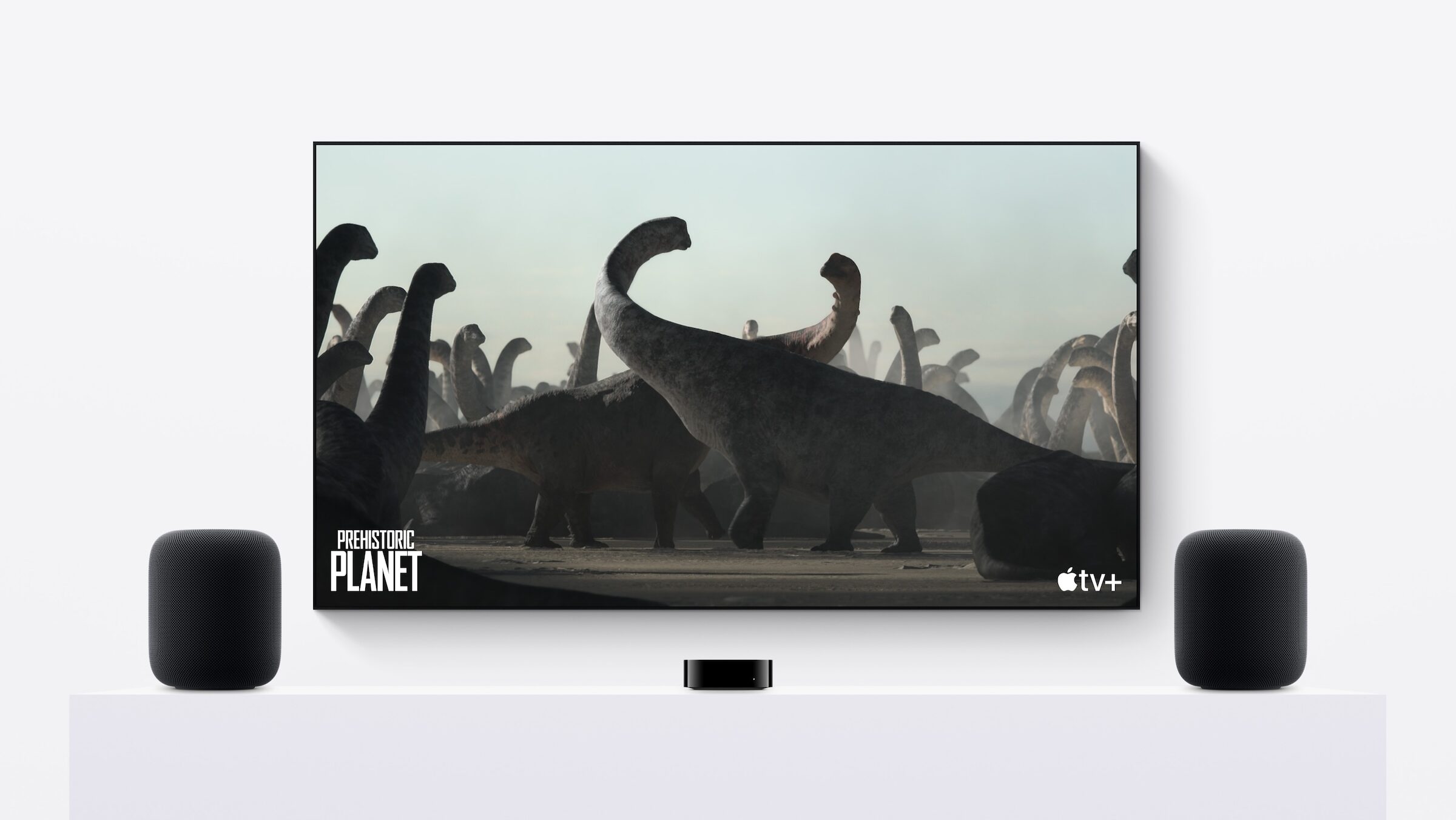
For many, two HomePods placed to the left and right of the TV replace the soundbar. For this to work, the model, room assignment, and Apple TV must be compatible – and this is precisely where setup often fails. Which speakers can be paired, how to get TV audio to the HomePods via ARC or eARC, and where Dolby Atmos ends are explained step by step here.
A stereo pair of HomePods creates a left and right channel from two HomePods. When connected to Apple TV 4K, this becomes a home theater speaker system that plays movies, TV shows, and, via the audio return channel, also the sound from other devices connected to the TV. Which model is suitable depends primarily on whether it supports Dolby Atmos – a comparison between the HomePod mini 2 and the HomePod 2 shows the differences between the two speakers in detail.
Apple describes the steps for setting up a stereo pair in the HomePod user guide and in the guide to home theater audio with Apple TV 4K. All articles about the large speaker are compiled on the HomePod 2 topic page.
Key Facts at a Glance
- A stereo pair always consists of two speakers of the same model and generation – for example, two HomePod mini 2 or two HomePod (2nd generation).
- Both HomePods must be assigned to the same room in the Home app; for use with a television, the Apple TV 4K must also be assigned.
- By default, all audio from the Apple TV is routed through the HomePods, including navigation clicks, system sounds, and game audio.
- TV audio from consoles, players or TV apps is sent to the HomePods via ARC or eARC – starting with the second generation Apple TV 4K.
- Dolby Atmos, Dolby Digital 7.1 and 5.1 are available with the larger HomePod. The first-generation HomePod mini renders these formats in mono or stereo.
Which HomePods can be paired
Apple requires two speakers of the same model and generation for a stereo pair. Therefore, a HomePod mini cannot be paired with a full-size HomePod, and two generations cannot be paired together – neither the full-size HomePod nor the HomePod mini and HomePod mini 2.
| Model | Stereo pair | Home cinema on Apple TV 4K | TV audio via ARC/eARC | Dolby Atmos, 7.1, 5.1 |
|---|---|---|---|---|
| HomePod (2nd generation) | HomePod (2nd generation) | Yes | Yes | Yes |
| HomePod (1st generation) | HomePod (1st generation) | Yes | Yes | Yes |
| HomePod mini 2 | HomePod mini 2 | Yes | Yes | – |
| HomePod mini | HomePod mini | Yes | Yes | No, playback in mono or stereo |
There's a second limitation on the Apple TV side. Home theater audio requires an Apple TV 4K; HomePods only accept TV audio via ARC or eARC starting with the second-generation Apple TV 4K. Apple doesn't support other AirPlay speakers for home theater audio. For those considering a new purchase, I've compiled a list of the Apple TV 4K and a suitable HDMI cable.
Create a stereo pair in the Home app
The pairing is created either directly during the setup of the second HomePod, if the first is already in the same room, or later in the Home app. In both cases, both speakers must be assigned to the same room.
- Open the Home app on your iPhone or iPad.
- Tap one of the two HomePods, then tap the "Settings" button.
- Select "Create stereo pair" and follow the instructions on the screen.
Swap left and right channels
If the pair is mirrored, the assignment can be changed without rearranging the speakers.
- In the Home app, tap the paired speakers, then "Settings".
- Tap "Audio settings" and follow the on-screen instructions.
Details about the individual speakers
Under the pair's "Settings," the "Speakers" entry leads to both HomePods. Tapping on one of them displays its details.
Separate stereo pair again
- In the Home app, tap the paired speakers, then "Settings".
- Tap "Ungroup devices".
What changes in the couple
When used as a pair, only one of the two HomePods handles Siri requests, plays alarms, and serves as a hands-free device.
Setting HomePods as speakers on Apple TV 4K
To ensure Apple TV permanently sends its audio to HomePods, they must be set as the default audio output. Beforehand, Apple TV and HomePods must be assigned to the same room in the Home app and connected to the same network. For setup via iPhone, Apple requires iOS 27 or later; for iPad, iPadOS 27.
After assigning the devices to a room, Apple TV asks upon startup whether the HomePods should be used as TV speakers. Selecting "Use as TV speakers" directly activates home theater audio. If the prompt doesn't appear, there are two options:
On Apple TV: Open "Settings" › "Video and Audio" › "Audio Output" and select the HomePod or the stereo pair.
On iPhone or iPad: In the Home app, tap Apple TV 4K, then "Settings", and under "Default Audio Output" select HomePod or the stereo pair.
From this point on, the Apple TV routes all audio to the HomePods, including navigation clicks, system sounds, and game audio. This differs from other AirPlay speakers, where system prompts and game audio remain on the TV's speakers.
Get TV audio to your HomePods via ARC and eARC
Using HDMI ARC or eARC, the Apple TV 4K can also receive audio that isn't originating from the Apple TV itself – for example, from a game console or DVD player connected to the TV. The Apple TV then forwards this audio to the HomePods. This requires an Apple TV 4K (second generation or later), HomePods set as the default audio output, and a TV with ARC or eARC.
- Connect the Apple TV 4K to the HDMI port on your TV labeled ARC or eARC using an eARC-compatible HDMI cable. I use a certified Ultra High Speed HDMI cable; with this, my Apple TV shows "On (eARC)" under "Audio Return Channel".
- Activate HDMI-CEC on the TV.
- Set the HomePods as the default audio output as described above.
- On Apple TV, open "Settings" › "Video and Audio" › "Audio Output" and check if the room with the HomePods is selected under "Default Audio Output".
- Under "Audio feedback channel", select the "TV audio playback" option.
The feature is active when "On (ARC)" or "On (eARC)" appears there. If the HDMI input of the console or player is then selected on the TV, its audio plays through the Apple TV to the HomePods. Depending on the TV, additional settings may be required, which the manufacturer specifies. Apple describes the details in the support document on HDMI ARC and eARC with Apple TV 4K.
Differences between ARC and eARC
Audio Return Channel (ARC) has been around since 2009. According to the HDMI licensor, the original ARC is not designed for uncompressed audio and high-bitrate formats. The extended version, eARC, however, transmits uncompressed 5.1 and 7.1 audio, as well as up to 32 channels at up to 192 kHz and 24-bit resolution, and formats such as Dolby TrueHD, DTS-HD Master Audio, DTS:X, and Dolby Atmos. Apple describes eARC on Apple TV 4K as a way to send full-resolution audio, including Dolby Atmos, from the TV to the HomePods.
A second difference lies in the setup: With eARC, device detection is built in, which simplifies the connection between the TV and speakers. This requires an eARC port on the TV, possibly activation in the TV menu, and a suitable cable – at least a Premium High Speed HDMI Cable with Ethernet or an Ultra High Speed HDMI Cable.
Dolby Atmos and surround formats
According to Apple's HomePod manual, a single large HomePod or a stereo pair on the Apple TV 4K plays video content in Dolby Atmos, Dolby Digital 7.1, or Dolby Digital 5.1. The first-generation HomePod mini does not support these surround formats; it plays them back in mono or stereo. Therefore, if you're primarily setting up the pair for movies, your choice of model will also determine whether you support Atmos.
For better dialogue clarity, Apple recommends the "Enhance Dialogue" option in the Apple TV's video and audio settings.
The fourth-generation Apple TV 4K adds surround sound with four speakers. According to Apple's product page for the HomePod mini 2, this requires four HomePod mini 2 units or four HomePod (2nd generation) units in matching pairs, one at the front and one at the back.
How to properly set up the HomePods
Apple specifies concrete distances for home theater:
- A single HomePod: no more than about 25 centimeters away from a wall and as close as possible to the center of the television.
- A stereo pair: one speaker to the left and one to the right of the television, both approximately 1.2 meters apart.
If the sound isn't reaching the HomePods
Apple lists four checkpoints for problems with TV sound:
- Check the room assignment: If you can't set the HomePods as speakers for your Apple TV, the Apple TV and HomePods are usually not assigned to the same room in the Home app. Try assigning them again.
- Check your TV: There should be an ARC label next to the HDMI port. If it's missing, the manufacturer will indicate whether ARC or eARC is supported.
- Check TV settings: ARC, eARC or HDMI-CEC may need to be activated on the TV first.
- Reconnect cables: Unplug the HDMI cables from the TV and Apple TV, plug them back in, and test ARC or eARC again.
Furthermore, Apple TV and HomePods should be running the latest software; according to Apple, home theater audio requires the latest tvOS version.
Why the choice of model determines the home cinema experience
I personally use a pair of HomePods as speakers with my Apple TV. The real bottleneck isn't the setup, but rather the situation before you buy them: A pair can only be created from two speakers of the same model and generation, and Dolby Atmos is reserved for the larger HomePod. If you start with a HomePod mini, you can't later add a larger model or a HomePod mini 2; you'll need a completely new pair.
ARC and eARC make the pair more than just an Apple TV speaker. Consoles and media players connected to the TV also play through the HomePods, provided the Apple TV 4K (second generation or later) and TV are compatible. Other AirPlay speakers are excluded from the home theater setup – while existing users can connect them to the Apple TV, they won't receive system or game audio through them.
HomePod stereo pair – the most important information at a glance
Two identical HomePods in the same room, along with an Apple TV 4K, are all you need for a stereo pair connected to your TV. You create this pair in the Home app under "Create Stereo Pair," select the speakers via "Default Audio Output," and add audio from the console and player by selecting "TV Audio Playback" under "Audio Return Channel." For Dolby Atmos, the larger HomePod is the safest choice.
Did you build your setup for your TV using two HomePod minis or two full-size HomePods – and would you make the same decision again today with Dolby Atmos in mind? Tell us about your setup in the comments.
Frequently Asked Questions: HomePod Stereo Pair
No. Apple requires two speakers of the same model and generation for a stereo pair. Therefore, a large HomePod can only be paired with a second large HomePod of the same generation, and a HomePod mini can only be paired with another HomePod mini.
No. The same generation rule applies here as well: A stereo pair consists of two HomePod mini 2 or two first-generation HomePod mini, not a mixture.
The first-generation HomePod mini does not support the surround sound formats Dolby Atmos, Dolby Digital 7.1, and 5.1; instead, it plays them back in mono or stereo. With a full-size HomePod or a pair of full-size HomePods, the Apple TV 4K can play these formats.
Does TV audio via ARC or eARC work with every Apple TV?
No. Apple TV only accepts audio from other devices connected to the TV via ARC or eARC starting with the second-generation Apple TV 4K. Additionally, the TV must support ARC or eARC, and HDMI-CEC must be enabled.
eARC is the enhanced version of the Audio Return Channel. It transmits uncompressed 5.1 and 7.1 audio, as well as formats like Dolby TrueHD, DTS:X, and Dolby Atmos, for which the original ARC is not designed. On Apple TV, the "Audio Return Channel" setting indicates whether "On (ARC)" or "On (eARC)" is active.
Apple recommends placing the two speakers to the left and right of the TV, about 1.2 meters apart. A single HomePod is best placed no more than about 25 centimeters from a wall and as close to the TV as possible.
Apple TV and HomePods are usually not assigned to the same room in the Home app. Additionally, all devices must be on the same network and running the latest software. After that, the pair can be selected again under "Default Audio Output".





