This article may contain affiliate links. Learn more on our Partner Program page.
Those who film in ProRes on the iPhone 18 Pro will find a new option in the camera settings: Pro Video Storage. This allows you to reserve a fixed portion of the device's storage for video recordings. Here's how it works, how much space is advisable, and how to free it up again.
ProRes videos are among the most storage-intensive files an iPhone can create. According to Apple's settings, one minute of 10-bit HDR ProRes in 4K at 30 frames per second takes up around 6 GB. Anyone shooting for longer periods will quickly reach the limits of their storage, especially since photos, apps, and system data are competing for the same space.
The iPhone 18 Pro models introduce Pro Video storage. The iPhone user guide describes it as a step required when first enabling Apple ProRes. All the key specifications of the new models are summarized in the iPhone 18 Pro and Pro Max overview. We set up the feature on an iPhone 18 Pro Max running iOS 27.
Key Facts at a Glance
- The Pro Video storage reserves a fixed portion of the iPhone's storage for pro video recordings such as ProRes.
- It can be found under Settings › Camera › Formats › Configure per video storage space.
- Without reserved storage or a connected external SSD, the camera app refuses to record in ProRes.
- When setting up the camera, the iPhone directly displays how many minutes of ProRes in 4K at 30 fps will fit into the selected space.
- The reserved quantity can be changed or removed entirely at any time to free up the space.
What the Pro Video Storage does
The introductory window describes the function with two points. Under "Maximize Performance," it states that the iPhone will be configured for the highest performance and quality of Pro Video recordings. Under "Select Storage Capacity," the storage space to be reserved for these recordings is specified.
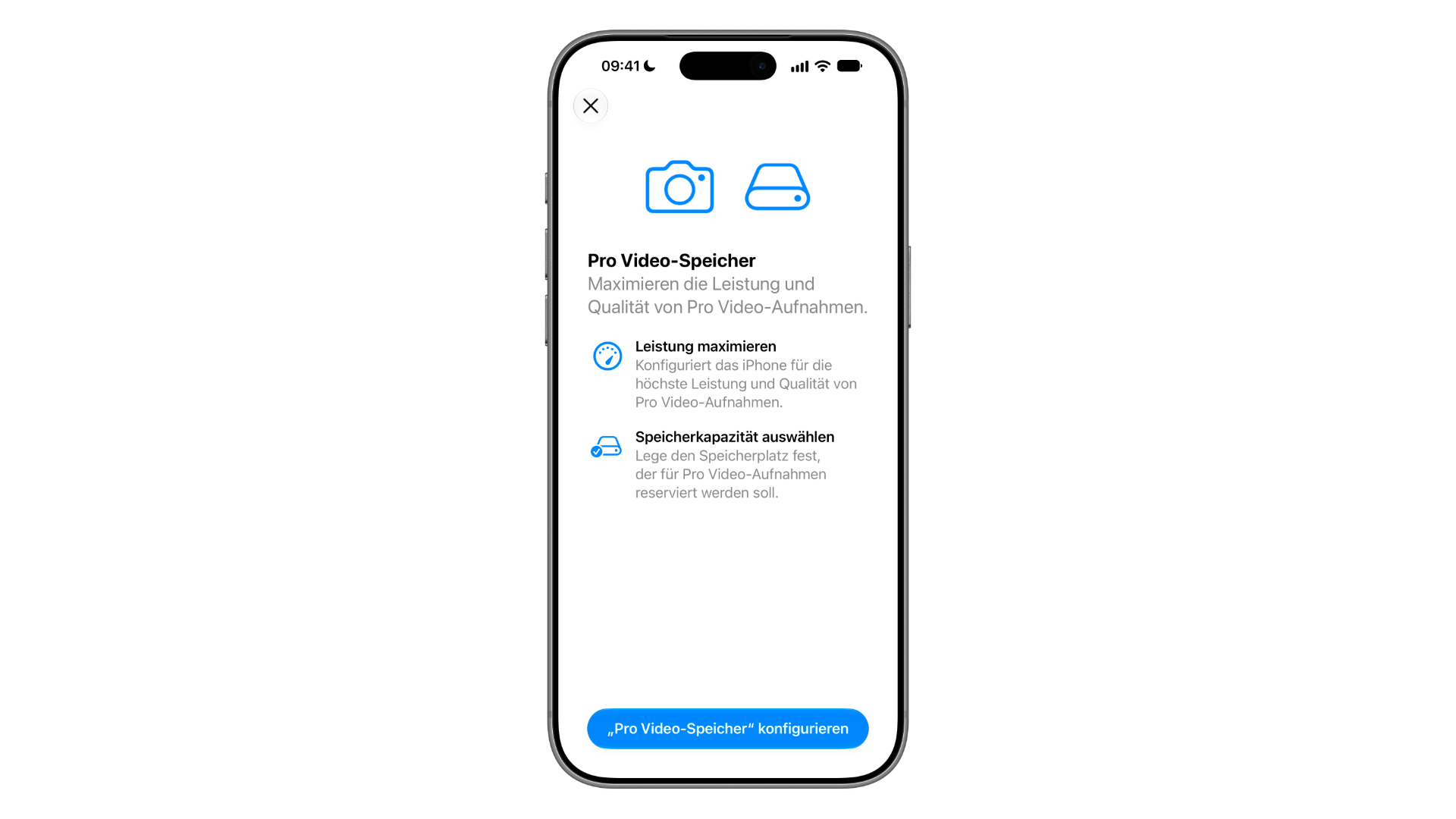
The footer in the settings puts it more succinctly: Pro Video Storage reserves storage space on the iPhone for high-bandwidth video recording. This reserved space is therefore available for videos, even if the remaining storage is filled with other data.
No reservation, no ProRes recording
The Pro Video storage is not optional. In our test with 0 GB reserved, the camera app refused to record as soon as ProRes was selected in the format menu. The message "Not enough storage space for ProRes" explains that free space is required in the Pro Video storage or on a connected external SSD. A button in the message leads directly to the setup process.
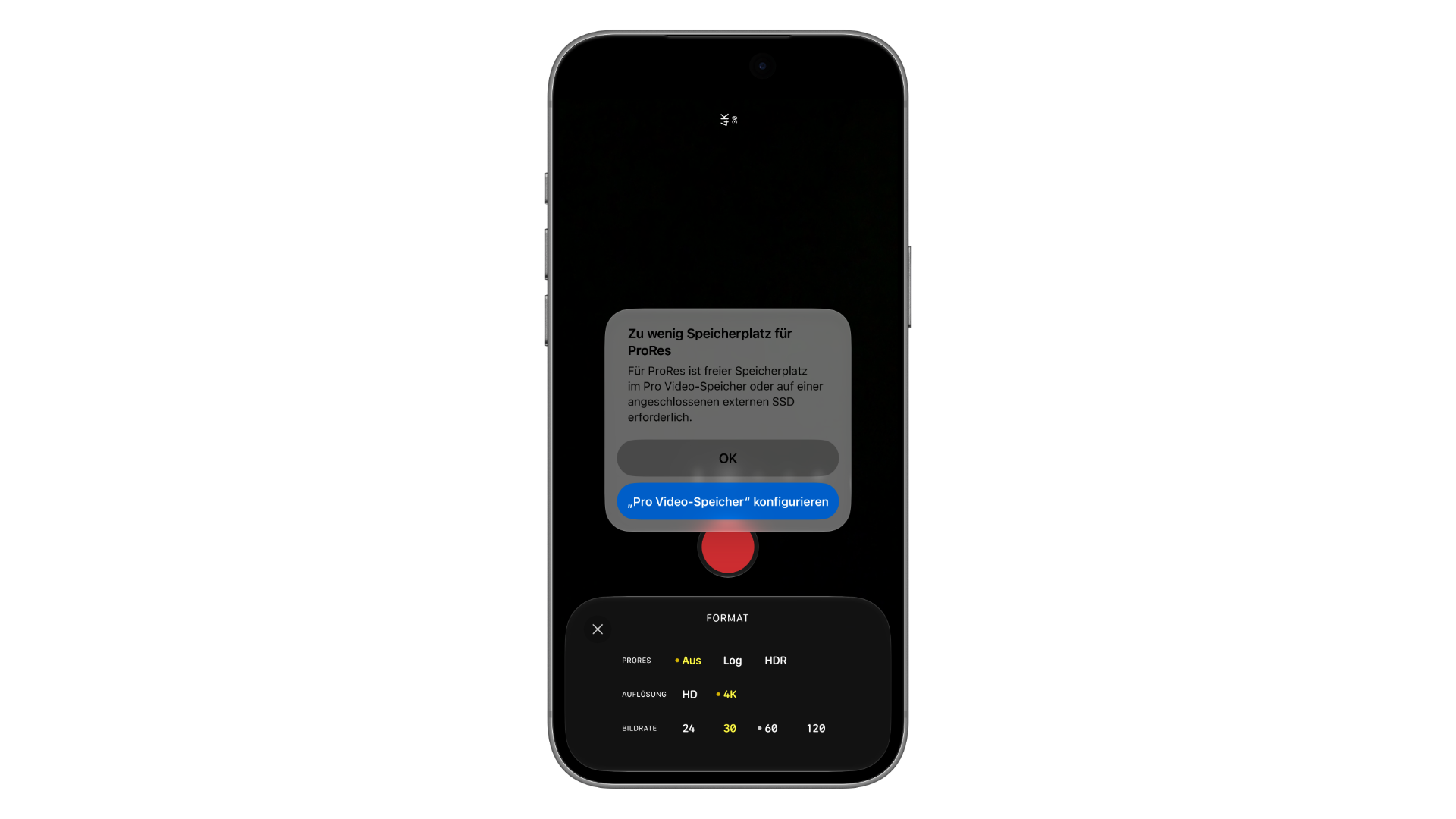
Internal storage reservation is therefore only one of two options. Those who record ProRes to an external SSD via the USB-C port do not need it for this recording.
If storage space is reserved, the camera app in ProRes mode displays the remaining recording time next to "ProRes Log" in the upper right corner; in our test, this was "0h08". This allows you to see how long the reserved space will last even before starting the recording.
Set up per video storage
The setup takes only a few seconds:
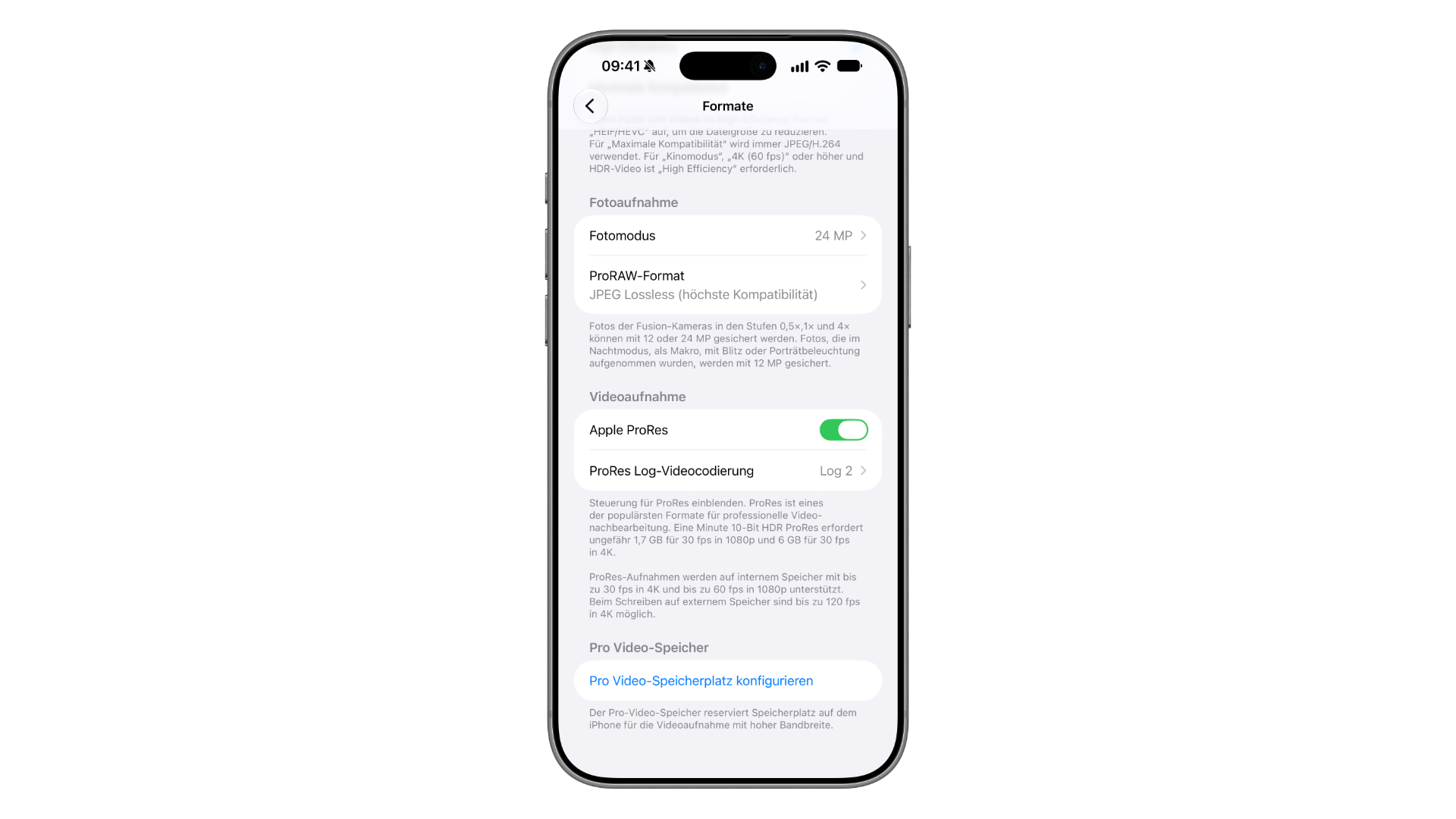
- Open settings and go to Camera › Formats.
- Under "Video Recording", turn on the "Apple ProRes" switch.
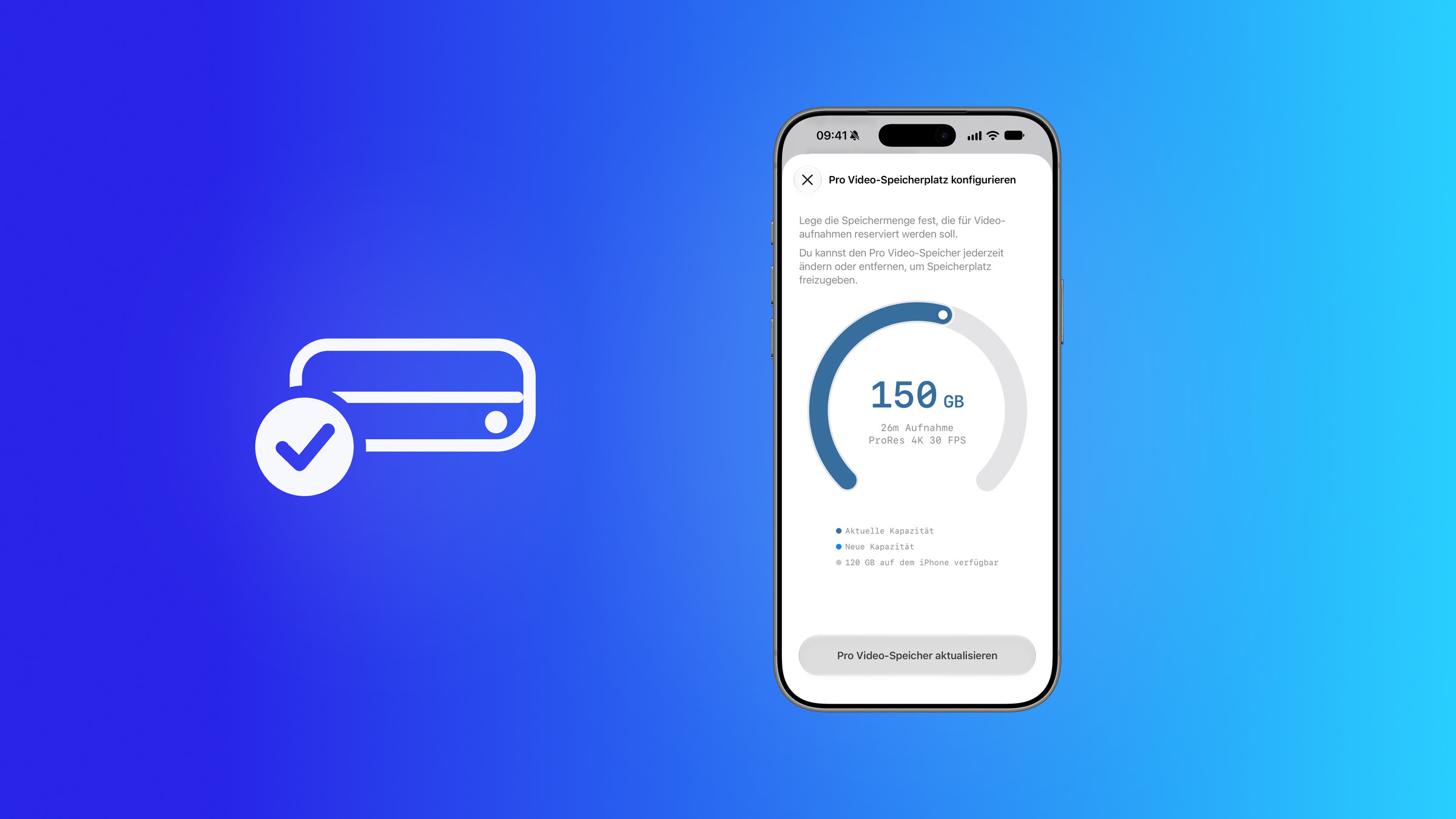
- At the very bottom of the "Pro Video Storage" section, tap "Configure Pro Video Storage".
- Drag the slider to the desired amount in GB.
- Tap "Update Pro Video Storage" and close the window.
According to Apple, this is only necessary the first time you turn on ProRes. After that, the reservation remains in place until you change it.
How much storage is useful
Apple doesn't provide a recommendation for the ideal storage size. However, the iPhone itself shows you how much space you need during the setup process: an estimate of the recording time appears below the GB value. On our device, the slider indicated approximately 26 minutes of recording in ProRes 4K at 30 fps with a 150 GB capacity.
Below this, the window lists the "Current Capacity" and the storage space still available on the iPhone. This allows you to estimate how much space will remain after reserving space for photos, apps, and updates.
Apple specifies how much storage ProRes requires depending on the resolution and what is possible on the internal storage in the settings under "Video Recording":
| ProRes recording | Storage requirement per minute | Internal storage |
|---|---|---|
| 1080p, 30 fps | approx. 1.7 GB | up to 60 fps |
| 4K, 30 fps | approx. 6 GB | up to 30 fps |
| 4K, 60 to 120 fps | – | only on external storage |
According to Apple, these values apply to 10-bit HDR ProRes. Users who select 4K at 60 fps in the camera app and attempt to record internally will receive the message "ProRes is not supported": ProRes in 4K at 60 fps or higher is only available when recording to external devices.
Change or release reserved storage
The reservation is not final. The window can be reopened at any time via the same path in Settings > Camera > Formats. Apple explicitly points out there that the Pro Video storage can be changed or removed to free up storage space.
Anyone who wants to reclaim the space moves the slider to 0 GB and confirms with "Update Pro Video Storage." If storage runs low even without the reservation, the usual methods help to free up space on the iPhone.
For whom is the reservation worthwhile?
Anyone who wants to film in-house in ProRes will need Pro Video storage. A consistently large storage reservation is worthwhile for those who regularly and purposefully use ProRes, for example, for longer shoots, interviews, or recordings in ProRes Log that will be color-corrected later. Reserving space before a shoot means you know in advance how many minutes you have available, instead of running out of storage mid-shoot.
Anyone who only occasionally records a ProRes clip, on the other hand, permanently ties up storage with a large reservation – storage that is then missing in everyday use. Here it pays off to set up the space before filming and free it up again afterward. According to the footnote, the "Apple ProRes" toggle also enables the ProRes controls in the Camera app, whose controls can be customized under iOS 27.
Pro video storage – the most important points at a glance
Pro Video storage on the iPhone 18 Pro and iPhone 18 Pro Max reserves a fixed portion of the device's storage for ProRes and other Pro video recordings. Without it or an external SSD, the Camera app won't record ProRes. It's set up under Settings > Camera > Formats; the slider directly displays the possible recording duration. The reservation can be adjusted at any time or reset to 0 GB.
How do you handle ProRes – do you reserve storage space permanently, or do you only set it up before a shoot? Tell us in the comments how many gigabytes you allocate for your recordings.
Frequently Asked Questions: Per Video Storage on iPhone 18 Pro
With Pro Video Storage, a fixed portion of the device's storage can be reserved for pro video recordings like ProRes on the iPhone 18 Pro and iPhone 18 Pro Max. According to Apple, this feature configures the iPhone for the highest performance and quality of these recordings.
Under Settings › Camera › Formats, at the very bottom in the "Pro Video Storage" section. Tapping "Configure Pro Video Storage" opens a slider where you can set the amount in GB. Save the changes with "Update Pro Video Storage".
Only an external SSD. Without reserved storage, the camera app will report "Not enough storage space for ProRes" as soon as ProRes is selected. For internal recording, free space in the Pro Video storage is required.
Apple doesn't provide a specific recommendation. However, when setting up storage, the iPhone displays how many minutes of 4K ProRes video at 30 fps will fit into the selected space; for example, around 26 minutes for 150 GB. As a guideline, Apple states that one minute of 10-bit HDR ProRes video in 4K at 30 fps requires approximately 6 GB.
Yes. The "Configure Per Video Storage Space" window can be reopened at any time. There, the amount can be changed or the slider can be set to 0 GB to remove the space entirely.
On its internal storage, the iPhone supports ProRes 4K recording only up to 30 fps and 1080p recording up to 60 fps. ProRes 4K recording at 60 fps or higher, up to 120 fps, is only possible when recording to an external device.
According to Apple's user manual, Pro Video storage is available on the iPhone 18 Pro models, meaning the iPhone 18 Pro and iPhone 18 Pro Max. This option is not available on older models with ProRes.