The "Storage almost full" message rarely appears at a convenient time – usually just when you're about to play a video or an update is pending. Randomly deleting apps in response will only result in data loss and little gain. The storage bar reveals quite accurately where the gigabytes are located, and the largest amounts are almost never where you'd expect them to be.
iOS and iPadOS continuously monitor device storage and track how much space each app occupies. Apple describes this breakdown in the support document "Check storage space on iPhone and iPad", including all categories and explaining why the values on a computer differ from those on the device. In addition, there's an automatic mechanism: when space is low, the system removes what it can reload - unused apps and temporary files. In practice, this is often insufficient, especially on devices with 128 GB of storage. At the latest, when a system update fails due to insufficient space, the annoyance becomes a problem; the most common causes for this are described in the solutions for iPhone update problems.
Key Facts at a Glance
- The overview under Settings, General, iPhone Storage lists all apps by size and displays relevant recommendations.
- Photos and videos are the biggest item on most devices – iCloud Photos with the "Optimize iPhone Storage" option is the single most effective lever.
- "System data" is a collective category comprising caches, logs, and system files. Its size fluctuates, it cannot be selectively cleared, and its size decreases depending on the sources of its data.
- Offloading only removes the app and retains its data; deleting removes both permanently.
- Deleted photos and messages can still take up space for up to 30 days before they actually disappear.
This is how iOS shows what is using up storage space
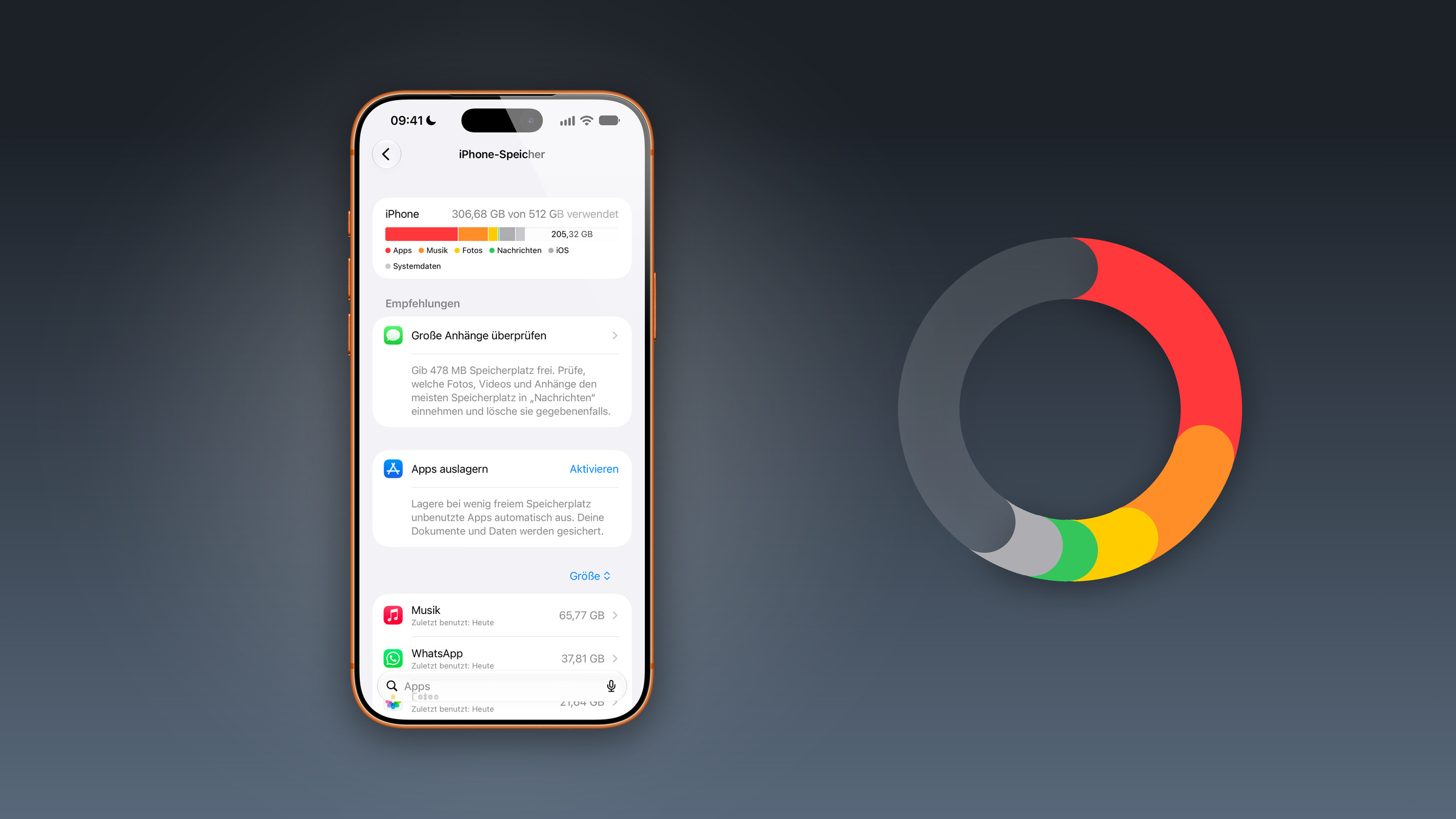
The path leads through Settings, General, iPhone Storage. At the top is a bar showing the total capacity and the amount used, followed by storage optimization recommendations and a complete list of installed apps, sorted by storage usage. Tapping an app name opens the details view with options to offload and delete data.
One detail that regularly causes confusion: Cached and temporary data may not be shown as used storage in this list. Therefore, the total number of apps displayed does not necessarily represent the total storage used.
The legend below the bar names the items differently than Apple's document: On the device, it lists the largest apps by name, along with "iOS" for the operating system and "System Data" for the collective category. Anyone looking for the names from the support document won't find them in the bar.
What the categories mean
| Category | What's inside |
|---|---|
| Apps | Installed apps and their content, files under "On My iPhone", Safari downloads |
| Photos | Photos and videos from the Photos app |
| Media | Music, videos, podcasts, ringtones, graphics, voice memos |
| Emails and their attachments | |
| Apple Books | Books and PDFs from the Books app |
| Messages | Messages and their attachments |
| iCloud Drive | iCloud Drive content that was downloaded locally |
| Other | Siri voices, fonts, dictionaries, non-removable logs and caches, Spotlight index, keychain, CloudKit database |
| System | The space occupied by the operating system itself |
System data: What's included in the collection category
The storage bar displays the entry as "System Data." Apple describes the same content in its support document under the heading "Other"—referring to non-removable items such as Siri voices, fonts, and dictionaries, as well as logs, caches, the Spotlight index, and system components like Keychain and the CloudKit database. This explains why online tutorials sometimes refer to it as "Miscellaneous," sometimes as "Other," and sometimes as "System Data": it's the same item.
This category has no emptying button, and that's not a design flaw. The system manages the space itself and releases it as needed. A value that fluctuates over several days is therefore normal behavior and not a defect.
The amount of data only decreases when you consider its causes. The largest are browser and app caches, which accumulate while browsing and streaming – how to clear these is explained in the guide to clearing the cache on your iPhone. Other contributing factors include message attachments and downloaded media, both of which have their own sections below.
One item that doesn't appear on any standard cleanup list: Apple Intelligence's local models occupy around 7 GB, according to Apple. On a 128 GB iPhone, that's a good five percent of the total storage, and they remain on the device even when the features are rarely used. What can be disabled and what the switch actually unlocks is explained in the article on disabling Apple Intelligence.
If the category remains unusually large, the only solution is a backup followed by a reset and restore. This process rebuilds the data, removing old logs and caches. This is the final step in a cleanup, not the first – the steps leading up to it are described in the overview of iPhone reset methods.
Photos and videos: the biggest lever
On most devices, the Photos app is at the top of the list. Apple explains the settings in the document "Manage photo and video storage": With iCloud Photos enabled and the "Optimize iPhone Storage" setting, the original photos are stored in full resolution in iCloud, while space-saving versions remain on the device. The alternative is called "Download and Keep Originals" and does exactly that – it's the reason why some photo libraries occupy several dozen gigabytes.
A free iCloud account comes with 5 GB of storage, which is rarely enough for a growing media library. A comparison of iCloud storage plans and their costs will help determine whether a larger plan is worthwhile and which one best suits your media library.
Important when cleaning up: Deleted photos and videos move to the "Recently Deleted" folder and remain there for 30 days. The space only becomes available when this folder is also emptied. So, if you delete large videos and then look surprised at the unchanged bar, you're missing this second step.
News, downloads and offline media
Messages, including photos, videos, and voice memos, accumulate unnoticed over the years. Apple describes the automatic cleanup process in the iPhone user guide: In Settings, under Apps, Messages, in the "Message History" section, there's an option to "Keep Messages" with choices for 30 days, 1 year, and Indefinitely. Every setting except "Indefinitely" automatically removes older conversations, including all attachments—convenient for storage, but permanent for your message history. The time limit also applies here: Deleted messages and attachments remain in the "Recently Deleted" folder for up to 30 days.
The second underestimated storage issue is offline downloads. Downloaded albums, podcast episodes, and TV series are listed under "Media" and remain there until someone deletes them. For the Music app, this regularly amounts to a double-digit gigabyte figure; the relevant settings are explained in the article If Apple Music is taking up too much storage .
Offload or delete apps
The detailed view of each app contains two options that are fundamentally different:
| Outsource app | Delete app | |
|---|---|---|
| App program | will be removed | will be removed |
| Documents and data | remain | will be deleted |
| Symbol on the home screen | stops | disappears |
| After the new installation | Everything is back again | empty state |
| Released space | the app itself | App plus data |
Offloading is suitable for apps that are rarely used but whose data is still needed. The storage overview recommends this option with a "Offload apps" switch to activate it automatically on a permanent basis. Depending on the app, individual documents can also be removed without affecting the app itself.
Before cleaning up: the backup
Deleting is permanent, and the system's recommendations don't differentiate between an old TV series download and the single video from the family gathering. Therefore, a current backup should precede your cleanup, not follow it – the methods via iCloud and computer are explained in the iPhone backup guide. Those who want to check their iCloud storage space at the same time can find the steps in Apple's iCloud storage documentation.
If a device change is planned anyway, it's worth taking a look at the overview for transferring data to a new iPhone – the available space helps determine which method is even possible.
Why the device and computer show different values
Finder, the Apple Devices app, and iTunes categorize cached music, videos, and photos as "Other." This results in the reported usage of music or videos on the computer appearing lower than expected, while the "Other" category seems unusually large. This isn't an error, just a different categorization. The view on the device itself is always the determining factor for any cleanup.
Which steps will actually make a difference?
The order of priority for saving space is fairly consistent, and it contradicts what most guides recommend first. At the top is the photo library: Switching to "Optimize iPhone Storage" yields more savings on a device with a lot of storage than any other single action. Next come offline downloads, followed by the message history. Caches and system data are at the bottom – at best, you'll gain a few gigabytes there, which will accumulate again within a few days.
The real issue is something else entirely: Anyone who regularly works at the storage limit is solving a hardware problem with administrative overhead. 128 GB fills up faster than the capacity would suggest with local AI models, a photo library, and a few TV shows. Therefore, when choosing your next device, storage size is a more important decision than color – which models are compatible with which seasons can be found in the iPhone buying guide.
iPhone storage: the most important information at a glance
The storage bar isn't a mystery, it's a priority list. Photos, offline media, and messages take up the lion's share; system data is handled automatically, and anything deleted takes 30 days to actually free up space. Knowing these three things means you don't need any additional apps or risky tricks.
Do you keep your photos in their original resolution on your device, or do you let iCloud optimize them – and is that enough space for you across a whole device generation? Let us know in the comments which category is at the top of your storage bar.
Frequently Asked Questions: iPhone storage full
It's a collective category of caches, logs, and system components. Apple lists Siri voices, fonts, dictionaries, non-removable logs and caches, the Spotlight index, and the Keychain and CloudKit database under this category. In Apple's support document, this same item is called "Other," while in older iOS versions it was called "Miscellaneous."
No, there's no switch for that. The system manages the space itself and releases it as needed – that's why the value fluctuates even without user intervention. It only decreases indirectly: through browser and app caches, message attachments, and downloaded media.
Deleted photos and videos are moved to the "Recently Deleted" folder and remain there for 30 days. Until this folder is emptied, they continue to take up storage space. The same applies to deleted messages and their attachments.
Moving the app to the offload folder only removes the app itself; its documents and data remain, and the icon stays on the home screen. After reinstalling the app, everything is back. Deleting the app permanently removes both the app and its data, but frees up significantly more storage space.
According to Apple, the local storage models use approximately 7 GB per device. On an iPhone with 128 GB of nominal storage, this equates to roughly five percent of the total storage, regardless of how intensively the features are used.
In the settings under Apps, Messages, in the "Message history" section, there is an option called "Keep messages" with the choices 30 days, 1 year, and Unlimited. Any setting except "Unlimited" automatically and permanently deletes older conversations and their attachments.
Finder, the Apple Devices app, and iTunes categorize cached music, videos, and photos as "Other." This makes media usage appear lower on the computer and "Other" appear larger than it does on the device itself. The view under Settings > General > iPhone Storage is the determining factor.