The iPhone won't update, the progress bar is stuck, or the search for updates fails. Update problems are among the most frequent complaints after every iOS release – and almost all of them can be solved without data loss or a visit to a repair shop.
Apple releases one major iOS update and several smaller updates each year. With each of these, users report the same symptoms: the update gets stuck, the download fails, or the iPhone becomes unresponsive after installation. The causes range from overloaded servers and insufficient storage space to corrupted update files. Backing up your data beforehand is the safest option – the iPhone backup guide explains how. This article covers all known scenarios, including the current menu paths.
Key Facts at a Glance
- Most problems are solved by a forced restart, deleting the update file, or a second attempt via the computer.
- A forced restart does not result in data loss – only "Restore" in recovery mode will delete everything.
- Sluggishness and warmth in the first one to two days after a major update are normal and not a defect.
- Server load is highest on the release day; waiting one to two days avoids most download problems.
- For errors 4013 and 4014, trial and error won't help; support is responsible for these issues.
The error matrix at a glance
| Symptom or message | Probable cause | First step |
|---|---|---|
| “Update requested” remains displayed | Server crowds or unstable WiFi | Delete the update file, reload it |
| “The search for updates failed.” | Connection, server status, or beta profile | Briefly turn airplane mode on and off |
| Download aborts or crawls | weak connection, parallel downloads | Download the update via computer |
| The progress bar remains stuck for minutes. | normal processing effort | Wait one hour |
| Apple logo in a continuous loop of restarts | failed installation | Charging for 30 minutes, then forced restart |
| iPhone slow or warm | Background processes after the update | Leave it plugged in for 48 hours |
| No Wi-Fi, no network, no Bluetooth | reset network configuration | Airplane mode, then network settings |
| “Waiting for activation” in iMessage | Server communication is ongoing | Wait up to 24 hours |
| Error 14 | cable or update file | Use a different cable |
| Error 4013 or 4014 | often hardware | Another computer, otherwise support |
Before we begin: three prerequisites
Compatibility. Not every iPhone receives every update. However, no generation is excluded this year: iOS 27 runs on all models from the iPhone 11 onwards, as well as the 2nd generation iPhone SE – the same list as for iOS 26. Your specific model can be found under Settings → General → About, and the complete list is available in the Device Compatibility Overview.
Storage space. A large iOS update typically requires between 3 and 6 GB of free space during installation. You can check this under Settings → General → iPhone Storage. If space is tight, try moving apps to another location, cleaning up your media library, or clearing the cache; for larger storage issues, see the guide on what to do when storage is full.
Battery charge. Apple recommends at least 50 percent. For safest results, keep the iPhone plugged in throughout the entire process. Those already struggling with short battery life can find helpful tips in the battery consumption guide.
“Update requested” – the update does not start.
The message appears immediately after tapping "Download and Install." The iPhone submits the request to Apple and waits in a queue. It usually disappears after a few minutes; if it remains for more than 30 minutes, there is a problem.
On release day, millions download simultaneously, resulting in a correspondingly long queue. Unstable Wi-Fi or insufficient storage space also block the process.
First, check your connection and switch networks if necessary. Temporarily disable any active VPN service – it will slow down or interrupt the download.
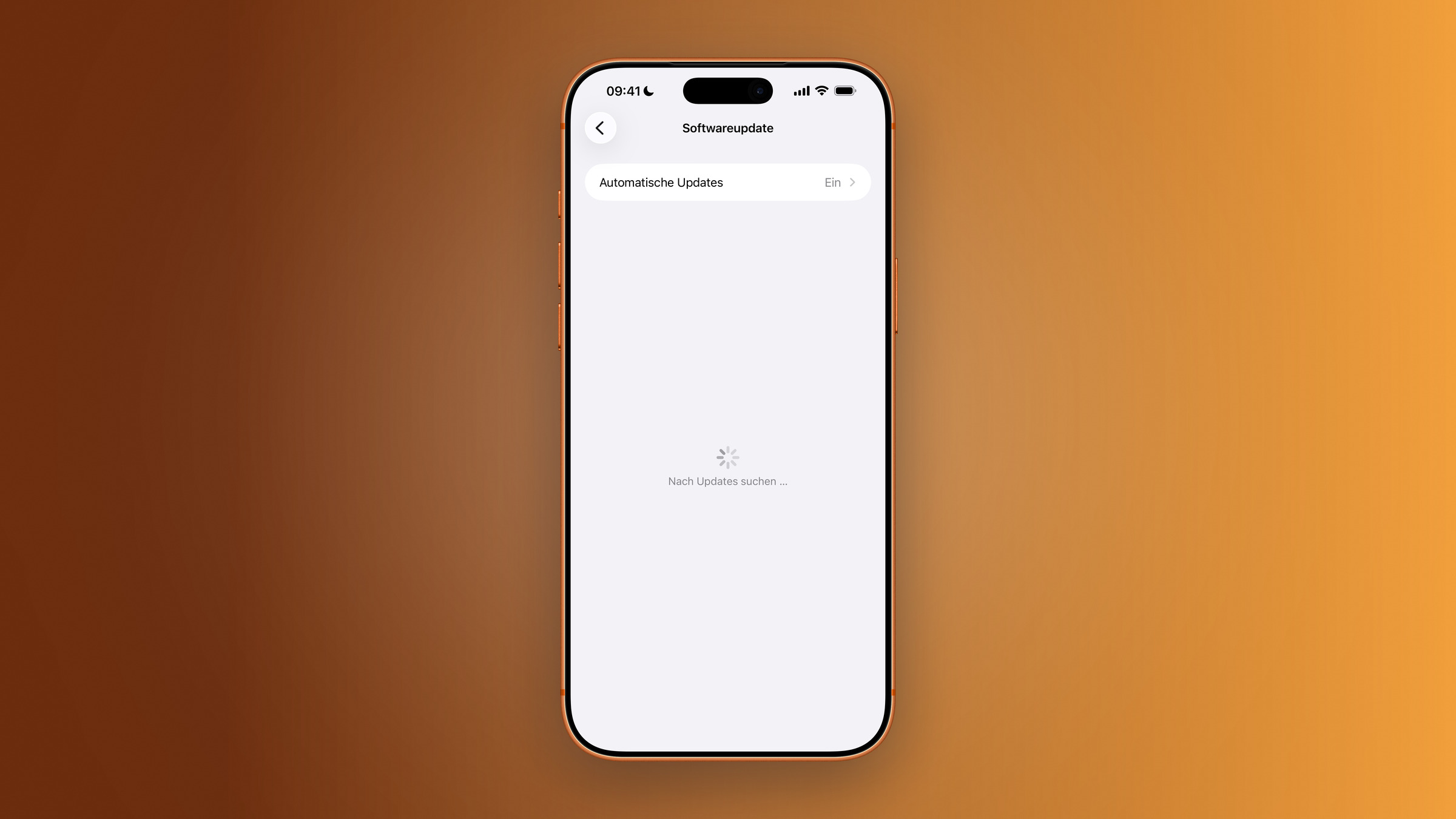
If the message is still there after an hour: go to Settings → General → iPhone Storage, find the downloaded update file and tap "Delete Update", then restart under Settings → General → Software Update.
If that doesn't help, reset the network settings: Settings → General → Transfer/Reset iPhone → Reset → Network Settings. All saved Wi-Fi passwords will be lost.
“The search for updates failed.”
Instead of an available update, the iPhone reports an error during the search. It cannot reach the server or process its response. The most common cause is an interrupted connection, followed by server congestion, an old beta profile, and incorrect DNS settings.
First, check Apple's system status page. If "Software update" is highlighted in yellow there, the problem isn't with your device – then all you can do is wait.
Then, turn airplane mode on and off for ten seconds to re-establish the connection. If that doesn't work, restart your iPhone: Briefly press the Volume Up button, briefly press the Volume Down button, then hold the Side button until the Apple logo appears.
If a beta profile is installed, it appears under Settings → General → VPN and Device Management and can be removed there. Those who regularly test pre-release versions will find the proper way to remove it in the Public Beta guide.
The download either stops or takes forever
The download starts but then stops, or the progress bar barely moves. Sometimes the message "Download not possible" appears. Large updates are several gigabytes in size – with a weak connection, this takes a considerable amount of time, and parallel downloads or background streaming further slow things down.
During the download, avoid loading anything else that requires significant resources and keep your iPhone as close to the router as possible. If the download repeatedly fails, delete the update file under Settings → General → iPhone Storage and restart your iPhone.
The most reliable way out is via the computer – more on that below.
The progress bar is stuck
After the download, the iPhone displays the Apple logo with a progress bar. The fact that it remains stationary for several minutes is usually not a malfunction: the installation takes 20 to 45 minutes depending on the model and the amount of data, and most of this time runs invisibly in the background.
Patience is therefore the first step. Do not turn off the iPhone, do not disconnect it from the cable, wait at least an hour.
If nothing happens after that, a forced restart should help: Briefly press the Volume Up button, briefly press the Volume Down button, and hold the Side button until the Apple logo appears. No data will be lost. If the iPhone starts normally, repeat the process; if the error occurs again, update via computer.
The iPhone no longer starts after the update
The device only displays the Apple logo and restarts repeatedly, or the screen remains black. This is caused by corrupted system files, an interrupted installation, or – rarely – a hardware defect.
First, charge for at least 30 minutes. A completely empty battery causes the same symptoms. Then try a forced restart; this time it may take longer than ten seconds.
If the restart loop persists, the next step is to use recovery mode. To do this, connect your iPhone to your computer using a cable, initiate a forced restart, and hold the side button until the recovery screen appears. Two options are available: Update keeps all your data and reinstalls the system. Restore erases everything and resets to factory settings – this is a last resort, not a second attempt. All other methods are described in the overview of reset methods.
The iPhone is slow or gets hot
After a major update, a lot happens in the background: Spotlight re-indexes, the photo library is re-analyzed, app caches are rebuilt, and on supported devices, Apple Intelligence reloads its models. This puts a strain on the processor and battery and can take one to two days, depending on the amount of data.
Slight sluggishness and noticeable warmth are normal during this phase. It's best to leave the iPhone plugged in and connected to Wi-Fi overnight – this allows the processes to run most efficiently. Intensive use such as gaming or video editing is not recommended during the first 48 hours.
If the device remains sluggish or warm after three days, it's worth checking under Settings → Battery to see which app is causing the problem. Suspected apps can be disabled under Settings → General → Background App Refresh.
Wi-Fi, Bluetooth and mobile networks are down
Updates reset network configurations or replace driver components, which can temporarily cause connection problems. On devices with two cables, the default cable may also change.
Airplane mode for ten seconds resolves most of these issues. If a single Wi-Fi network remains problematic, try "Forget this network" under Settings → Wi-Fi and then reconnecting. For Bluetooth devices, unpair and reconnect.
If your iPhone displays "No Service," check if Block Mode is enabled (Settings → Privacy & Security → Block Mode) – this restricts cellular connections. If that doesn't help, try Settings → General → Transfer/Reset iPhone → Reset → Reset Network Settings. This will erase all Wi-Fi passwords, VPN configurations, and Bluetooth pairings.
iMessage and FaceTime do not activate
After the update, the message "Waiting for activation" or "Activation failed" appears. Both services are registering with Apple, and this can take longer than usual after major updates – in rare cases, up to 24 hours.
Before this deadline expires, there's nothing to be done but wait. Afterward, go to Settings → Messages, turn iMessage off and then back on after ten seconds, and do the same under Settings → FaceTime. If that doesn't help either, tap your name at the top of the settings, sign out of your Apple account, restart your device, and sign back in.
Apps crash or freeze
Old app caches conflict with the new system, and some apps simply haven't been adapted yet. Limited storage also means that apps don't receive enough resources.
Force quit the affected app – swipe up from the bottom of the screen, hold, then swipe the app away – and reopen it. Afterwards, check the App Store for an update; many developers release updates within a few days of a major iOS release.
If the app continues to crash, delete and reinstall it. This will clear the cache and any corrupted data. If system apps like Messages or Mail are affected, a forced restart often helps; the next step is to go to Settings → General → Transfer/Reset iPhone → Reset → Reset All Settings. Personal data will be preserved, and all settings will be restored to their defaults.
The emergency route via computer
If the wireless connection fails, the computer bypasses all problems with Wi-Fi, storage space, and queues at once.
Connect your iPhone to your Mac via cable, select it in the Finder sidebar, and click "Check for Updates." On a Windows PC, the same process works using the "Apple Devices" app from the Microsoft Store, or alternatively, iTunes. In both cases, the computer downloads and transfers the update—this saves storage space on the iPhone and avoids weak connections.
What the error messages mean
A failed software update indicates a connection or server issue. Delete the update file, switch networks, and try again.
The message "Mobile network update failed" appears after the update and means that the modem firmware did not complete successfully. A restart usually resolves the issue.
Error 14 is related to the cable or the update file. Try a different cable and try again.
Errors 4013 and 4014 are more serious and often indicate a hardware issue. First, try a different computer and a different cable; if the error persists, contact Apple Support.
The device is not compatible with the requested build, meaning that the model does not support the desired version. Check your model under Settings → General → About.
Why waiting remains the best trick
Of all the measures discussed in this article, the most effective is the one taken before the update. Updating one to two days after the release date completely avoids server congestion – and thus the most common cause of stalled downloads and the endless "Update requested" message. As a side effect, initial bugs in the launch version are often already fixed by then.
On the other hand, there's the understandable appeal of being there on the first day. Anyone who doesn't want to miss out on that should at least secure their equipment beforehand, make sure they have enough space, and plug it in. Then a failed attempt will cost nothing but time.
The three remaining points are quickly taken care of: a current backup, at least 5 to 10 GB of free space, and a stable Wi-Fi connection. Four simple steps that make most of this article unnecessary.
Which issue has recently affected you – the long queue on release day, or an iPhone that took a while to warm up after restarting? Let us know in the comments what worked for you.
Frequently Asked Questions: iPhone Update Problems
Most of the time, Apple's servers are overloaded or the connection is unstable. Go to Settings → General → iPhone Storage, delete the update file, and download it again. If that doesn't work, try updating via computer.
Depending on the connection, the download takes 5 to 30 minutes, and the installation 20 to 45 minutes. For a new major version, the entire process can take over an hour.
Forced restart: Briefly press the volume up button, briefly press the volume down button, then hold the side button until the logo appears. If that doesn't help, try booting into recovery mode on your computer.
No. It only restarts the system. Personal data is only deleted by the "Restore" option in recovery mode.
In the background, the search index is being rebuilt, the photo library is being analyzed, and on supported devices, Apple Intelligence is reloading its models. This takes one to two days and then returns to normal.
Officially, no. Apple only signs older versions for a short time after release. Once signing ends, reverting to an older version is no longer possible.
Via computer. Connect iPhone via cable, click "Check for Update" in Finder or in the "Apple Devices" app – the update will then run via the computer connection.