Whether the iPhone is frozen, you want to sell it, or it's simply not working properly anymore – a reset is often the quickest solution. However, not all "resetting" is created equal: depending on the situation, a simple restart, a forced restart, or even restoring the entire device to its factory settings might suffice.
Resetting an iPhone is one of the most common solutions for software problems. Nevertheless, uncertainty often prevails: Will data be lost? Should a backup be created beforehand? And what's the difference between a restart and a factory reset? The answer depends on the type of reset. A soft reset simply restarts the iPhone – without data loss. A hard reset forces a restart on a frozen device. And a factory reset erases everything. Anyone considering this last step should have completed a backup to iCloud or a computer beforehand – there's no going back afterward.
Key Facts at a Glance
- Soft reset and hard reset only restart the system; no data is lost.
- Individual settings such as network or keyboard dictionary can be selectively reset without deleting personal content.
- A factory reset erases everything and is only necessary when selling the device or in case of persistent software problems.
- Since iOS 27, the iPhone boots into its own recovery interface – a computer is no longer strictly necessary. We opened it on the device itself.
- Before every factory reset, backup, "Where is?" check and the decision about the eSIM should be on the checklist.
Soft Reset: Restart iPhone normally
A soft reset is a normal restart. It fixes minor problems such as a sluggish interface, apps that won't open, or slow Wi-Fi. No data is lost in the process.
iPhone without a home button
- Press and hold one of the volume buttons and the side button simultaneously
- Drag the Off slider to the right
- Wait 30 seconds until the iPhone is completely switched off.
- Press and hold the side button until the Apple logo appears.
iPhone with Home button
- Press and hold the top button or the side button.
- Drag the Off slider to the right
- Wait 30 seconds
- Press and hold the button again until the Apple logo appears.
Restart via the control center
You can also do it without a keyboard shortcut: Swipe down from the top right corner of the screen to open the Control Center. Tap the power icon in the top right corner and drag the slider. This is handy if the physical buttons are hard to reach or one of them is stuck.
Hard Reset: Force a restart
If your iPhone becomes unresponsive – the screen is frozen, it's not accepting any input, or the device is completely stuck – a hard reset will help. No data will be lost. The process simply interrupts all running processes and restarts the system.
iPhone 8, iPhone SE (2nd generation) and newer
- Briefly press and release the volume up button.
- Briefly press and release the volume down button.
- Press and hold the side button until the Apple logo appears – then release.
Important: The three steps must be performed quickly one after the other. There should be no more than one second between each keystroke.
iPhone 7 and iPhone 7 Plus
Press and hold the volume down button and the side button simultaneously until the Apple logo appears.
iPhone 6s and older
Press and hold the Home button and the top button simultaneously until the Apple logo appears.
Reset settings – without data loss
Sometimes the problem isn't with a single app, but with a faulty setting – a Wi-Fi issue, a broken Bluetooth connection, or a misconfigured keyboard. In such cases, individual settings can be reset without deleting personal data.
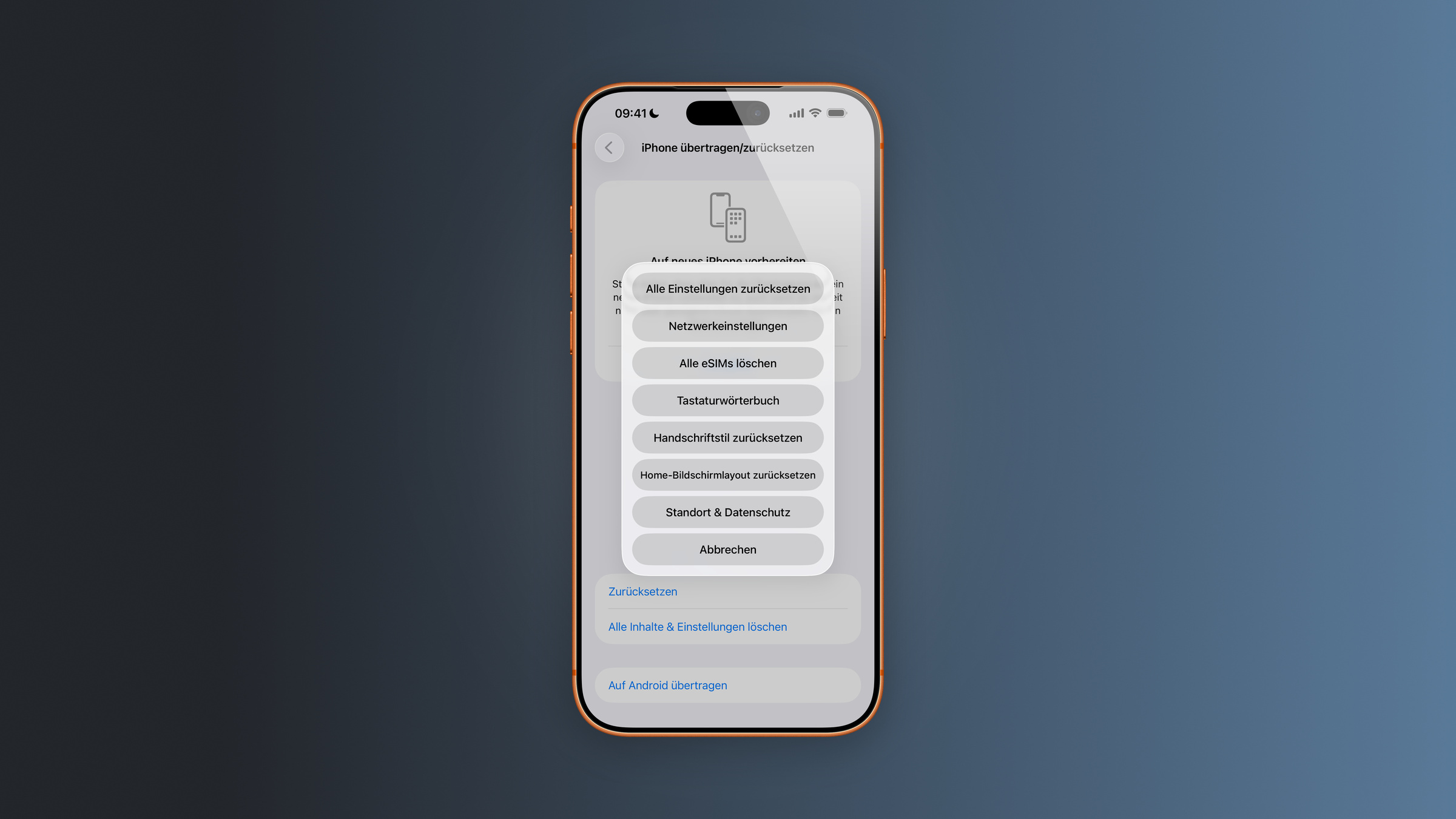
The path: Settings > General > Transfer/Reset iPhone > Reset
- Reset all settings – resets Wi-Fi passwords, privacy settings, the keyboard dictionary, location settings, and cards stored in Apple Pay. Photos, apps, and messages are retained.
- Network settings – Deletes all saved Wi-Fi networks, Bluetooth connections, and VPN configurations. Often helps with persistent connection problems. The device name under General > About is also reset to "iPhone".
- Delete all eSIMs – removes the eSIM profiles saved on the device. Afterwards, the plan must be set up again with the provider.
- Keyboard dictionary – removes all user-added words from autocorrect.
- Reset handwriting style – discards the learned handwriting and starts the recognition process from scratch.
- Reset home screen layout – restores the default arrangement.
- Location & Privacy – resets all app permissions for location, camera, and microphone. Each app will request access again the next time it is opened.
Factory settings: Completely reset iPhone
A factory reset erases all data, settings, apps, and accounts, restoring the iPhone to its original factory state. This is necessary when selling, giving away, or trading in the iPhone – or if a serious software problem cannot be resolved otherwise.
Before a factory reset: Checklist
- Create backup – Go to Settings > [your name] > iCloud > iCloud Backup and tap "Back Up Now". Alternatively, back up using Finder on your Mac or the Apple Devices app on Windows.
- „Where is?” check – Starting with iOS 15.2, the device automatically signs out of your Apple account when it's erased. However, you should still check beforehand if "Find My iPhone" is disabled: Settings > [your name] > Find My > Find My iPhone. If the feature remains active, Activation Lock will be enabled, and the new owner won't be able to set up the device.
- Unpairing your Apple Watch – If an Apple Watch is paired, first unpair it using the Watch app. This will automatically create a backup of the watch.
- Decide on the eSIM – When deleting, the system asks whether the eSIM should be removed or kept. If you keep the iPhone, keep the eSIM. If you give it away, delete it and have your plan transferred to a new SIM card by your provider.
Reset iPhone via Settings
The method documented by Apple leads via the settings:
- Open Settings > General > Transfer/Reset iPhone
- Tap Delete all content & settings
- Tap Continue
- Choose whether to delete or keep the eSIM
- Enter the iPhone code
- Enter your Apple account password.
- Wait until the process is complete.
Depending on the amount of data, this takes a few minutes. Afterwards, the iPhone restarts and displays the "Hello" welcome screen.
Resetting iPhone via Computer
If the device stops responding or the code is forgotten, the process continues via a Mac or PC:
- Connect the iPhone to the computer using a cable.
- Open Finder on Mac or the Apple Devices app on Windows
- To put the iPhone into recovery mode: Briefly press Volume Up, briefly press Volume Down, then hold the Side button until the recovery screen appears.
- Click Restore on your computer
The computer installs the latest iOS version and erases all data. The eSIM is retained using this method.
The new recovery mode without a computer
With iOS 27, a new feature has been introduced that resolves many of these issues without the need for a Mac or PC. The iPhone boots into its own streamlined interface before the actual operating system loads – the same principle that Macs with Apple Silicon have used for years. We had already seen this feature in a preview version of iOS 27.
Here's how: Power off your iPhone completely. Then press and hold the side button to turn it on – and keep holding the button even when the Apple logo appears. After a short time, the system will display a progress bar and boot into the recovery environment instead of iOS.
The screen will greet you there. „"Restore your iPhone"” with five entries that we photographed on the device:
- Recovery Assistant – automatically detects software problems and attempts to fix them.
- Software update – restores the iPhone to the latest available iOS version
- Diagnostic mode – allows Apple Support to perform tests to narrow down hardware and software problems.
- Delete all content & settings – deletes media and data and resets settings to default.
- Recovery mode – the familiar method via a connected computer
The screen at the top displays the battery level as well as icons for network and power off – the device connects to a known Wi-Fi network so that the software update can run wirelessly.
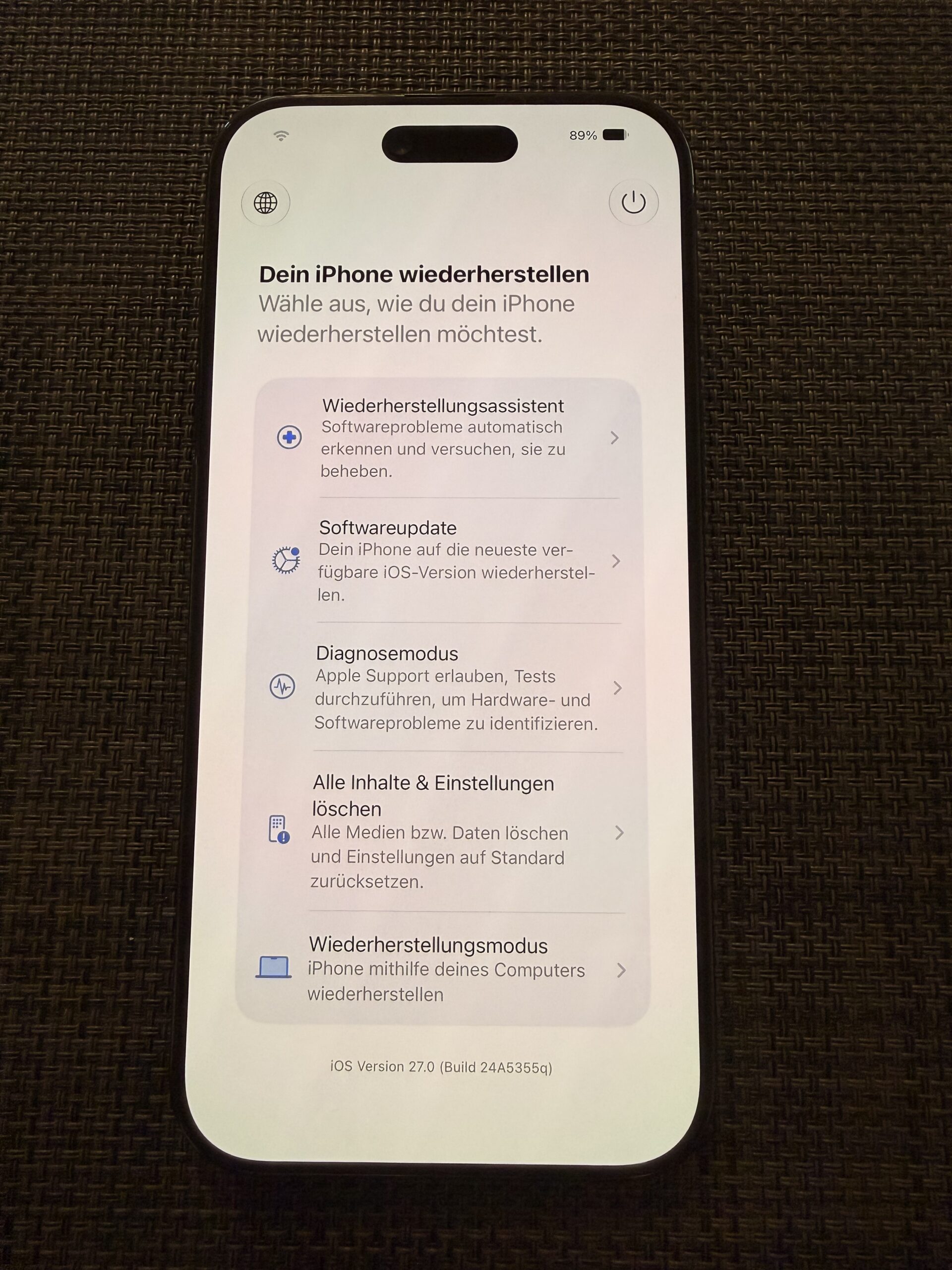
The practical advantage lies in troubleshooting startup problems: If an iPhone gets stuck in a loop after a failed update, a computer was previously required. Now, the update attempt can be started directly on the device. The method using Finder and the Apple Devices app remains available – in fact, it's listed last.
Which method when?
| Problem | Solution | Data loss? |
|---|---|---|
| iPhone is slow to respond | Soft Reset (Restart) | No |
| App crashes | Soft Reset | No |
| iPhone completely frozen | Hard Reset (forced restart) | No |
| Wi-Fi or Bluetooth is not working | Reset network Settings | Network data only |
| Recurring software problems | Reset all settings | Settings only |
| iPhone no longer starts properly | Recovery interface on the device | Depending on the tool chosen |
| Sell or give away your iPhone | Factory settings | Yes – everything |
| Forgot iPhone code | Recovery on the device or via computer | Yes – everything |
Why a factory reset is usually the wrong answer
A complete reset has a reputation for being a cure-all. In practice, it's almost always the most expensive solution for a problem that could be fixed with a simpler fix: A frozen iPhone needs a forced restart, a Wi-Fi problem needs resetting the network settings, and a full device needs a storage cleanup rather than a complete setup. Those who delete everything instead end up spending hours restoring, logging in, and entering two-factor authentication codes – and often end up facing the same problem because it reappears in the backup.
A factory reset is useful in two cases: the device changes ownership, or a software problem survives a restart and resetting the settings. The new recovery interface adds a third scenario where damage can be limited: if the system no longer starts, a clean installation can be attempted first before deleting the data is even considered.
Resetting your iPhone – the most important points at a glance
For most problems, a soft reset or a hard reset is sufficient, both without data loss. Network and settings issues can be specifically resolved using the reset options without affecting personal data. A factory reset erases everything and is only necessary when changing devices or in cases of persistent software errors – before that, a backup, "Find My" check, and eSIM decision should be completed. Since iOS 27, a recovery environment is also available directly on the device for startup problems.
Which model is suitable after switching devices? The iPhone buying guide will show you. And what's your approach before a factory reset – is your iCloud backup sufficient, or do you also create a backup on your computer? Tell us in the comments how you do it.
Frequently Asked Questions: Resetting an iPhone
No. Neither a soft reset (normal restart) nor a hard reset (forced restart) deletes data. Both methods simply restart the system. Only a factory reset erases all content from the device.
A soft reset is a normal restart using the buttons or the Control Center. A hard reset forces a restart using a specific key combination and is used when the iPhone is frozen and no longer responds to input.
Go to Settings > General > Transfer/Reset iPhone, tap "Erase All Content and Settings," then tap "Continue." You will then be asked for your eSIM, device passcode, and Apple ID password. Be sure to create a backup beforehand—a factory reset will erase all data, apps, and settings.
Yes. Since iOS 27, this can be done directly on the device: Turn off your iPhone, then continue holding the side button while turning it on until a progress bar appears after the Apple logo. In the recovery interface, select "Erase All Content and Settings" to complete the process. Alternatively, you can still do it via a Mac or PC. In both cases, all data will be deleted.
Starting with iOS 15.2, the device automatically signs out of the Apple account when reset. However, it's still recommended to check beforehand whether "Find My iPhone" is disabled – otherwise, the activation lock will remain active and the iPhone cannot be set up again.
When performing a factory reset via the settings, you'll be asked whether to delete or keep the eSIM. If you plan to continue using the iPhone yourself, keep it. If you sell the phone, delete it and have your mobile provider transfer your plan to a new SIM card. If you reset via a computer, the eSIM will remain.
Go to Settings > General > Transfer/Reset iPhone > Reset and select the "Network Settings" option. This will delete all saved Wi-Fi passwords, Bluetooth connections, and VPN configurations, but not personal data. The device name will also be reset to "iPhone".