

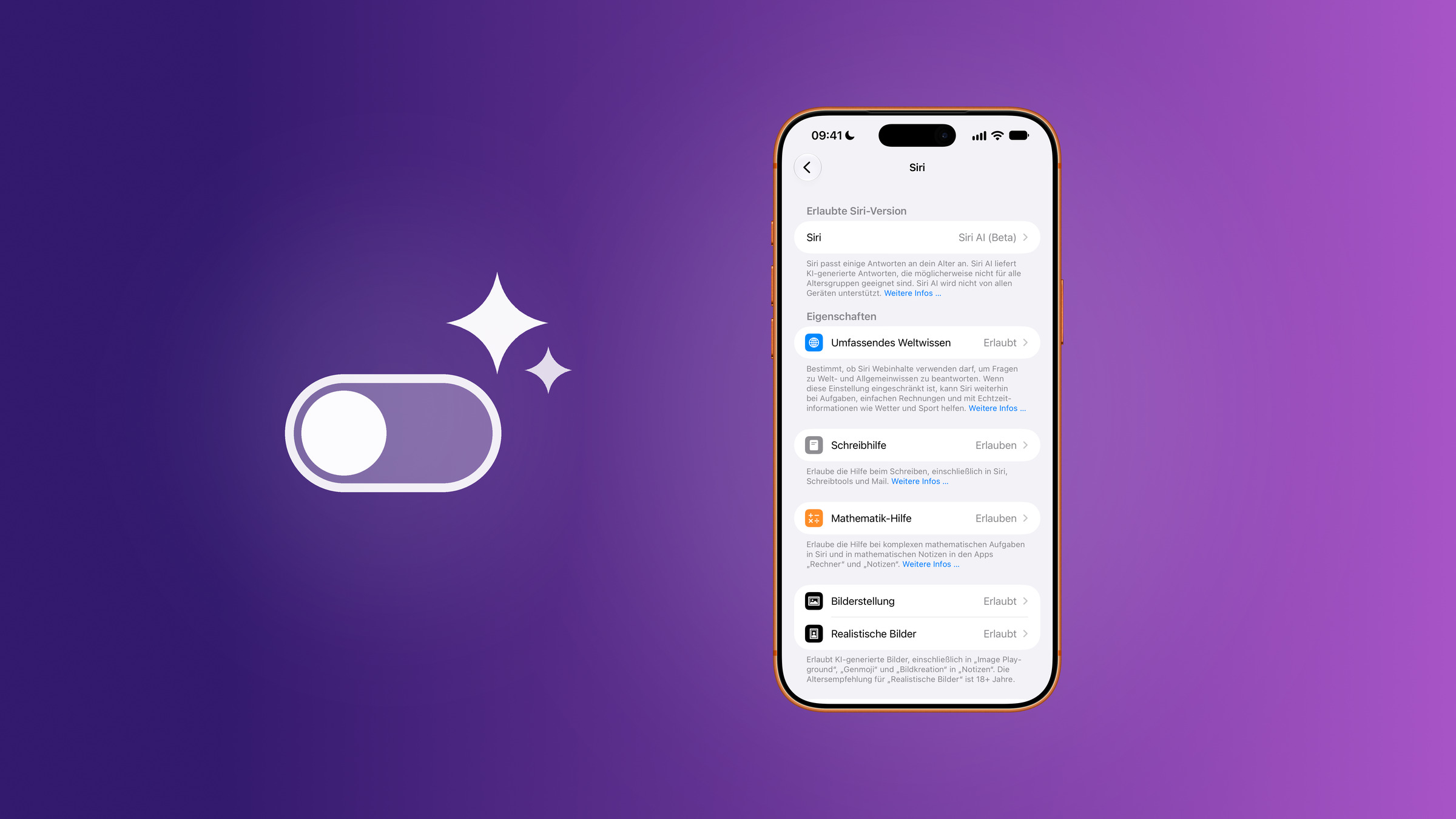
With iOS 27, the switch that previously allowed users to disable Apple Intelligence with a single tap has disappeared. However, no one is powerless to use the AI features. The process now involves navigating several locations within the system – and the most comprehensive setting is found in Screen Time.
Since September 14th, iOS 27 has been available for all iPhones from the iPhone 11 and the 2nd generation iPhone SE onwards. Users upgrading from iOS 26 will find the familiar Apple Intelligence toggle switch gone. The section in Settings is now simply called "Siri," and there is no longer a comprehensive toggle for all AI functions.
According to Apple's support document on Apple Intelligence, the requirements for Apple Intelligence remain unchanged: a compatible device, 7 GB of storage on the device, and the same supported language for both the device and Siri. In iOS 27, the features can only be selectively disabled – via Screen Time restrictions or in the settings of the respective app.
Key Facts at a Glance
- In iOS 27, there is no longer a central switch; the settings area is now simply called "Siri".
- The restrictions are most extensive in screen time, where writing assistance, math assistance, image creation and extensions can be blocked individually.
- Summaries in emails and messages are missing there and are disabled in the respective app settings.
- In iOS 26, the switch in "Apple Intelligence & Siri" still turns everything off and removes the loaded models.
What has changed in iOS 27
In iOS 26, a single toggle switch in "Apple Intelligence & Siri" was enough to disable all AI functions. In iOS 27, the path leads to the "Siri" section in Settings. There you'll find Requests, Speech, Voice, Responses, and Your Data, including the ChatGPT extension, the "Automatic Visual Lookup" toggle, App Access, App Clips, and Suggestions. At the very bottom is "Turn Off Siri" - a toggle switch to disable Apple Intelligence entirely is no longer included.
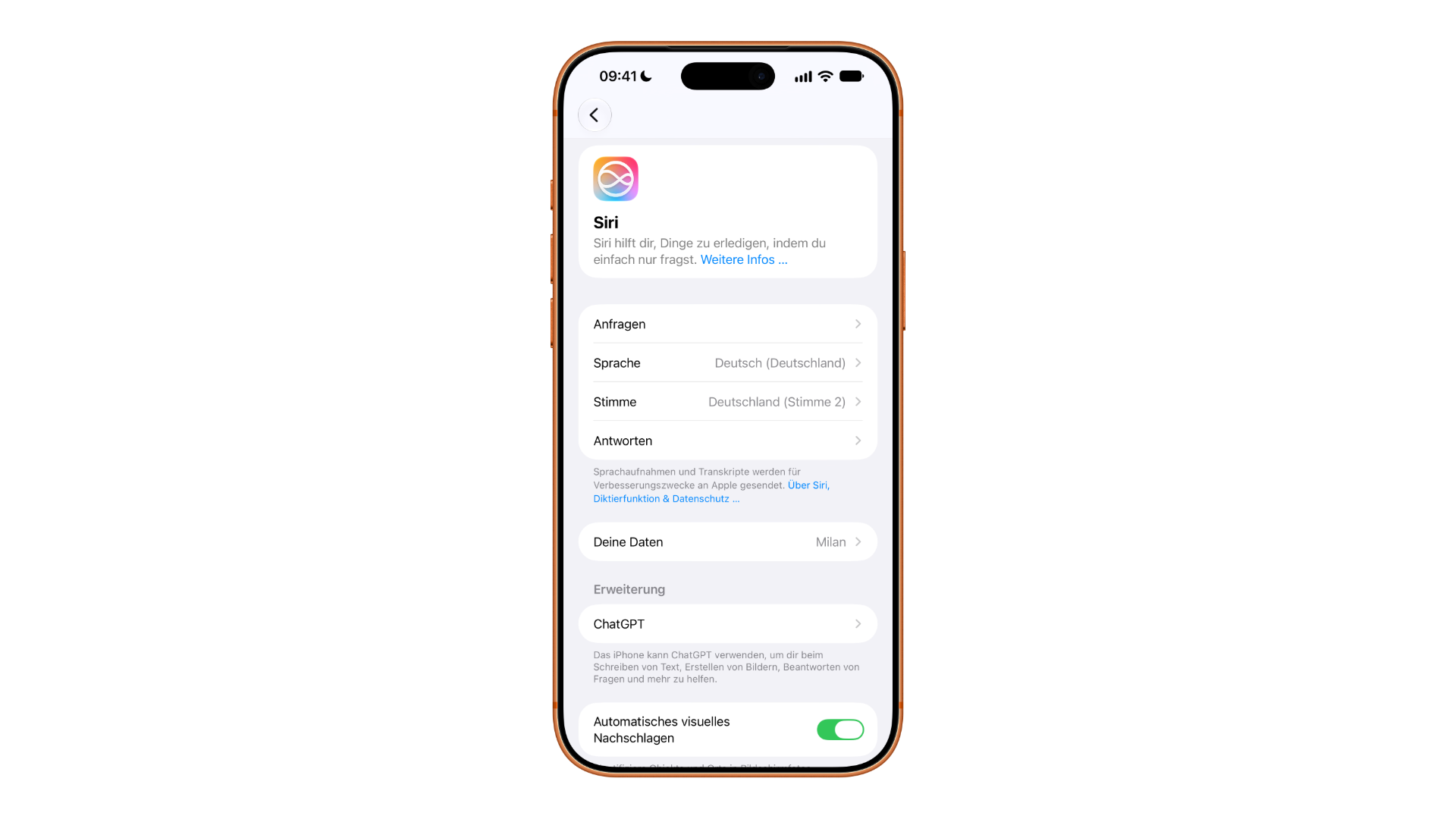
At the top of the screen, iOS 27 indicates when the device and Siri are set to different languages: For Apple Intelligence to function, both must match. When Siri's language is aligned with the device language, the iPhone displays a message that "Apple Intelligence & Siri" is loading as soon as a Wi-Fi connection is established. However, setting a different language doesn't serve as a way to disable Siri: it will then permanently speak a different language than the rest of the system.
The most thorough approach: Screen time limits
Most AI features can be blocked in one place – Screen Time. These restrictions aren't just for children's devices; they work just as well on your own iPhone.
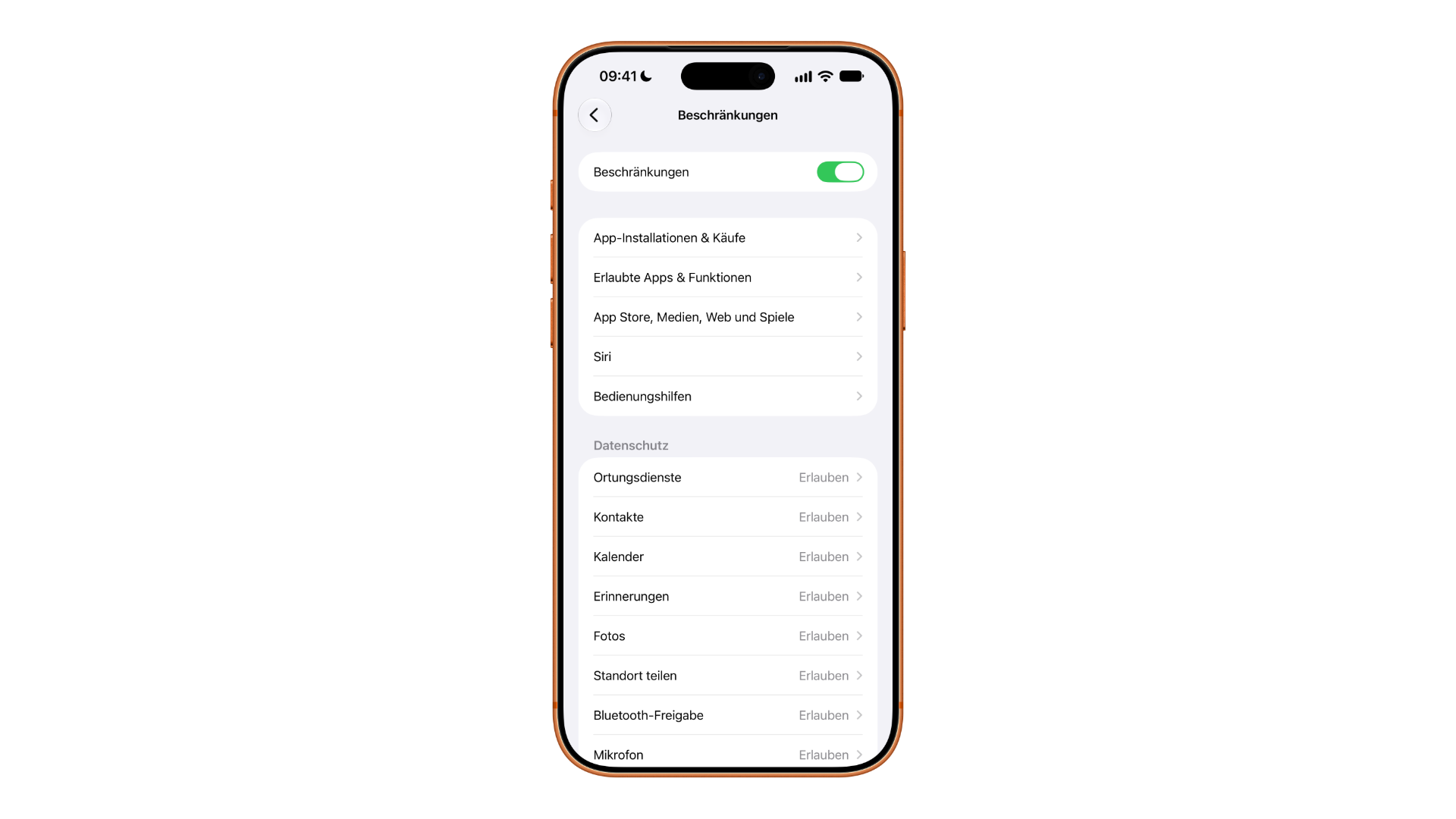
- Open the settings and tap on "Screen Time".
- Under "Restrictions", tap on the entry of the same name and activate the "Restrictions" switch at the top.
- Open the "Siri" section.
- Tap on the entry you want to block and select "Don't allow".
In iOS 26, the section in the restrictions is called "Intelligence & Siri," and the entry for text functions is "Writing Tools." In iOS 27, the list looks like this:
| Entry | What he controls |
|---|---|
| Allowed Siri version | which version of Siri is allowed on the device |
| Comprehensive world knowledge | whether Siri is allowed to use web content for knowledge and general questions |
| Writing aid | Help with writing, also in Siri, the writing tools and Mail |
| Math help | complex arithmetic tasks in Siri and mathematical notes in Calculator and Notes |
| Image creation | AI images in Image Playground, Genmoji, and image creation in Notes |
| Realistic images | Realistic AI-generated images, with an age recommendation of 18+ |
| Extensions | Additional text and image functions from third-party providers, such as ChatGPT |
In addition, there are two entries that only affect Siri's responses: "Sensitive Topics" and "Offensive Language." To prevent the restrictions from being easily lifted, the Screen Time settings can be protected with a custom code at the bottom of the overview.
Disable individual functions selectively
Summaries do not appear in the restrictions. They are disabled wherever they appear. The same applies to the action button assignment.
| Feature | Access via settings |
|---|---|
| Summaries in email | Settings → Mail → Turn off "Preview Summary" |
| News summaries | Settings → Messages → Turn off "Summary" |
| ChatGPT extension | Settings → Siri → under "Extensions" tap on ChatGPT and turn it off. |
| Recognize objects and places in screenshots | Settings → Siri → Turn off "Automatic visual lookup" |
| Siri via the action button | Settings → Action button → Controls → "Talk to Siri" or "Tap Siri requests" |
The action button can be specifically assigned to Siri. Users who don't want to use the button for the assistant can select a different control option there. The ChatGPT connection can also be blocked via the "Extensions" entry in Screen Time.
In iOS 26: the central switch
The familiar method still works on devices with iOS 26, iPadOS 26 and macOS Tahoe 26.
On iPhone and iPad:
- Open the settings.
- Tap on "Apple Intelligence & Siri".
- Turn off "Apple Intelligence" and confirm the message.
On the Mac:
- Open System Preferences.
- Select "Apple Intelligence & Siri" in the sidebar.
- Disable "Apple Intelligence" and confirm the message.
According to Apple, disabling Apple Intelligence removes the models loaded on the device. This is the real storage gain under iOS 26: Apple specifies 7 GB of storage as a requirement for Apple Intelligence, which corresponds to more than five percent on a 128 GB iPhone.
What applies in Germany
According to Apple, Siri AI will not initially launch in the EU on iOS and iPadOS; Switzerland is an exception. The other Apple intelligence features work in Germany and are available in German – and these are precisely what the methods described above refer to: Writing Assistance, Image Creation, Summaries, and the ChatGPT extension are available on German iPhones and can be disabled accordingly.
Fewer switches, more manual work
The toggle switch from iOS 26 has been replaced in iOS 27 by a collection of individual settings. The closest thing to a true off switch is the Screen Time Limit – a feature Apple explicitly includes for children's devices and which is now the most important control for your own iPhone. It's not a complete system, however, as the summaries are not available.
In practical terms, this means that anyone who wants to completely disable the AI functions needs to do two passes – one through the restrictions and one through email and messages. If you set a separate screen time passcode for this, the restrictions will remain in place even if someone else has the unlocked device.
Disable Apple Intelligence – the most important points at a glance
In iOS 27, Screen Time disables Writing Assistance, Math Assistance, Image Creation, and extensions; summaries are turned off in Mail and Messages. In iOS 26, the toggle switch in "Apple Intelligence & Siri" still suffices, which also removes the models from the device.
Which feature would you block first – or has one of them proven useful in everyday life? Tell us in the comments how you handle it on your iPhone.
Frequently Asked Questions: How to disable Apple Intelligence
No. The section in the settings is now simply called "Siri" and no longer contains a general toggle switch. The functions can only be blocked individually via Screen Time and app settings.
Go to Settings → Screen Time → Restrictions, activate the "Restrictions" switch and open "Siri". Then tap the desired entry and select "Don't allow".
In iOS 27, these include Comprehensive World Knowledge, Writing Assistance, Math Assistance, Image Creation, Realistic Images, and extensions like ChatGPT. Additionally, the allowed Siri version can be specified there.
In Mail, go to Settings → Mail → "Preview Summary"; in Messages, go to Settings → Messages → "Summary". Summaries do not appear in Screen Time.
Go to Settings → Siri, then tap ChatGPT under "Extensions". Alternatively, you can block it in Screen Time via the "Extensions" entry.
Go to Settings → „Apple Intelligence & Siri“, turn off „Apple Intelligence“ and confirm the message. According to Apple, this will remove the models loaded on the device.
According to Apple, Siri AI will not initially launch in the EU on iOS and iPadOS, with the exception of Switzerland. Other Apple intelligence features, such as writing assistance, image creation, and summaries, are available in these countries.





