This article may contain affiliate links. Learn more on our Partner Program page.
Flash, Live Photos, aspect ratio – for years, Apple dictated which switches appear at the top of the Camera app. With iOS 27, you decide for yourself, separately for photos and videos. Adjusting these settings takes less than a minute.
The bar at the top of the camera app screen is customizable in iOS 27. Users who regularly take photos using timers, exposure compensation, or a specific file format can place these controls directly in view, instead of having to open the control panel each time.
This feature was introduced with the Release Candidate and was one of the new additions to the Camera app at the launch of iOS 27. It's available on all iPhones that support iOS 27. The controls that appear in the selection depend on the model. We followed these instructions on an iPhone 18 Pro Max with German as the system language.
Key Facts at a Glance
- In iOS 27, the top bar of the camera app can be freely customized with controls.
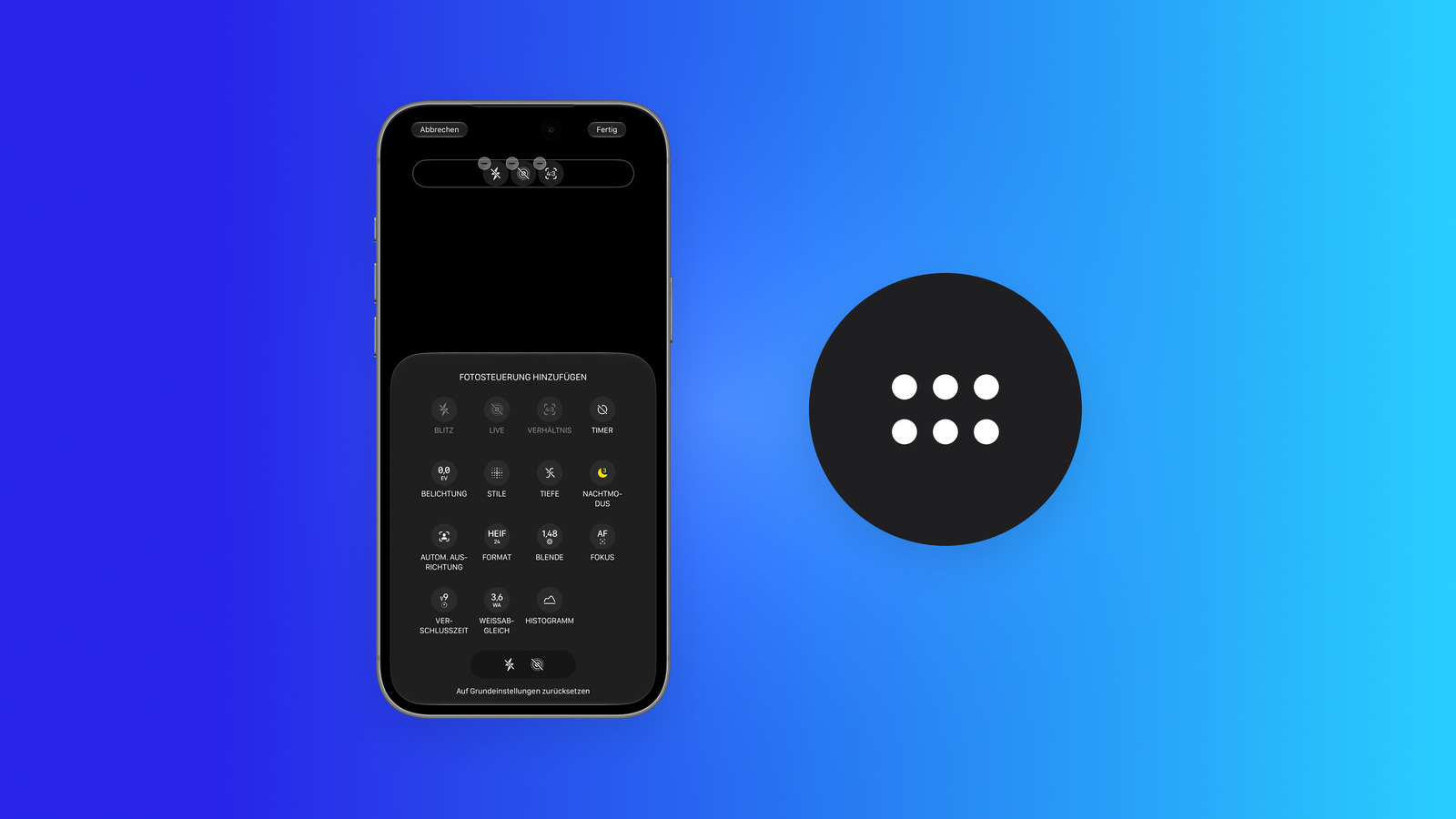
- The path leads via the control panel behind the symbol with the six dots and the "Edit" button, or alternatively by pressing and holding the bar.
- Photo and video modes each have their own bar with their own selection options.
- "Reset to default settings" restores the original configuration.
- The iPhone 18 Pro and Pro Max also offer the option of Pro controls such as aperture, shutter speed and white balance.
What has changed in the camera app
Previously, there were two levels: a fixed row at the top with a few switches, and the control panel with all other options at the bottom right. Both remain. The new feature is that the top row is no longer predefined. Controls can be moved there from a selection or removed from there.
All options remain accessible in the control panel, including those already located at the top. The top bar is therefore a shortcut, not a replacement.
Customize the control bar: Step by step
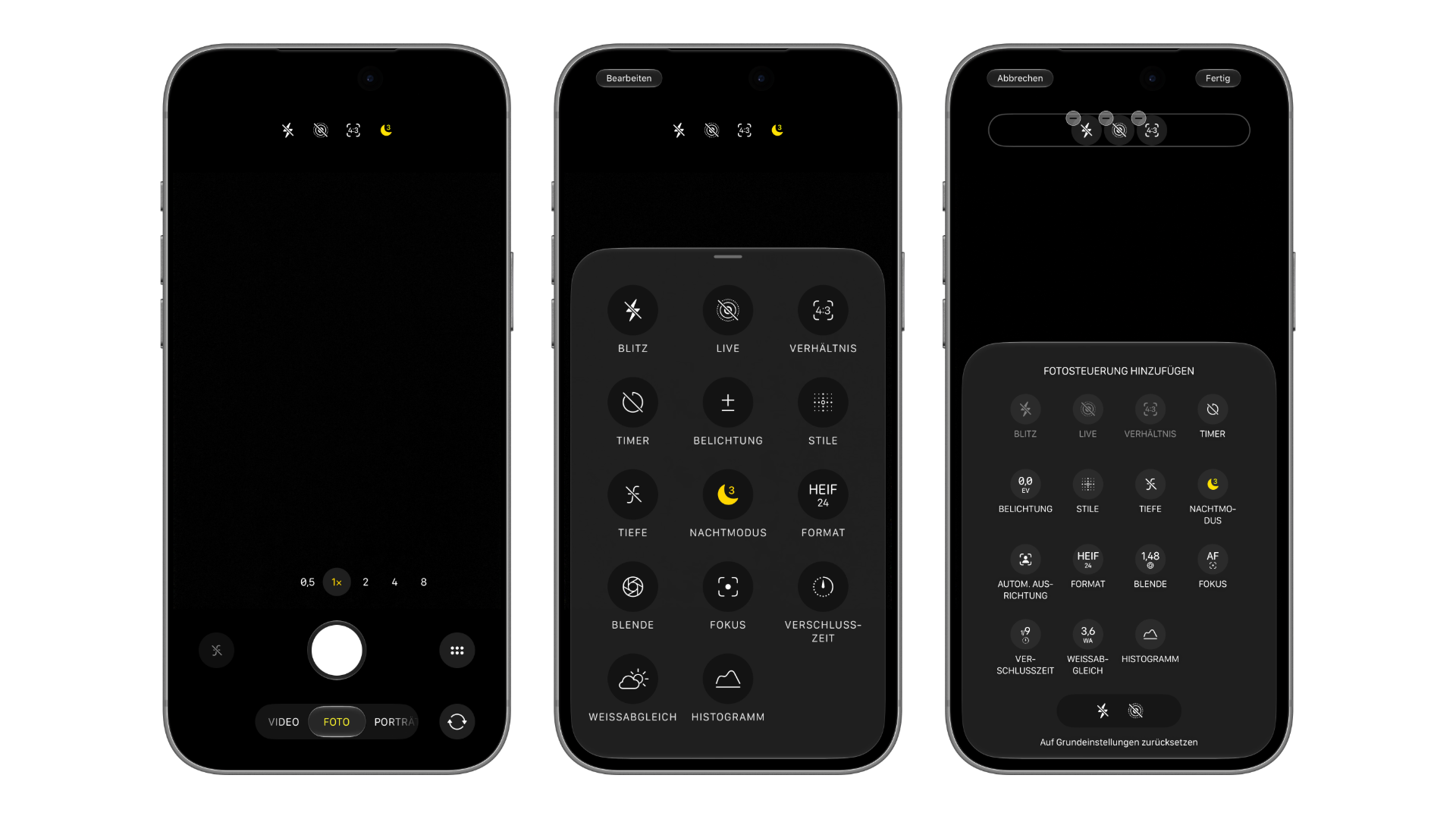
- Open the camera app and select the mode whose bar you want to customize, such as "Photo".
- Tap the icon with the six dots in the bottom right corner. The control panel will open.
- Tap "Edit" in the top left corner.
- In the "Add photo control" section, tap a control to add it to the top bar. Controls already in the bar will appear grayed out in the selection.
- To remove an item from the bar, tap the minus sign on its icon.
- Save with "Done" in the top right corner or discard with "Cancel" in the top left corner.
It's faster with a gesture: Pressing and holding the top bar opens the editing directly, without going through the control panel.
Set photo and video separately
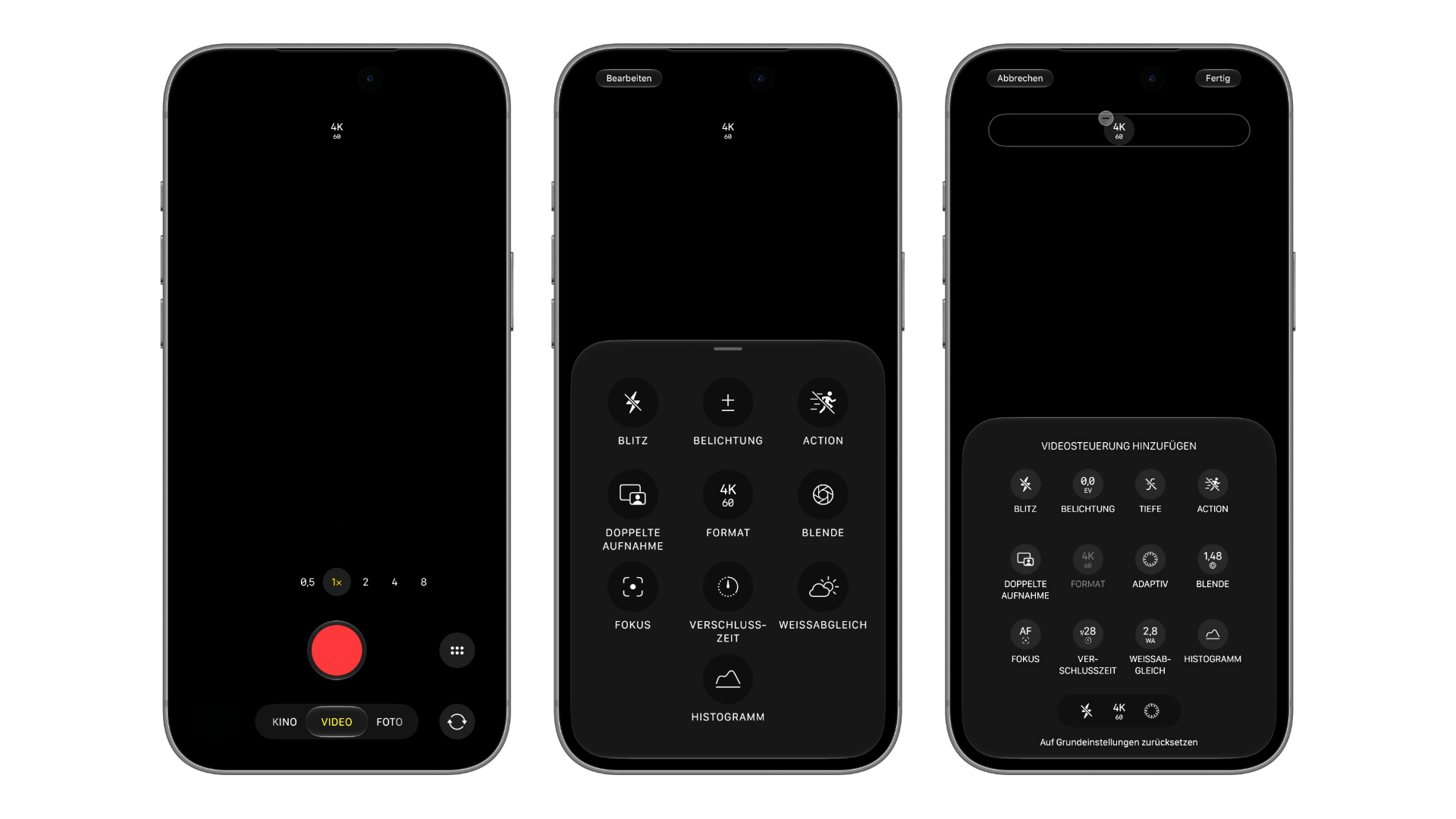
The customization only applies to the mode in which it is made. In video mode, the selection is accordingly called "Add video control" and contains its own entries such as "Action," "Dual Recording," or "Adaptive." Users who use both modes will therefore have to configure the control bars twice—with the advantage that each bar contains only the switches needed in the respective mode.
On our device, the bar in video mode displays the resolution and frame rate, in this case "4K 60". Users who frequently switch between frame rates or use the action mode will benefit most from customizing these settings.
These controls are available for selection
On the iPhone 18 Pro Max, the edit displays the following entries. On other models, the list is shorter.
| Photo mode | Video mode |
|---|---|
| Flash | Flash |
| Live | Exposure |
| Aspect | Depth |
| Timer | Action |
| Exposure | Double recording |
| Styles | Format |
| Depth | Adaptive |
| Night mode | Aperture |
| Automatic alignment | Focus |
| Format | Shutter speed |
| Aperture | White balance |
| Focus | Histogram |
| Shutter speed | – |
| White balance | – |
| Histogram | – |
Aperture, focus, shutter speed, white balance, and histogram are among the Pro controls of the iPhone 18 Pro and Pro Max. The aperture control requires the new main camera with variable aperture.
One detail from our test: The moon icon for Night Mode appeared at the top in low light even when Night Mode wasn't part of the notification bar. So the iPhone still displays it when needed.
Back to default settings
If you've made too many changes, you'll find "Reset to default settings" at the very bottom of the editing view. Tapping this restores the original settings for the respective mode. This also applies separately to photo and video.
This adjustment should not be confused with the camera control settings, i.e., the button on the side of the device. This button can be reassigned or completely deactivated independently.
Which strip proves its worth in everyday life
The temptation is strong to bring as many buttons to the top as possible. A short bar with the two or three functions you actually need for almost every shot is more practical – such as timer and exposure for group photos, or format for those who regularly switch between file formats. Everything else is just a tap away in the control panel anyway.
On the iPhone 18 Pro, it's worth increasing the aperture. It changes the image appearance more significantly than most other settings and can be switched more quickly with a tap than via the control panel.
iOS 27 Camera Controls – The Most Important Things at a Glance
The top bar of the Camera app in iOS 27 is fully customizable, with separate sections for photos and videos. This can be accessed via the six-dot icon and "Edit," or by long-pressing the bar. "Reset to Default" undoes any changes.
Which settings are most frequently used by you – and which one did you remove from the bar first? Tell us in the comments how you've set up your camera app.
Frequently Asked Questions: Camera app controls in iOS 27
Tap the six-dot icon in the bottom right corner, then tap "Edit" in the top left corner. In the "Add photo controls" section, tap the elements you want to add to the top bar. Tap "Done" to save your selection.
Yes. A long press on the top bar of the camera app opens the editing directly.
No. Photo and video modes each have their own bar. You configure them separately.
In edit view, tap the minus sign on the respective symbol and confirm with "Done".
At the very bottom of the editing view, tap "Reset to default settings". This applies to the mode you are currently in.
Yes, the customization feature is available on all iPhones with iOS 27. However, the available controls depend on the model.
These controls are part of the Pro controls of the iPhone 18 Pro and Pro Max. The aperture also requires the new variable aperture main camera.