This article may contain affiliate links. Learn more on our Partner Program page.
The camera app in iOS 27 can be customized to suit individual workflows. Users, not Apple, now decide which controls appear above the viewfinder – ten options are available. This feature was added with the Release Candidate, four days before the official release.
Apple will release iOS 27 on September 14th for all compatible iPhones. The release candidate is already available to developers – and it includes a change to the camera app that wasn't present in any of the previous eight betas: The control bar above the viewfinder is now configurable. I tested this feature on my own device using the release candidate.
Key Facts at a Glance
- The controls above the viewfinder of the camera app can be added and removed.
- The feature was only added to the system with the Release Candidate, not in any of the earlier betas.
- My test device offers ten control options, including exposure, styles, and format.
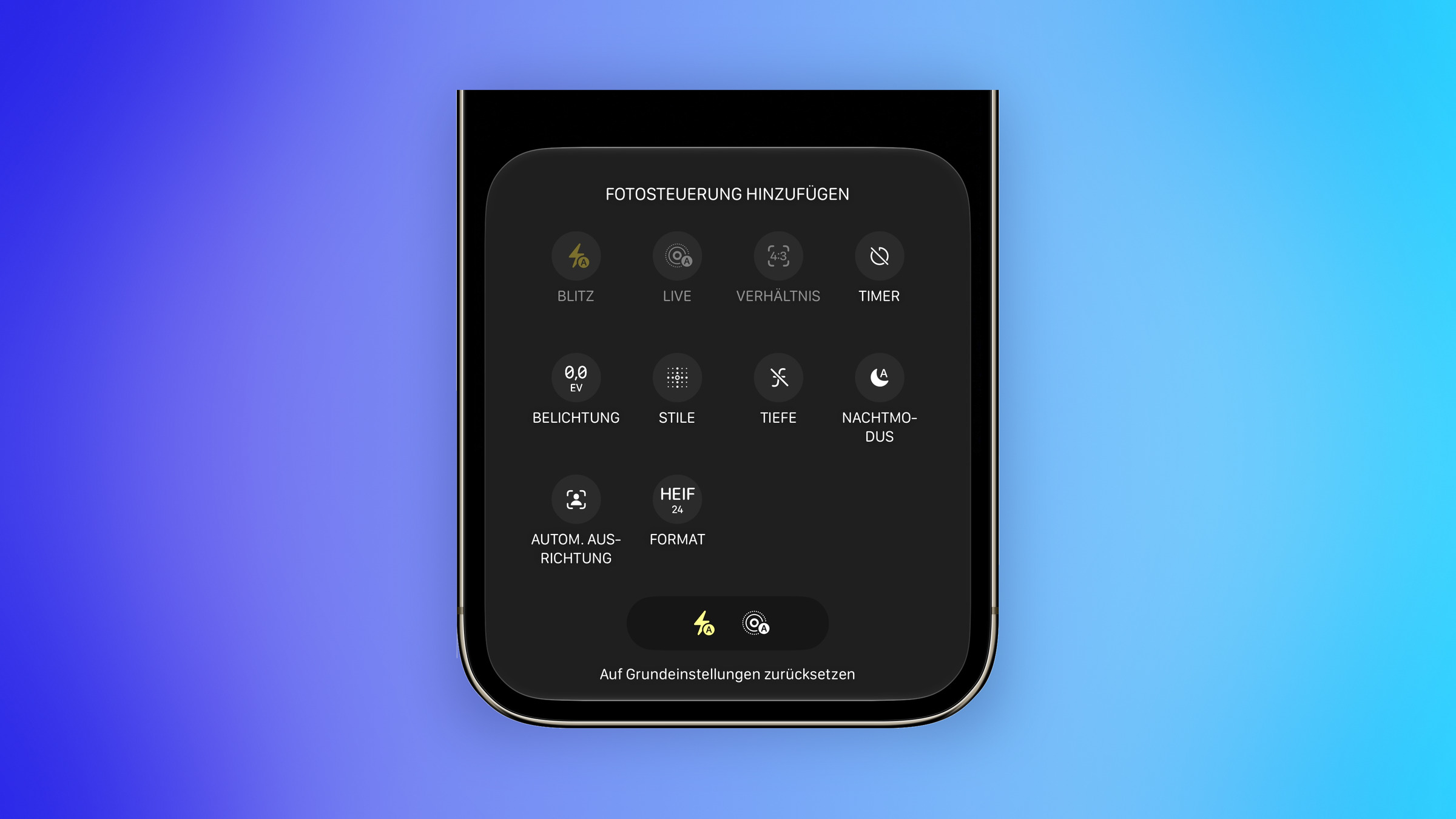
- The selection process takes place via a separate view titled "Add photo control".
- A reset option restores the factory configuration.
- iOS 27 will be released on September 14th for all devices from iPhone 11 onwards.
Where the selection is hidden
The entry point is not in the system settings, but in the camera app itself. The control bar opens via the button with the six dots in the bottom right corner, and an "Edit" entry in the top left corner leads to the configuration.
A view titled "Add photo controls" appears. The elements selected there move to the bar above the viewfinder; existing controls can be removed. A preview at the bottom shows how the current bar looks.
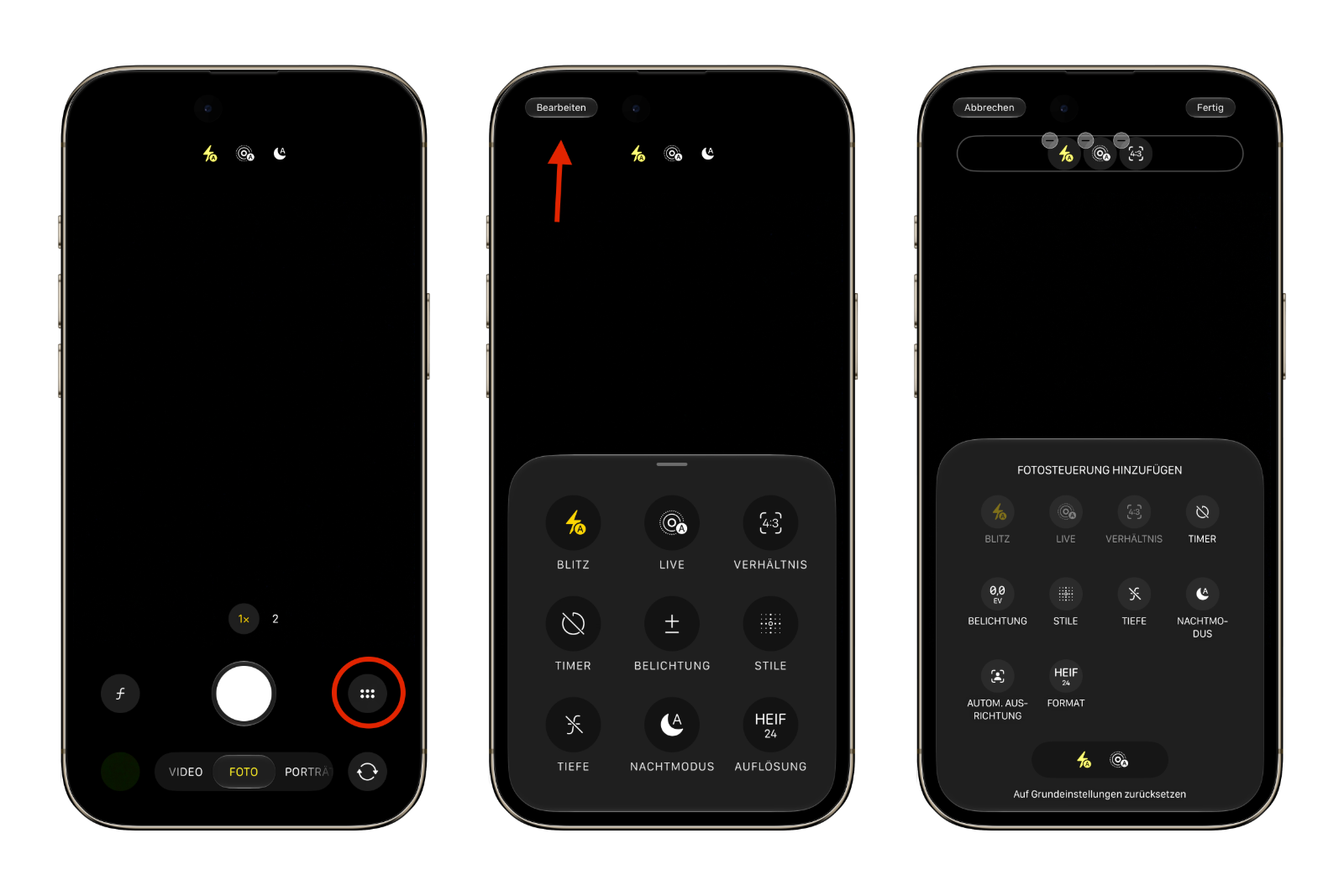
These ten controls are available for selection
| Control element | What it stands for |
|---|---|
| Flash | Automatic flash, on or off |
| Live | Turn Live Photos on or off |
| Aspect | Aspect ratio of the photo |
| Timer | Self-timer |
| Exposure | Exposure correction in EV steps |
| Styles | Photographic Styles |
| Depth | Depth of field control |
| Night mode | Low light photography |
| Automatic alignment | Automatic image cropping guidance |
| Format | Recording file format |
The selection thus covers almost exactly the actions that previously required swiping through the bar. Those who never use the self-timer can hide it; those who regularly switch between file formats can bring the format to the forefront.
Return to the initial state
Below the selection is the option "Reset to factory settings." Tapping this restores the configuration that Apple provides by default. This eliminates the risk: If you accidentally misconfigure something, you don't have to undo it element by element.
Why this is more than a small matter
The camera app is the most frequently opened app on most iPhones, and its user interface remained untouched for years. While Apple has occasionally rearranged it, the decision regarding which controls are visible has always rested in Cupertino.
The fact that this decision now rests with the user aligns with a trend that has run through previous system versions – from the configurable control center to the action button. In practical terms, this means that the three or four actions you actually need will be readily available, instead of hidden behind a carousel of swipe gestures.
What this feature isn't: an expansion of the photographic toolbox. Not a single new slider is added. It simply reorganizes what was already there – and that's precisely why it's a change that benefits every supported iPhone, not just the new models. The actual new camera features were recently revealed in the iOS 27 code findings.
Camera app in iOS 27: What's coming on September 14th
With its release on Monday, the customizable control bar will arrive on all iPhones that support iOS 27. It's not a groundbreaking change, but it's one of those modifications you won't want to be without after a couple of days – because it breaks down a system that no one had previously questioned.
Which three controls do you put in your toolbar, and which one is the first to go? Tell us in the comments how you set up your camera.