

This article may contain affiliate links. Learn more on our Partner Program page.
The Apple Watch Ultra 4 and Series 12 now measure your pulse every five seconds and use it to calculate a Readiness score. Much of this runs on its own. One feature disappears, though, if the watch isn't on your wrist at night – I experienced that on my own Ultra 4.
With the new Health Sensing system, Apple has reworked the heart sensors of the Apple Watch Ultra 4 and Series 12. According to the German press release on the Ultra 4, the watch measures heart rate every five seconds throughout the day and heart rate variability up to 24 times more often than before. Which of the two watches suits whom is shown in the comparison between Series 12 and Ultra 4.
I've been wearing the Ultra 4 since September 22 and have turned on all the new features. This tip shows where to find the new values, how to set up the notifications and what doesn't work without the watch in bed.
Key Facts at a Glance
- The watch now also records heart rate, heart rate variability (HRV) and vital signs by default during the day.
- The daily form outputs a value from 0 to 10, but requires at least 7 nights with a clock in sleep within the last 49 nights.
- Hypertension notifications and sleep apnea notifications are available in Germany, Austria and Switzerland.
- Daily form, daily vital signs and the more frequent HRV measurement are only available on the Series 12 and the Ultra 4.
What the health detection system measures
At the heart of the system are new optical and electrical heart sensors in the Apple Watch Ultra 4 and the Apple Watch Series 12. Heart rate is now displayed in real time, and optionally as a complication on the watch face. The Heart Rate app includes a dedicated section for heart rate variability.
Apple distinguishes between two values. The HRV during recovery is intended to show everyday signals of stress and recovery, while the general HRV provides insights into overall health, including cardiovascular health. According to Apple, a higher value generally indicates better recovery, a lower value indicates stress.
Also new is the daytime view in the „Vital Signs“ app. Previously, the watch only evaluated measurements from the night; now, heart rate and HRV from the day are added. On the Series 12 and Ultra 4, the nighttime vital signs display HRV instead of sleep duration.
| Feature | Only Series 12 and Ultra 4 | The watch must be worn at night |
|---|---|---|
| Heart rate every 5 seconds | Yes | no |
| Daily vital signs | Yes | no |
| Nighttime vital signs | no | Yes |
| Sleep index | no | Yes |
| Daily form | Yes | Yes |
View vital signs and turn on notifications
On the watch, the values are in the "Vitals" app. The toggle icon switches between the overnight values and "Daytime", and tapping a measurement shows the details. According to the Apple User Guide on Vitals, the app sets a typical range for each value.
On the iPhone, the same values can be found in the „Health“ app under „Discover“ → „Vital Signs“.
Vital sign notifications are enabled by default. The watch will notify you if at least two nighttime readings are outside the typical range. If you have disabled them, you can re-enable them on the watch under „Settings“ → „Vital Signs“.
According to Apple, the vital signs are intended for wellness use only and not for medical purposes.
Set up hypertension notifications
High blood pressure alerts are not set up on the watch, but on the iPhone. Here's how to set up high blood pressure alerts, according to Apple's instructions:
- Open the „Health“ app on your iPhone.
- Tap your picture or initials in the top right corner.
- Select „Health Checklist“ and tap „Configure“ under „High Blood Pressure Notifications“.
- Follow the instructions on the screen.
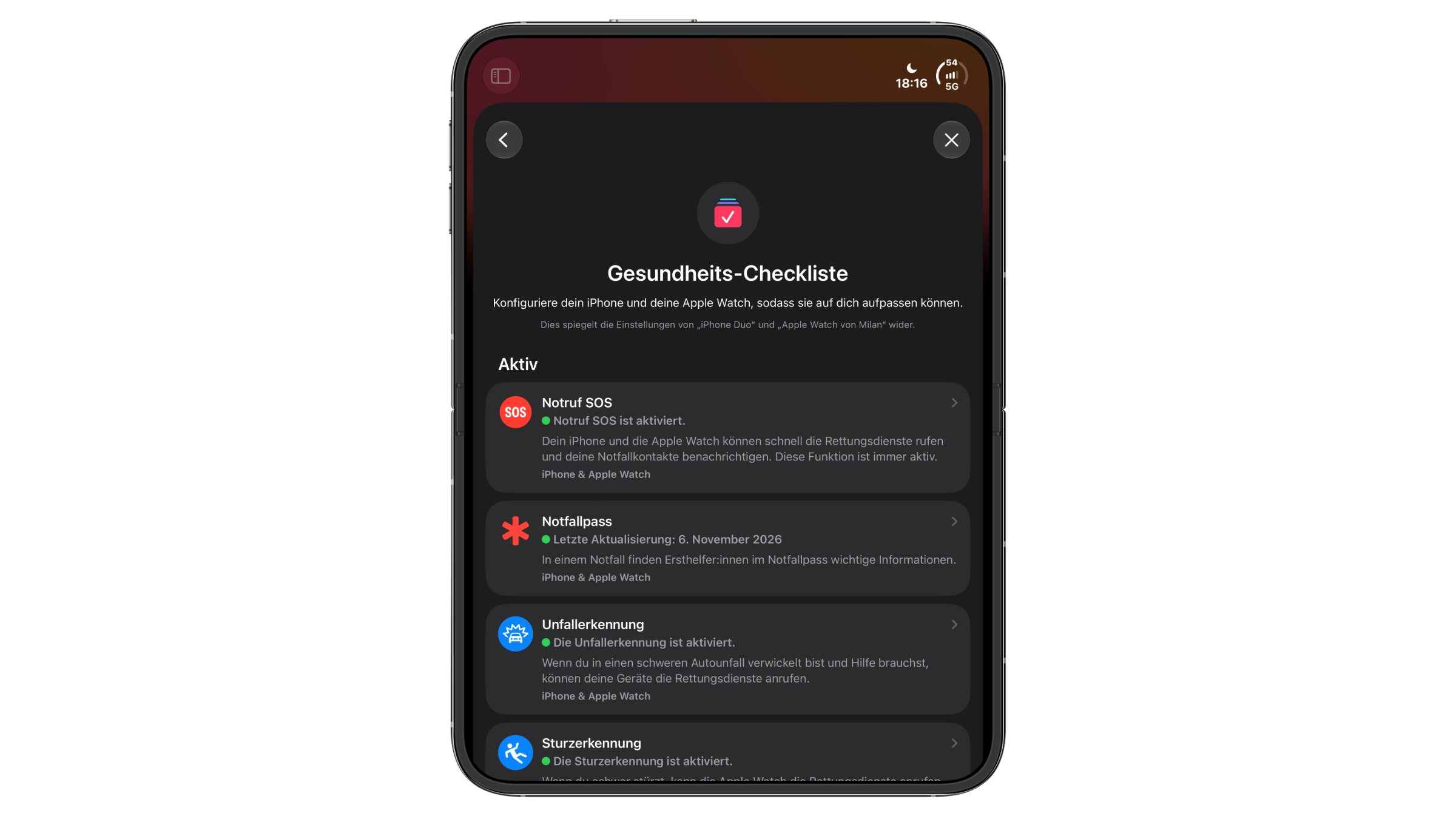
This feature is not intended for people with diagnosed high blood pressure, those under 22, or pregnant. If the watch detects signs, it prompts the user to take blood pressure readings twice a day for seven days using a cuff. The readings can be entered in the Health app under „Discover“ → „Heart“ → „Blood Pressure.“ Apple has explained in detail how the detection works.
Daily form: Without a clock in bed, it's worthless
The daily fitness indicator is a separate app on the watch. It calculates activity, vital signs, and the sleep index into a score from 0 to 10 and provides a recommendation for the day. A score of 8 to 10 means „Go for it,“ while 5 to 7 indicates „Ready.“ Below that, a score of 2 to 4 advises pacing, and a score of 0 to 1 recommends rest. On the iPhone, the score is also displayed further down in the Fitness app.
According to the user manual, Apple requires some preparation before a value for the daily performance indicator appears:
- Size, weight and age are recorded, and „activity“ is set up.
- „Sleep“ and „Night Vital Signs“ are set up.
- The watch was worn during sleep for at least 7 nights within the last 49 nights.
- According to Apple's support article on daily performance, the previous night's activity, including the clock, is also included.
The last point is significant. I initially wore the Ultra 4 at night, but now it usually stays on the charger overnight. When I open the „Daily Form“ app today, it only shows „No Daily Form Value.“ However, heart rate, HRV, and the daily vital signs continue to track, even without being worn overnight.
How much does that cost in battery power?
Apple claims up to 50 hours of battery life for the Ultra 4, measured with 12 hours of sleep tracking. In the first few weeks, I also wore the watch at night and, with all sensors active, got a maximum of two days and two nights of battery life. Now I usually charge it overnight. If you do the same, you'll miss out on the Night Vitality indicator, sleep score, and daily activity tracking.
Availability in Germany, Austria and Switzerland
According to Apple's overview of watchOS feature availability, blood pressure alerts, sleep apnea alerts, and the blood oxygen app are available in all three countries, while vital signs are available worldwide. Therefore, there are no restrictions on these features in this country. Apple states that the daily condition feature is available for users aged 13 and older.
Why a night on your wrist is worthwhile
I leave all functions running, but deliberately don't monitor the values every day. For this type of use, the new system is sufficient even without a watch in bed: pulse, heart rate, and daily vital signs are still displayed, and the notifications work in the background.
Anyone who wants to seriously utilize the daily fitness tracking feature will need to regularly take the watch to bed with them. With a two-day battery life, this is feasible, but requires a fixed charging time each day. Those currently undecided between models should compare this with their own habits before purchasing – the Apple Watch buying guide can help with the choice.
Do you wear your Apple Watch at night, or does it, like me, rest on the charger? Tell us in the comments whether your daytime well-being is worth wearing it at night.
Frequently Asked Questions: New Health Features of the Apple Watch
The Apple Watch Series 12 and the Apple Watch Ultra 4. On older models, the measurement every five seconds, the daily vital signs, and the daily form indicator are not available, even with watchOS 27.
Every five seconds throughout the day. According to Apple, it now records heart rate variability (HRV) up to 24 times more frequently than before.
The daily fitness feature requires stored information such as height, weight, and age, configured activity, sleep, and nighttime vital signs, and at least 7 nights of wearing the watch while sleeping within the last 49 nights. The watch must also have been worn while sleeping last night. The daily fitness feature is only available on the Series 12 and Ultra 4 and is only available to users aged 13 and older. If any of these requirements are missing, the app will display „No daily fitness score.“.
Yes, it measures nighttime vital signs, sleep index, and daily condition. The watch also measures heart rate and HRV during the day. On the Series 12 and Ultra 4, this data is used to calculate daily vital signs.
In the „Health“ app, go to „Discover“ → „Vital Signs“. On the watch, there's a „Vital Signs“ app with nighttime vital signs; the Series 12 and Ultra 4 also include a daytime view.
In the Health app, tap your picture or initials in the top right corner, then open Health Checklist and tap Configure under Hypertension Notifications. This feature is not intended for people with diagnosed hypertension, those under 22, or pregnant.
Yes. According to Apple, high blood pressure notifications, sleep apnea notifications, and the blood oxygen app are available in Germany, Austria, and Switzerland; vital signs are available worldwide.





