

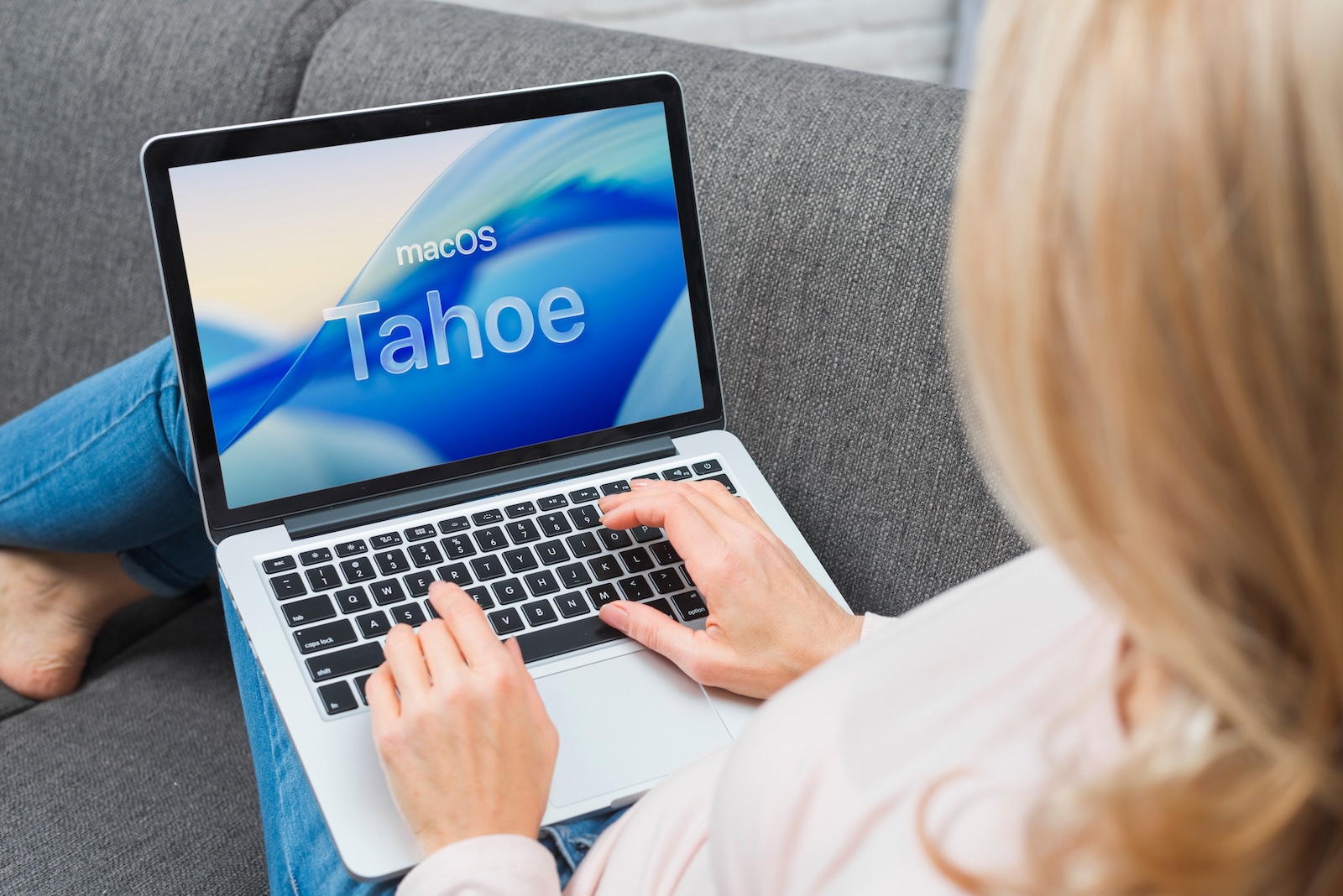
With macOS 26, also known as Tahoe, Apple is introducing a feature that makes using Personal Hotspot noticeably easier. The Mac can now automatically connect to the iPhone as soon as a Wi-Fi connection is unavailable. This makes switching to the mobile network more seamless than before.
The discussion about Macs with integrated cellular modules has been going on for years. Until now, this desire remained unfulfilled, requiring a connection via an iPhone or iPad. With macOS 26, Apple has created a temporary solution that should make everyday life easier for many users: The hotspot will be more reliable and more convenient to use.
Automatic connection to the iPhone hotspot
In older versions of macOS, a notification appeared in the menu bar if there was no Wi-Fi connection. Only after confirmation could the Mac connect to the iPhone's hotspot. Convenient, but always requiring an additional click. macOS 26 changes this behavior. A new feature is the ability to automatically connect to the personal hotspot. This ensures that the Mac switches to the mobile internet without any further action as soon as no other network is available.
Hotspot connection settings
The adjustment can be found in the Wi-Fi settings. There, there's now a section called "Request access to hotspots." In addition to the previous "Ask to connect" option, there's a new setting called "Automatic." This feature is disabled by default to prevent unnoticed data usage. However, if you prefer automatic connection, you can enable it via System Preferences or directly via the Wi-Fi icon in the menu bar. From then on, macOS 26 will manage the connection independently.

More reliability on the road
Personal Hotspot has long been an integral part of the interaction between Mac and iPhone. When it's working, it runs almost invisibly in the background. However, issues with stability or manual activation have repeatedly been disruptive. Apple has been working on making the hotspot more reliable over the past few years. macOS 26 now introduces a crucial addition: automatic connection. This is a noticeable convenience for everyday work on the go, especially if you frequently switch between different networks.
macOS 26: Why the new hotspot option makes workflow easier
macOS 26 demonstrates how small software improvements can have a big impact. The ability to automatically establish a hotspot connection to your iPhone makes using it on the go easier and faster. A Mac with a built-in cellular chip remains a long-held dream, but until that happens, macOS 26 offers a practical interim solution. Anyone who regularly relies on mobile data will benefit from a feature that noticeably smooths their workflow. The best products for you: Our Amazon Storefront offers a wide selection of accessories, including those for HomeKit. (Image: Shutterstock / Azulblue)
- watchOS 26: Why the Apple Watch sometimes charges slowly
- iOS 26: Reduce transparency for more clarity
- Find and adjust the camera flash in iOS 26 – here's how
- iOS 26 makes Adaptive Power the norm on the iPhone 17 series
- iOS 26 Tip: Unlock iPhone with Apple Vision Pro
- iOS 26: The most important tips for setup and use
- iOS 26: Impact on battery life after the update
- iOS 26: Use spatial scenes directly in the Photos app
- iOS 26 Update: Markdown Import and Export in Notes Explained
- iOS 26: Easily change backgrounds in iMessage
- iOS 26: Trigger iPhone camera with AirPods – here's how
- How to enable transparent iPhone app icons with iOS 26
- iOS 26: Apple Music finally gets folders for playlists
- iOS 26: Capture reminders faster and easier
- Apple Music in iOS 26: Music Pins make access easier
Frequently Asked Questions about macOS 26
macOS 26 introduces an automatic hotspot feature. The Mac can connect to the iPhone without additional confirmation as soon as Wi-Fi is unavailable.
The setting can be found in the Wi-Fi options under "Request access to hotspots." There, you can change the option from "Ask for connection" to "Automatic."
No, the feature is initially disabled to prevent unwanted data usage. It must be enabled manually.
Yes, the automatic connection can also be used with an iPad as long as it is enabled as a hotspot.
The automatic connection to the iPhone hotspot eliminates the need for manual confirmation. This saves time and ensures smooth workflows.





