

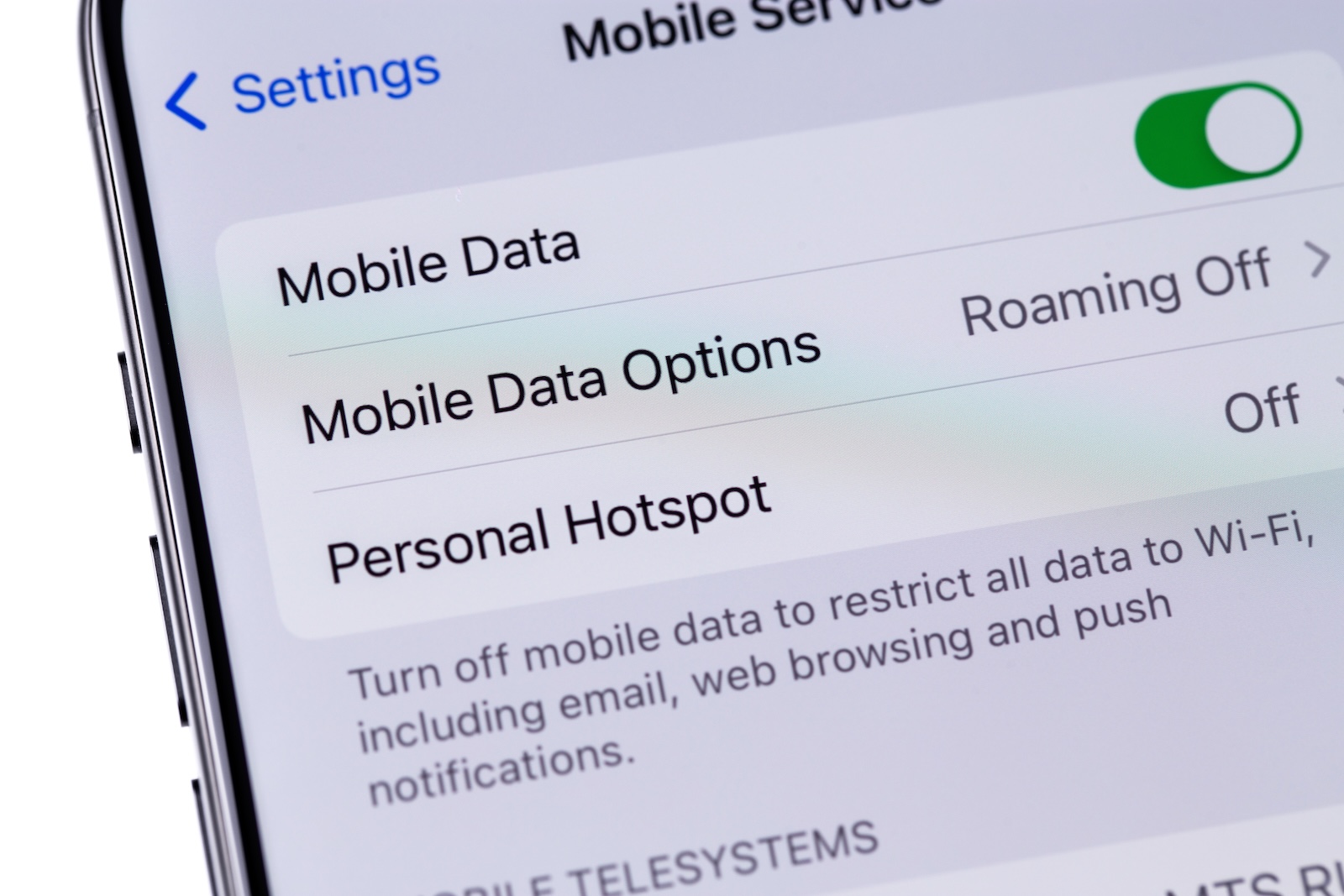
With your iPhone's personal hotspot, you can easily go online on the go – without the need for additional Wi-Fi. Whether on your laptop, tablet, or other devices, your iPhone becomes a mobile router. To ensure this works reliably and avoid any unpleasant surprises regarding data usage or battery life, there are a few things you should keep in mind. Here are five practical tips for using your iPhone hotspot efficiently and securely.
Many people spontaneously use their iPhone's hotspot when there's no Wi-Fi nearby. What many don't realize is that incorrect settings or careless use can lead to slow connections, high battery drain, or unnecessarily high data usage. This can be avoided with a few targeted measures. In this article, you'll learn how to optimally configure your iPhone's hotspot and use it effectively in everyday life.
Wi-Fi band: correctly assessing range vs. speed
Newer iPhones, such as the iPhone 12 or later, support hotspot connections in both the 2.4 GHz and 5 GHz bands. 5 GHz is used by default, which enables faster speeds. However, some older devices or certain environments require the 2.4 GHz band because it offers greater range and is less susceptible to interference over longer distances. In the Personal Hotspot settings, you'll find the "Maximize Compatibility" option for supported devices. If you enable this option, your iPhone will automatically switch to the 2.4 GHz band. This is useful if you want to connect devices that don't support 5 GHz, or if you're far away from your iPhone. If the option is disabled, the iPhone uses 5 GHz for faster transmission over shorter distances. Whether you need more range or faster speeds depends on your situation—the setting is flexible.
Use a secure password for the hotspot
As soon as you activate your hotspot, your iPhone becomes a Wi-Fi access point that others can theoretically see. Therefore, a secure password is a must. You should choose a Wi-Fi password with at least 12 characters, combining upper and lower case letters, numbers, and special characters. Avoid simple or obvious terms. This protects your data allowance from unwanted users—for example, on public transport or in a café—while also ensuring that your connection doesn't slow down because others connect.
Reduce data consumption with data saving mode
When you connect a device to the iPhone hotspot, many processes can consume data in the background—such as automatic app updates, iCloud syncs, or background services. To prevent this, you should enable Low Data Mode on the connected device.
- Here's how: On the connected device, go to "Settings > Wi-Fi," tap the info icon next to the hotspot network, and activate "Data Saver Mode." This will stop or throttle automatic processes, and your data allowance will last significantly longer.
Activate hotspot only when needed
The hotspot should only be turned on when you're actually using it. Otherwise, your iPhone will drain battery unnecessarily, even when no device is connected. Furthermore, devices may connect automatically in the background without you noticing.
- Tip: Go to Settings > Personal Hotspot and disable the "Connect Automatically" option. This ensures that no connection is established without your knowledge. And remember: When you're finished using the hotspot, turn it off immediately.
Keep an eye on battery life and overheating
An active hotspot puts a lot of strain on the battery. Your iPhone can heat up considerably, especially during extended use, with multiple connected devices, or with high network activity. Therefore, make sure your iPhone isn't exposed to sunlight or in a tight pocket while in use. It's best to place it in an open, well-ventilated area. If you're using the hotspot for extended periods, you should connect your iPhone to a charger or use a power bank. This will help maintain battery life and prevent the device from overheating.
Use iPhone hotspot cleverly: Here's how
With the right settings, you'll get the most out of your iPhone hotspot. A strong password protects your connection, choosing the right Wi-Fi band improves speed, and Data Saver mode conserves your data allowance. If you also pay attention to your battery life and only use the hotspot when needed, you'll have a reliable connection – wherever you need it. The best products for you: Our Amazon storefront offers a wide selection of accessories, including those for HomeKit. (Image: Shutterstock / Primakov)
- macOS: How to copy file and app icons in seconds
- Photos app: Easily stop endless video loops
- Secure your iPhone properly: 5 important functions at a glance
- How to use Spotlight in macOS Sequoia without AI search
- Safari: Copy links to selected text – here's how
- iPhone Files app: 6 tips for more order and efficiency
- How to back up your photo library in macOS Sequoia
- iPhone & Co.: How to deactivate the advanced visual search
- Extend iPhone battery life: These 7 tips help immediately
- Using iPhone Live Text – The best tips for on the go
- Make the most of iPhone screen time – 7 effective tips
- Optimize iPhone battery health: 7 tips to save battery life
- Extend iPhone battery life: These 7 tips help immediately
- Using iPhone Accessibility Features: 7 Features at a Glance
- Apple Intelligence: From which iPhone is it available?
- iPhone & Co.: How to deactivate the advanced visual search
- Extend iPhone battery life: These 7 tips help immediately
- Editing iPhone RAW photos – 8 simple pro tips
- iPhone & Co.: How to deactivate the advanced visual search
- Extend iPhone battery life: These 7 tips help immediately
- Apple Music in iOS 26: Music Pins make access easier
- Setting up iPhone widgets: These 6 tricks you need to know
- Set up Apple Pay on your iPhone – quickly and securely
- Why an iPhone? These advantages are convincing in the long term
- Secure your iPhone properly: 5 important functions at a glance
- Save iPhone battery: When is power saving mode worth it?
- Use Apple Wallet safely, conveniently, and efficiently – 7 tips
- LG or Samsung Smart TV? How to disable tracking
Make the most of your iPhone hotspot: Tips, tricks & FAQs for more speed and less battery consumption
Go to Settings > Personal Hotspot. There you can enable the hotspot, change the password, and set additional options like "Maximize Compatibility."
This option switches your iPhone from the fast 5 GHz band to the 2.4 GHz band. This is useful if older devices can't find the hotspot otherwise, or if you need more range.
No! A secure password protects you from unauthorized users who could otherwise use your data allowance. Use at least eight characters, including letters, numbers, and special characters.
It depends on usage. Streaming, large downloads, or cloud syncing can quickly consume several gigabytes. Therefore, enable data saver mode on the connected device to slow down background processes.
Yes. Under Settings > Personal Hotspot, you can disable the "Connect Automatically" option. This ensures that devices don't connect without your knowledge.
– Turn on the hotspot only when needed.
– Place the iPhone on a free, cool surface.
– Use a charging cable or power bank for longer use.
This can happen, especially with many connected devices or high network activity. Avoid heat sources (e.g., sunlight) and ensure adequate ventilation to prevent overheating.





