

apple patient
  • Home
  • News
  • Rumors
  • Tips & Tricks
  • Reviews
  • Insights
No Result
View All Result
  • Home
  • News
  • Rumors
  • Tips & Tricks
  • Reviews
  • Insights
No Result
View All Result
apple patient
No Result
View All Result

Photos app: Easily stop endless video loops

Milan Jovicic by Milan Jovicic
April 20, 2025 - 16:06 CEST
in Apple Tips & Tricks
0
Photos app videos in endless loop

Image: Apple

WhatsAppFacebookEmail
Threads

Since the update to iOS 18.2, the Photos app automatically plays videos in a continuous loop. As soon as a video ends, it immediately starts again without you having to do anything. This feature can be useful in some situations, but it quickly becomes annoying—especially with longer videos. If you scroll through your media library or only want to watch certain content once, you have to pause each video manually. Apple has integrated a setting that allows you to disable the continuous loop. Below, you'll learn step by step how to do this and what other adjustments you can make in the Photos app.

Apple likely introduced the auto-repeat feature to make video-watching more enjoyable. The loop makes it easier to watch short clips, especially, without having to constantly restart them. But in practice, this often leads to frustration. Those who watch longer videos usually don't want to watch them again right away. Even quickly browsing through the library can be tiring when each video continues to play endlessly until you manually stop it. Fortunately, there's an easy way to turn off the loop.

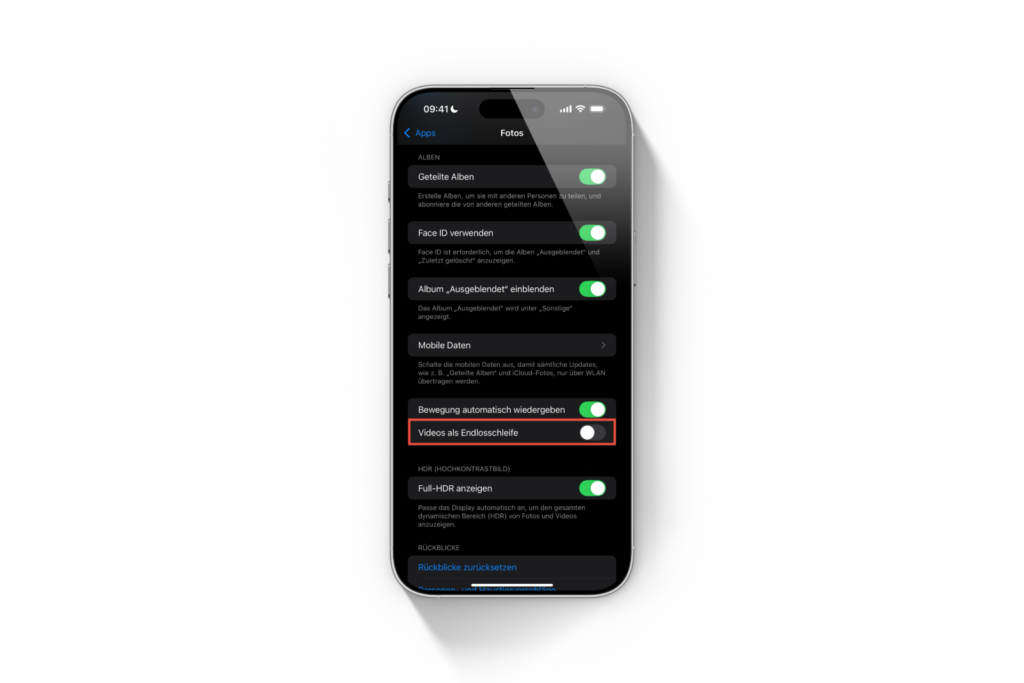
Disable endless loop in the Photos app

You can find the auto-repeat setting directly in your iPhone or iPad's settings. Here's how to turn it off:

  • Open the settings on your device
  • Scroll down and tap Apps
  • Select photos
  • Scroll down to the Loop Videos option
  • Turn the function OFF

Once this setting is disabled, videos in the Photos app will only play once and then stop automatically.
Photos app videos in endless loop
Image: Apfelpatient

Turn off automatic video playback

If you're not only bothered by the endless loop, but also by the fact that videos start playing immediately when you open them, you can adjust another setting.

  • Go to Settings again
  • Select Apps and then Photos
  • Find the option “Autoplay motion”
  • Turn it OFF

This means videos only start when you consciously press the play button. This saves battery life and ensures your videos only play when you want them to.

  • Why an iPhone? These advantages are convincing in the long term

Customize the Photos app: Here's how

The automatic loop in the Photos app may be convenient for some users, but it's often rather annoying. If you don't want it, you can disable it in the settings with just a few clicks. The same customization is also possible for autoplay. This way, you retain control over your videos and can play them exactly as you like. The best products for you: Our Amazon Storefront offers a wide selection of accessories, including those for HomeKit. (Image: Apple)

  • Create unique images with Apple Intelligence on iPhone
  • iPhone Tip: Stop lock screen access to Control Center
  • Visual Intelligence explains: How to use the iPhone camera
  • Apple Intelligence: The best tips for your Photos app
  • AirPods Pro 2 & AirPods 4: How to use Adaptive Audio

Make Apfelpatient a preferred source One click – and you'll see us more often on Google
Was this article helpful?
YesNo
Tags: Apple ServicesiOSiPadOS
SendShareSend
Share

Our Amazon Storefront

A handpicked selection of products for iPhone, Mac and more – sorted by topic and updated regularly.

Shop Now

This post contains affiliate links (including Amazon). We earn a small commission on qualifying purchases – at no extra cost to you. Learn more on our Partner Program page.

Previous Post

iPhone 17 Pro: Leak shows new camera bar design

Next Post

iPhone 17 – The most important innovations at a glance

Milan Jovicic

Milan Jovicic

Milan founded Apfelpatient in 2016 and has been responsible for all editorial content since 2018 — news, rumors, guides, and product reviews. Apple devices here are not test units on loan for two weeks but everyday tools: from the iPhone through MacBook Pro, MacBook Air, and iMac to the Apple Vision Pro, at least one device from nearly every product category is in daily use, many of them replaced annually. Every menu path in a guide is verified on the device before it is published.

Glass panel set into the aluminium frame on the back of an iPhone 17 Pro Max in Cosmic Orange, whereas the iPhone 20 glass design is said to wrap the glass around the edges

iPhone 20: Glass design is not supposed to be scrapped after all

August 12, 2026 - 2:50 PM CEST
Jennifer Bailey on stage at an Apple event in front of a projected Apple Card, the Apple Pay chief is leaving the company in October

Apple Pay: Jennifer Bailey is leaving Apple in October

August 12, 2026 - 2:31 PM CEST
Four stacked MacBooks seen from the port side with MagSafe 3 and USB-C, where each model needs a different MacBook power adapter for full charging speed

MacBook power adapter: What wattage does your model need?

August 12, 2026 - 2:14 PM CEST

About APFELPATIENT

APFELPATIENT brings you the latest Apple news, product updates, guides, reviews and tips across the entire Apple ecosystem — from the iPhone to the Mac to the Apple Vision Pro. From the first rumors to confirmed news: researched responsibly.

Follow Apfelpatient

Facebook Instagram YouTube Threads Threads

Company

  • About Apfelpatient
  • Contact
  • Author Profiles

Community

  • Netiquette
  • Push Notifications
  • RSS feed

Legal

  • Legal Notice
  • Privacy Policy
  • Terms of Use
  • Cookie Settings
  • Affiliate Program

Resources

  • Sitemap

© 2026 Apfelpatient. All rights reserved.

No Result
View All Result
  • Home
  • News
  • Rumors
  • Tips & Tricks
  • Reviews
  • Insights

© 2026 Apfelpatient. All rights reserved. Page Directory

Change language to Deutsch



