

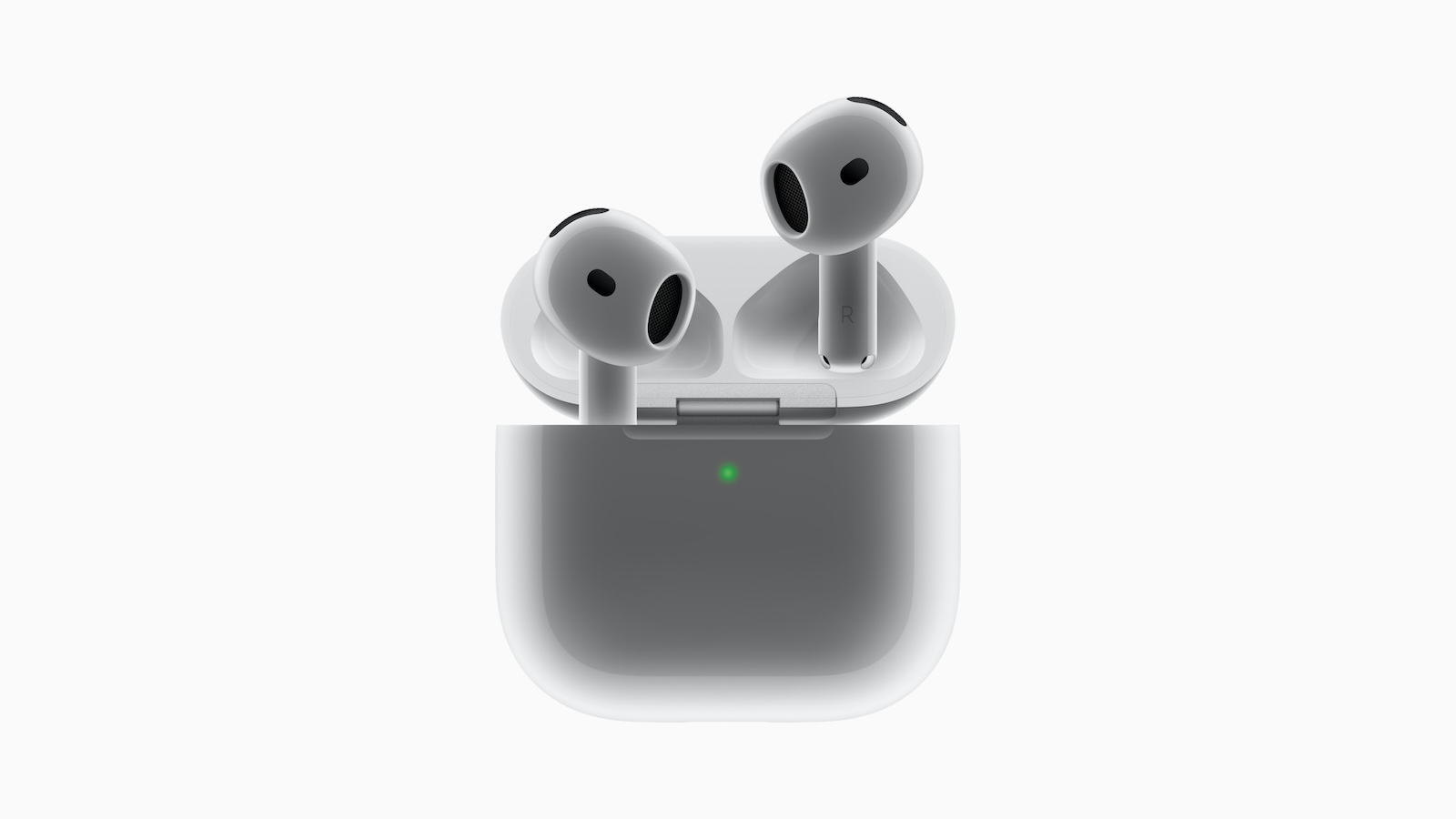
AirPods are among the most popular in-ear headphones, not only because of their signature Apple design, but also because of their technical features. One of these features is Adaptive Audio – a feature that has been significantly enhanced with iOS 18. Users of second-generation AirPods Pro or the new AirPods 4 can use Adaptive Audio to adjust noise control, volume, and call detection to their environment better than ever before. Below, you'll learn how to set up Adaptive Audio, what it does exactly, and which settings are useful in which situations.
Until iOS 18, Adaptive Audio was a simple on or off feature. Either everything is active or nothing at all. With the new update, you can finally control how your AirPods react to ambient noise in more detail. Apple has responded to user feedback and now gives you more flexibility to customize the sound to suit your needs. This can make a real difference, especially in everyday life—whether on the go, at the office, or while studying.
What is Adaptive Audio?
Adaptive Audio consists of three functions that work in combination:
- Adaptive Noise Control: Automatically switches between transparency mode and active noise cancellation depending on how loud or quiet your environment is
- Personalized volume: Automatically adjusts the volume to your preferences and ambient conditions
- Conversation Awareness: Detects when you are talking to someone, automatically lowers the music volume and amplifies voices
These three elements combine to minimize your time spent fiddling with settings. Your AirPods handle it for you – intelligently and in real time.
Manually set up Adaptive Audio in iOS 18
New with iOS 18 is the ability to not only enable Adaptive Audio but also adjust the level of noise cancellation. To do this, you need an iPhone with iOS 18 or later and either AirPods Pro 2 or AirPods 4.
How to set up Adaptive Audio
- Connect your AirPods to your iPhone
- Open the settings
- Tap your AirPods at the top once they are connected
- Select the menu item “Noise Control”
- Tap “Adaptive”
- Scroll down to “Audio” and tap “Adjust Adaptive Audio”
- Use the slider to adjust the level of noise cancellation – from “More noise” to “Less noise”
Moving the slider toward "Less Noise" increases active noise cancellation. "More Noise" lets in more ambient noise, while Adaptive Audio remains active.
When which setting makes sense
These new customization options make particular sense in certain everyday situations. Here are a few examples:
- When commuting by bus or train, a medium setting can be helpful. You block out ambient noise while still being able to hear announcements.
- In an open-plan office, “More Sounds” is useful if you don’t want to completely block out conversations or your phone
- When studying in a café or library, “Less Noise” can help you concentrate better if you can’t handle distracting noises
You can change the settings at any time, depending on where you are and how much you want to be aware of your surroundings.
More new features with iOS 18 for AirPods
Adaptive Audio isn't the only new feature. With iOS 18, Apple has also introduced other features for the AirPods that are particularly interesting in the areas of hearing health and accessibility. The AirPods Pro 2 can now test your hearing. If the system detects any abnormalities, you can even use the AirPods as simple hearing aids. There are also rumors that a live translation feature for the AirPods will be released later this year. This allows you to have spoken language translated in real time—especially useful when traveling or in a professional environment.
Adaptive Audio: Fine-tuning for every environment
With Adaptive Audio on AirPods 4 and AirPods Pro 2, you get a flexible way to adapt the sound environment to your everyday life. The feature combines automatic noise control, intelligent volume adjustment, and call detection. And with iOS 18, you can now, for the first time, determine how strongly or weakly these features intervene. If you use your AirPods regularly, it's definitely worth trying out the new settings. This way, you can get the most out of your headphones – without any effort. The best products for you: Our Amazon Storefront offers a wide selection of accessories, including those for HomeKit. (Image: Apple)
- Apple explains: How to update the firmware of your AirPods
- Quiet sounds from the AirPods Pro 2 charging case – what’s behind it
- Apple Audio Lab: The path to the world's best listening experience
- AirPods Pro 3: Apple plans major innovations for 2025





