


With macOS Sequoia, Apple has integrated Apple Intelligence into many areas of the system. Search functions, including Spotlight and Siri, are particularly affected. These now use AI-powered suggestions to optimize search queries. This isn't beneficial for all users. Some value a classic search experience without AI, while others are concerned about privacy. Apple currently doesn't offer an easy way to remove Apple Intelligence from search. Those who want to disable it must adjust several settings. This article explains step by step how to disable Apple Intelligence in macOS Search and Spotlight.
Apple Intelligence is changing how macOS processes requests. It's no longer just about local files or apps, but a mix of local data and AI-generated suggestions. Siri and Spotlight are particularly affected. The main problem is that Apple doesn't draw clear lines between the individual functions. Disabling Siri doesn't automatically disable Apple Intelligence. Disabling Apple Intelligence may also result in the loss of features that aren't directly related to AI. The options are confusing, but there are ways to limit or completely disable AI-driven search.
Apple Intelligence in macOS Search
Apple Intelligence is integrated directly into Search. Once enabled in System Preferences, Apple Intelligence also works in Spotlight. There's no direct way to disable AI integration in Search. When enabled, Apple Intelligence influences search queries in several ways:
- Spotlight uses AI to supplement or prioritize results
- Siri uses Apple Intelligence when enabled
- Search queries can be sent to Apple to improve results
To completely remove Apple Intelligence from search, you must disable it in System Preferences. However, this will also affect other features.
Apple Intelligence and Siri
Siri only uses Apple Intelligence if it's enabled in Settings under Apple Intelligence & Siri. If Apple Intelligence is disabled, Siri will return to its pre-Sequoia behavior. There are several configuration options:
- Enable Apple Intelligence and Siri, but disable Siri suggestions in Spotlight
- Disable Apple Intelligence but leave Siri on
- Enable Apple Intelligence but disable Siri
The interaction between Siri and Apple Intelligence isn't entirely transparent. In System Preferences, the two areas are linked, but not directly dependent.
Use Spotlight without AI suggestions
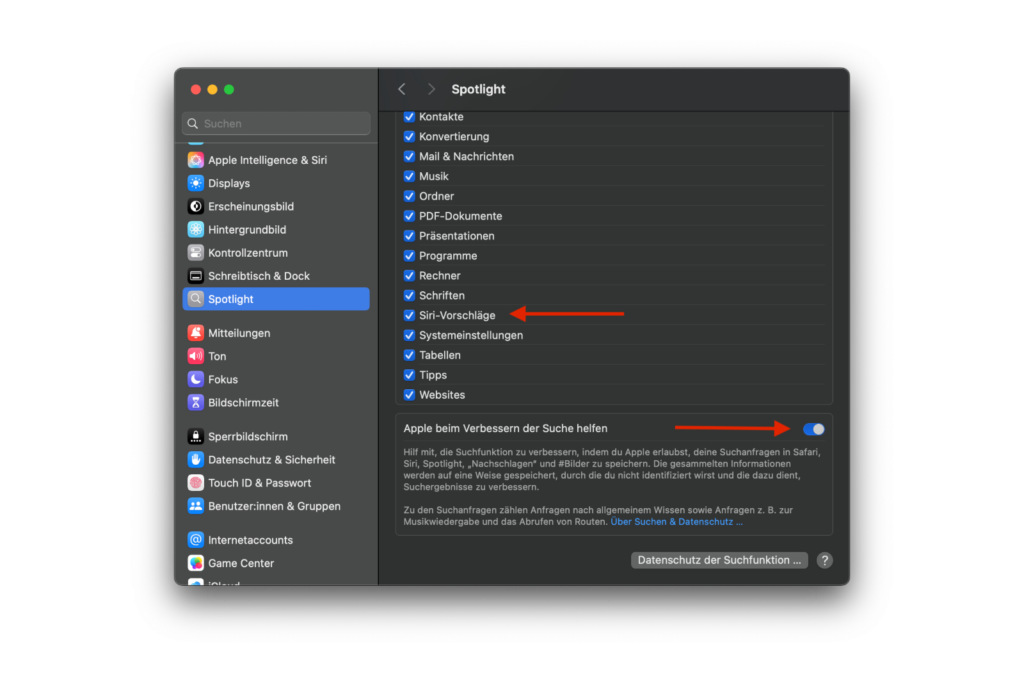
Spotlight is the central search feature of macOS. By default, it now uses Apple Intelligence if enabled in System Preferences. If you don't want this, you can disable certain suggestions.
- Open System Preferences
- Navigate to Spotlight
- Disable Siri suggestions
This will prevent AI-generated suggestions from appearing in Spotlight as long as Siri is enabled. There's also an option to prevent search queries from being sent to Apple. This can also be found in System Preferences under Spotlight. There, you can uncheck the box for sending search queries to Apple.
Effects of the different settings
The combination of Apple Intelligence, Siri and Spotlight leads to several possible scenarios:
- Disable everything: Spotlight works as usual without AI
- Enable Apple Intelligence and Siri, but disable Siri suggestions: Siri works with AI, but Spotlight remains unchanged
- Disable Apple Intelligence, enable Siri: Siri remains active, but without AI support
- Enable Apple Intelligence, disable Siri: Siri is off, but Apple Intelligence remains active in Spotlight
- Apple Intelligence off, Siri on, Siri suggestions on: Siri remains active and provides suggestions in Spotlight, but AI-powered features are turned off
The settings aren't ideal. Apple doesn't clarify exactly which functions are affected by Apple Intelligence and which aren't.
macOS: How to use Spotlight without AI-powered search
Apple Intelligence is deeply integrated into macOS Sequoia. AI-powered search is enabled by default, especially in Spotlight and Siri. There's no direct way to disable Apple Intelligence for search only. Those who want to use Spotlight without AI can turn off Siri suggestions. The safest way to remove Apple Intelligence from Spotlight is to completely disable it in System Preferences. However, this also means losing other Apple Intelligence features. Apple would need to offer more settings options to give users more control. Until then, the only option is to manually adjust System Preferences to use Spotlight and Siri without Apple Intelligence. Discover a whole range of useful tips and tricks related to Apple Intelligence! Here you'll find everything you need to make the most of the smart features of your Apple devices – enjoy browsing and trying them out! The best products for you: Our Amazon Storefront offers a wide selection of accessories, including those for HomeKit. (Image: Apple)
- Create unique images with Apple Intelligence on iPhone
- Apple Intelligence: Multiple languages possible?
- Using Apple Intelligence with Siri: Tips for your iPhone
- ChatGPT with Apple Intelligence: Easy setup on the iPhone
- Visual Intelligence explains: How to use the iPhone camera
- Limit Apple Intelligence: How to use screen time correctly
- Using Apple Intelligence in the Messages app
- Apple Intelligence: The best tips for your Photos app
- With Apple Intelligence: Focus and notifications under control
- Apple Intelligence: Quickly summarize web pages
- Apple Intelligence in the Mail app: All functions at a glance
- Setting up Apple Intelligence: Simple instructions and tips
- Apple Intelligence: How the "writing tools" work





