

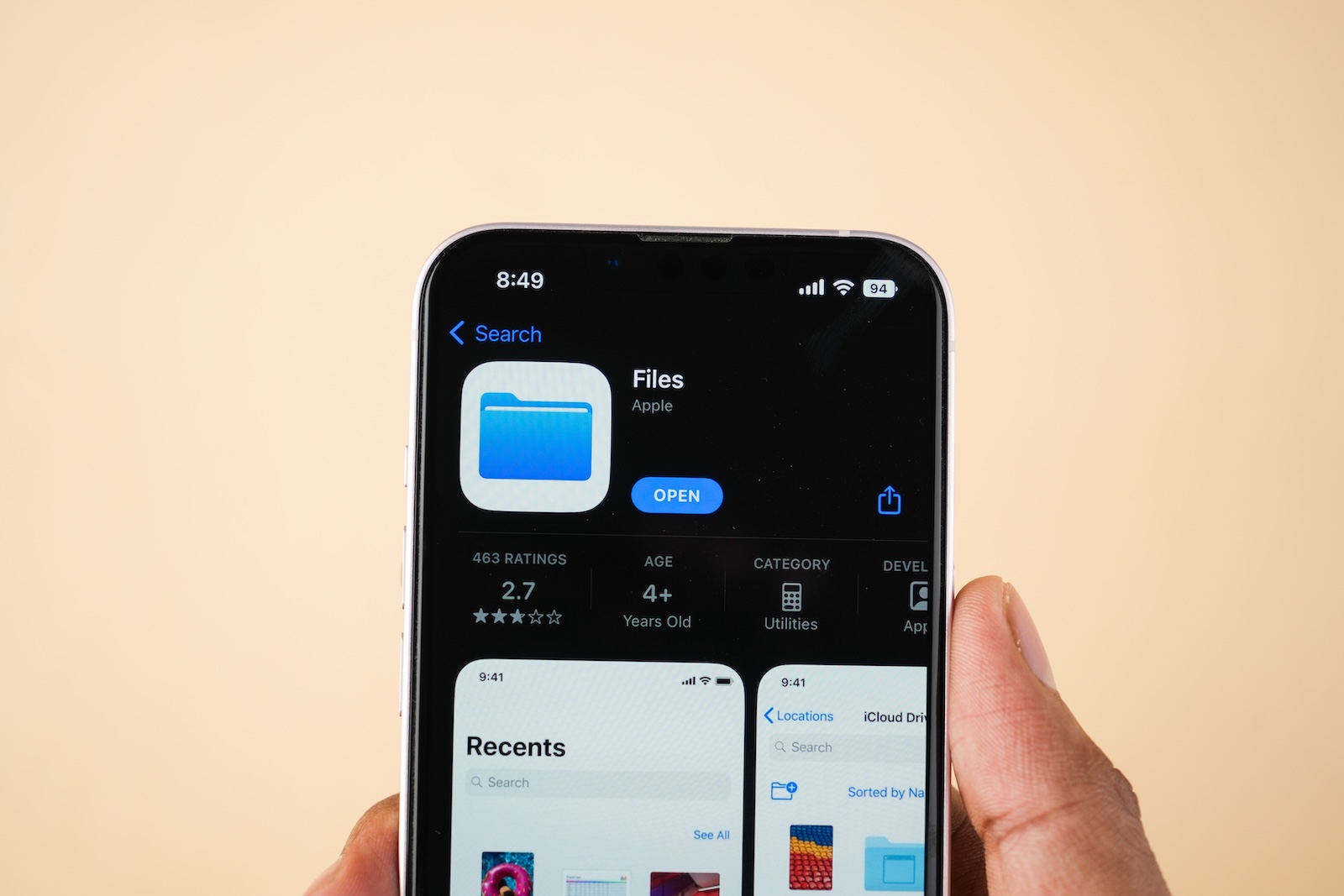
The Files app on the iPhone is still an underrated tool for many users. Not only can you use it to open documents, but you can also manage cloud services, use external storage, and even set up automations. If you want to use your iPhone more productively in your everyday life, it's worth taking a closer look at this app. With the following six tips, you'll get significantly more out of the Files app – whether you work with documents a lot for work or simply want to organize your personal life.
In everyday life, files quickly accumulate on the iPhone: email attachments, PDFs, photos, ZIP archives, screenshots. Without a clear structure, it's easy to lose track. This is exactly where the Files app comes in. It's pre-installed, free, and can do more than most people think. If you use its features purposefully, you'll maintain control over your data, find important content faster, and save yourself unnecessary steps. The tips in this article are easy to implement and will noticeably improve how you handle documents on your iPhone.
Centralize cloud services in the Files app
If you use multiple cloud services, you can integrate them all directly into the Files app. Open the app, go to "Browse" at the bottom, and tap "Edit" in the top right corner. There you can enable or disable services like iCloud Drive, Dropbox, Google Drive, or OneDrive. You can change the order of the displayed storage locations using drag and drop. This way, you have all your cloud data in one place—without having to constantly switch between different apps.
Use tags and favorites for quick access
Tags allow you to sort your files by topic. To do this, long-press on a file or folder and select "Tags." You can add colorful keywords like "Invoice," "Work," or "Personal." In the "Tags" section of the sidebar, you'll then find all files with a specific keyword. For particularly important folders or files, the "Add to Favorites" function is useful. This permanently displays the content at the top of the sidebar—convenient for frequently accessed projects.
Use smart folders and views
In the "History" tab, your iPhone automatically shows you the files you've recently used. If you want more control, you can create smart folders. To do this, long-press a folder in the Files app and select "New Smart Folder." Here you can specify criteria such as file type, name, or tags. The smart folder will then automatically display all files that match these rules—for example, all PDFs from the last week. This view is constantly updated, saving you the hassle of manually sorting.
Connect external storage
With iPhone 15 or later, you can also connect external storage devices like USB sticks or SD cards directly thanks to the USB-C port—without having to go through your Mac. As soon as you plug in a device, it automatically appears in the Files app under "Browse." You can copy, move, or open files directly. This is especially useful for large files like presentations, videos, or image archives when you want to access them on the go.
Using Quick Actions correctly
If you long-press a file, the so-called Quick Actions appear. Here you can quickly rename, compress, split, or mark up files – without having to fully open the file first. The "Markup" function is particularly useful, allowing you to directly comment on PDFs or add handwritten notes. This saves time and reduces the need for additional apps.
Create shortcuts and automations
With the Shortcuts app, you can automate recurring tasks. For example, create a shortcut that automatically converts all new photos from a specific folder to a PDF and saves them to iCloud Drive. You can make this shortcut available on your home screen, as a widget, or within the Files app itself. This way, you only need one tap to complete an entire task. This is a huge time saver for many everyday processes.
Your iPhone can do more: How to get the most out of the Files app
The Files app on your iPhone is more than just a file viewer. With the right settings and features, it becomes a versatile tool for everyday use. You can bundle cloud services, organize files cleverly, use external storage, and even set up automations – all directly on your iPhone. If you regularly apply these six tips, you'll quickly notice how much more efficient document management becomes. The best products for you: Our Amazon Storefront offers a wide selection of accessories, including those for HomeKit. (Image: Shutterstock / sdx15)
- How to back up your photo library in macOS Sequoia
- iPhone & Co.: How to deactivate the advanced visual search
- Extend iPhone battery life: These 7 tips help immediately
- Using iPhone Live Text – The best tips for on the go
- Make the most of iPhone screen time – 7 effective tips
- Optimize iPhone battery health: 7 tips to save battery life
- Extend iPhone battery life: These 7 tips help immediately
- Using iPhone Accessibility Features: 7 Features at a Glance
- Apple Intelligence: From which iPhone is it available?
- iPhone & Co.: How to deactivate the advanced visual search
- Extend iPhone battery life: These 7 tips help immediately
- Editing iPhone RAW photos – 8 simple pro tips
- iPhone & Co.: How to deactivate the advanced visual search
- Extend iPhone battery life: These 7 tips help immediately
- Apple Music in iOS 26: Music Pins make access easier
- Setting up iPhone widgets: These 6 tricks you need to know
- Set up Apple Pay on your iPhone – quickly and securely
- Why an iPhone? These advantages are convincing in the long term
- Secure your iPhone properly: 5 important functions at a glance
- Save iPhone battery: When is power saving mode worth it?
- Use Apple Wallet safely, conveniently, and efficiently – 7 tips
- LG or Samsung Smart TV? How to disable tracking
FAQ – iPhone Files App: Organization & Efficiency
The Files app is a pre-installed app from Apple that lets you manage documents, photos, ZIP archives, and other files. It supports both internal storage and various cloud services.
Yes. You can integrate iCloud Drive, Dropbox, Google Drive, OneDrive, and other providers directly into the app. All storage locations will then appear centrally in one place.
Use tags (colored keywords) and favorites to sort files and folders thematically and enable quick access.
Smart folders automatically filter files by criteria such as file type, name, tag, or date. This way, you can see all PDFs from the last week at a glance, for example.
Starting with the iPhone 15 (with USB-C), you can connect USB sticks, SD cards, or external hard drives directly. They appear immediately in the Files app and can be used like normal storage locations.
Quick Actions are shortcuts that appear when you long-press a file. They let you quickly rename, split, compress, or tag files directly.
Yes. With the Shortcuts app, you can create automations, such as automatically converting and saving all photos from a folder to a PDF.
Absolutely. Whether it's bills, vacation photos, or university documents – with tags, favorites, and smart folders, you can keep your files organized and accessible at all times.





