

This article may contain affiliate links. Learn more on our Partner Program page.
Spam calls have become a part of everyday life and a real nuisance for many. More and more people are avoiding answering unknown numbers for fear of spam calls or scams. With iOS 26, Apple is introducing a new feature that addresses precisely this problem. The iPhone can now automatically ask for the reason for a call before even hearing a ringtone. This allows you to know who's calling and why before you answer the phone.
Previously, there was only one simple solution for unwanted calls on the iPhone: "Mute unknown callers." This option forwarded all unknown numbers directly to voicemail – helpful, but not always practical. After all, an unknown number can also be important calls, such as from doctor's offices, repairmen, or delivery services. Apple aims to solve this problem with the new iOS 26 feature "Ask me why I'm calling." It ensures that calls from unknown numbers are automatically filtered without completely blocking them. This makes making phone calls on the iPhone more flexible and secure.
How “Ask reason for call” works
When an unknown number calls, the iPhone answers automatically – but not in the traditional sense. Instead of a ringtone, the caller is greeted with a short, friendly automated message. This asks for their name and the reason for the call. While the caller answers, the voice response is converted to text and displayed on the iPhone screen. This makes it easy to see at a glance who is calling and why before deciding whether to accept or reject the call. If desired, you can also request further information if the initial response is not sufficient. This method is much more practical than the previous "silencing unknown callers" option. It allows real calls to be accepted, whereas annoying robocalls and spam attempts are usually blocked by the automated greeting. Those who lack the patience to interact with a digital receptionist usually just hang up.
Benefits of the new feature
This new feature provides more control and peace of mind in everyday life. It prevents unnecessary ringing, protects against spam, and still allows you to avoid missing important calls. It's particularly useful in situations where calls from new or changing contacts are expected—for example, for delivery services, doctor's appointments, or handyman calls. The feature also helps you keep track of everything: The text with the name and reason for the call is displayed directly, so it's immediately clear whether a call back is advisable. Apple thus combines convenience with security—two aspects that are particularly important to many iPhone users.
How to activate “Ask reason for call”
Activation is simple and can be completed in just a few steps.
- Open Settings on the iPhone.
- Scroll down and select “Apps.”
- Open the “Phone” item.
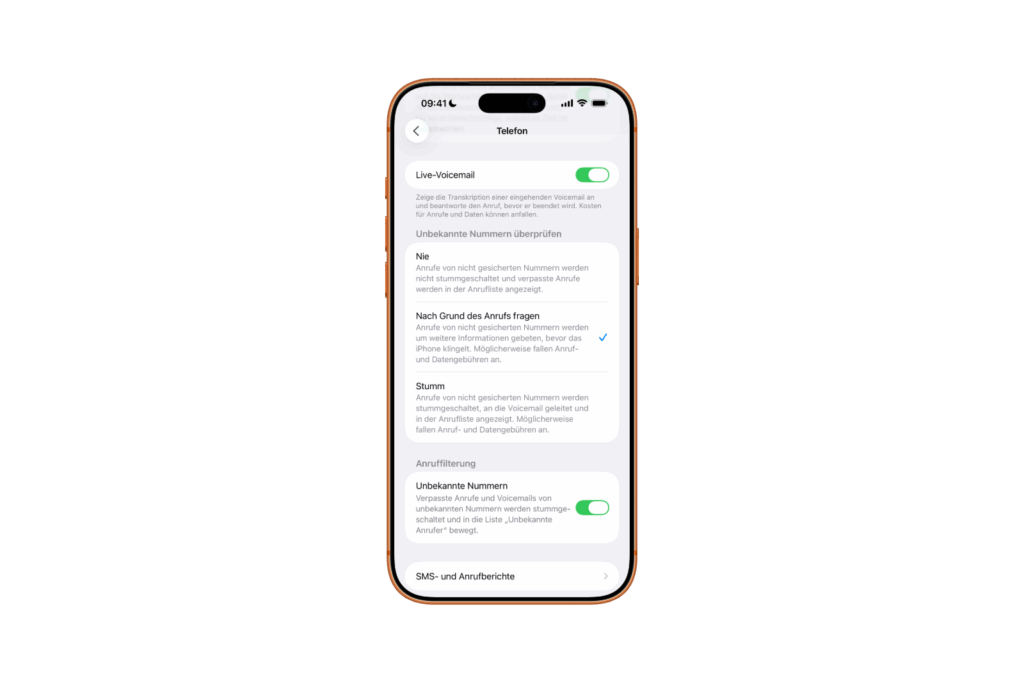
- Under “Check Unknown Callers,” tap “Ask Why They Called.”
Once the feature is enabled, the iPhone automatically activates when an unknown number is called and asks the caller what they're calling. The answer then appears on the screen – without a ringtone or interruption.
Alternative options for unknown callers
Apple continues to offer various options for dealing with unknown numbers in iOS 26.
- Mute: This setting ensures that all calls from unsaved numbers are forwarded directly to voicemail. They will still appear in the call log, and if the caller leaves a message, it will be saved as usual. This behavior corresponds to the familiar "Mute Unknown Callers" option from older iOS versions.
- Never: With this option, calls from unknown numbers are forwarded normally. The iPhone rings as if it were a saved contact. Missed calls also appear in the "Recently Called" list.
To switch between these options, simply visit Settings → Apps → Phone → Check Unknown Numbers. There, you can specify at any time whether unknown calls should remain silent, filtered, or allowed directly.
Keep contacts up to date
To ensure the new feature works smoothly, it's worth updating your contact list regularly. With every incoming call, the iPhone checks whether the number is already saved. Only unknown numbers are intercepted and checked. If new numbers—such as those of doctors, service providers, or colleagues—are known, they should be added directly to your contacts to avoid the filtering process.
How the iPhone elegantly keeps spam calls away
With iOS 26, Apple is making the iPhone a bit smarter. The "Ask Why I'm Calling" feature offers a clever balance between convenience and spam protection. Unknown calls aren't simply blocked, but rather gently screened. This keeps the iPhone quiet until it's clear whether a call is really worth making. For anyone fed up with unwanted calls, this is a simple yet effective improvement—and another step toward making the iPhone more than just a phone, but a smart assistant in everyday life. The best products for you: Our Amazon Storefront offers a wide selection of accessories, including those for HomeKit. (Image: Apple)
- iOS 26: New option saves time and data when sending photos
- iOS 26: Over 10 hidden features everyone needs to know
- iOS 26: Visual intelligence now also for screen content
- iPhone 17: How iOS 26 colors your app icons
- iOS 26: Use polls directly in the Messages app
- New iOS 26 feature: Use live translation with AirPods
- Discover and manage games with the Apple Games app
- iPhone 17: Tips for using the Center Stage front camera
- iPhone 17 Dual Capture explained: Using the front and rear cameras
- iOS 26 Screenshot Disable full screen and enable old view
- iPhone 17: Disable or customize the camera control button
- iPhone Tip: Live Translation in Messages, Phone & FaceTime
- iOS 26: Filter messages, block spam & keep track
- Setting up your iPhone correctly: Check, block, and filter calls
- Keep an eye on your blood pressure: How the iPhone Health app helps
- Apple explains Apple Watch high blood pressure warnings
- Setting up Apple Music transitions: AutoMix or Crossfade
- macOS 26: Automatically connect iPhone hotspot
- watchOS 26: Why the Apple Watch sometimes charges slowly
- iOS 26: Reduce transparency for more clarity
- Find and adjust the camera flash in iOS 26 – here's how
- iOS 26 makes Adaptive Power the norm on the iPhone 17 series
- iOS 26 Tip: Unlock iPhone with Apple Vision Pro
The new iPhone feature “Ask why I’m calling” in iOS 26
This feature ensures that the iPhone automatically asks unknown callers for their name and the reason for the call. The answer is displayed as text before the device rings, allowing you to immediately decide whether to accept the call.
Activating it is easy: In Settings, go to Apps → Phone → Check Unknown Numbers and select "Ask me why I'm calling." Your iPhone will then automatically filter all unknown calls.
The “Ask Why I’m Calling” feature is part of iOS 26. It is available on all iPhones that support this update—including current models like the iPhone 17, but also some older devices.
Yes. While "Silence Unknown Callers" sends all unknown numbers directly to voicemail, the new iPhone feature actively asks for the reason for the call. This allows important calls to be identified while spam remains blocked.
Indirectly, yes. The feature prevents spam calls from getting through because many automated calling systems (robocalls) hang up as soon as they hear the automated iPhone message. This intercepts the majority of unwanted calls.
No. All numbers stored in the iPhone contact book will be connected as usual. Only unknown or unsaved numbers will trigger the query.
If there's no answer, the iPhone simply displays nothing. In this case, you can decide whether to ignore the call or answer it manually. In most cases, spam callers will then abandon the attempt.
It saves time, prevents unnecessary interruptions, and ensures greater security when making phone calls. The iPhone displays only relevant calls and automatically excludes spam—especially useful in everyday work life or when you frequently change contacts.
Yes. You can change this setting at any time in your iPhone's options. Simply go to Settings → Apps → Phone → Check Unknown Numbers and select a different option, such as "Silence" or "Never."
To ensure the iPhone can correctly classify calls, the contact list should be kept up-to-date. New numbers—such as those from doctors, schools, or delivery services—should be saved immediately so they aren't filtered unnecessarily.