

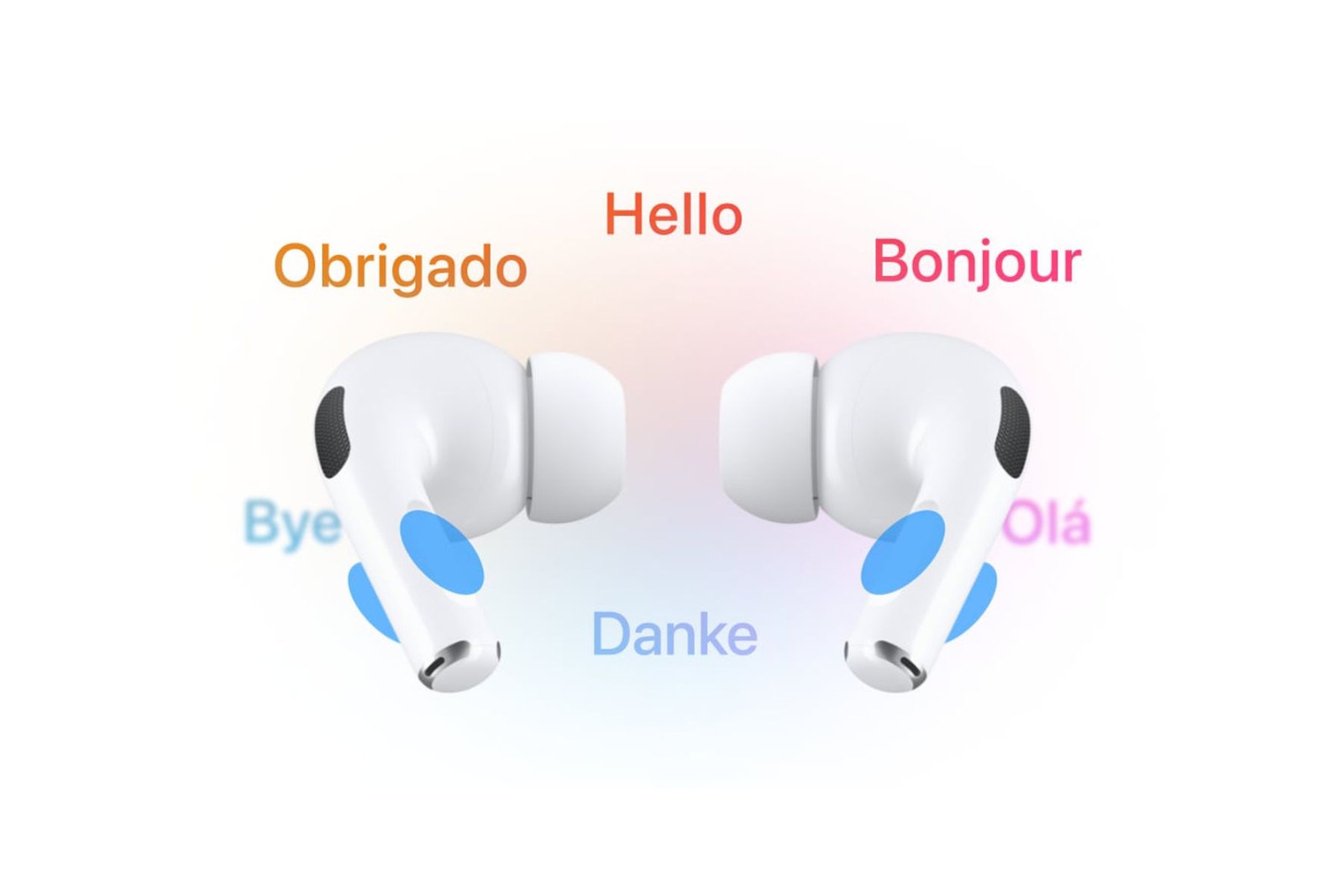
With iOS 26, Apple is introducing a feature that significantly simplifies everyday language use: Live Translation with AirPods. Conversations across language barriers are now more natural, fluid, and, above all, hands-free. Whether on the go, in meetings, or in private, this feature makes communicating with people who speak a different language easier than ever.
Live Translation is deeply integrated into iOS 26 and works in Messages, FaceTime, and phone calls. Text and speech are translated in real time. The technology is most effective when both conversation partners are wearing compatible AirPods. Active noise cancellation automatically adjusts the volume and ensures the translation is prominent while maintaining the flow of the conversation. The feature can also be used without AirPods: The iPhone displays translations on the screen, so even conversation partners without Apple headphones can benefit.
- Important note: In EU member states, the feature will be officially available from December onwards under iOS 26.2.
Conditions for use
Live Translation requires specific devices and software versions for it to work. These include:
- AirPods 4 with active noise cancellation, AirPods Pro 2 or AirPods Pro 3
- an iPhone 15 Pro or newer
- iOS 26 or higher
- the installed translation app
- the current AirPods firmware
Supported languages
At launch, the feature will translate in real time between the following languages: English (UK and US), French, German, Portuguese (Brazil), and Spanish. Apple has already announced that Italian, Japanese, Korean, and Simplified Chinese will be added later this year, further expanding its range of applications.
Setting up live translation
Before your first call, you'll need to download the desired languages. To do this, connect your AirPods to your iPhone, select them in Settings, and then select the appropriate languages under "Translation." Once downloaded, they'll be available at any time.
Start a translation
As soon as the AirPods are connected, you can get started. In the translation app, tap "Live," then select the language of the other person and your target language. Tap "Start translation" to begin the conversation. As soon as the other person speaks, a translation is immediately played into your ear. In a noisy environment, you can use the iPhone microphone to provide additional support by holding it closer to the speaker. You can respond as usual through your AirPods. If you want, you can view a transcript or play the translation in the app. If the other person is also using AirPods with Live Translation enabled, the translation will be played directly in their headphones. To end the conversation, tap the "X."
Quick access for more convenience
To avoid having to start Live Translation through the app every time, there are several shortcuts. You can start it using the iPhone's Action button, by pressing the stems of both AirPods simultaneously, or by using Siri's "Start Live Translation" command. You can also add the feature to the Control Center for direct access at any time.
AirPods: Live Translation as a Highlight of iOS 26
With iOS 26, Live Translation becomes a tool that noticeably reduces language barriers. The connection between iPhone, AirPods, and the translation app ensures seamless communication, whether in personal conversations or in a professional setting. The feature already covers several major world languages, and Apple is working on further expanding the selection. For anyone using a current iPhone and compatible AirPods, Live Translation is one of the most exciting new features in iOS 26. The best products for you: Our Amazon Storefront offers a wide selection of accessories, including those for HomeKit. (Image: Apple)
- Discover and manage games with the Apple Games app
- iPhone 17: Tips for using the Center Stage front camera
- iPhone 17 Dual Capture explained: Using the front and rear cameras
- iOS 26 Screenshot Disable full screen and enable old view
- iPhone 17: Disable or customize the camera control button
- iPhone Tip: Live Translation in Messages, Phone & FaceTime
- iOS 26: Filter messages, block spam & keep track
- Setting up your iPhone correctly: Check, block, and filter calls
- Keep an eye on your blood pressure: How the iPhone Health app helps
- Apple explains Apple Watch high blood pressure warnings
- Setting up Apple Music transitions: AutoMix or Crossfade
- macOS 26: Automatically connect iPhone hotspot
- watchOS 26: Why the Apple Watch sometimes charges slowly
- iOS 26: Reduce transparency for more clarity
- Find and adjust the camera flash in iOS 26 – here's how
- iOS 26 makes Adaptive Power the norm on the iPhone 17 series
- iOS 26 Tip: Unlock iPhone with Apple Vision Pro
- iOS 26: The most important tips for setup and use
- iOS 26: Impact on battery life after the update
- iOS 26: Use spatial scenes directly in the Photos app
- iOS 26 Update: Markdown Import and Export in Notes Explained
- iOS 26: Easily change backgrounds in iMessage
- iOS 26: Trigger iPhone camera with AirPods – here's how
- How to enable transparent iPhone app icons with iOS 26
- iOS 26: Apple Music finally gets folders for playlists
- iOS 26: Capture reminders faster and easier
Frequently asked questions about iOS 26 and Live Translation
The feature runs on AirPods 4 with active noise cancellation, AirPods Pro 2, and AirPods Pro 3. It also requires an iPhone 15 Pro or later running iOS 26.
Initially, English (UK/US), French, German, Brazilian Portuguese, and Spanish will be supported. Italian, Japanese, Korean, and Simplified Chinese will follow later.
Yes. In this case, the iPhone will display translations and transcriptions on the screen, so that even conversation partners without AirPods can benefit.
After connecting the AirPods to the iPhone, the desired languages can be downloaded in the settings under “Translation”.
Simply open the Translate app, select "Live," set the languages, and tap "Start Translate." Your AirPods will then translate in real time.
Yes. In noisy environments, it helps to hold the iPhone microphone closer to the speaker for more accurate translation.
It can be launched using the Action button on the iPhone, by holding down the AirPods stems, via Siri command, or via the Control Center.
Yes. Before using the app for the first time, you must download the desired languages to the translation app to ensure stable offline operation.
In this case, each conversation partner hears the translation directly in their own AirPods, making the exchange even more natural.
The conversation can be ended at any time in the translation app by tapping the “X”.





