

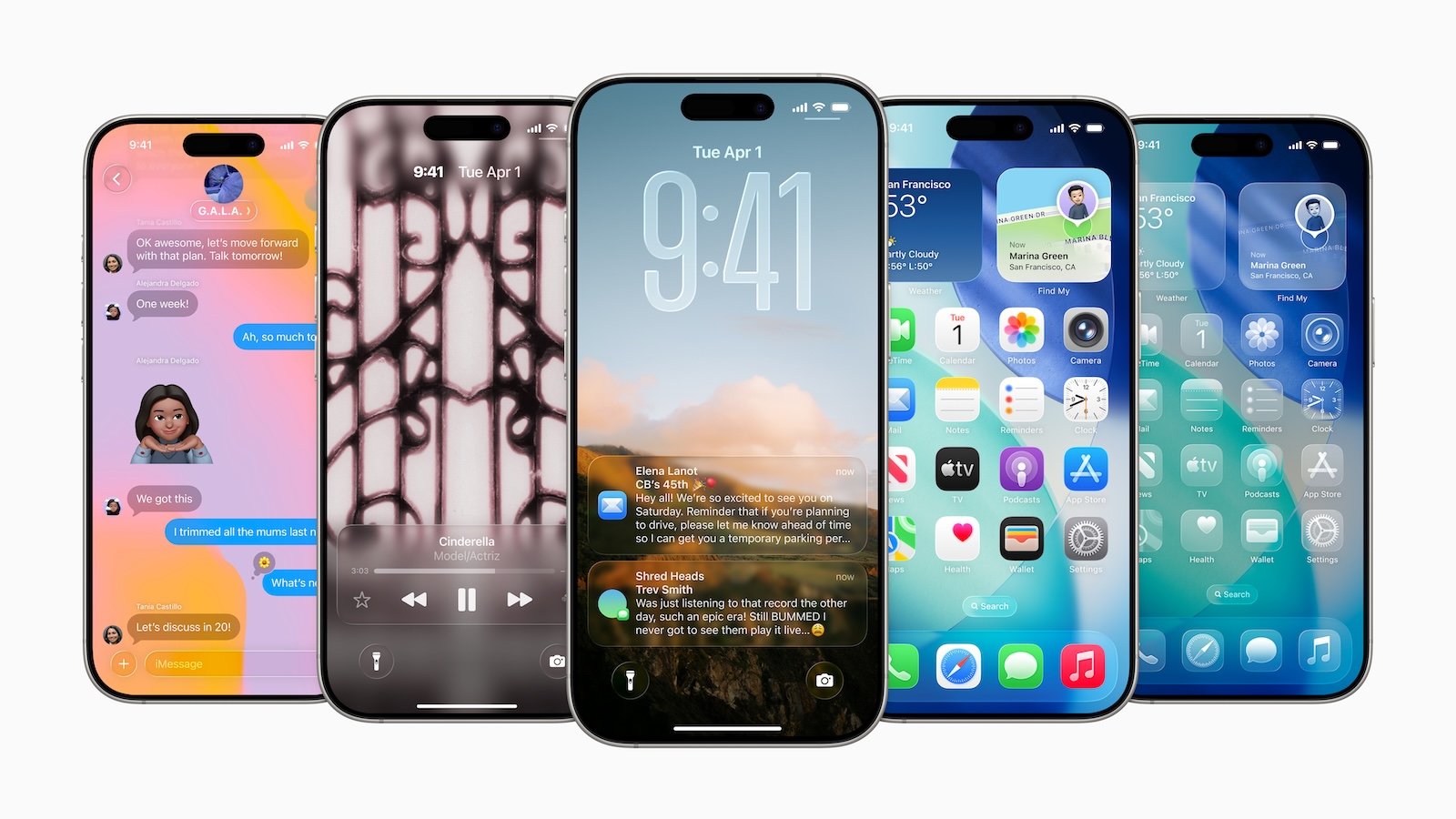
With iOS 26, Apple introduced over 200 new features that make the iPhone more modern, intelligent, and personalized. While the redesigned Liquid Glass design and the expansion of Apple Intelligence are among the most striking changes, there are also many smaller, often overlooked features. These details in particular bring practical benefits to everyday life and ensure greater user comfort.
The hidden features in iOS 26 aren't spectacular showpieces, but they make everyday use noticeably more pleasant. From intelligent improvements in apps like Messages or Photos to personalization options for the Home screen, this collection of small optimizations demonstrates how much Apple cares about user-friendliness. An overview of more than ten underrated details in iOS 26.
Copy only part of a message
Messages can now be processed more precisely. Instead of always having to copy the entire message, you can select and copy just a specific section. This is especially useful for long messages with links or addresses. The function is activated by long-pressing the message and selecting "Select." Then, you can copy the relevant section using drag and drop.
Save recipes and instructions in reminders
Apple Intelligence enhances the Reminders app. Recipes can be converted directly into lists that clearly display ingredients and cooking steps. Simply select the desired text from a source like Safari, Apple News, or another app and share it with the Reminders app. Siri Suggestions analyzes the content and creates shopping lists or instructions. Not every recipe is recognized perfectly, but the feature saves time when organizing.
Set default apps for files
Another useful feature concerns file handling. You can specify which app automatically opens certain file types—such as PDFs, images, or documents. To do this, long-press a file in the Files app; the "Always open with" option appears under "Info." If you only want to open a file once in another app, "Open with" is still available.
Easily add your own ringtones
Ringtones no longer have to be laboriously created via GarageBand. In iOS 26, any MP3 or M4A file from the Files app can be used directly as a ringtone, as long as it's less than 30 seconds long. After selecting it via "Quick View" and "Share," the file can be saved as a ringtone. Added sounds automatically appear in the "Sounds & Haptics" menu under "Ringtones" and can also be deleted there.
Unsent messages in the drafts folder
The Messages app now has a Drafts folder. Texts that have been started but not sent end up there. The folder appears in the "Filters" section, accessible via the three-line icon in the top right corner. If there are no drafts, the category remains invisible.
Improved panoramic photos
The camera app benefits from improvements when capturing panoramas. Movement during panning is better compensated for, making images clearer and less blurry. This also makes capturing a panorama faster.
More precise search in videos
The Photos app now highlights the relevant section of a video in the search function. If you search for "jumping cat," for example, you'll see the exact spot in the video where the cat jumps. A tap takes you directly there, without having to search through the entire clip.
Notification when camera is dirty
A new notification warns you when the rear camera is dirty. This improves image quality and prevents blurry photos. The feature is available on the iPhone 15 and newer models.
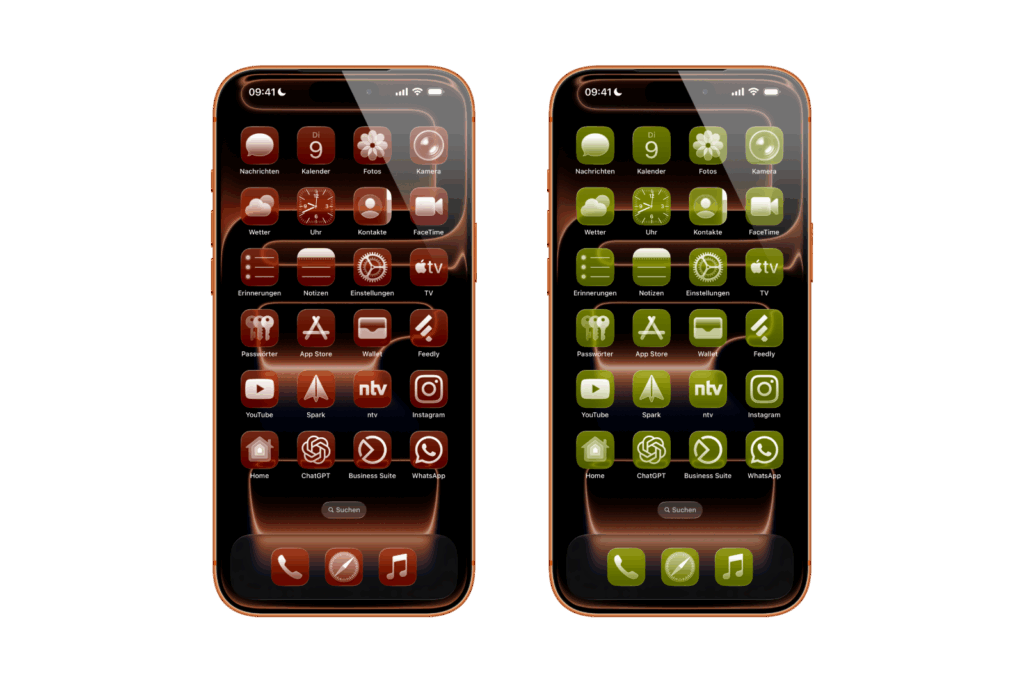
Customizable icons on the home screen
Icons can be color-coordinated to match the iPhone case. With a MagSafe case, iOS 26 detects the color and adjusts the app icons accordingly. The device color itself can also serve as a base. Customization is done by long-pressing the Home screen, selecting "Edit," and then "Customize."
Event details in photos
Photos from concerts or sporting events now contain additional information. Using the "Info" feature, iOS 26 displays, for example, an artist's most popular songs or upcoming events. However, indexing doesn't work for all images.
Callback reminders for missed calls
You can set reminders for missed calls in the Phone app. Swiping left reveals options like "Remind me in 1 hour," "Remind me tonight," or "Remind me tomorrow." You can also set a custom date and time using "Remind me later." The reminders appear in the Reminders app.
Keep audio in headphones
A new setting prevents AirPods audio from automatically switching to other devices, such as Bluetooth speakers or the car. The "Keep Audio in Headphones" option can be enabled under Settings → General → AirPlay & Continuity.
Optimized swipe back gesture
The swipe gesture for navigation has been redesigned. Instead of swiping from the edge of the display, you can now swipe right from any point on the screen to return to the previous screen. This makes operation smoother and more intuitive.
iOS 26 focuses on everyday usability
iOS 26 brings not only major innovations like the Liquid Glass design and Apple Intelligence, but also many smaller, practical tweaks. Whether copying text, searching videos, or creating ringtones – the detailed improvements make everyday use of the iPhone easier and more flexible. These subtle features in particular demonstrate Apple's focus on convenience, efficiency, and personalization. The best products for you: Our Amazon Storefront offers a wide selection of accessories, including those for HomeKit. (Image: Apple)
- iOS 26: Visual intelligence now also for screen content
- iPhone 17: How iOS 26 colors your app icons
- iOS 26: Use polls directly in the Messages app
- New iOS 26 feature: Use live translation with AirPods
- Discover and manage games with the Apple Games app
- iPhone 17: Tips for using the Center Stage front camera
- iPhone 17 Dual Capture explained: Using the front and rear cameras
- iOS 26 Screenshot Disable full screen and enable old view
- iPhone 17: Disable or customize the camera control button
- iPhone Tip: Live Translation in Messages, Phone & FaceTime
- iOS 26: Filter messages, block spam & keep track
- Setting up your iPhone correctly: Check, block, and filter calls
- Keep an eye on your blood pressure: How the iPhone Health app helps
- Apple explains Apple Watch high blood pressure warnings
- Setting up Apple Music transitions: AutoMix or Crossfade
- macOS 26: Automatically connect iPhone hotspot
- watchOS 26: Why the Apple Watch sometimes charges slowly
- iOS 26: Reduce transparency for more clarity
- Find and adjust the camera flash in iOS 26 – here's how
- iOS 26 makes Adaptive Power the norm on the iPhone 17 series
- iOS 26 Tip: Unlock iPhone with Apple Vision Pro
Frequently Asked Questions about iOS 26
iOS 26 brings over 200 changes, including the Liquid Glass design, Apple Intelligence, and many small but useful everyday features.
Yes, any MP3 or M4A file under 30 seconds can be saved directly as a ringtone – without having to use GarageBand.
No, the dirty rear camera warning is only available on iPhone 15 and newer models.
When you search for a keyword, the Photos app displays the relevant scenes in videos as thumbnails and immediately jumps to the relevant point.
Yes, you can define which app should automatically open certain file types such as PDFs, images or documents.
The back gesture now works from any part of the display, not just from the edge – making operation smoother.





