

Apfelpatient
  • Home
  • News
  • Rumors
  • Tips & Tricks
  • Reviews
  • Insights
No result
View All Results
  • iPhone 18
  • iPhone 18 Pro
  • iPhone Duo
  • Apple Home
  • Siri AI
  • HomePod
  • HomePod mini
  • HomePod mini 2
  • MacBook Pro
  • Apple TV 4K
  • Apple Watch Series 12
  • Apple Watch Ultra 4
  • AirPods 5
  • iOS 27
  • iPadOS 27
  • macOS
  • MacBook Neo
  • iPhone 17e
  • AirTags
  • iOS 26
  • iPhone 17
  • iPadOS
  • iMac
  • Mac mini
  • Apple TV
  • iPad Pro
  • iPhone Air
  • Apple Vision Pro
  • iPhone 16
  • AirPods 4
  • Apple Watch Ultra
  • MacBook Air
  • iPad
  • AirPods Max
  • AirPods Pro 3
  • Mac Studio
  • Studio Display
  • iPad Air
  • iPad mini
  • watchOS 27
  • Apple CarPlay
  • Apple Pay
  • watchOS 26
  • Home
  • News
  • Rumors
  • Tips & Tricks
  • Reviews
  • Insights
No result
View All Results
Apfelpatient
No result
View All Results
  • iPhone 18
  • iPhone 18 Pro
  • iPhone Duo
  • Apple Home
  • Siri AI
  • HomePod
  • HomePod mini
  • HomePod mini 2
  • MacBook Pro
  • Apple TV 4K
  • Apple Watch Series 12
  • Apple Watch Ultra 4
  • AirPods 5
  • iOS 27
  • iPadOS 27
  • macOS
  • MacBook Neo
  • iPhone 17e
  • AirTags
  • iOS 26
  • iPhone 17
  • iPadOS
  • iMac
  • Mac mini
  • Apple TV
  • iPad Pro
  • iPhone Air
  • Apple Vision Pro
  • iPhone 16
  • AirPods 4
  • Apple Watch Ultra
  • MacBook Air
  • iPad
  • AirPods Max
  • AirPods Pro 3
  • Mac Studio
  • Studio Display
  • iPad Air
  • iPad mini
  • watchOS 27
  • Apple CarPlay
  • Apple Pay
  • watchOS 26

iOS 26: Change the color of app icons to match the MagSafe case

Milan Jovicic by Milan Jovicic
October 1, 2025 - 23:42 CEST
in Apple Tips & Tricks
0
iOS 26: Change the color of app icons to match the MagSafe case

Image: Apfelpatient

WhatsAppFacebookEmail
Threads

This article may contain affiliate links. Learn more on our Partner Program page.

Make Apfelpatient a preferred source One click – and you'll see us more often on Google

With iOS 26, Apple introduced a new feature that makes the iPhone home screen even more customizable. For the first time, it's possible to color-match app icons to the device's case. This marks another step toward personalization, building on the familiar tint options first available with iOS 18.

Customizing the iPhone plays a major role for many. With iOS 18, Apple introduced color-tinted app icons that could influence the entire appearance of the system. With iOS 26, this idea is continued and refined. Instead of simply applying color filters to icons and the user interface, the appearance is now coordinated with the color of the iPhone case. This is made possible by a small NFC chip built into official Apple MagSafe cases, which transmits color variations directly to the system.

Color-coordinated app icons in iOS 26

The feature only works with original Apple MagSafe cases. These contain a chip that stores the color variant and transmits it to the iPhone. Once the case is attached, iOS 26 acquires this information and applies the corresponding color to app icons, widgets, and even parts of the system interface. Those without such a case don't have to miss out. iOS 26 also offers a new tint option that allows app icons to match the color of the iPhone's body.
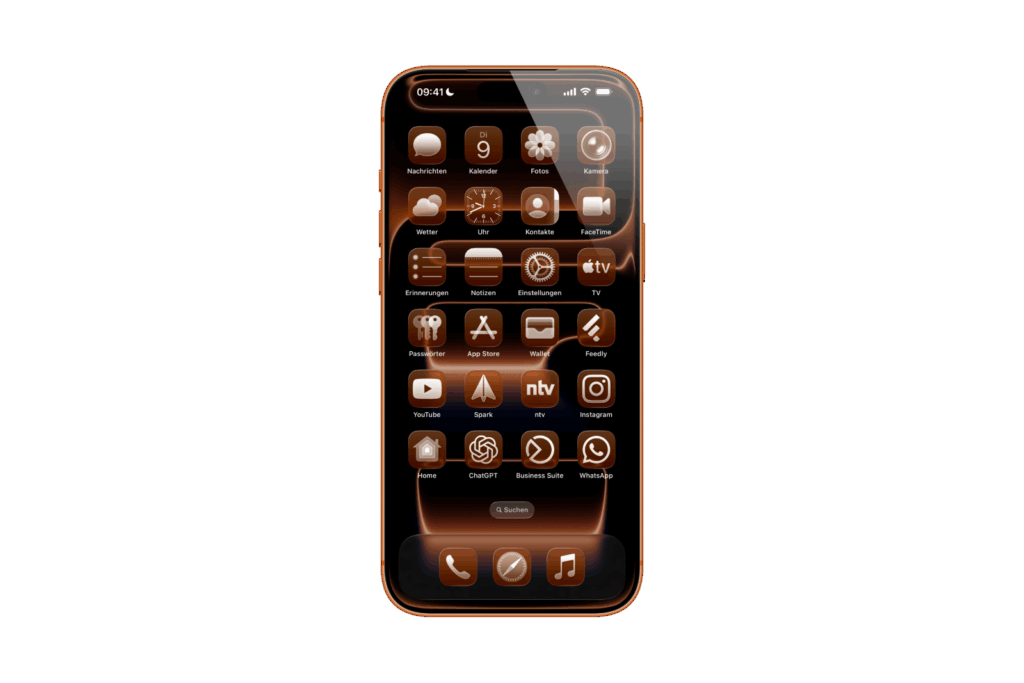
iOS 26: Change the color of app icons to match the MagSafe case
Image: Apfelpatient

How the adjustment works

The basis is the case color, which is automatically detected. iOS 26 then adjusts the brightness, saturation, and contrast. The goal is to ensure the icons remain legible while simultaneously reflecting the color of the case. The adjustment is done in just a few steps:

  • On the home screen, long press an empty space between the app icons.
  • Select “Edit” in the top left corner and tap “Customize” in the menu.
  • Select “Colored” from the options box and then tap the envelope button, which is the second button from the left below the two horizontal color sliders.
  • Select “Light,” “Dark,” or “Auto” depending on your preference.
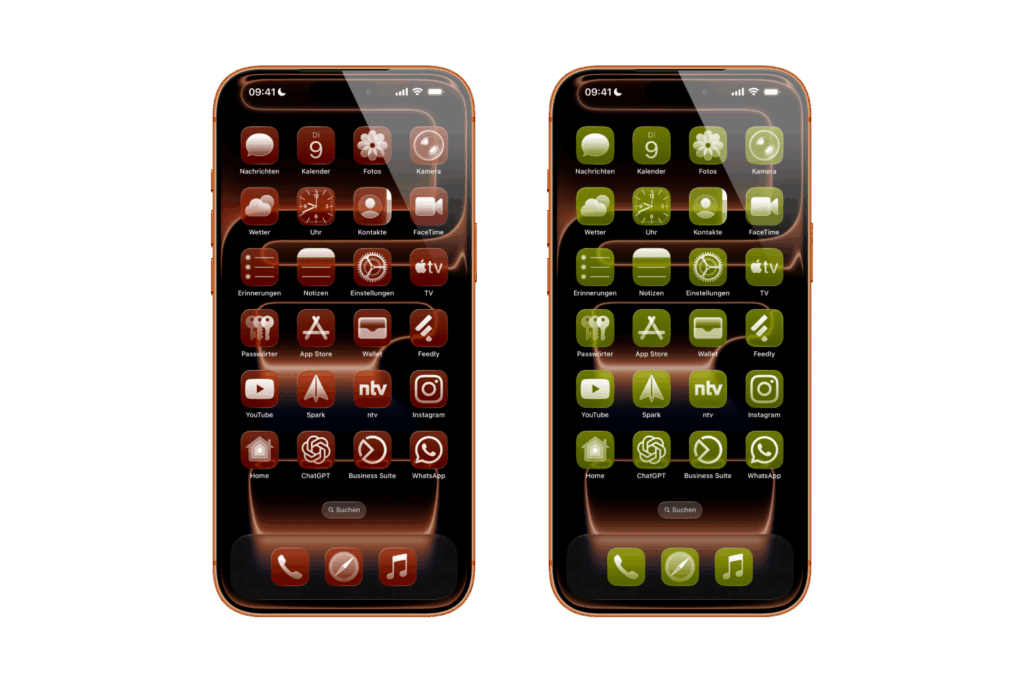
iOS 26: Change the color of app icons to match the MagSafe case
Image: Apfelpatient

Differences between iOS 18 and iOS 26

The appearance of the tinted icons differs significantly from the version in iOS 18. While that version used a black background with colored graphics, the icons in iOS 26 appear more modern and clearer.

  • In light mode, the icons appear in the selected full color with white graphics.
  • In dark mode, the backgrounds are significantly darkened, but remain colorful and are not completely black.
  • In Auto mode, the display automatically switches between light and dark depending on the environment.

With this, Apple goes beyond the pure color filter idea and integrates the adjustment directly into the interaction between hardware and software.

iOS 26: MagSafe case and software in harmony

iOS 26 brings a small but effective innovation that makes the iPhone design more individual. The close connection between MagSafe cases and the system interface creates a harmonious overall look, with app icons automatically harmonizing with the case color. Even without a suitable case, the option to customize icons to match the iPhone's body color remains. With this further development of icon tinting, Apple demonstrates how even small details can enhance the user experience. iOS 26 combines practical customization with aesthetic consistency, making the home screen more flexible than ever before. The best products for you: Our Amazon Storefront offers a wide selection of accessories, including those for HomeKit. (Image: Apfelpatient)

  • What options does the USB-C port offer in the iPhone 17?
  • iOS 26: Apple Intelligence makes reminders even smarter
  • Preview App: Everything about PDF and image functions on the iPhone
  • iPhone 17: How iOS 26 colors your app icons
  • iOS 26: Use polls directly in the Messages app
  • New iOS 26 feature: Use live translation with AirPods
  • Discover and manage games with the Apple Games app
  • iPhone 17: Tips for using the Center Stage front camera
  • iPhone 17 Dual Capture explained: Using the front and rear cameras
  • iOS 26 Screenshot Disable full screen and enable old view
  • iPhone 17: Disable or customize the camera control button
  • iPhone Tip: Live Translation in Messages, Phone & FaceTime
  • Setting up your iPhone correctly: Check, block, and filter calls
  • Keep an eye on your blood pressure: How the iPhone Health app helps
  • Apple explains Apple Watch high blood pressure warnings
  • Setting up Apple Music transitions: AutoMix or Crossfade
  • macOS 26: Automatically connect iPhone hotspot
  • Find and adjust the camera flash in iOS 26 – here's how

Frequently Asked Questions about iOS 26

What new features does iOS 26 bring?

iOS 26 expands iPhone personalization. New is the ability to automatically adjust app icons to the color of official MagSafe cases or, alternatively, to the iPhone's body color.

How does color customization work in iOS 26?

The customization is based on an NFC chip in MagSafe cases. This transmits the case color to iOS 26, which automatically colors app icons, widgets, and system elements.

Do I need a MagSafe case for the feature in iOS 26?

Yes, an original Apple MagSafe case is required for automatic adjustment. However, without a case, you can use the new tint option, which is based on the iPhone's case color.

What are the differences between iOS 18 and iOS 26?

In iOS 18, app icons were simply colored. With iOS 26, icons appear in full color, dynamically adapting to MagSafe cases or the "Light," "Dark," and "Auto" modes.

How to customize app icons in iOS 26?

On the home screen, long-pressing opens the "Edit" menu. Under "Customize," you can select "Colored" mode and activate the skin option.

What are the benefits of customization in iOS 26?

This feature creates a coherent overall look between the iPhone case and home screen. Icons remain legible and adapt visually, creating more individuality and consistency.


Was this article helpful?
YesNo
Tags: iOSiOS 26iPhone
SendShareSend
Share

Our Amazon Storefront

A handpicked selection of products for iPhone, Mac and more – sorted by topic and updated regularly.

Shop Now

This post contains affiliate links (including Amazon). We earn a small commission on qualifying purchases – at no extra cost to you. Learn more on our Partner Program page.

Previous Post

Apple TV+ extends Peanuts partnership until 2030

Next Post

Apple plans AI smart glasses and stops Vision Air development

Milan Jovicic

Milan Jovicic

Milan founded Apfelpatient in 2016 and has been responsible for all editorial content since 2018 – news, rumors, how-to guides and product reviews. Here, Apple devices aren't review units kept for two weeks, they're everyday tools: from iPhone to MacBook Pro, MacBook Air and iMac all the way to Apple Vision Pro, at least one device from every product category is in daily use, many of them replaced every year. Every menu path in a guide is checked on the device before it goes live.

Related posts

MacBook Pro: How to turn off the illuminated Apple logo

by Milan Jovicic
November 6, 2026 - 3:52 PM CET
Turning off the MacBook Pro Apple logo: two open MacBook Pro models in black and silver, one behind the other, front view

The Apple logo lights up on the MacBook Pro with a PROLED XDR display. Here's how to turn the backlighting off and on again using Terminal.

Read moreDetails

Cleaning the inner display of an iPhone Duo: Here's how to do it right

by Milan Jovicic
November 5, 2026 - 2:11 PM CET
Cleaning the iPhone Duo inner display: open iPhone Duo with a polishing cloth on the dark display

Cleaning the inner display of the iPhone Duo: Which cloth is suitable, what Apple allows, and which mistakes you should avoid. With practical experience.

Read moreDetails

Connecting and resetting AirPods: Instructions for all Models

by Milan Jovicic
November 5, 2026 - 01:25 CET
Connect and reset AirPods: AirPods Max in a Smart Case in front of an iPhone in a folio, surrounded by several white AirPods charging cases

Connecting, pairing, and resetting AirPods: Here's how it works for all models. Includes double-tap, troubleshooting, and AirPods 5.

Read moreDetails

Siri Remote: Compatibility, "Find My" and New Features

by Milan Jovicic
November 4, 2026 - 00:34 CET
Siri Remote compatibility: silver Siri Remote with clickpad and buttons, front view on a white background

Siri Remote (4th generation): Which Apple TV models work, what "Find My" can do and who gets Precision Finding and sound. All models compared.

Read moreDetails

Setting up HomePod: Here's how to do it with iPhone and the Home app

by Milan Jovicic
November 4, 2026 - 00:06 CET
Setting up HomePod: original boxes of HomePod and HomePod mini side by side on a dark countertop

Setting up HomePod with iPhone and Home app: All steps, requirements and what helps if the configuration screen is missing.

Read moreDetails
Load More

Categories

  • Apple Insights
  • Apple Rumors
  • Apple News
  • Apple Tips & Tricks
  • iPhone news, rumors and tips
  • Mac and MacBook News
  • Reviews
Make Apfelpatient a preferred source One click – and you'll see us more often on Google

About APFELPATIENT

APFELPATIENT brings you the latest Apple news, product updates, guides, reviews and tips across the entire Apple ecosystem — from the iPhone to the Mac to the Apple Vision Pro. From the first rumors to confirmed news: researched responsibly.

Follow Apfelpatient

Facebook Instagram YouTube Threads Threads

Company

  • About Apfelpatient
  • Contact
  • Author Profiles

Community

  • Netiquette
  • Push notifications
  • RSS feed

Legal

  • Legal Notice
  • Privacy Policy
  • Terms of Use
  • Cookie settings
  • Affiliate Program

Resources

  • Sitemap

© 2026 Apfelpatient. All rights reserved.

No result
View All Results
  • Home
  • News
  • Rumors
  • Tips & Tricks
  • Reviews
  • Insights

© 2026 Apfelpatient. All rights reserved. Site map

Change language to Deutsch


