

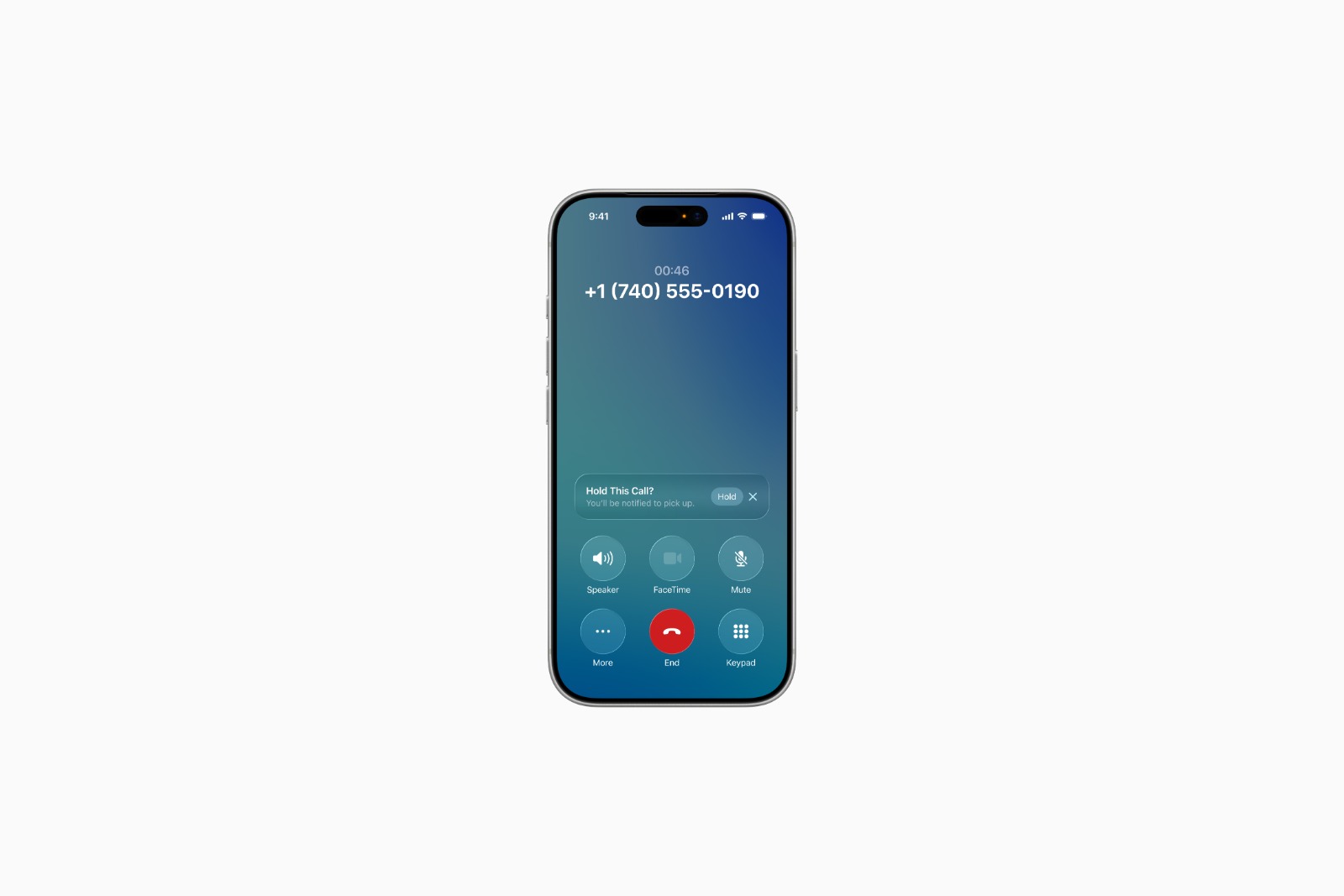
Waiting on the phone costs time. Especially when there's only hold music playing and no one answers. With iOS 26, Apple is introducing a feature that makes this routine significantly more pleasant. Hold Assist automatically handles the waiting, detects when someone answers the call, and notifies you as soon as the call can begin. The whole process runs directly on the iPhone, without any additional settings required.
With the new iOS 26, Apple is bringing a feature to the iPhone that makes handling calls easier. Hold Assist takes care of it when a line is busy or on hold. While the iPhone holds the call in the background, the device remains fully usable. The operating system automatically detects when a real person answers the phone and signals that the call can be continued.
Activate Hold Assist automatically
As soon as a hold queue is detected during a phone call, Hold Assist starts automatically after about ten to fifteen seconds. The message “Hold call?” then appears on the screen. Tapping “Hold” takes over the holding process. If you dismiss the notification, the call remains active as usual. After activation, the iPhone briefly displays a confirmation that the call is now on hold. From this moment on, the call continues in the background. On devices with a Dynamic Island, Hold Assist is displayed as live activity. On other iPhones, the ongoing connection is visible via the green call bubble in the top left, which also appears when you exit the Phone app. As soon as Hold Assist detects that someone on the other end has answered the call, a notification appears. Tapping this notification immediately takes the user back to the call.
While Hold Assist is active
While On-Hold Assistance is active, the iPhone can be used normally. Apps, messages, and browsers are available without restrictions. The system detects hold calls based on music or typical signals. If the function encounters voice-based automated systems or music with explicit lyrics, it may not respond reliably. An additional feature displays a transcript of the spoken content on the screen during the call. This makes it clear when a real person is answering the phone and when an automated message is still playing.
Activate Hold Assist manually
Once the automatic notification has been dismissed, Hold Assist can be activated manually. During the call, simply tap the "More" button (three dots). The "Hold Assist" option will appear in the menu that appears. Once tapped, the iPhone will resume holding.
Compatibility and requirements
Hold Assist is available on all iPhones that support iOS 26. It's not a feature that requires Apple Intelligence, so it's ready to use on any compatible device. No setup or configuration is required. Once iOS 26 is installed, Hold Assist works automatically when needed, as it's enabled by default.
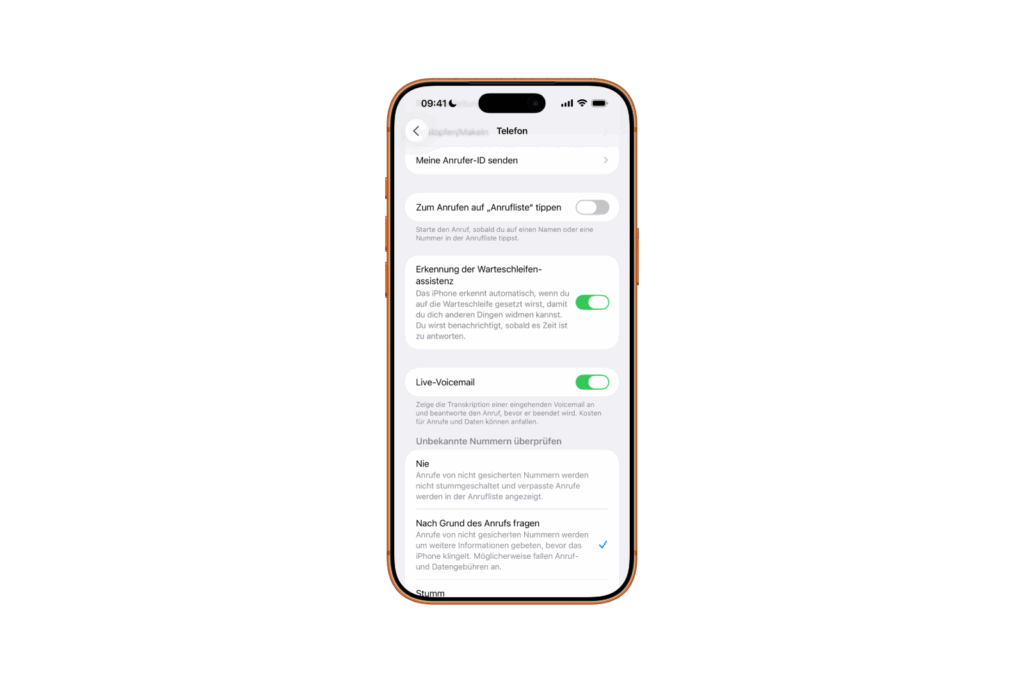
The iPhone takes over the waiting on the line
With Hold Assist, iOS 26 introduces a practical feature that makes the iPhone even more useful in everyday life. Hold queues will no longer run idle in the background, but will be monitored by the device itself. As soon as someone answers the call, a notification appears automatically. For anyone who regularly calls hotlines or support services, Hold Assist is a noticeable relief. It makes the iPhone an even more reliable companion, saving time and seamlessly integrating into everyday life. The best products for you: Our Amazon Storefront offers a wide selection of accessories, including those for HomeKit. (Image: Apple)
- iPhone gets new feature against spam and advertising calls
- iOS 26: New option saves time and data when sending photos
- iOS 26: Over 10 hidden features everyone needs to know
- iOS 26: Visual intelligence now also for screen content
- iPhone 17: How iOS 26 colors your app icons
- iOS 26: Use polls directly in the Messages app
- New iOS 26 feature: Use live translation with AirPods
- Discover and manage games with the Apple Games app
- iPhone 17: Tips for using the Center Stage front camera
- iPhone 17 Dual Capture explained: Using the front and rear cameras
- iOS 26 Screenshot Disable full screen and enable old view
- iPhone 17: Disable or customize the camera control button
- iPhone Tip: Live Translation in Messages, Phone & FaceTime
- iOS 26: Filter messages, block spam & keep track
- Setting up your iPhone correctly: Check, block, and filter calls
- Keep an eye on your blood pressure: How the iPhone Health app helps
- Apple explains Apple Watch high blood pressure warnings
- Setting up Apple Music transitions: AutoMix or Crossfade
- macOS 26: Automatically connect iPhone hotspot
- watchOS 26: Why the Apple Watch sometimes charges slowly
- iOS 26: Reduce transparency for more clarity
- Find and adjust the camera flash in iOS 26 – here's how
Hold Assist on iPhone with iOS 26
Hold Assist is a new feature in iOS 26 that takes care of waiting on hold. The iPhone automatically detects when a real person answers the call and sends a notification so the call can continue.
When a hold is detected, Hold Assist automatically starts after about ten to fifteen seconds. After confirming by tapping "Hold," the iPhone takes over the waiting process in the background and notifies you as soon as someone on the other end answers.
Usually not. Hold Assist activates automatically as soon as the iPhone detects a hold. If the feature is declined at the first prompt, it can be activated manually via the "More" button and the "Hold Assist" menu item.
Hold Assist is available on all iPhones that support iOS 26. It's not an Apple Intelligence feature, so it can also be used on devices without the new AI integration.
Hold Assist detects hold queues based on typical music or acoustic signals. With voice-based automated announcements or music with clear lyrics, the function may not respond reliably.
Yes. On iPhones with Dynamic Island, Hold Assist appears as a live activity. On other models, a green call bubble appears in the top left corner, indicating that the call is in progress in the background.
As soon as Hold Assist detects that a real person is answering the phone, iPhone automatically ends hold monitoring and sends a notification to resume the call.
Permanent deactivation isn't necessary. Hold Assist only appears when a hold is detected, and can be easily dismissed at that moment by dismissing the notification.
No. Hold Assist works directly via the iPhone's phone function and does not require an active internet connection. Detection is based on acoustic signals on the line.
Hold Assist saves time and makes the iPhone more practical in everyday life. While the device is on hold, it remains fully usable—for messages, apps, or work. A notification reliably indicates when the call can begin.





