


This article may contain affiliate links. Learn more on our Partner Program page.
With iOS 26, Apple introduces a subtle but useful feature that noticeably improves the Phone app. For the first time, you can view your entire call history with a specific contact—including the date, time, and duration of each call. This even works retroactively for months or years, depending on how long the contact has been on the iPhone. What was previously only possible with third-party apps or backups is now integrated directly into the system.
The Phone app has hardly received any new features in recent years. Updates have mostly been limited to visual tweaks or minor improvements to the user interface. iOS 26 changes that: The new enhanced call history offers a complete overview of all conversations with individual people. The feature isn't immediately visible, but it's already included in the current version of the system. It makes it easier to track past phone calls, check call durations, or simply find out when the last contact took place.
The new call history in iOS 26
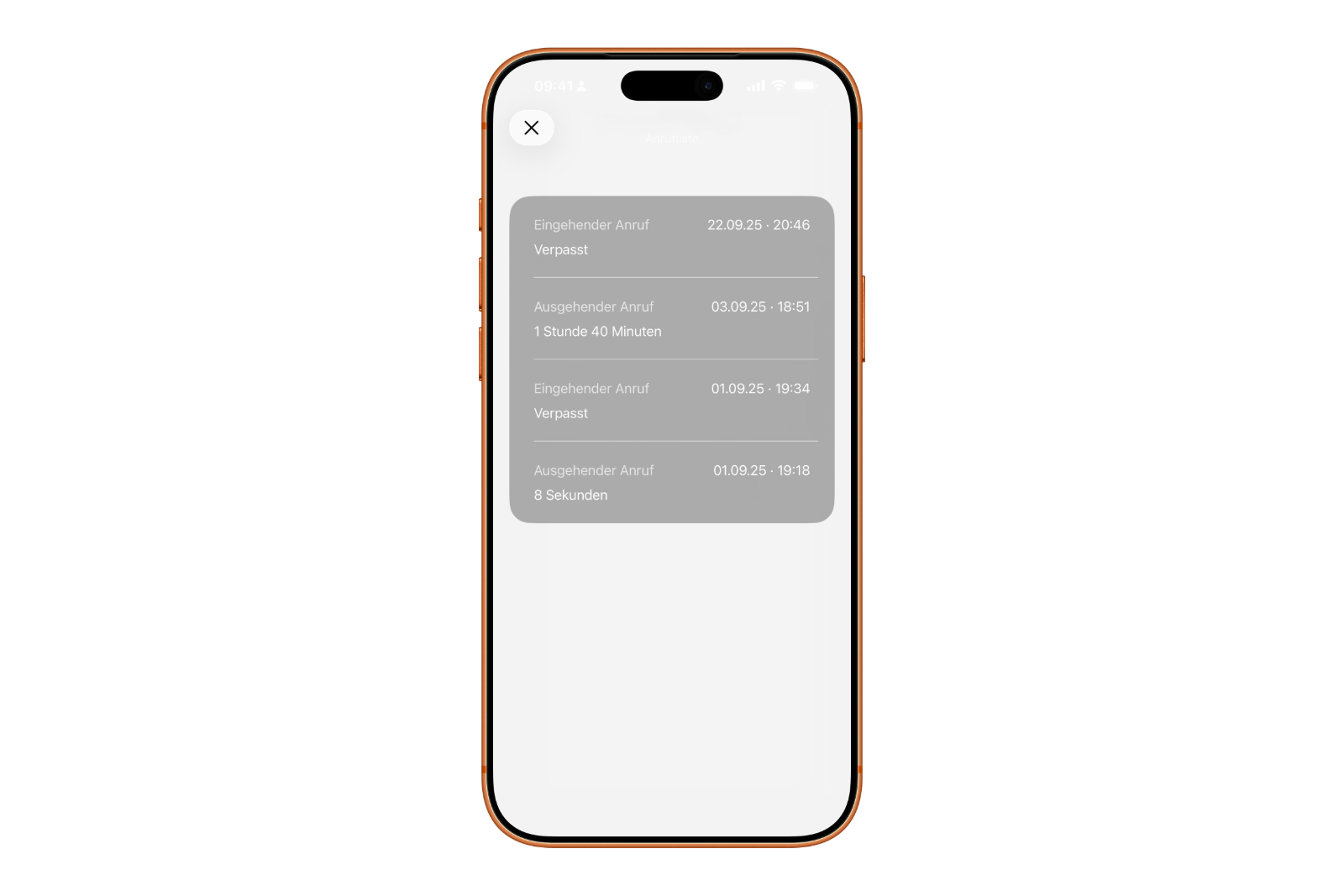
In iOS 26, the call history has been significantly expanded. Instead of showing only the last 100 entries or a summarized overview, the system now shows all calls with a specific contact. This includes incoming, outgoing, and missed calls – sorted by date and time. The duration of each call is also displayed. This information can be helpful for identifying communication patterns, documenting work-related phone calls, or chronologically classifying old calls. Access to the expanded history is integrated into the existing Phone app. Apple hasn't created a new app or function for this, but has added an additional option to the existing view. This keeps things familiar and simple to use.
Access extended history
The path to the complete process is short and can be completed in just a few steps:
- Open the Phone app on your iPhone.
- In the “Calls” section, find the desired contact in the call list.
- Tap the contact's name. If you're still using the classic view, tap the circled "i" icon to the right of the name instead.
- Scroll down and tap “Call History.”
A complete list of all calls with this contact then appears. The data goes back as far as the device stores it—in some cases, several years. The view is structured chronologically and shows each call with the date, time, and duration. This makes it possible to see exactly how often and for how long calls were made.
Data protection and storage
As usual, with iOS 26, all call data remains stored locally on the device unless iCloud backup is enabled. Those who back up their data via iCloud will also find this information in the cloud, but it will also be encrypted and linked to their own account. Apple does not transfer call logs to third parties and does not use them for analysis purposes. Users thus retain full control over their call history and can delete it at any time if necessary.
iOS 26 brings structure to communication
With iOS 26, Apple is adding an unobtrusive yet useful feature to the Phone app. The new call history provides a complete overview of all conversations with a contact, making it easier to review past calls or check call durations. The feature is easy to find, clearly structured, and works without any additional settings. iOS 26 demonstrates that even small improvements can make everyday life noticeably more practical—especially for those who also use their iPhone for work or to organize many contacts. The best products for you: Our Amazon Storefront offers a wide selection of accessories, including those for HomeKit. (Image: Shutterstock / DenPhotos)
- iOS 26: iMessage not working? Apple announces the solution
- iOS 26 Tricks: 26 small innovations with a big impact
- iOS 26 solves the Bluetooth problem with AirPods in the car
- iPhone: How the new call waiting feature works in iOS 26
- iPhone gets new feature against spam and advertising calls
- iOS 26: New option saves time and data when sending photos
- iOS 26: Over 10 hidden features everyone needs to know
- iOS 26: Visual intelligence now also for screen content
- iPhone 17: How iOS 26 colors your app icons
- iOS 26: Use polls directly in the Messages app
- New iOS 26 feature: Use live translation with AirPods
- Discover and manage games with the Apple Games app
- iPhone 17: Tips for using the Center Stage front camera
- iPhone 17 Dual Capture explained: Using the front and rear cameras
- iOS 26 Screenshot Disable full screen and enable old view
- iPhone 17: Disable or customize the camera control button
- iPhone Tip: Live Translation in Messages, Phone & FaceTime
- iOS 26: Filter messages, block spam & keep track
- Setting up your iPhone correctly: Check, block, and filter calls
- Keep an eye on your blood pressure: How the iPhone Health app helps
- Apple explains Apple Watch high blood pressure warnings
- Setting up Apple Music transitions: AutoMix or Crossfade
- macOS 26: Automatically connect iPhone hotspot
- watchOS 26: Why the Apple Watch sometimes charges slowly
FAQ on iOS 26: New Call History and Phone App in Detail
With iOS 26, Apple is expanding the Phone app to include a complete call history. For the first time, all calls with a contact can be viewed—including the date, time, and duration of each call.
The extended history is integrated into the Phone app. In the "Calls" view, select the desired contact, scroll down, and tap "Call History." All calls will appear there, organized chronologically.
This depends on the stored data. iOS 26 displays all calls that are still present in the system—often for months or years, depending on storage and backup settings.
Yes. Apple stores the extended call history locally on the device. If iCloud backup is enabled, the data is encrypted and stored in the cloud, keeping it private.
Yes. Individual entries or entire call logs can be deleted as usual. The deletion process permanently removes the data from the device and, if enabled, also from iCloud.
Yes. The new call history in iOS 26 lists both regular phone calls and FaceTime audio and video calls with a contact.
No, currently, call history cannot be exported directly. Backups are only possible via iCloud or a local backup via Finder or iTunes.
Yes, all devices that support iOS 26 will receive this feature. Older iPhones that no longer receive updates will retain the previous limited history.
With iOS 26, Apple has improved storage management for call logs. This allows older entries to be retained without impacting system performance.





