

With the update to iOS 26.1, Apple introduced a small but useful change to the lock screen. It affects the flashlight function, which was previously often accidentally switched off on many iPhones. The new setting ensures that the flashlight now remains active more reliably – even when the device is being held or accidentally touched.
The flashlight on the lock screen is one of the most frequently used iPhone features. A single tap is all it takes to illuminate the iPhone brightly – practical for searching in the dark or when light is urgently needed. However, the flashlight often switched off unexpectedly, without any clear reason. The cause was a movement that iOS interpreted as a camera gesture. With iOS 26.1, Apple addresses this common complaint and introduces a simple solution that resolves the issue.
Why the flashlight often switched off in the past
The cause of the accidental shutdown was the swipe gesture on the lock screen. Even the slightest movement to the right activated the camera app – and automatically switched off the flashlight. This often happened when the iPhone was being held or briefly moved. Even the smallest touch was enough to trigger the gesture.
In most cases, the camera wasn't even fully opened. Simply initiating the gesture was enough to deactivate the flashlight. Many users didn't notice what had happened and assumed the sudden shutdown was a malfunction.
The new solution in iOS 26.1
With iOS 26.1, Apple addressed this issue by introducing a new setting that allows users to disable the swipe gesture to access the camera on the lock screen. This keeps the flashlight active even if the screen is accidentally touched or lightly swiped.
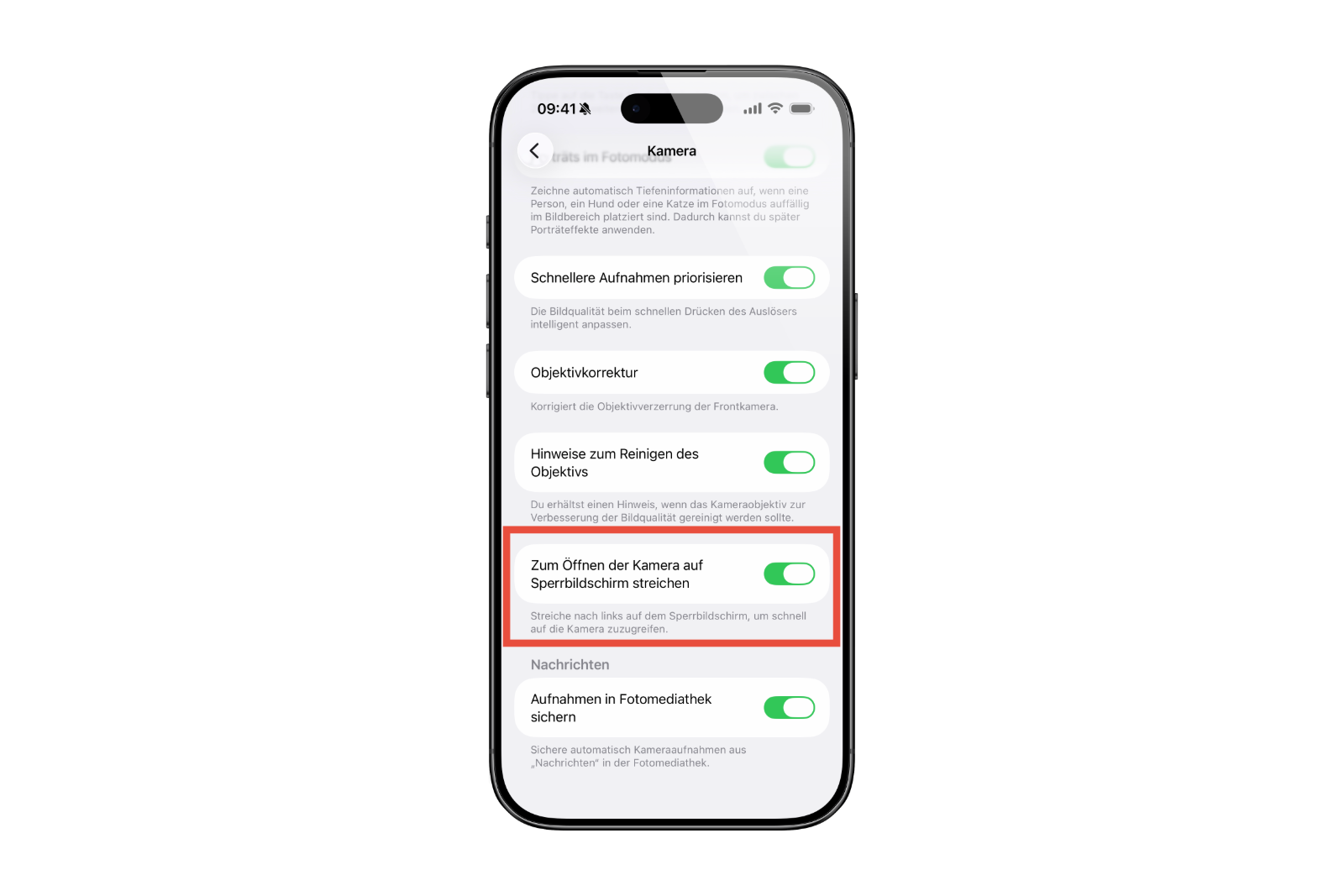
The new option can be found in the iPhone settings under the "Camera" menu. At the very bottom, you'll find the new toggle "Swipe to open camera on lock screen." If this toggle is disabled, the lock screen will no longer respond to horizontal swipe gestures towards the camera.
The result: The flashlight stays on until it is intentionally switched off. Unintentional touches no longer trigger any action, making the function more reliable overall.
Alternative ways to access the camera
Even though swiping right is no longer possible, quick access to the camera remains. iOS 26.1 offers several alternatives:
- The camera can still be opened directly by pressing and holding the camera icon on the lock screen.
- On iPhone 16 models or newer, pressing the camera control button also works to launch the camera app immediately.
These alternatives ensure that the camera remains quickly accessible despite the new setting – but without the risk of accidentally losing light.
Why the change makes sense
The new setting in iOS 26.1 is a good example of how Apple optimizes even small details that make a noticeable difference in everyday use. Especially in situations where it's dark or the iPhone is operated with only one hand, the change prevents annoying interruptions.
Apple's response to this behavior demonstrates the importance of user feedback. Many iPhone owners had noticed the problem but didn't fully understand its cause. The new toggle in iOS 26.1 now provides clarity and a solution.
iOS 26.1 provides greater reliability in everyday use.
iOS 26.1 brings a simple yet effective improvement for everyday iPhone use. The new option allows you to disable the camera swipe gesture on the lock screen, ensuring the flashlight remains reliably on.
The change makes the iPhone more practical in the dark and prevents the flashlight from accidentally switching off. The camera remains easily accessible – just in a more deliberate, controlled way. iOS 26.1 thus demonstrates once again that small adjustments often make the biggest difference. The best products for you: Our Amazon storefront offers a wide selection of accessories, including those for HomeKit. (Image: Shutterstock / photoschmidt)
- iOS 26.1: Liquid Glass effects can be toned down
- watchOS 26 brings hints about the Apple Watch dial
- macOS 26 Update: Hidden Tools and Improvements
- New call history in iOS 26: All conversations at a glance
- iOS 26: iMessage not working? Apple announces the solution
- iOS 26 Tricks: 26 small innovations with a big impact
- iOS 26 solves the Bluetooth problem with AirPods in the car
- iPhone: How the new call waiting feature works in iOS 26
- iPhone gets new feature against spam and advertising calls
- iOS 26: New option saves time and data when sending photos
- iOS 26: Over 10 hidden features everyone needs to know
- iOS 26: Visual intelligence now also for screen content
- iPhone 17: How iOS 26 colors your app icons
- iOS 26: Use polls directly in the Messages app
- New iOS 26 feature: Use live translation with AirPods
- Discover and manage games with the Apple Games app
- iPhone 17: Tips for using the Center Stage front camera
- iPhone 17 Dual Capture explained: Using the front and rear cameras
- iOS 26 Screenshot Disable full screen and enable old view
- iPhone 17: Disable or customize the camera control button
- iPhone Tip: Live Translation in Messages, Phone & FaceTime
- iOS 26: Filter messages, block spam & keep track
- Setting up your iPhone correctly: Check, block, and filter calls
- Keep an eye on your blood pressure: How the iPhone Health app helps
- Apple explains Apple Watch high blood pressure warnings
FAQ about iOS 26.1 – Everything you need to know
iOS 26.1 introduces a new setting for the lock screen that allows you to disable the camera swipe gesture. This keeps the iPhone flashlight active even if the screen is accidentally touched.
In the settings under Camera → Open lock screen by swiping, the option can be deactivated. This prevents the flashlight from being accidentally switched off.
The new option can be found under Settings → Camera. At the very bottom is the switch "Open lock screen by swiping", which can be turned off if needed.
Yes. The camera can still be started by long-pressing the camera icon on the lock screen or by pressing the camera control button.
Many iPhone users reported that the flashlight would turn off when they held or touched the device. Apple addressed this issue with iOS 26.1 and fixed it.
Yes. All iPhones that support iOS 26.1 have the new camera control option on the lock screen.
Apple released iOS 26.1 on November 3, 2025. The update is available via iPhone settings under General → Software Update.





