


This article may contain affiliate links. Learn more on our Partner Program page.
iOS 26 introduces spatial scenes, allowing users to transform simple 2D photos into 3D-like images. This works without special camera settings or additional accessories. An iPhone 12 or later is all that's needed. The feature uses AI to add depth to a two-dimensional image and create a parallax effect that makes photos appear more lifelike.
Many new iOS features appear in the background, but spatial scenes are not among them. The implementation is visible, immediately understandable, and instantly usable. iOS 26 analyzes a regular photo, recognizes spatial cues, and adds an artificial depth layer. The Photos app automatically displays which existing images are suitable for this effect. The scene can be viewed, but not saved or shared. It remains a dynamic representation within the system.
Before getting to the steps, it helps to take a closer look at the differences between a spatial scene and a spatial photograph.
Spatial scene and spatial photo compared
A 3D scene is an artificially generated image based on a 2D photo. iOS 26 adds a virtual depth structure. Tilting the iPhone creates a clear parallax effect. The scene is intended for viewing only and remains dynamic within the Photos app.
A 3D photo, on the other hand, is created directly during the capture process. This requires an iPhone 15 Pro or newer. For true 3D, Apple Vision Pro is needed. Both options provide a spatial impression, but are based on different technologies.
Requirements for spatial scenes in iOS 26
The feature is available on all iPhones from the iPhone 12 onwards. It requires no activation. Only one factor can delay the process: For iCloud Photos, the original file must be available in full resolution. With storage optimization enabled, often only a smaller preview is available. The iPhone then first downloads the full file. A stable internet connection and some free storage space are required for this.
Create a spatial scene from a photo
The creation process is simple and requires only a few steps.
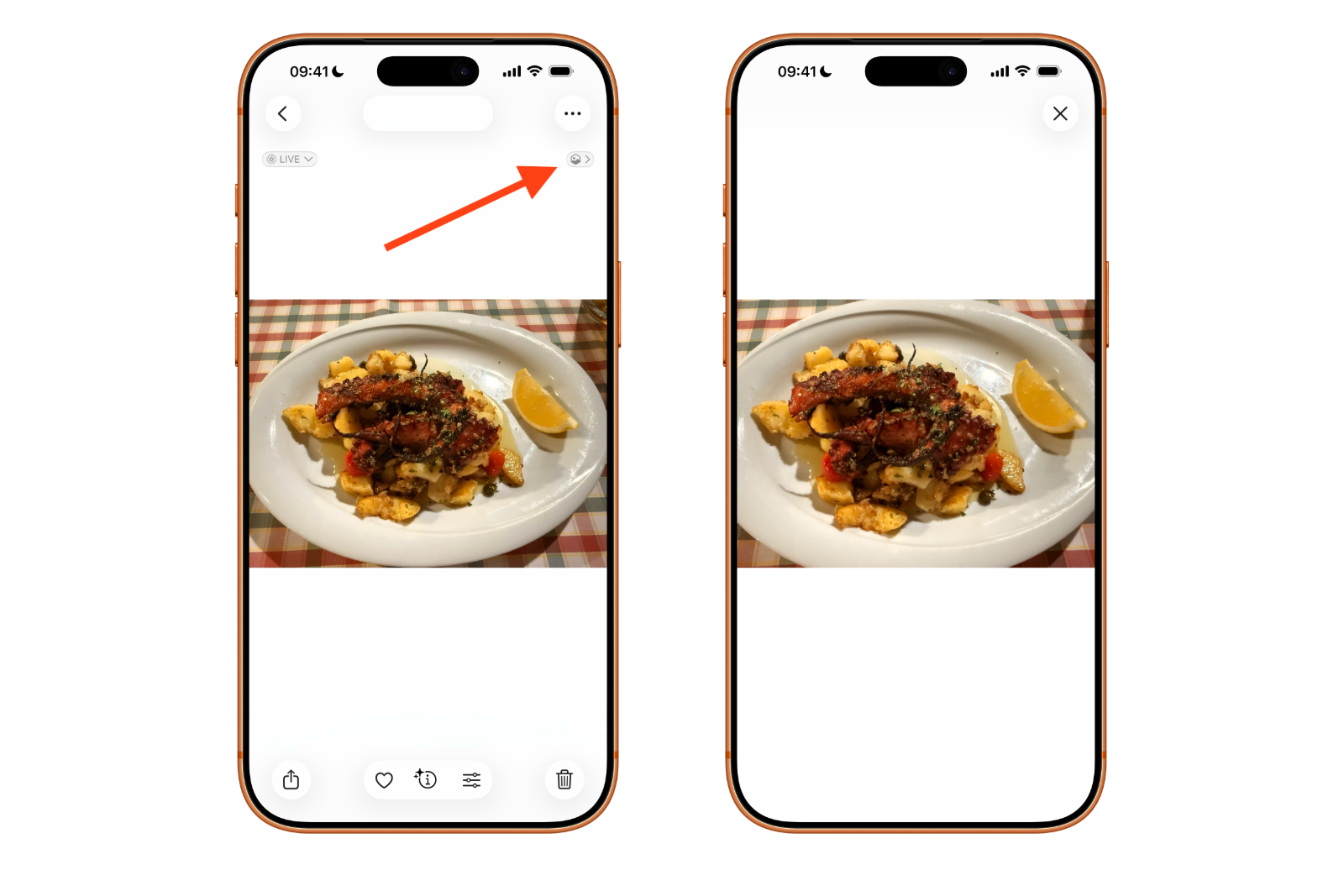
- Open the Photos app and select the desired photo.
- Tap the hexagonal symbol for room scenes in the top right corner.
iOS 26 processes the image and automatically creates the 3D scene. Tilting the iPhone slightly reveals the additional depth effect. Live Photos can also be easily converted into 3D scenes.
Use spatial scenes on the lock screen
The effect isn't limited to the Photos app. When customizing the lock screen, iOS 26 recognizes suitable subjects and automatically suggests them as spatial scenes. The parallax effect can be enabled or disabled within the lock screen settings. This creates a moving lock screen that reacts to the device's orientation.
Why spatial scenes are helpful in iOS 26
Many older photos suddenly appear fresher thanks to this artificial depth effect. The effect isn't real, but it's convincing enough to give everyday subjects a bit more atmosphere. Landscapes, architectural shots, and close-ups especially benefit.
iOS 26 expands the overall spatial capabilities. In addition to spatial scenes, spatial videos can now be recorded, specifically for Vision Pro. Even for those without a dedicated 3D computer, spatial scenes offer a simple way to experience images in a more spatial way.
iOS 26: The easy way to 3D-like images
iOS 26 introduces a feature that transforms everyday photos into miniature 3D experiences. A spatial scene is created in seconds, works on iPhones from the iPhone 12 onwards, and requires no preparation or accessories. The Photos app automatically displays suitable images, the lock screen can also utilize the effect, and it's all free. Even old photos gain a new dimension. With spatial scenes, iOS 26 offers one of the most accessible and exciting new features of the system. The best products for you: Our Amazon storefront offers a wide selection of accessories, including those compatible with HomeKit. (Image: Shutterstock / Framesira)
- AirPods: Media no longer continues playing during sleep thanks to iOS 26
- Use Apple's Family Sharing to share content together
- iPhone tip: How alternative app distribution channels work
- iPhone tip: Access flight information directly in the system
- iOS 26.2 explained: How the new AirDrop codes work
- iOS 26.2 enhances the Reminders app with alarm functionality
- Here's how to properly create a backup for iPhone and iPad
- Setting up and using Apple Car Key: All functions explained
- New iOS 26.2 feature: Screen flashes for notifications
- Longer battery life with iOS 26 – Adaptive Power explained
- Live translation with AirPods: Here's how the feature works
- iOS 26: The new focus mode „Reduce interruptions“
- iOS 26.1: Reactivate the classic stop button on the alarm clock
- iOS 26.1 brings a new lock screen setting for the iPhone
- iOS 26.1: Liquid Glass effects can be toned down
- watchOS 26 brings hints about the Apple Watch dial
- macOS 26 Update: Hidden Tools and Improvements
- New call history in iOS 26: All conversations at a glance
- iOS 26: iMessage not working? Apple announces the solution
- iOS 26 Tricks: 26 small innovations with a big impact
- iOS 26 solves the Bluetooth problem with AirPods in the car
- iPhone: How the new call waiting feature works in iOS 26
- iPhone gets new feature against spam and advertising calls
- iOS 26: New option saves time and data when sending photos
- iOS 26: Over 10 hidden features everyone needs to know
Frequently asked questions about iOS 26 and the new 3D spatial scenes
iOS 26 uses AI to analyze 2D photos, recognizes spatial cues, and creates an artificial depth structure. Tilting the iPhone creates a parallax effect that makes the image appear more three-dimensional.
No. Any existing photo can become a 3D scene. It doesn't matter if the picture was taken years ago or was specifically designed for iOS 26.
The feature works on all devices from iPhone 12 onwards. No additional hardware or accessories are required.
No. A 3D spatial scene is for viewing only. It remains a dynamic representation within the Photos app and cannot be exported.
A 3D scene is artificially created from a 2D image. A 3D photo, on the other hand, is created directly during the capture process, requires an iPhone 15 Pro or newer, and can only be viewed in true 3D with Vision Pro.
Yes. With storage optimization enabled, the iPhone downloads the original file first. A 3D scene cannot be created without full resolution.
Yes. Live photos can also be transformed into 3D spatial scenes and also benefit from the artificial depth effect.
Yes. When customizing the lock screen, iOS 26 automatically suggests suitable images for 3D spatial scenes. The parallax effect can be turned on and off.
No. The iPhone is sufficient for 3D spatial scenes. Vision Pro is only needed for true 3D in spatial photos and videos.
The artificial depth effect gives subjects more structure and makes them appear more vibrant. Landscapes, architecture, and close-ups especially benefit from the added depth.





