apple patient
  • Home
  • News
  • Rumors
  • Tips & Tricks
  • Reviews
  • Insights
No Result
View All Result
  • iPhone 18
  • iOS 27
  • iPadOS 27
  • macOS
  • MacBook Neo
  • iPhone 17e
  • AirTags
  • iOS 26
  • iPhone 17
  • MacBook Pro
  • iPadOS
  • iMac
  • Mac mini
  • HomePod
  • Apple TV
  • iPad Pro
  • iPhone Air
  • Apple Vision Pro
  • iPhone 16
  • AirPods 4
  • Apple Watch Ultra
  • HomePod Mini
  • MacBook Air
  • iPad
  • AirPods Max
  • AirPods Pro 3
  • Apple Watch Series 3
  • Mac Studio
  • Studio Display
  • iPad Air
  • iPad mini
  • watchOS 27
  • Apple CarPlay
  • Apple Pay
  • watchOS 26
  • Home
  • News
  • Rumors
  • Tips & Tricks
  • Reviews
  • Insights
No Result
View All Result
apple patient
No Result
View All Result

"Find My" network: How to set up Apple AirTag

Milan Jovicic by Milan Jovicic
30. April 2021 - 18:14 CEST
in Apple Tips & Tricks
0
Setting up AirTag

Image: Apple

WhatsAppFacebookEmail
Threads

First of all, setting up an AirTag couldn't be easier. However, there are a few steps and decisions involved - we'll walk you through the process, so let's get started.

An AirTag starts working the moment you completely remove the plastic protective cover from the device. The last part of the cover prevents the battery connector from working. Pulling off this part starts the little accessory from Cupertino. This is great for reasons of convenience during setup and security, because where there is no on switch, there is no off switch either. But it also means that the life of the AirTag battery decreases as soon as you remove the protective cover. According to Apple, the battery life should be about a year. As soon as this runs out, the smart tracker will make itself felt. Replacing it does not require any technical know-how at this point. All you have to do is insert a new button cell battery. Be that as it may - one more thing in advance.

Setting up AirTag – these points are required

Before you start setting up your AirTag, you should check the following points:

  • Please make sure your iPhone is running iOS 14.5 or later.
  • If you haven’t already done so, enable “Find My” in Settings -> “Your Name” -> “Find My”.
  • Now turn on Bluetooth.
  • Also enable location services in Settings -> Privacy -> Location Services.
  • If you are using an iPhone 11 or iPhone 12 model, then you have a U1 chip. This allows you to get more precise location tracking, but it must be activated. By default, it is probably already switched on. But a look at the settings can't hurt at this point. So open your iOS settings again and tap on the "Privacy" section. Now navigate to "Location Services" and then select "Find My". Now make sure that "Precise Location" is activated.

Setting up AirTag – here's how

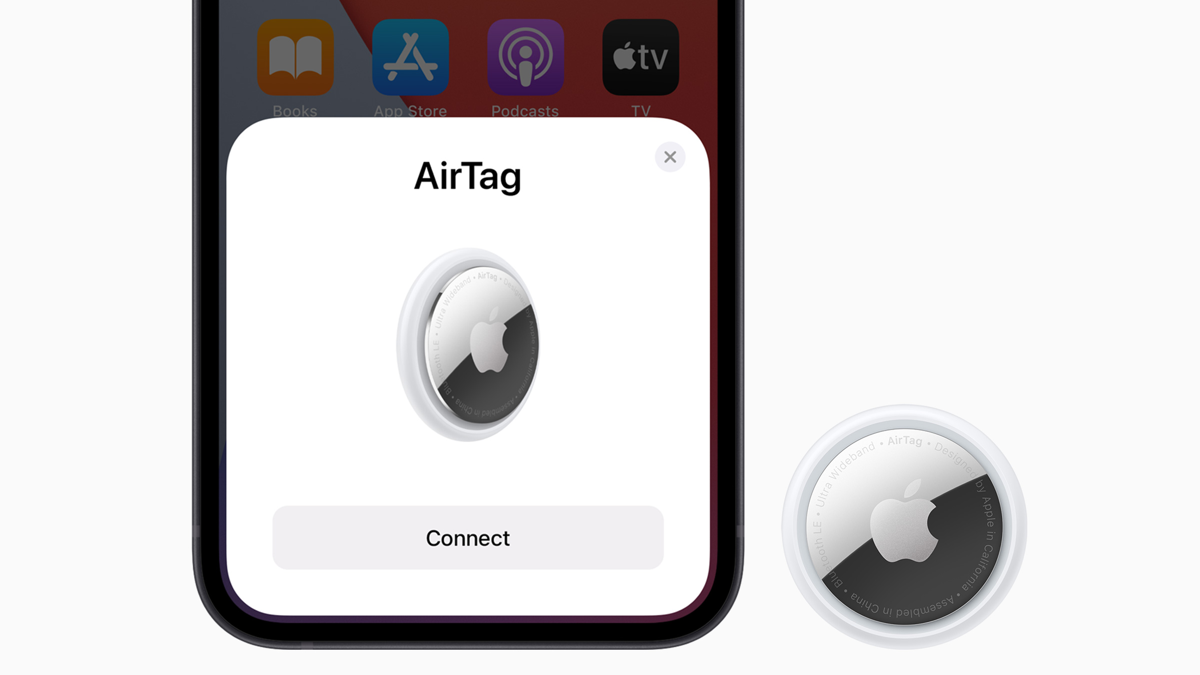
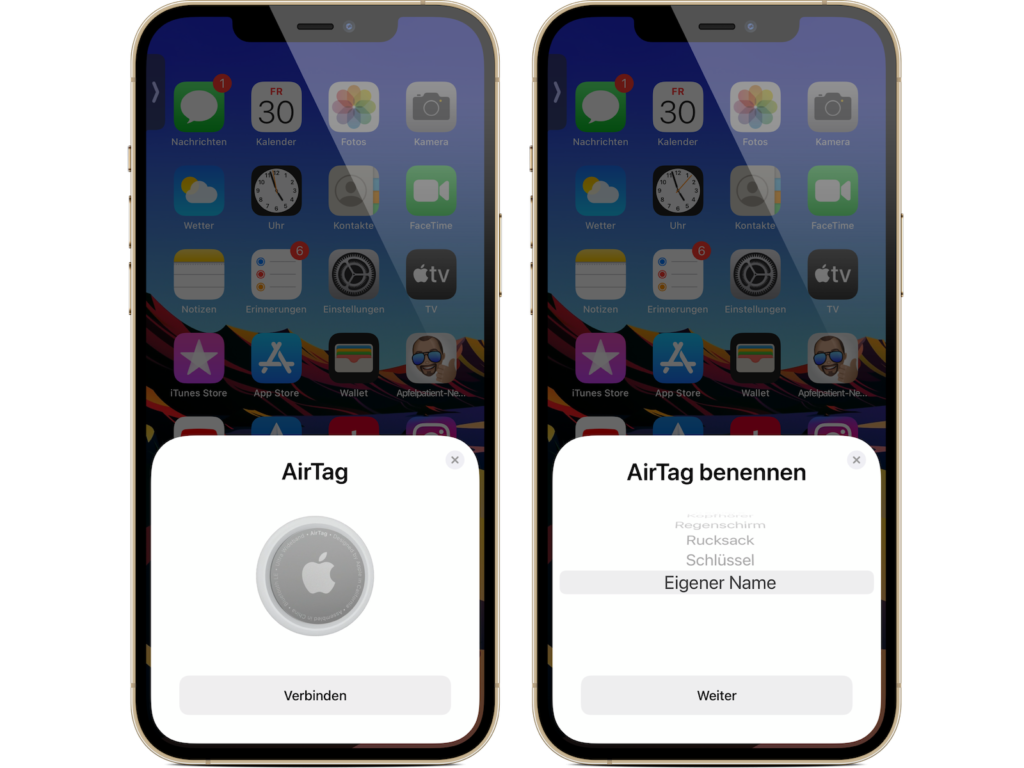
Now your iPhone is ready to use an AirTag, so peel off the plastic cover and hold the AirTag close to your iPhone. When the iPhone detects that an AirTag is present, it will appear in a similar way to the AirPods screen. Now tap "connect". Once you've done that, you'll need to name your AirTag so you can distinguish it from the others later.
Setting up AirTag
Image: Apfelpatient

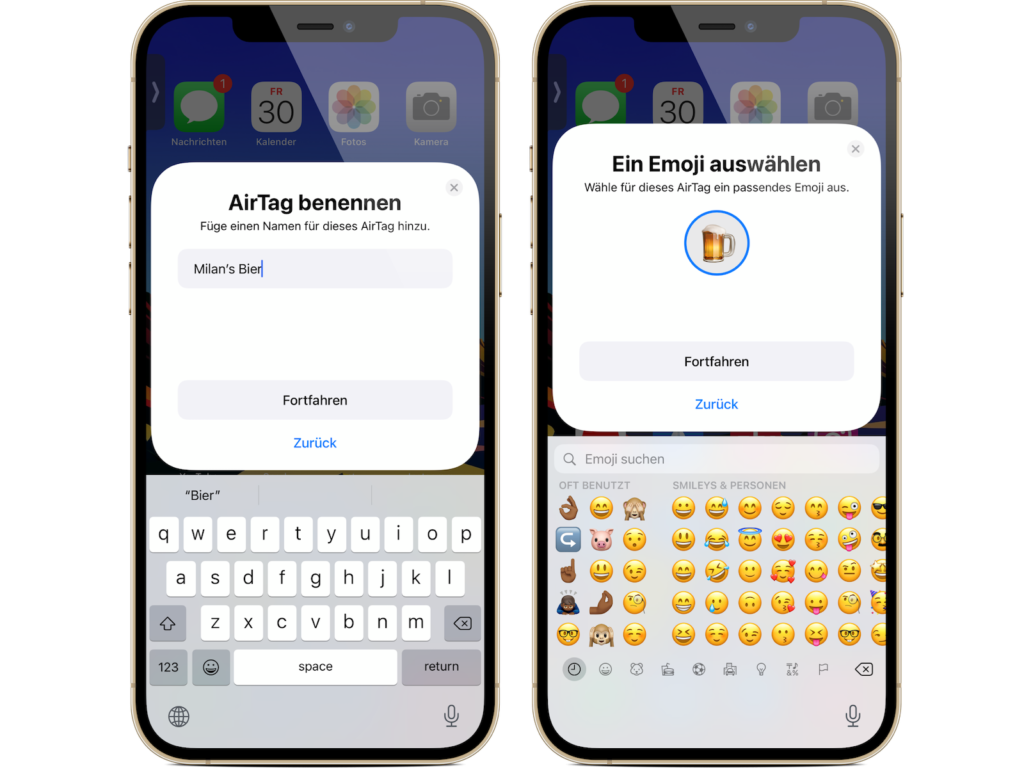
Either choose from the list of suggestions (backpack, keys, etc.) or tap "Own name". You can then select a suitable emoji.

Setting up AirTag
Image: Apfelpatient

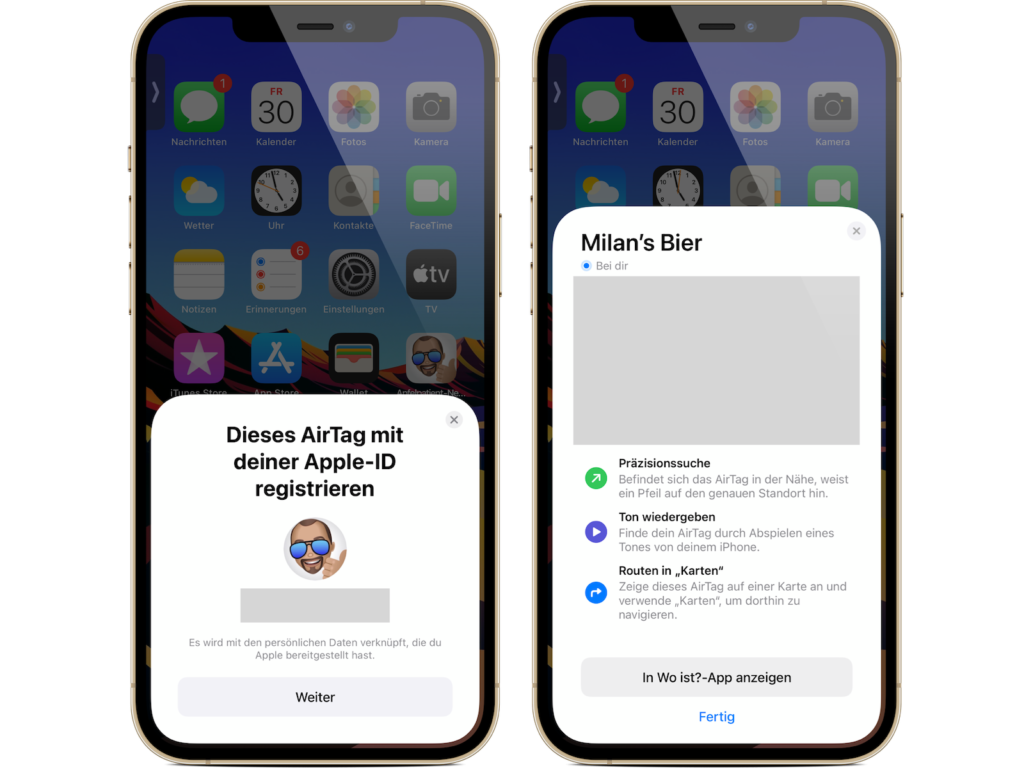
Once you've completed this part, press "Next". You'll now be asked to register the AirTag with your Apple ID. Confirm and wait a moment. A short introduction with the most important points should now appear - this means the setup is complete. At this point you can tap "Done" or switch to the "Find My" app.
Setting up AirTag
Image: Apfelpatient

AirTags are clearly displayed in the "Find My" app

If you now want to see an overview of your set up AirTags, you have to do this via the "Find My" app and go to the "Objects" section. Find the name of the AirTag and tap it. From here you can interact with it. More tips about AirTags will follow shortly. Until then, we hope you have fun with your new accessory. Are you looking for suitable AirTag cases? Then take a look at Amazon. In our AirTag list you will find the trackers and accessories from Apple and third-party suppliers - enjoy browsing. (Image: Apple)


  • Traveling abroad with AirTags: What you need to know
Make Apfelpatient a preferred source One click – and you'll see us more often on Google
Was this article helpful?
YesNo
Tags: AirTags
SendShareSend
Share

Our Amazon Storefront

A handpicked selection of products for iPhone, Mac and more – sorted by topic and updated regularly.

Shop Now

This post contains affiliate links (including Amazon). We earn a small commission on qualifying purchases – at no extra cost to you. Learn more on our Partner Program page.

Previous Post

iMac, iPad Pro & Apple TV 4K: Pre-order now from Apple

Next Post

AirTag packaging revealed: Delivery was already ready in 2019

Milan Jovicic

Milan Jovicic

Milan founded Apfelpatient in 2016 and has been responsible for all editorial content since 2018 — news, rumors, guides, and product reviews. Apple devices here are not test units on loan for two weeks but everyday tools: from the iPhone through MacBook Pro, MacBook Air, and iMac to the Apple Vision Pro, at least one device from nearly every product category is in daily use, many of them replaced annually. Every menu path in a guide is verified on the device before it is published.

Symbolic image of Apple's leadership team: Apple Park from the air, illuminated at sunset.

Apple's leadership team is undergoing a transformation: Who's leaving and who's taking their place?

August 12, 2026 - 9:10 PM CEST
Symbolic image for Apple government affairs: the glass entrance cube of the Apple Store on Fifth Avenue in New York at dusk

Apple hires new head of government relations

August 12, 2026 - 8:44 PM CEST
Key art for the Apple TV series Pluribus showing a screaming woman against a yellow background, with Pluribus season 2 about to begin filming

Pluribus: Gilligan plans at least three seasons

August 12, 2026 - 8:27 PM CEST

About APFELPATIENT

APFELPATIENT brings you the latest Apple news, product updates, guides, reviews and tips across the entire Apple ecosystem — from the iPhone to the Mac to the Apple Vision Pro. From the first rumors to confirmed news: researched responsibly.

Follow Apfelpatient

Facebook Instagram YouTube Threads Threads

Company

  • About Apfelpatient
  • Contact
  • Author Profiles

Community

  • Netiquette
  • Push Notifications
  • RSS feed

Legal

  • Legal Notice
  • Privacy Policy
  • Terms of Use
  • Cookie Settings
  • Affiliate Program

Resources

  • Sitemap

© 2026 Apfelpatient. All rights reserved.

No Result
View All Result
  • Home
  • News
  • Rumors
  • Tips & Tricks
  • Reviews
  • Insights

© 2026 Apfelpatient. All rights reserved. Page Directory

Change language to Deutsch