

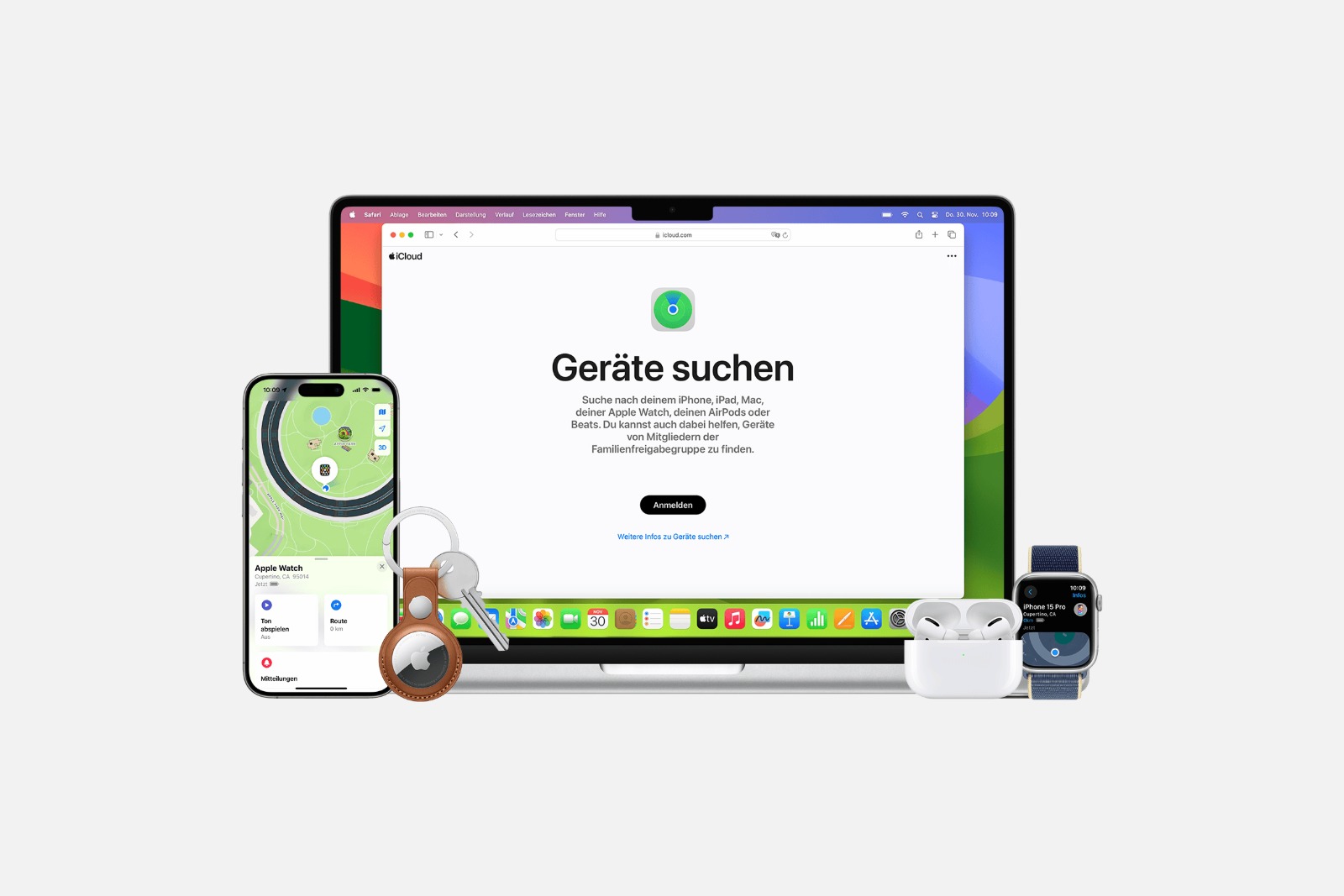
A forgotten iPhone, an AirTag on a backpack left on the train, a MacBook at the office – an Apple device is rarely truly lost. The Find My app brings locating, locking, and remote erasing together in one place, drawing on a network of more than a billion Apple devices. How the search works, what happens with switched-off devices, and which feature belongs to which device depends heavily on the software version – iOS 26 sets the standard, while iOS 27 adds new flexibility to location sharing.
In everyday life, it's easy to leave something behind: your iPhone is still in the jacket in the car, an AirTag is on a bag left on the train, a MacBook is waiting at the office. The Find My app was made for exactly these moments. It shows devices and items on a map, plays a sound, and on modern iPhones even guides you to within centimeters of your target. It all builds on the Find My network: hundreds of millions to more than a billion Apple devices anonymously and end-to-end encrypted report the approximate position of a missing device – privacy stays protected while the device remains findable. And when it matters, a device can be locked remotely, which at the same time deactivates the Apple Pay cards stored on it. On iOS 26 all of this is standard; with iOS 27, notably more flexible options are added for sharing your own location.
Tracking Devices and Items with Find My
The app offers three ways to reach a lost device: showing it on a map, directions via the Maps app, and a sound once the device is nearby. If an iPhone supports Ultra Wideband (a U1 or U2 chip), AirTags as well as AirPods Pro 2 or later can be pinpointed precisely by distance and direction using Find Nearby – the app then guides you straight to the item with an arrow and a distance readout.
If no second Apple device is at hand, iCloud.com/find takes over the same core tasks in your browser. A handy side note: on another device, simply asking "Where's my iPhone?" is often enough – Siri can then play a sound on the device you're looking for.
Step by Step: Find a Device or Item
- Open the Find My app on another Apple device.
- Select the Devices or Items tab.
- Tap the device or item you're looking for to see its location on the map.
- Select Directions to get the route via the Maps app.
- Use Play Sound when the device should be nearby.
- Turn on Find Nearby if your iPhone supports Ultra Wideband.
AirTags and Find My network accessories can only be located through the Find My app on iPhone, iPad, and Mac – on the Apple Watch, the Find Items app handles this.
Sharing Your Location – and Selectively Hiding It on iOS 27
Beyond locating devices, Find My also manages your own location in the People tab. You can share it for one hour, until the end of the day, or indefinitely with selected contacts – within the family, for example. Through Family Sharing, a child's location becomes visible this way too, without having to set anything up on each device individually.
New in iOS 27: Flexible Location Sharing
With iOS 27, iPadOS 27, macOS 27, and watchOS 27, Apple is expanding sharing under the name flexible location sharing. Three things change:
- Hide Location: Sharing with a specific person can be discreetly paused until the end of the day – the other side receives no notification about it. Apple cites situations like a surprise birthday as an example. Show Location ends the pause again at any time.
- Custom Duration: Instead of just "one hour" or "until the end of the day," you can set an exact span – from 15 minutes to 30 days, or up to a specific end date.
- Landscape: The app now also supports use in landscape orientation.
Marking a Device or Item as Lost
As long as the search is ongoing, Lost Mode is recommended. It locks the device with a passcode or your Apple Account password and thus protects personal data. On devices with Apple Pay, stored cards and tickets are suspended. In addition, a message with contact details can be shown on the lock screen so that honest finders can get in touch.
With an AirTag, there's an intermediate step: using Share Item Location, you can share the location specifically with third parties such as an airline, without marking the AirTag as lost.
Step by Step: Mark a Device or Item As Lost
- In Find My, select the missing device or item under Devices or Items.
- Scroll to the Mark As Lost section.
- Tap on „Activate Lost Mode‘ or ’View Contact Info“.
- Enter a phone number and message, then follow the remaining steps.
“Using ”Where is?” without your own Apple device
If no iPhone or iPad of your own is at hand, two paths lead to the goal:
- Via the browser: At iCloud.com/find, you can locate, lock, and erase devices – this works in any browser, including on an Android device or someone else's computer. If sign-in requires a verification code but no trusted device is reachable, the Find Devices button helps. If the device is switched off, no location appears. If Stolen Device Protection is active and the Apple Account password was changed in an unfamiliar place, devices may temporarily not be visible there.
- Via a family member's device: In Family Sharing, devices appear automatically as soon as you share your location with the family.
When Find My Shows No Location
Depending on the situation, the app displays different messages. The important distinction is between "last known location" and "no location at all":
- No Location Found: The device hasn't reported a position to Apple in more than seven days. Within those seven days, the app still shows the last known location – for example when the battery is dead.
- Offline: The device is switched off, the battery is dead, or it can't send a position for other reasons.
- Not Sharing Location • Online: The device is online but can't transmit its position, for example due to a problem with Location Services.
iCloud.com has its own time limit: there, the position of a switched-on, connected device is shown for up to 24 hours. If Send Last Location is turned on, the device automatically transmits its position just before the battery dies. At the same time, the Find My network ensures that even devices that have been switched off are detected via Bluetooth by nearby Apple devices and reported anonymously.
Erasing a Device Remotely
Erasing is permanent and should only be the last step, once all other options are exhausted. Without active two-factor authentication for your Apple Account, erasing is only possible via iCloud.com. If a device is erased on iOS 15 or iPadOS 15 or later, it remains findable through Find My; on older versions, that option is no longer available. A Mac or Apple Watch can sometimes still be located if the device is within range of a previously used Wi-Fi network.
Step by Step: Erase a Device
In the Find My app:
- Open the Devices tab.
- Select the lost device.
- Scroll down and select Erase This Device.
- Confirm the action.
Via iCloud.com:
- Sign in at iCloud.com/find.
- Select the lost device.
- Select Erase [Device] and confirm.
Find My Features by Device
Which features are available depends on the device type and the software version. Here's the current overview:
| Device | Available Find My Features |
|---|---|
| iPhone & iPad | View Location, Play Sound, Lost Mode, Remote Erase, Notify When Found, Notify When Left Behind, Activation Lock |
| Mac | View Location, Play Sound, Lost Mode, Remote Erase, Notify When Found, Notify When Left Behind (MacBooks with Apple silicon only), Activation Lock |
| Apple Watch | View Location, Play Sound, Lost Mode, Remote Erase, Notify When Found, Activation Lock |
| Apple Vision Pro | Activation Lock |
| AirPods 3, AirPods 4 (ANC), AirPods Pro (all models), AirPods Max | View Location, Find Nearby, Play Sound, Show Contact Info, Notify When Found, Notify When Left Behind, Find My Lock |
| AirPods 1, 2 and 4 as well as Beats products | View Location, Play Sound |
| AirTag | View Location, Find Nearby, Play Sound, Show Contact Info, Share Item Location, Notify When Found, Notify When Left Behind, Share AirTag, Find My Lock |
| Apple Pencil Pro | View Location (via iPad only), Find Nearby (via iPad only), Find My Lock |
| iPhone Wallet with MagSafe | View Location, Show Phone Number, Notify When Detached, Find My Lock |
| Non-Apple accessories | View Location, Play Sound, Show Contact Info, Share Item Location, Share Item; additional features vary by product |
The second-generation AirTag requires at least iOS 26.2.1 or iPadOS 26.2.1. Availability and individual features may also vary by country or region. If an item doesn't appear in Find My at all, updating to the latest software version usually helps.
Find My as a Safety Net for Apple Devices
Find My combines locating, locking, and remote erasing with an anonymous network of more than a billion devices – turning a lost iPhone, AirTag, or Mac into little more than a brief scare in most cases. Anyone who keeps the feature enabled on all their devices is prepared for an emergency. And with the more flexible sharing options in iOS 27, you gain even more control over who sees your location and when.
To make a lost item findable from the start, you'll find suitable AirTags and holders on Amazon. (Image: Apple)
- Apple Intelligence: Multiple languages possible?
- Using Apple Intelligence with Siri: Features and iOS 27 Outlook
- Visual Intelligence explained: How to use your camera and screen
- ChatGPT with Apple Intelligence: Easy setup on the iPhone
- Limit Apple Intelligence: How to use screen time correctly
- Using Apple Intelligence in the Messages app
- Apple Intelligence: The best tips for your Photos app
- With Apple Intelligence: Focus and notifications under control
- Apple Intelligence: Quickly summarize web pages
- Apple Intelligence in the Mail app: All functions at a glance
- Apple Intelligence: How the writing tools work
- Setting up Apple Intelligence: Instructions for iPhone, iPad and Mac
- Shortcuts in iOS 27: How to easily create automations using descriptions
- Which USB-C Cable Does Your Mac Need?
- Apple Silicon: How Much RAM Do You Really Need?
- How many external displays does your Mac support?
- iOS 27: Finally Set Alarm and Notification Volumes Separately
- Create a Pass in iOS 27: Create Your Own Wallet Passes
- iOS 27, iPadOS 27 and macOS Golden Gate: These Apple devices are compatible
- How to install the iOS 27 Developer Beta: guide, risks and troubleshooting
- Setting Up Apple Family Sharing Securely: What Parents Need to Know
- iCloud Private Relay vs. VPN: What Actually Protects You?
- How to protect Apple devices from malware
Frequently Asked Questions: „Where is?” app
Open the "Find My" app on another Apple device or go to iCloud.com/find in a browser, select the iPhone in the "Devices" tab, and view its location on the map. If it's nearby, "Play Sound" will help you locate it.
Through the "Find My" network, nearby Apple devices anonymously report their approximate location, even offline. If "Send Last Location" is enabled, the iPhone transmits its location shortly before the battery runs out. The last known location remains visible in the app for up to seven days.
Yes, via iCloud.com/find in any browser. If the login requires a verification code and no trusted device is available, the "Find Devices" button will proceed.
Yes, iCloud.com/find works in any browser, including on Android. There isn't a dedicated "Find My" app for locating your own Apple devices on Android.
About Family Sharing: Once the location is shared within the family, the devices automatically appear in the "People" or "Devices" tab.
„No location found” means that no location has been reported for over seven days. „Offline” means that the device is switched off, the battery is dead, or a location cannot be sent for other reasons.
Yes, from iOS/iPadOS 15 onwards: The device can still be located via "Find My." This feature is no longer available in older versions. The deletion itself is permanent.





