This article may contain affiliate links. Learn more on our Partner Program page.
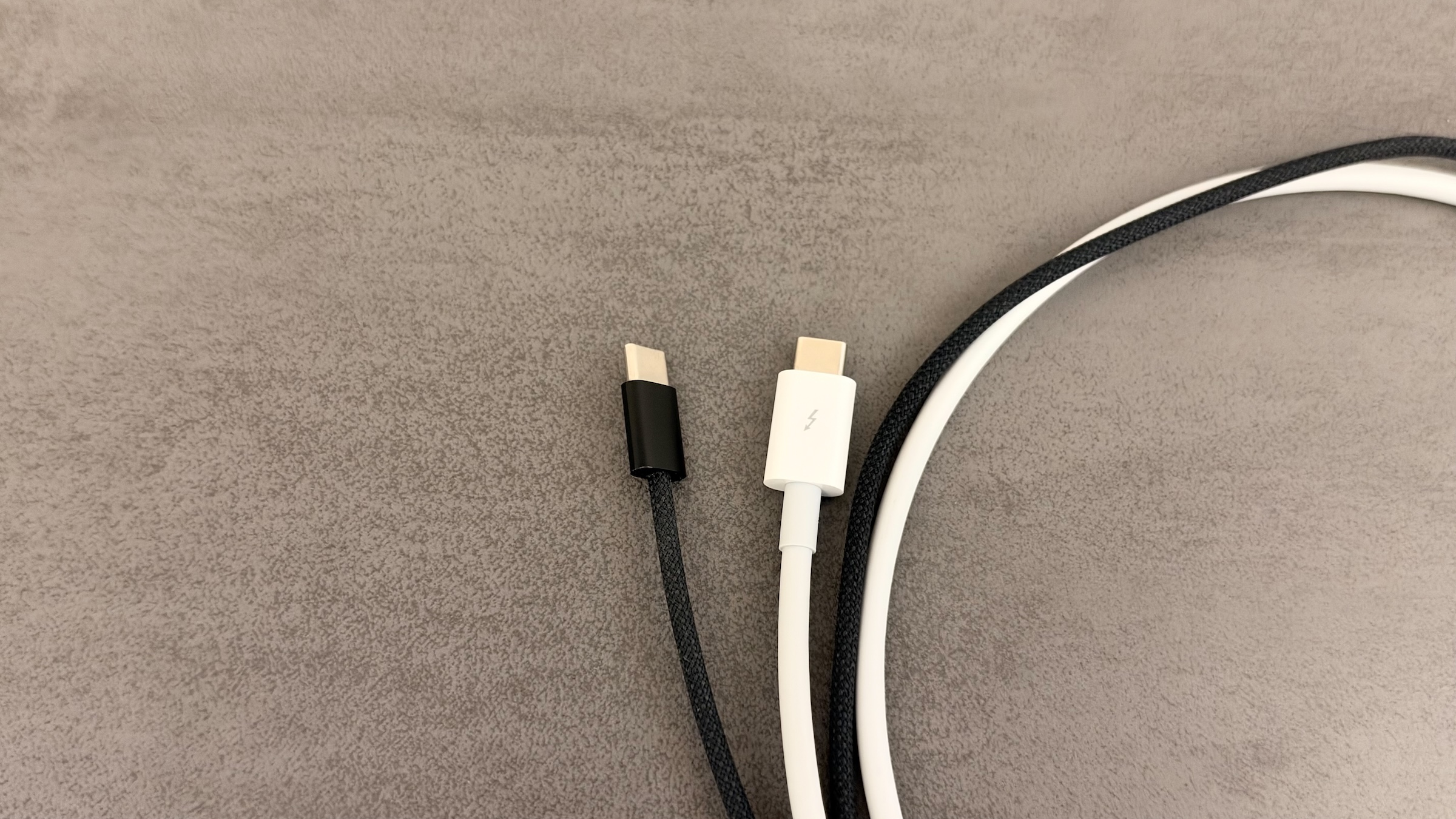
Three USB-C cables in the drawer, all looking the same – but one transfers data at full speed, the second only charges, and the third doesn't even power a monitor. Which cable your Mac actually needs depends less on the connector and more on the underlying standard. That's precisely where the difference lies between a Mac with 120 Gbps and one crawling along at USB 2.0 speeds.
Since Apple completely switched the Mac to USB-C, every port looks the same: The oval connector fits the MacBook Neo, MacBook Air, and Mac Studio alike. What passes through it, however, varies drastically – sometimes it's 120 Gbps via Thunderbolt 5, sometimes 40 Gbps via Thunderbolt 4 and USB 4, sometimes 10 Gbps via USB 3, and the slowest port only 480 Mbps.
The same principle applies to the question of how many external displays a Mac can drive: the speed is determined not by the port, but by the chip behind it. With the cable, a second factor comes into play, because even the fastest Mac will remain slow if the cable doesn't support the standard.
This overview is based on Apple's data sheets for all current Macs, for example the MacBook Pro with PROLED XDR display, the iMac, and the Mac mini, as well as Apple's support document on Thunderbolt Pro cables. Which Mac is right for you in the first place is shown in the Mac buying guide.
Key Facts at a Glance
- Current Macs have three connection classes: Thunderbolt 5 with 120 Gbit/s, Thunderbolt 4 or USB 4 with 40 Gbit/s, and in the MacBook Neo USB 3 with 10 Gbit/s and USB 2 with 480 Mbit/s.
- The speed is always determined by the slowest link: Mac, cable, and accessories.
- The simple USB-C charging cable only transmits 480 Mbit/s and no image.
- Fast charging of the 16-inch MacBook Pro via USB-C requires a 240-watt cable; the Thunderbolt 4 Pro cable only provides 100 watts.
- On the Mac mini and the Mac Studio with M5 Max, the front USB-C ports are slower than the rear ones.
The Connector Is the Same, the Standard Behind It Isn't
USB-C only describes the connector shape. Which protocol it uses is a completely different matter. Current Macs use Thunderbolt 5 with speeds up to 120 Gbps, Thunderbolt 4 and USB 4 with speeds up to 40 Gbps, USB 3 with speeds up to 10 Gbps, and USB 2 with speeds up to 480 Mbps.
The standards are backward compatible. A Thunderbolt 5 cable will also work with a Thunderbolt 4 Mac, albeit only at its maximum speed. However, only the specifications sheet reveals which standard is used inside the device – similar to the question of how much RAM an Apple Silicon Mac needs, appearances can be misleading.
Which ports do current Macs have?
Thunderbolt 5 remains exclusive to Macs with Pro, Max, and Ultra chips. Models with M5 and M6 chipset rely on Thunderbolt 4, while the MacBook Neo omits Thunderbolt entirely.
| Mac | USB-C ports | Top speed |
|---|---|---|
| MacBook Neo | 1 × USB 3 (left), 1 × USB 2 (right) | 10 Gbit/s or 480 Mbit/s |
| MacBook Air M5 (13 and 15 inch) | 2 × Thunderbolt 4 | 40 Gbit/s |
| MacBook Pro 14-inch with M6 | 3 × Thunderbolt 4 | 40 Gbit/s |
| MacBook Pro with Liquid Retina XDR display, M5 Pro and M5 Max | 3 × Thunderbolt 5 | 120 Gbit/s |
| MacBook Pro with PROLED XDR display | 3 × Thunderbolt 5 | 120 Gbit/s |
| iMac M6 with 10-core CPU | 2 × Thunderbolt / USB 4 | 40 Gbit/s |
| iMac M6 with 12-core CPU | 4 × Thunderbolt 4 | 40 Gbit/s |
| Mac mini M6 | 3 × Thunderbolt 4 at the rear, 2 × USB 3 at the front | 40 or 10 Gbit/s |
| Mac mini M5 Pro | 3 × Thunderbolt 5 at the rear, 2 × USB 3 at the front | 120 or 10 Gbit/s |
| Mac Studio M5 Max | 4 × Thunderbolt 5 ports on the rear, 2 × USB-C ports on the front | 120 or 10 Gbit/s |
| Mac Studio M5 Ultra | 4 × Thunderbolt 5 rear, 2 × Thunderbolt 5 front | 120 Gbit/s |
With the Mac mini and the Mac Studio with M5 Max, it's worth paying attention to the placement: a fast SSD belongs on the back; on the front, you'll only get a maximum of 10 Gbps. Only the Mac Studio with M5 Ultra has Thunderbolt 5 on the front as well.
The MacBook Neo is an exception, as it completely lacks Thunderbolt. Its two USB-C ports differ significantly: the left one operates at USB 3 and is the only one that outputs a video signal, while the right one only supports USB 2. A Thunderbolt cable offers no advantage here, and the notebook only drives an external monitor anyway.
Data rates: What the cables can do
The cable itself depends on the standard it meets. Apple offers two professional cables, in addition to the standard charging cable.
| Cable | Data | Charging | Video Signal |
|---|---|---|---|
| Thunderbolt 5 (USB‑C) Pro Cable (1 m) | up to 120 Gbit/s, with USB 3 up to 10 Gbit/s | up to 240 W | Yes |
| Thunderbolt 4 (USB-C) Pro cable (1.8 m or 3 m) | up to 40 Gbit/s, with USB 3 up to 10 Gbit/s | up to 100 W | Yes |
| 240W USB-C charging cable (2 m) | 480 Mbit/s (USB 2) | up to 240 W | no |
The weakest link rule is crucial: the speed is determined by the slowest component – the Mac, the cable, and the accessory. A Thunderbolt 5 cable connected to a Thunderbolt 4 Mac delivers a maximum of 40 Gbps, while the left port on the MacBook Neo only provides 10 Gbps. Conversely, a simple charging cable will limit even the fastest Mac to 480 Mbps.
Length also plays a role. Cheap, long USB-C cables often don't maintain full speed. Apple's Thunderbolt 4 Pro cable, on the other hand, is designed for 40 Gbps even at a length of three meters.
Charging: What Matters in a Cable
Apple no longer includes power adapters with its MacBooks in Germany, Austria, and Switzerland. The MacBook Air and MacBook Pro come with a USB-C to MagSafe 3 cable, while the MacBook Neo includes a USB-C charging cable. The required wattage of the power adapter can be found in the overview of the correct wattage for MacBook power adapters.
Charging is also possible via the USB-C ports, with a sufficiently powerful USB Power Delivery adapter. The cable then depends on its rated power: the Thunderbolt 5 Pro cable can deliver up to 240 watts, the Thunderbolt 4 Pro cable up to 100 watts.
This becomes important with the 16-inch MacBook Pro. According to Apple, it only charges quickly with a power source of 140 watts or more, and the Thunderbolt 4 Pro cable doesn't allow that much power through. For USB-C charging, a 240-watt cable is required, such as Apple's 240W USB-C charging cable or the Thunderbolt 5 Pro cable.
Apple recommends charging the MacBook Neo via the right port. This leaves the faster left port free for the display or accessories.
Display: Which Cable Drives a Monitor
Whether a cable actually transmits an image is the most frequently underestimated question. The two Thunderbolt Pro cables output a DisplayPort signal and thus also drive monitors like the Apple Studio Display. The simple USB-C charging cable, on the other hand, does not transmit video – anyone connecting a monitor with it will be faced with a black screen.
A monitor therefore requires a cable with USB 3 or Thunderbolt support. The ports themselves also differ: According to Apple, Thunderbolt 5 delivers DisplayPort 2.1, while Thunderbolt 4 delivers DisplayPort 1.4. On the MacBook Neo, only the left port outputs a signal.
The Most Common Pitfalls
A charging cable is not the same as a data cable. The thin USB-C cable that comes with many devices often only transmits USB 2.0 data at 480 Mbps and no video signal. It's the wrong choice for a fast SSD or a monitor.
Same look, different pace. Two visually identical cables can have speeds between 120 Gbps and 480 Mbps. Apple's Thunderbolt Pro cables bear the Thunderbolt logo on the connector.
The wrong port on the right Mac. On the Mac mini and the Mac Studio with M5 Max, the front ports only support a maximum of 10 Gbps, while the MacBook Neo only has USB 2.0 on the right side. Even the fastest cable is useless there.
Insufficient wattage in the cable. Anyone wanting to charge a MacBook Pro via USB-C should pay attention to the cable's wattage rating. A 100-watt cable is not sufficient for fast charging the 16-inch model.
Cheap, no-name products. Very inexpensive cables don't reliably deliver the advertised performance or speed. At a minimum, the packaging should clearly state the data rate and wattage.
Which cable I would use for which Mac
For most Macs, I consider a Thunderbolt 4 cable the sensible choice. MacBook Air, MacBook Pro with M6, iMac, and Mac mini with M6 all utilize their full speed with this cable, and it also carries a monitor signal. A Thunderbolt 5 cable is only worthwhile for models with the Pro, Max, and Ultra chips – but it's truly beneficial there because, in addition to 120 Gbps, it also allows 240 watts for charging the larger MacBook Pro.
A Thunderbolt cable is a waste of money for the MacBook Neo, as the notebook doesn't even use the standard. A good USB 3 cable is sufficient for me, connecting to the left port for the SSD and monitor, while the charging cable goes on the right. I've compiled a selection of suitable cables for all three classes in the Amazon storefront.
Is your Mac already connected to a Thunderbolt 5 cable, or is Thunderbolt 4 speed sufficient for your SSD and monitor? Let us know in the comments which cables you're using and what they're for.
Frequently Asked Questions: USB-C Cables on Mac
Apple's Thunderbolt Pro cables bear the Thunderbolt logo on their connectors. Standard USB-C and charging cables otherwise look identical, so it's worth checking the data rate and wattage specifications.
Yes, it can be charged if the power adapter supports USB Power Delivery and is powerful enough. However, fast charging the 16-inch MacBook Pro via USB-C requires a 240-watt cable. A 100-watt cable is insufficient.
Standard charging cables do not transmit a video signal. A monitor requires a cable with USB 3 or Thunderbolt support. On the MacBook Neo, only the left port outputs a picture.
No. The cable works, but the speed remains at the Mac's 40 Gbps. MacBook Air M5, MacBook Pro with M6, iMac M6, and Mac mini M6 all have Thunderbolt 4.
No Thunderbolt cable is needed, as the notebook does not have Thunderbolt. A USB 3 cable connected to the left port is sufficient for data transfer rates up to 10 Gbps and for connecting a monitor. Charging is best done via the right port.
It's probably connected to one of the front ports. The Mac mini only supports a maximum of 10 Gbps there; Thunderbolt is available on the back. The same applies to the Mac Studio with M5 Max.
Both achieve speeds of up to 40 Gbps on a Mac and use the same ports. Apple lists USB 4 as a supported standard for Thunderbolt 4 ports, but in everyday use, both are equally fast.