

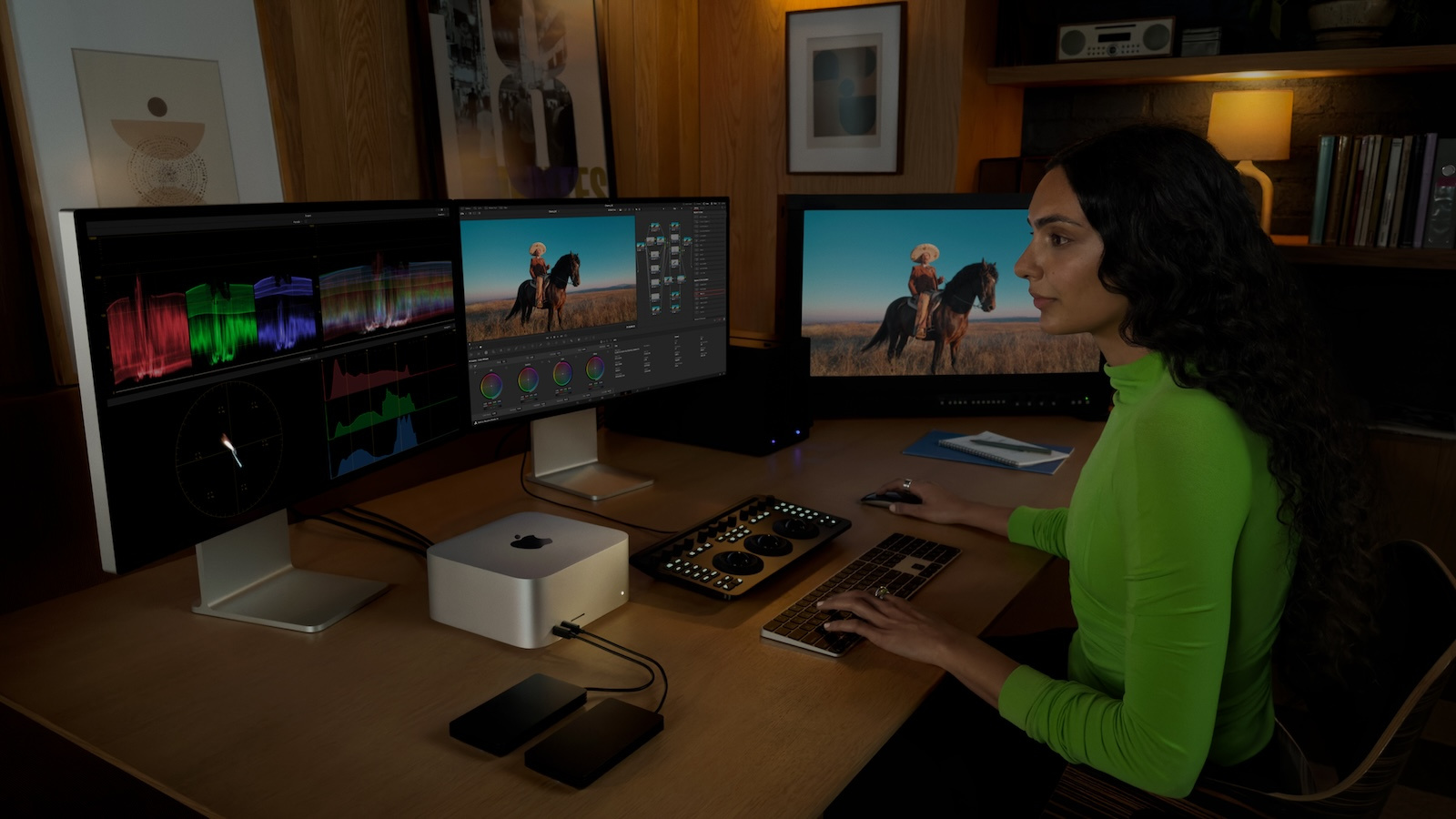
Two monitors connected, but only one shows a picture: Hardly any aspect of Apple Silicon causes as much confusion as external display support. That's because the number of screens a Mac can drive simultaneously is determined not by the number of ports, but by the chip inside. The range extends from a single 4K display on the MacBook Neo to eight monitors on the Mac Studio.
Outwardly, the USB-C ports on modern Macs look almost identical, but technically they are worlds apart. While a Mac Studio can power entire video walls, a MacBook Air with an M1 chip simply shuts down when a second external monitor is connected—no matter how many adapters are in between. Apple precisely documents these limitations, but distributes the information across separate support documents for each product line and the technical specifications of individual models. This overview brings together all the values: from M1 to M6, from the MacBook Air to the Mac Pro. The sheer range within the lineup was recently demonstrated by the MacBook Neo, which, due to its design, can only drive a single external monitor —while Apple's Ultra chips at the other end of the spectrum can power up to eight displays simultaneously.
The chip decides, not the ports
The display limits are determined by the so-called display engines within the chip – controllers that each supply a signal to one screen. The base chips M1 and M2 have only a single external pipeline in addition to the pipeline for the internal display and therefore control exactly one additional monitor. The M3 introduced a second external pipeline, which, however, can only be used if the built-in display is deactivated. Only since the M4 generation have the base chips been able to run two external displays in parallel with the built-in screen. Pro, Max, and Ultra chips further increase the number of display engines – up to eight external monitors in the Ultra models.
This leads to the most important basic rule: Docks, hubs, and daisy-chaining merely bundle existing pipelines onto a single port, but do not increase the maximum number of displays. An M2 MacBook Air stays limited to one external display even on the most expensive Thunderbolt dock. Apple also recommends always connecting the display with the highest resolution first, so the available bandwidth is distributed optimally.
MacBook Air: From the one-display limit to two monitors
The MacBook Air shows the evolution of the base chips most clearly. M1 and M2 drive exactly one external display with up to 6K at 60Hz. The M3 officially supports two external monitors – but only in clamshell mode, that is, with the lid closed. This requires macOS Sonoma 14.3 or later, an external keyboard along with a mouse or trackpad, and an active power supply. When the lid is opened, the second external display turns off. Since the M4, this restriction no longer applies at all: two external monitors run in addition to the built-in screen, and closing the lid no longer adds any further displays.
| Chip | External Displays | Maximum configuration |
|---|---|---|
| M1 (2020) | 1 | 1 × 6K at 60 Hz |
| M2 (2022) | 1 | 1 × 6K at 60 Hz |
| M3 (2024) | 1 (2 with the lid closed) | 6K/60 plus 5K/60 in clamshell mode |
| M4 (2025) | 2 (in addition to the internal display) | 2 × 6K/60 or individually up to 8K/60, 5K/120, 4K/240 |
| M5 (2026) | 2 (in addition to the internal display) | 2 × 6K/60 or individually up to 8K/60, 5K/120, 4K/240 |
The M5 MacBook Air carries over the display figures unchanged from its M4 predecessor – the differences between the two generations lie in the chip, base storage, and wireless standards.
MacBook Pro: From the 13-inch limit to a four-display workstation
Within the MacBook Pro range, the number of displays depends heavily on the chip tier. The earlier 13-inch models with M1 and M2 share the one-display limit with the MacBook Air of that era. The 14-inch model with the base M3 chip even started out supporting only one external display and received clamshell support for a second monitor only later via a software update – it has been officially documented since macOS Sonoma 14.6. From the M4 generation onward, the base and Pro variants also drive two external displays with the lid open. With the M5 Pro, Apple raises the Pro tier's limit to three external monitors for the first time, while the Max chips remain at four.
| Chip | External Displays | Maximum configuration |
|---|---|---|
| M1 / M2 (13 inch) | 1 | 1 × 6K at 60 Hz |
| M1 Pro | 2 | 2 × 6K at 60 Hz |
| M1 Max | 4 | 3 × 6K (Thunderbolt) plus 1 × 4K (HDMI) |
| M3 (14 inch) | 1 (2 with the lid closed) | 6K/60 plus 5K/60 in clamshell mode, from macOS 14.6 |
| M2 Pro / M3 Pro | 2 | 2 × 6K/60; via HDMI individually up to 8K/60 |
| M2 Max / M3 Max | 4 | 3 × 6K (Thunderbolt) plus 1 × 4K/144 (HDMI) |
| M4 / M4 Pro | 2 (in addition to the internal display) | 2 × 6K/60 or individually up to 8K/60 |
| M4 Max | 4 (in addition to the internal display) | 4 × 6K/60 or 2 × 8K/60 |
| M5 | 2 (in addition to the internal display) | 2 × 6K/60 or individually up to 8K/60 |
| M5 Pro | 3 (in addition to the internal display) | 3 × 6K/60 or individually up to 8K/60 |
| M5 Max | 4 (in addition to the internal display) | 4 × 6K/60 or 2 × 8K/60 |
MacBook Neo: One display on the right port
The MacBook Neo plays a special role with its A18 Pro, since the chip comes from iPhone development and brings a correspondingly lean display architecture with it. According to Apple's support documentation, the notebook supports exactly one external display with up to 4K at 60Hz, in addition to the built-in screen. Closing the lid does not unlock any further monitors.
The right port is crucial here: only the left USB-C port – a USB 3 port with DisplayPort 1.4 – outputs a video signal. If your external monitor stays black on the Neo, it's almost always plugged into the wrong port. The device lacks Thunderbolt entirely, which is why Thunderbolt-only displays don't work and macOS shows a warning when one is connected. Apple's current Studio Displays therefore work only in a limited way with the Neo: the output stays at 4K and 60Hz, even though the screens themselves are capable of far more.
Mac mini: Three displays in a compact form factor
As a desktop, the Mac mini has no built-in display, so all of its pipelines are available for external monitors. The original M1 model combines a 6K display on the Thunderbolt port with a 4K monitor on the HDMI port. Since the M4 generation, even the base model handles three external displays – as many as only the Pro variant managed before.
This number remains unchanged with the new generation: the M6 and M5 Pro still support three monitors. However, the possible refresh rates are new, as 4K can now be driven at up to 165 Hz, and all ports support variable refresh rates.
| Chip | External Displays | Maximum configuration |
|---|---|---|
| M1 (2020) | 2 | 1 × 6K (Thunderbolt) plus 1 × 4K (HDMI) |
| M2 (2023) | 2 | 6K plus 5K (Thunderbolt) or 6K plus 4K (HDMI) |
| M2 Pro (2023) | 3 | 2 × 6K plus 1 × 4K; via HDMI individually up to 8K/60 |
| M4 (2024) | 3 | 2 × 6K plus 1 × 5K; individually up to 8K/60, 5K/120, 4K/240 |
| M4 Pro (2024) | 3 | 3 × 6K/60 or 4K/144 |
| M6 (2026) | 3 | 2 × 6K/60 or 4K/165 plus 1 × 5K/60; individually up to 8K/60, 5K/120, 4K/240 |
| M5 Pro (2026) | 3 | 3 × 6K/60 or 4K/165; individually up to 8K/60, 5K/120, 4K/240 |
One difference between the two new variants concerns port distribution: The M6 can drive up to two displays via a single Thunderbolt port, while the M5 Pro can drive all three. Those using a dock should keep this in mind. Our comparison of the two Mac mini variants reveals further differences between the chip options.
Mac Studio and Mac Pro: The eight-display class
The Max and Ultra chips in the desktops are in a league of their own. The Max variants of the Mac Studio can drive five external displays at a time, while the Ultra chips double that to eight. This configuration remains unchanged for the 2026 generation: the M5 Max will still support five displays, and the M5 Ultra eight. As with the Mac mini, the innovation lies not in the number of displays, but in the refresh rates – 4K now runs at up to 165 Hz instead of 144 Hz.
| Model | External Displays | Maximum configuration |
|---|---|---|
| Mac Studio M1 Max / M1 Ultra (2022) | 5 | Thunderbolt displays up to 6K at 60 Hz |
| Mac Studio M2 Max (2023) | 5 | 4 × 6K (Thunderbolt) plus 1 × 4K (HDMI) |
| Mac Studio M2 Ultra (2023) | 8 | 8 × 4K; up to 6 × 6K at 60 Hz |
| Mac Studio M4 Max (2025) | 5 | 4 × 6K plus 1 × 4K; up to 2 × 8K/60 |
| Mac Studio M3 Ultra (2025) | 8 | 8 × 6K at 60 Hz; up to 4 × 8K/60 |
| Mac Studio M5 Max (2026) | 5 | 4 × 6K/60 or 4K/165 plus 1 × 5K/60 (HDMI); up to 2 × 8K/60 |
| Mac Studio M5 Ultra (2026) | 8 | 8 × 6K/60 or 4K/165; up to 4 × 8K/60 |
| Mac Pro M2 Ultra (2023) | 8 | 8 × 4K; individually up to 8K/60 via HDMI |
On the Ultra models, Apple organizes the ports into two groups, each supporting a maximum of four displays. It's important to note that an 8K display connected via HDMI occupies the bandwidth of two displays within its group. To maximize connectivity, monitors must be distributed across both groups; for the full eight displays, daisy-chaining or a supported dock connected to the front Thunderbolt ports is required. Another peculiarity concerns the Max models of the Mac Studio: their front USB-C ports do not output a video signal, while the Ultra model features full-fledged Thunderbolt ports on the front as well.
iMac: Here the ports matter, for once
The iMac is the only Mac where the port configuration actually plays a role in determining the number of displays. The models with M1 and M3 support one external display with up to 6K at 60Hz, regardless of the number of ports. With the M4 iMac, Apple differentiates by configuration for the first time: the base model with two ports stays limited to one external 6K display, while the variant with four ports drives two external 6K monitors – or alternatively a single display with up to 8K at 60Hz.
| Model | External Displays | Maximum configuration |
|---|---|---|
| iMac M1 (2021) | 1 | 1 × 6K at 60 Hz |
| iMac M3 (2023) | 1 | 1 × 6K at 60 Hz |
| iMac M4 (2024), two ports | 1 | 1 × 6K at 60 Hz |
| iMac M4 (2024), four ports | 2 | 2 × 6K/60 or 1 × 8K/60 individually |
The Most Common Pitfalls
Docks don't raise the limit. By far the most common misconception: a Thunderbolt dock with two HDMI outputs does not turn an M1 MacBook Air into a dual-display device. The chip limit always applies. Those who still want to get around it end up with software solutions like DisplayLink, which transmit the picture signal in compressed form over USB – docks like the Plugable UD-6950PDH explicitly list M1 through M5 and the MacBook Neo as compatible. This works fine for office work, but it's not a native solution and runs into limits with video and fast-moving on-screen content.
The clamshell rule of the M3 generation. The MacBook Air and 14-inch MacBook Pro with the base M3 chip show the second external display only with the lid closed. When it's opened, the picture disappears – this isn't a defect, but documented behavior. You also need external input devices, a power supply, and at least macOS 14.3 (Air) or 14.6 (MacBook Pro).
The wrong port. Not every USB-C port outputs video: on the MacBook Neo, only the left port works, while on the Mac Studio with a Max chip, the front USB-C ports have no display output. A black screen is therefore often just a matter of plugging into a different port.
HDMI is not always HDMI. The HDMI ports on early Apple Silicon devices – such as on the Mac mini M1 – are limited to 4K at 60Hz. Newer models output up to 8K at 60Hz or 4K at 240Hz over HDMI. Anyone who needs high refresh rates is better off using Thunderbolt or DisplayPort on older Macs.
Order matters. Apple recommends connecting the display with the highest resolution first. In addition, the scaled resolutions offered in System Settings can vary depending on system resources and the combination of displays – the maximum values in the tables always refer to the native resolution.
How to check your Mac's limit
The quickest way to find your device's official specifications is through macOS itself: Open System Preferences, click "Help" in the menu bar, and select the entry for your Mac's specifications. The Display Support section lists the maximum number of displays and supported resolutions. This same information can also be found in Apple's support documents for each product line and in the Tech Specs on the Apple website. For current models, it's also worth checking the product page, as it will specify how many displays can be connected via a single Thunderbolt port.
External Displays on Mac – the key points at a glance
A Mac's display count lives in the chip: base chips of the M1 and M2 generation drive one external display, the M3 drives two in clamshell mode, and from the M4 onward two monitors run alongside the built-in screen. Pro chips manage two to three, Max chips four, and Ultra chips up to eight external displays. The MacBook Neo, with its A18 Pro, stays limited to one 4K monitor on the left USB-C port, while on the M4 iMac the port configuration decides. Docks and hubs change nothing about these limits. macOS 27 does add native support for ultrawide displays with resolutions up to 5K at 120Hz this fall, along with permanently saved display arrangements – but it changes nothing about the maximum number of monitors per chip. Anyone planning a multi-monitor setup is therefore best off choosing a Mac not by its ports, but by its chip.
How many monitors are connected to your Mac – and has your chip's limitations ever caught you off guard? Tell us about your setup in the comments.
The right products for this – 4K USB-C monitors with Power Delivery, DisplayPort cables and DisplayLink docks – are collected in our Amazon idea list External Displays for Mac.
- Apple Silicon: How Much RAM Do You Really Need?
- MacBook power adapter: What wattage does your model need?
- Check and selectively restrict iPhone app permissions
Frequently Asked Questions: External Displays on Mac
That depends on the chip: M1 and M2 drive one external display with up to 6K at 60Hz. The M3 supports two external monitors, but only with the lid closed. Since the M4, two external displays run alongside the built-in screen – without any restriction at all.
The base M1 and M2 chips have only a single external display pipeline. The second monitor therefore stays dark, no matter which adapter or dock is in between. This isn't a defect or a settings issue, but a hardware limit of the chip.
No – docks and hubs only bundle existing pipelines; they don't increase the chip's maximum. Those who still want to get around the limit can turn to software solutions like DisplayLink, which transmit the picture signal in compressed form over USB. That's sufficient for office work, but it runs into limits with video and fast-moving on-screen content.
In clamshell mode, the MacBook runs with the lid closed and the internal display turned off. On the MacBook Air with M3 and the 14-inch MacBook Pro with M3, this is the only way to use a second external display. It requires a power supply, external input devices, and macOS 14.3 or 14.6 respectively. When the lid is opened, the second monitor turns off.
Three external displays, regardless of the chip: This applies to the M4 as well as the newer M6 and M5 Pro models. A single display can run at up to 8K resolution at 60 Hz. The difference lies in the distribution – the M6 drives two displays via a single Thunderbolt port, while the M5 Pro drives all three.
Exactly one, with up to 4K at 60Hz – in addition to the built-in screen. The video signal is available only on the left USB-C port; the device lacks Thunderbolt entirely. Closing the lid does not unlock any further monitors.
The quickest way is via macOS itself: Open System Preferences, click "Help" in the menu bar, and select the entry with your Mac's specifications – the section on display support is located there. The same values can be found in Apple's support documents for the respective product line and on the product pages of current models.





